Converting a file online usually sounds simple: choose a file, wait for the conversion to finish, and download the result.
But there is an important question that is easy to overlook:
Does the file actually need to leave your device?
For many everyday conversion tasks, the answer is no.
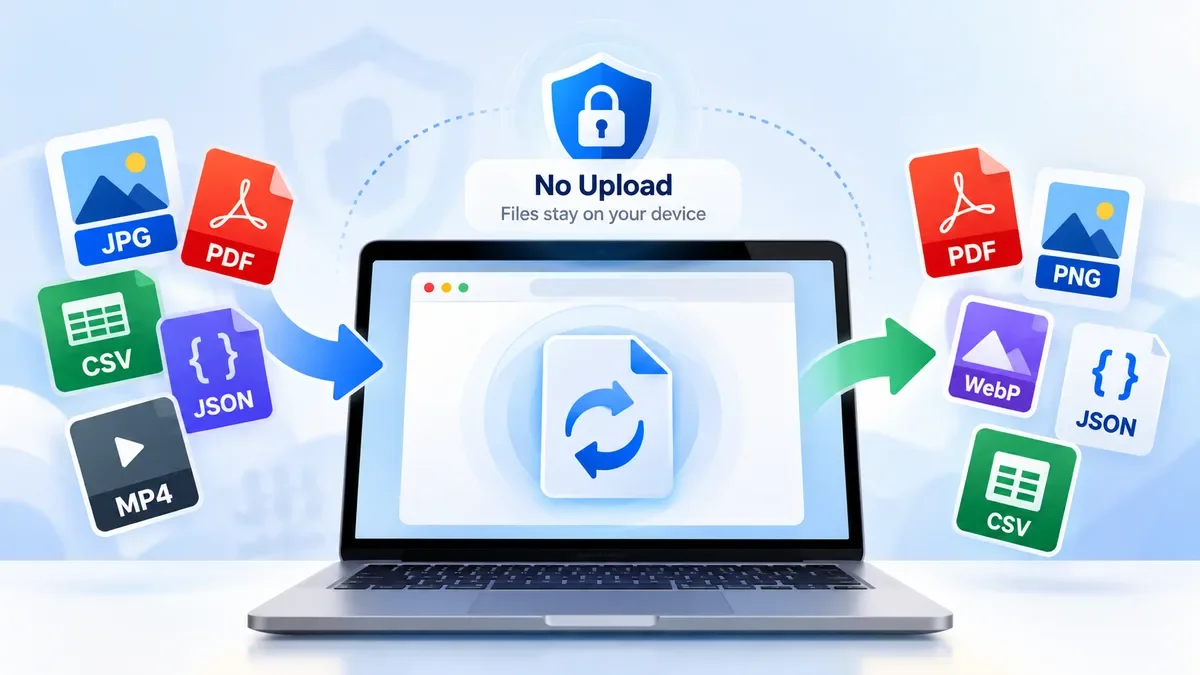
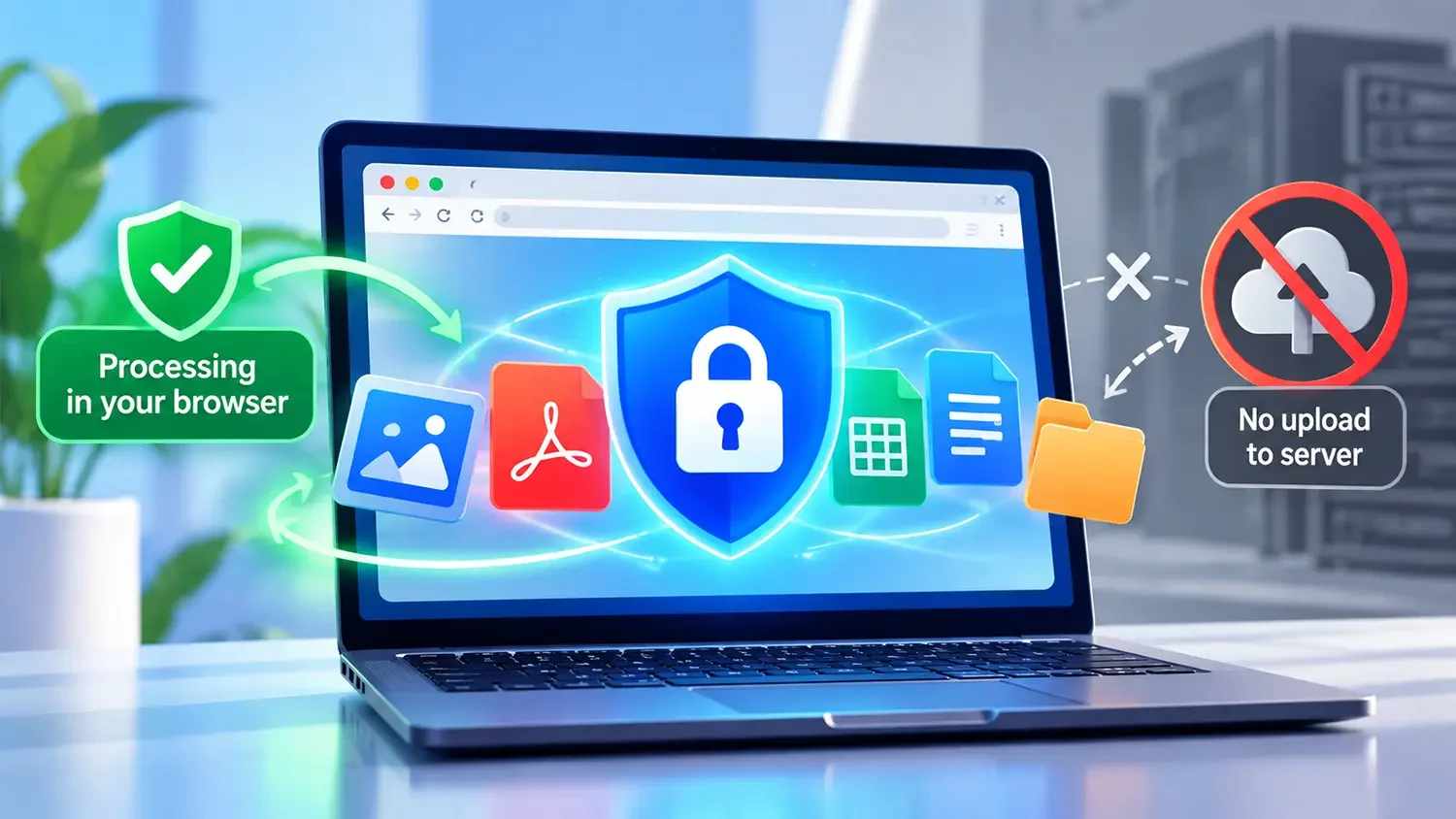
Modern web browsers can process files locally using technologies such as JavaScript and WebAssembly. Instead of sending a photo, PDF, JSON document or other file to a remote server, a browser-based tool can perform the conversion directly on your computer or phone.
This approach can make file conversion faster and more private, especially when working with personal documents or information you would rather not upload.
ToolCMB is built around this browser-based approach. Its tools process files locally on your device rather than uploading them to a server.
What Does "Convert Files Without Uploading" Mean?
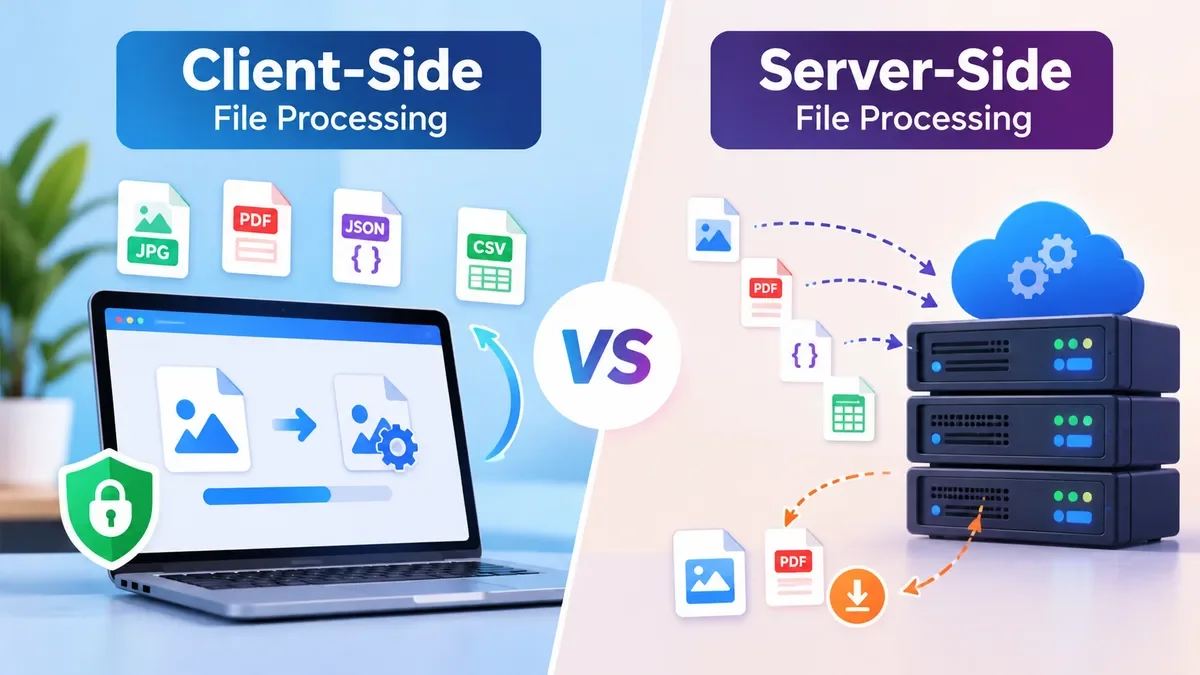
Traditional online converters often work like this:
Your device → Upload → Remote server → Convert → Download
The server receives your file, performs the conversion, and sends the result back.
A browser-based converter can instead work like this:
Your device → Browser processing → Converted file
The original file stays on your device during the process.
This can be useful when you are converting files that contain information you do not want to send to an online service.
For example, you might need to convert:
-
Personal photos
-
Scanned documents
-
Receipts
-
Resumes
-
Contracts
-
Work documents
-
API responses
-
Configuration files
-
CSV or JSON data
-
Screenshots
The important distinction is not simply whether a tool is called an "online converter." The important question is where the processing happens.
Why Convert Files Locally in Your Browser?
There are several practical reasons to prefer local processing when the tool supports it.
1. Your files stay on your device
The biggest benefit is privacy.
If a conversion happens locally, the file does not need to be transmitted to a conversion server. This can be particularly useful for private photographs, business documents and other files containing personal information.
ToolCMB's file tools are designed around this model: files are processed locally in the browser and are not uploaded to the server.
2. No upload waiting time
Uploading a large file can take longer than the actual conversion.
With local processing, there is no need to wait for the file to travel to a remote server before processing begins.
For many smaller files, the result can feel almost immediate because the browser can begin processing the file as soon as it is selected.
3. No account is required for basic conversion
Browser-based utilities can also simplify the workflow.
Instead of creating an account, uploading a file and managing a temporary download link, you can process the file directly and save the result.
ToolCMB's tools are designed to work without sign-up or watermarks.
4. Useful for sensitive work
Privacy becomes more important when the file contains information such as:
Local processing does not automatically make every browser tool secure, so it is still worth checking how a particular tool works. But when the application genuinely performs the conversion locally, avoiding an upload removes one unnecessary step in the data path.
How Browser-Based File Conversion Works
Modern browsers are capable of doing much more than displaying web pages.
JavaScript can read files selected by the user, manipulate data, create new files and generate downloadable results.
WebAssembly can also run compiled processing code efficiently inside the browser.
A simplified workflow looks like this:
-
You select a file.
-
The browser reads the file locally.
-
JavaScript or WebAssembly processes the data.
-
The converted result is generated in your browser.
-
You download the new file.
The original file does not have to be sent to a server.
This is the same basic idea behind many ToolCMB utilities. For example, the site's JSON Formatter processes JSON in a Web Worker, while its image and PDF tools use browser-based processing.
What Types of Files Can Be Converted Without Uploading?
Local browser processing works particularly well for many common file and document tasks.
Images
Image conversion is one of the most practical examples.
Depending on the tool, you can convert or process formats such as:
-
JPG
-
PNG
-
WebP
-
HEIC
-
GIF
-
BMP
-
AVIF
-
SVG
-
ICO
For example, ToolCMB's Image Resizer supports several common image formats and can resize files locally, including batch processing and ZIP downloads.
If you have photos from a phone, screenshots or images prepared for a website, local processing can be much more convenient than uploading every file to an external service.
Images to PDF
Another common task is combining photos or scans into a PDF.
ToolCMB's JPG to PDF tool can combine multiple images, reorder them, rotate pages, select paper sizes and choose how many images appear on each page. The PDF is generated directly on the device.
This is useful for:
PDF Processing
PDF files often contain information that users may not want to upload.
Browser-based PDF utilities can handle tasks such as compression, splitting and merging.
For example, ToolCMB's PDF Compressor can reduce PDF file size locally, including options for target sizes such as 1 MB, 2 MB or 5 MB.
The PDF Merger can also combine PDFs and images, reorder pages and rotate individual pages directly in the browser.
JSON and Developer Files
File privacy is not only important for photographs and PDFs.
Developers frequently work with API responses, configuration files and other data that may contain internal information.
ToolCMB's JSON Formatter can format, validate, repair and convert JSON locally. It can also convert JSON to formats such as YAML, CSV, XML and TypeScript.
This makes local processing particularly useful when the JSON contains:
-
API responses
-
Internal configuration
-
Customer data
-
Development logs
-
Application settings
Base64 and Other Encoded Data
Base64 is another example where local processing can be useful.
ToolCMB's Base64 Encoder can encode and decode text, images and files directly in the browser. It supports common file types and processes the data locally in a Web Worker.
This can be useful when working with:
How to Convert a File Without Uploading It
The exact interface depends on the type of file, but the general process is straightforward.
Start with the format you have and the format you need.
For example:
JPG → PDF
Use a JPG to PDF converter.
PDF → smaller PDF
Use a PDF Compressor.
JSON → YAML
Use a JSON Formatter with conversion support.
Image → different dimensions
Use an Image Resizer.
Choosing a tool designed specifically for the task usually gives you more control than using a generic converter.
Step 2: Select or drag your file
Choose the file from your device or drag it into the browser window.
If the tool supports clipboard input, you may also be able to paste an image or other supported content directly.
For example, ToolCMB's JPG to PDF tool supports drag and drop as well as clipboard pasting.
Some conversions need no settings.
Others give you options.
For example, when converting images to PDF, you may want to choose:
For JSON, you might instead choose indentation, key ordering or the desired output format.
Step 4: Process the file
Start the conversion.
If the tool uses local processing, the browser performs the work on your device rather than uploading the file to a remote server.
Step 5: Download the result
Once processing finishes, download the converted file.
Your original file remains on your device, and the new file can be saved wherever you normally keep your documents.
The phrase "private" alone should not be enough to convince you.
If privacy matters, look for a clear explanation of where processing happens.
You can also inspect network activity in your browser.
In Chrome or another Chromium-based browser:
-
Open the tool.
-
Press F12.
-
Open the Network tab.
-
Select a file and run the conversion.
-
Look for network requests involving the file.
A genuinely client-side tool should not need to send the actual file to a processing server.
ToolCMB explains this approach in more detail in its guide to browser-based privacy and recommends checking network activity yourself.
When Local Conversion Is a Good Choice
Browser-based conversion is particularly attractive when:
You are working with personal photos
Photos may contain private information, family members, locations or other metadata.
If the conversion can happen locally, there is no reason to send the image to a third-party processing server.
You are handling documents for work
Business documents can contain customer information, internal processes or confidential material.
Keeping the processing local can reduce unnecessary data transfers.
You are working with developer data
API responses and configuration files may contain tokens, identifiers or internal information.
A local JSON formatter or encoder can be a safer choice than pasting sensitive information into an unknown online service.
You need a quick one-off conversion
If you only need to convert a few files, a browser-based utility can be faster than installing desktop software.
When You Should Be Careful
Local processing is useful, but it is not the right solution for every situation.
Very large files can require significant memory and processing power. On a phone or older computer, a complex conversion may take longer than expected.
Browser compatibility can also matter. Some advanced formats require specific browser capabilities or codecs.
And if a tool needs server-side processing for a particular conversion, it may not be possible to perform the entire operation locally.
The important thing is to understand how the specific tool works instead of assuming that every "online converter" provides the same privacy model.
If you want to process files without uploading them, ToolCMB provides several relevant utilities.
Use image utilities for tasks such as:
The Image Resizer, for example, supports batch processing and formats including JPG, PNG, WebP, HEIC, AVIF and others.
PDF utilities can help with:
These tools are especially useful when working with documents that contain personal or business information.
For developers, ToolCMB includes browser-based utilities for:
The JSON Formatter also provides features such as JSONPath filtering and tree/table views while keeping processing on the device.
Does "No Upload" Mean the File Is Completely Private?
It means the file does not need to be uploaded to the tool's processing server, which is an important privacy advantage.
However, privacy is broader than file processing alone.
Your browser still connects to the website to load the application, and normal web activity can involve other requests such as analytics, fonts, advertising or other resources.
For sensitive files, the most useful question is therefore:
Is the actual file data transmitted anywhere for processing?
A tool that processes the file entirely in the browser can avoid that specific data transfer.
For ToolCMB's file-processing tools, the stated design is that files remain on the user's device and are not uploaded for processing.
Frequently Asked Questions
Can I convert files online without uploading them?
Yes. Some modern web tools use JavaScript and WebAssembly to process files directly in your browser. The file can remain on your device while the converted result is generated locally.
Is browser-based file conversion safe?
It can be a good privacy option when the tool genuinely processes the file locally. Check the site's privacy information and, when necessary, inspect network requests to verify that the file is not being uploaded.
Can I convert JPG to PDF without uploading my photos?
Yes. A browser-based JPG to PDF converter can create the PDF locally. ToolCMB's JPG to PDF tool supports multiple images, reordering, page layouts and PDF creation directly on the device.
Can I compress a PDF without uploading it?
Yes, when the PDF compressor supports client-side processing. ToolCMB's PDF Compressor processes PDFs in the browser and does not require uploading them to a server.
Yes. ToolCMB's JSON Formatter processes JSON locally and can format, validate, repair and convert JSON without uploading the data.
Does local processing work on phones?
Many browser-based tools can work on modern phones and tablets. The experience depends on the browser, available memory and the size and complexity of the files being processed.
What happens to my original file?
When a conversion is performed locally, your original file remains on your device. The browser reads it and creates the converted result without needing to upload the original file to a remote processing server.
Final Thoughts
You do not always need to upload a file just because you want to convert it online.
For many everyday tasks, modern browser technology makes it possible to process images, PDFs, JSON and other files directly on your device.
That can mean a simpler workflow, less waiting for uploads and, importantly, fewer unnecessary transfers of private files.
If privacy matters to you, look for tools that clearly explain where processing happens rather than assuming that every online converter works the same way.
ToolCMB takes a browser-first approach to file processing, with tools designed to keep your files on your device while you convert, compress, resize, format and manage them.