How to Remove Hidden Metadata from a Video Before Sharing
Learn how to remove metadata from a video before sharing it. Check what information may be embedded, clean a copy safely, and verify the exported file before sending it.
Photos can contain hidden details such as when and where they were taken. Learn how to remove EXIF data before posting and keep a clean copy for sharing.
 ToolCMB Team
6 min read
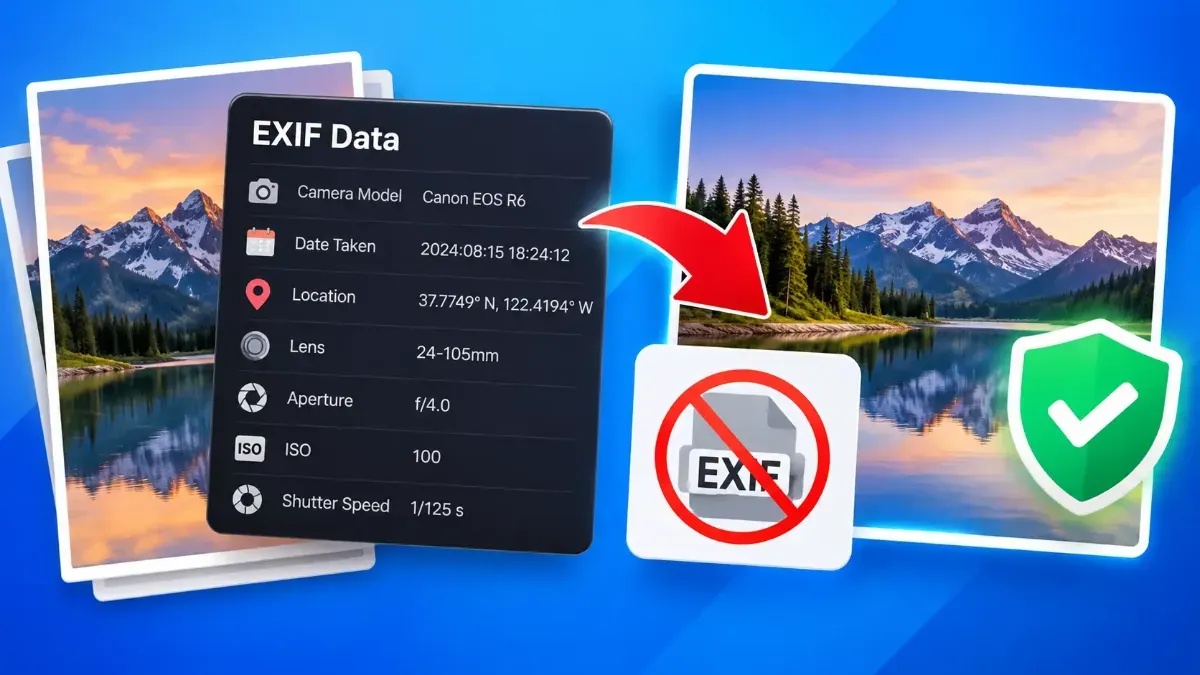
To remove EXIF data from photos before posting, make a copy of each image, use a metadata-cleaning tool or an export option that strips metadata, then check the copy before sharing. EXIF can contain details such as the camera or phone model, capture date, and sometimes GPS location. Removing it helps limit hidden information attached to the file, but it does not blur or conceal anything visible in the photo.
EXIF is a type of metadata stored alongside image content. A photo may include the date and time it was captured, camera or phone model, exposure settings, and other technical details. If location services were enabled when the photo was taken, it may also contain GPS coordinates or location-related information.
These details are not usually visible when someone simply looks at the picture. However, they can be available in the image file and may be viewed using photo software or other metadata readers. The exact information present depends on the device, camera app, settings, and how the image has been edited or exported.
Location information deserves particular attention when a photo shows your home, a child’s school, a regular commute, or a private event. Even without GPS, details such as a distinctive street sign, house number, workplace badge, or reflection can reveal information from the image itself. Metadata cleaning and a visual privacy check solve different problems.
For a safer workflow, keep your original photo untouched and create a separate version for sharing. That way, you can retain the original metadata for personal records while posting a cleaner copy.
If you are cleaning several images, check a few representative files after processing and confirm that the same settings were applied throughout. Different formats and editing workflows can retain different kinds of metadata, so a result from one file does not automatically prove that every file is clean.
There is no single setting that works identically across every phone, computer, and photo app. Look for options named “location,” “metadata,” “EXIF,” or “remove personal information” in the app’s sharing or export controls. Some systems let you turn off location sharing for a particular upload; others may offer a way to remove location details from a copy.
If a built-in option is unclear, a dedicated metadata cleaner gives you a focused step before you upload. ToolCMB’s browser-based tools are intended to process files on your device, rather than sending them to a server. Still, check the tool’s current instructions and verify the output file before sharing, especially when handling sensitive images.
Taking a screenshot of a photo may create a new image without the original EXIF fields, but it is not a dependable replacement for checking metadata. It can reduce image quality, crop details, or change the appearance, and the new file may still contain its own metadata. Use a clear export or cleaning process instead.
| It can help with | It does not do |
|---|---|
| Removing embedded details such as GPS coordinates or capture information, when those fields are present and supported by the cleaning process. | Hiding people, addresses, screens, documents, or other details visible in the image. |
| Reducing the amount of information attached to a share-ready image file. | Guaranteeing that every website or app will handle metadata the same way after upload. |
| Creating a cleaner copy for public sharing while leaving your original file intact. | Removing copies already posted, downloaded, or saved by someone else. |
Social networks and messaging services may process uploaded images, and their behavior can change. Some may remove or alter metadata in certain situations; others may preserve some information or treat different upload methods differently. Do not use a platform’s processing as your only privacy measure. Clean the file before uploading if you want to control what you share.
For regular posting, make metadata checks part of your normal upload routine: select the intended photo, create a clean copy, check the file and visible scene, then upload that copy. This small extra step is especially useful for photos taken at home, while traveling, or around children and other people who have not agreed to share identifying details.
Remember that privacy is not all-or-nothing. Removing EXIF data can reduce hidden information in a photo, but it cannot control what viewers infer from the image or what happens after you publish it. Pair metadata cleaning with careful framing, audience settings, and thoughtful timing.
No. The metadata depends on the camera, app, file format, and editing or export history. Some images contain little or no EXIF information.
Removing metadata alone does not need to change the visible image. However, some export workflows may also resize or recompress the photo, so check the output if quality matters.
Platform behavior can vary by service, file, and upload method. Clean the image yourself rather than assuming a platform will remove all metadata.
Often, yes. Check your photo app’s sharing or export options, or use a browser-based metadata cleaner from your phone and verify the saved copy before posting.
Usually, keep the original in a secure place if you may need its metadata or full-quality version. Share the cleaned copy instead.
We build fast, free and private browser tools — and write practical guides on how to use them.
Learn how to remove metadata from a video before sharing it. Check what information may be embedded, clean a copy safely, and verify the exported file before sending it.
Convert images, PDFs, JSON data and other files directly in your browser without uploading them to a remote server. Learn how browser-based file conversion works, when it is useful, and how to convert files more privately with ToolCMB.
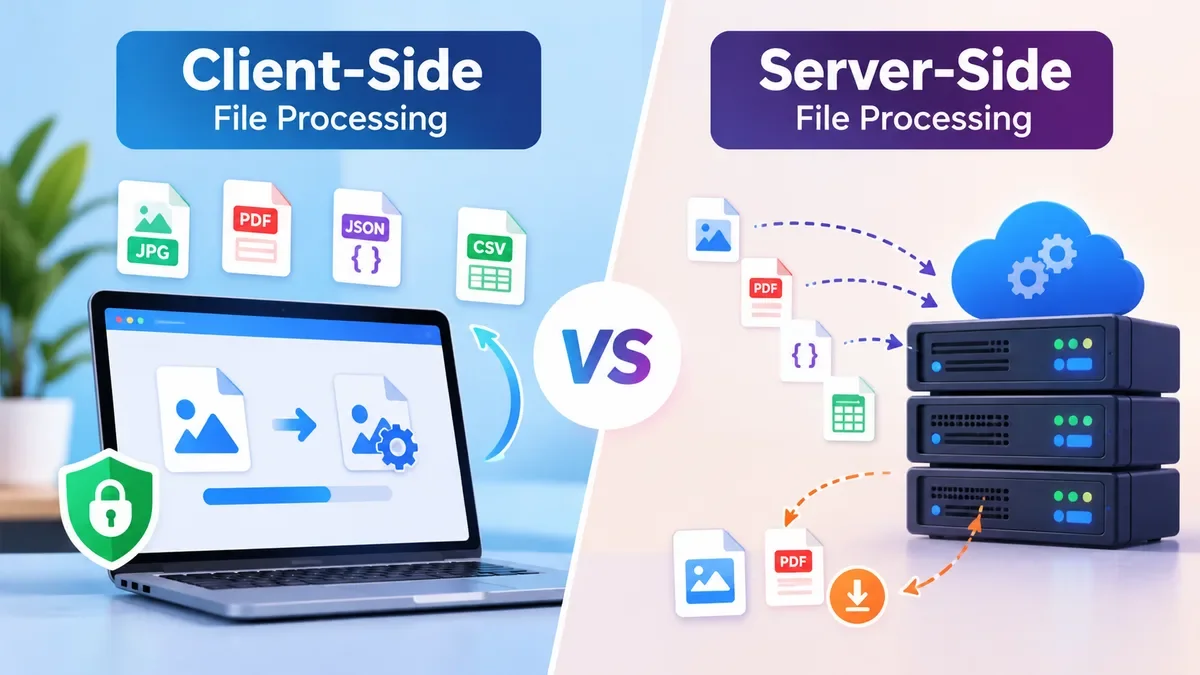
Client-side and server-side file processing take very different approaches to handling files online. Learn how browser-based and server-based processing work, including their advantages, limitations, privacy implications, performance considerations, and when each approach makes sense for image, PDF, JSON, CSV, and other file tools.
Start typing to search tools and articles.