JSON is everywhere in modern web development. You may encounter it when working with an API response, application configuration, exported data, logs, or a file downloaded from another service.
The problem is that JSON is not always easy to read.
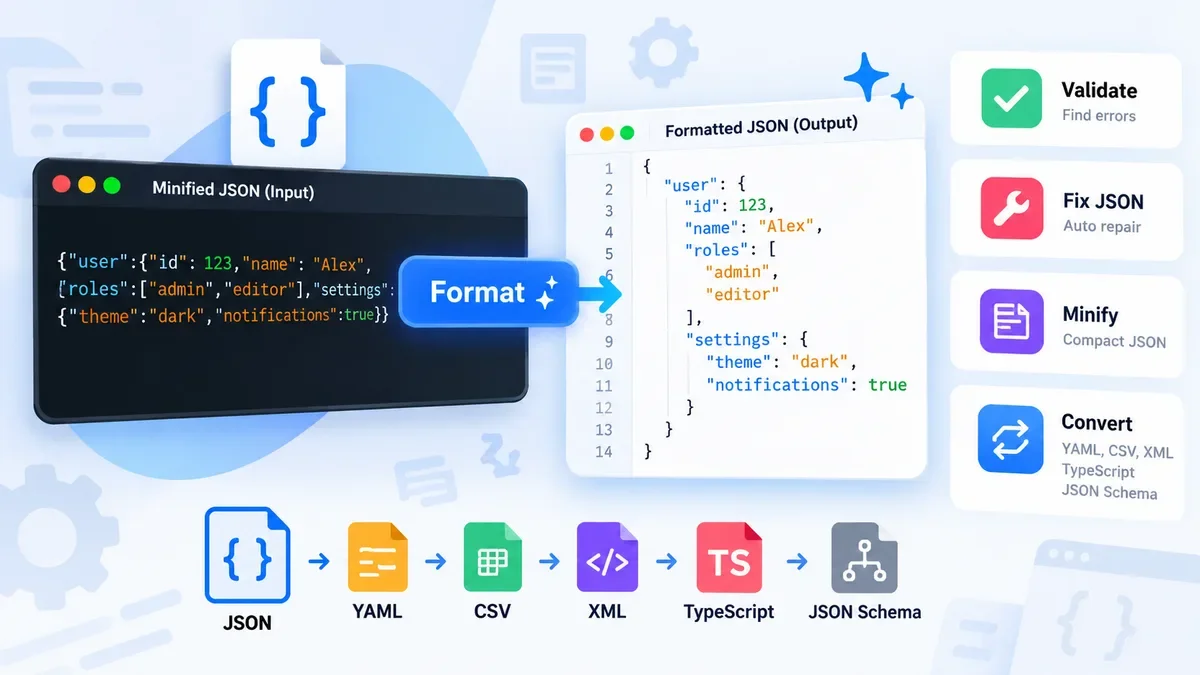
A response that is perfectly valid JSON might appear as one very long line:
{"user":{"id":123,"name":"Alex","roles":["admin","editor"],"settings":{"theme":"dark","notifications":true}}}
The data is valid, but the structure is difficult to scan.
Formatting, also called beautifying or pretty-printing JSON, adds indentation and line breaks without changing the underlying data. It makes objects, arrays, properties, and values much easier to understand.
With a browser-based JSON formatter, you can also validate the syntax, identify errors, repair common problems, minify the result, and convert the data into other formats.
Formatting JSON means changing its visual layout so the structure is easier for humans to read.
For example, this compact JSON:
{"name":"Alex","age":30,"skills":["JavaScript","PHP","SQL"]}
can be formatted as:
{
  "name": "Alex",
  "age": 30,
  "skills": [
    "JavaScript",
    "PHP",
    "SQL"
  ]
}
The information is the same. Only the whitespace and line breaks have changed.
This is particularly useful when JSON contains nested objects or large arrays.
There are several practical reasons to format JSON.
1. Make API responses easier to inspect
Developers often receive JSON from REST APIs and other web services. A formatted response makes it much easier to find a particular property or understand the relationship between nested objects.
2. Debug configuration files
Configuration files can contain many nested settings. Formatting them makes missing brackets, incorrect values, and structural mistakes easier to spot.
3. Read exported data
Some applications export JSON as a compact string. Formatting turns that output into a structure that is much easier to inspect.
4. Understand large JSON objects
When JSON contains hundreds or thousands of properties, indentation and collapsible structures can make navigation considerably easier.
5. Prepare JSON for development
Readable JSON is useful during development and debugging, while minified JSON can be preferable when the same data is being delivered as part of an application or API response.
The easiest approach is to use a JSON formatter that combines formatting with validation.
With ToolCMB's JSON Formatter, you can paste JSON directly into the editor, open a .json file, or drag a file onto the page. The tool processes the JSON in your browser rather than uploading it to a server.
Step 1: Paste or open your JSON
Copy your JSON and paste it into the input area.
You can also open a JSON file or drag it into the formatter.
For example:
{"product":{"name":"Laptop","price":999,"available":true}}
Choose Format to beautify the JSON.
You can control the indentation, including 2 spaces, 3 spaces, 4 spaces, or tabs. The formatter also allows you to sort keys when needed.
A formatted result might look like:
{
  "product": {
    "name": "Laptop",
    "price": 999,
    "available": true
  }
}
Step 3: Check the result
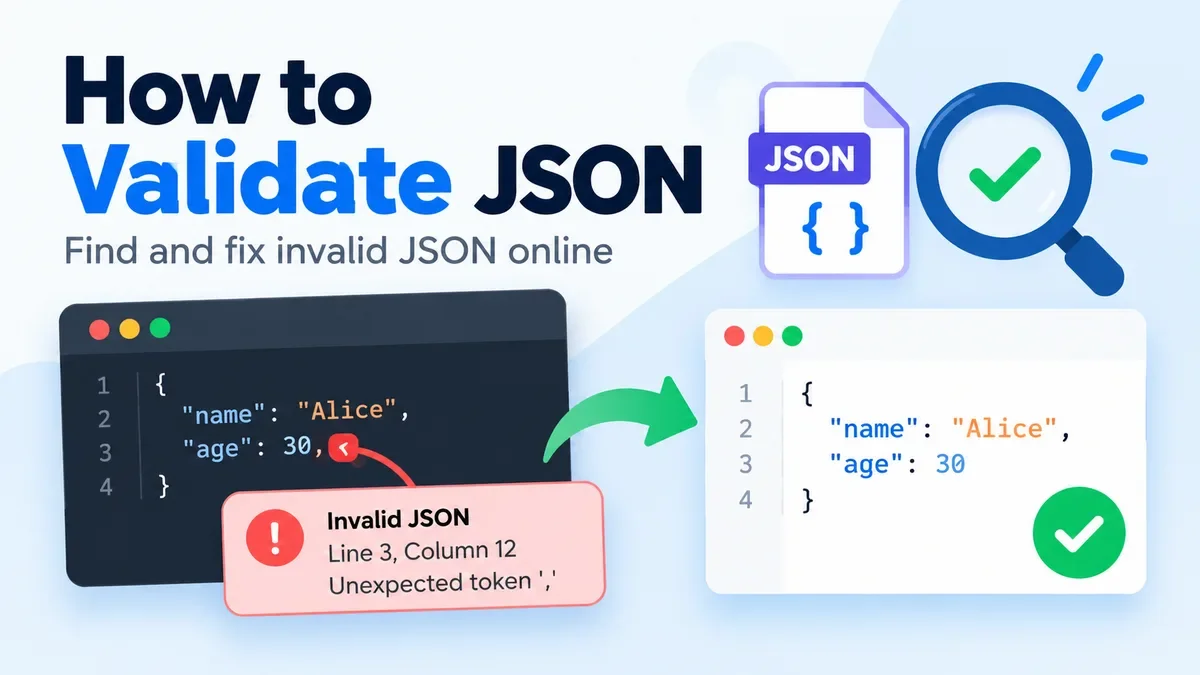
If the JSON is invalid, the validator can identify the problem and show the relevant line and column.
This is important because formatting and validation are related but different tasks: formatting improves readability, while validation checks whether the input follows JSON syntax.
Step 4: Copy or download the result
Once the JSON is formatted, you can copy it or download the result for use in your project.
How to fix invalid JSON
Formatting cannot make every invalid JSON document valid automatically. If the syntax is broken, the first step is to identify the error.
Here are some common problems.
Trailing commas
This is invalid JSON:
{
  "name": "Alex",
  "age": 30,
}
The comma after 30 needs to be removed:
{
  "name": "Alex",
  "age": 30
}
Single quotes
JSON strings and property names use double quotes.
Invalid:
{'name': 'Alex'}
Correct:
{"name": "Alex"}
Unquoted property names
Invalid:
{
  name: "Alex"
}
Correct:
{
  "name": "Alex"
}
Missing commas
Each property in an object generally needs to be separated from the next property with a comma.
Invalid:
{
  "name": "Alex"
  "age": 30
}
Correct:
{
  "name": "Alex",
  "age": 30
}
Invalid JavaScript or Python values
JSON has its own value syntax.
For example, this is not valid JSON:
{
  "active": True,
  "value": None
}
The JSON equivalents are:
{
  "active": true,
  "value": null
}
ToolCMB's JSON formatter can repair several common mistakes, including single quotes, trailing commas, comments, unquoted keys, Python-style values, JSONP wrappers, and some malformed or escaped JSON.
Always review automatically repaired data before using it in production.
Formatting and minification have opposite goals.
Formatting adds whitespace and indentation to make JSON easier for people to read.
Minification removes unnecessary whitespace to make the JSON more compact.
Formatted JSON:
{
  "name": "Alex",
  "age": 30,
  "active": true
}
Minified JSON:
{"name":"Alex","age":30,"active":true}
Use formatted JSON when you are debugging, reviewing, or editing data.
Use minified JSON when you want a compact representation for an API response, application data, or another production workflow where unnecessary whitespace is not useful.
How to explore large JSON files
Formatting is only the beginning when working with a large JSON document.
A good JSON viewer can make large structures easier to navigate.
ToolCMB provides Tree and Table views so you can explore nested data without reading the entire document as plain text. You can expand and collapse sections, search keys and values, and inspect JSON paths.
For arrays containing records, the table view can be particularly useful when you want to inspect multiple objects at once.
What is JSONPath?
JSONPath is a query syntax for selecting specific parts of a JSON document.
For example:
$.users[*].email
can be used to select the email property from users in an array.
Another example is:
$.items[?(@.price < 10)]
which can filter items based on their price.
JSONPath becomes especially useful when you have a large API response and only need a small part of the data.
ToolCMB includes a JSONPath filter directly in its JSON formatter, allowing you to query the formatted result without manually searching through the entire document.
JSON is often only one step in a data workflow.
Depending on what you are doing, you may need to convert JSON into another format.
ToolCMB's JSON tool supports conversion to formats including:
-
YAML
-
CSV
-
XML
-
TypeScript
-
JSON Schema
This can be useful when moving data between applications or preparing JSON-derived data for another development workflow.
For example, JSON can be converted to CSV when the data needs to be opened in spreadsheet software.
If you are working with spreadsheets in countries where Excel expects semicolons as separators, the tool also provides a semicolon CSV option.
It depends on how the online tool processes your data.
JSON can contain sensitive information such as API responses, customer records, internal configuration, or other private data. Uploading such information to an external server may not be appropriate for every workflow.
ToolCMB takes a browser-based approach. Its JSON formatting, validation, repair, and conversion are performed locally in the browser, using a Web Worker. The site states that the JSON is not uploaded, logged, or stored on its server.
This makes local processing useful when privacy is an important consideration.
For sensitive data, however, you should still review the security requirements of your organization and avoid pasting secrets such as passwords or private API credentials into any third-party website.
Browser-based processing has another practical advantage: the data does not need to travel to a remote processing server.
The workflow is:
JSON input
     ↓
Your browser
     ↓
Format / Validate / Fix / Convert
     ↓
Result
ToolCMB also uses a Web Worker for JSON processing, helping keep the main page responsive while working with larger documents.
If you frequently work with JSON, keyboard shortcuts can speed up the workflow.
In ToolCMB's JSON Formatter:
-
Ctrl + Enter — Format
-
Ctrl + Shift + Enter — Minify
-
Ctrl + F — Find and replace
-
Ctrl + Shift + [ — Fold or unfold a block
-
Ctrl + S — Download the result
On macOS, use the corresponding Command key where applicable.
Formatting is useful whenever JSON is primarily being read or edited by a person.
Typical situations include:
-
Debugging an API response
-
Inspecting application configuration
-
Reviewing JSON in a code review
-
Finding a property in a large response
-
Checking why JSON is invalid
-
Exploring nested objects and arrays
-
Preparing JSON for documentation
-
Converting JSON into another data format
For production delivery, minification may be more appropriate when the goal is to reduce unnecessary whitespace.
A JSON formatter should improve readability without changing the meaning of valid JSON.
For example, these two representations contain the same information:
{"name":"Alex","active":true}
and:
{
  "name": "Alex",
  "active": true
}
The second version is easier for humans to read, while the first is more compact.
The important distinction is that formatting changes presentation, not the intended data structure.
Frequently asked questions
JSON formatting is the process of adding indentation, line breaks, and consistent spacing to JSON so that people can read and understand its structure more easily.
The underlying data can be the same. Formatted JSON contains whitespace and line breaks for readability, while minified JSON removes unnecessary whitespace for a smaller representation.
How can I tell if JSON is valid?
Use a JSON validator. It checks the syntax and can identify where the problem occurs. ToolCMB's JSON Formatter can show the error's line and column and explain common syntax problems.
Can I fix broken JSON automatically?
Some common errors can be repaired automatically, including trailing commas, single quotes, unquoted keys, comments, and several other common formatting problems. You should review the repaired result before relying on it.
Yes. ToolCMB allows you to open or drag a .json file into the formatter.
The practical limit depends on the browser and device. ToolCMB states that files around 50–100 MB can work in modern desktop browsers, while smaller files are more comfortable on phones.
Can I convert JSON to CSV?
Yes. ToolCMB can convert JSON to CSV and provides delimiter options including comma, semicolon, and tab.
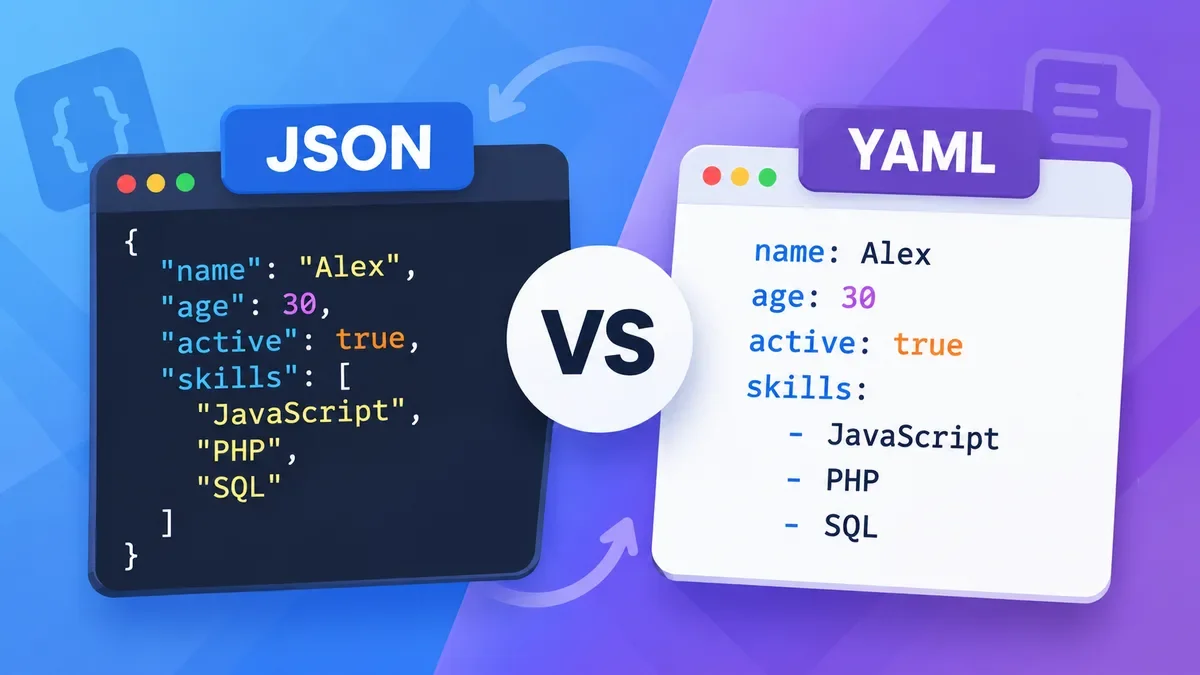
Can JSON be converted to YAML?
Yes. JSON can be converted to YAML using the JSON Formatter's output format options.
A formatter primarily improves readability. A validator checks whether the JSON follows the required syntax. In practice, having both features together is useful because invalid JSON may need to be fixed before it can be formatted correctly.
Final thoughts
Formatting JSON is a small task, but it becomes much more useful when combined with validation, repair, search, filtering, and conversion.
For a quick workflow, paste or open your JSON, format it, check for errors, and then copy or download the result. If the document is large, use the tree or table view and JSONPath filtering to locate the data you need.
If privacy matters, browser-based processing can also reduce the need to upload JSON to a remote server.
For developers who regularly work with API responses, configuration files, logs, and exported data, having formatting, validation, minification, and conversion available in one browser-based tool can save time.