How to Validate JSON
JSON is widely used for API responses, configuration files, application data, and communication between web services. It is designed to be easy for computers to read, but a small syntax mistake can make an entire JSON document invalid.
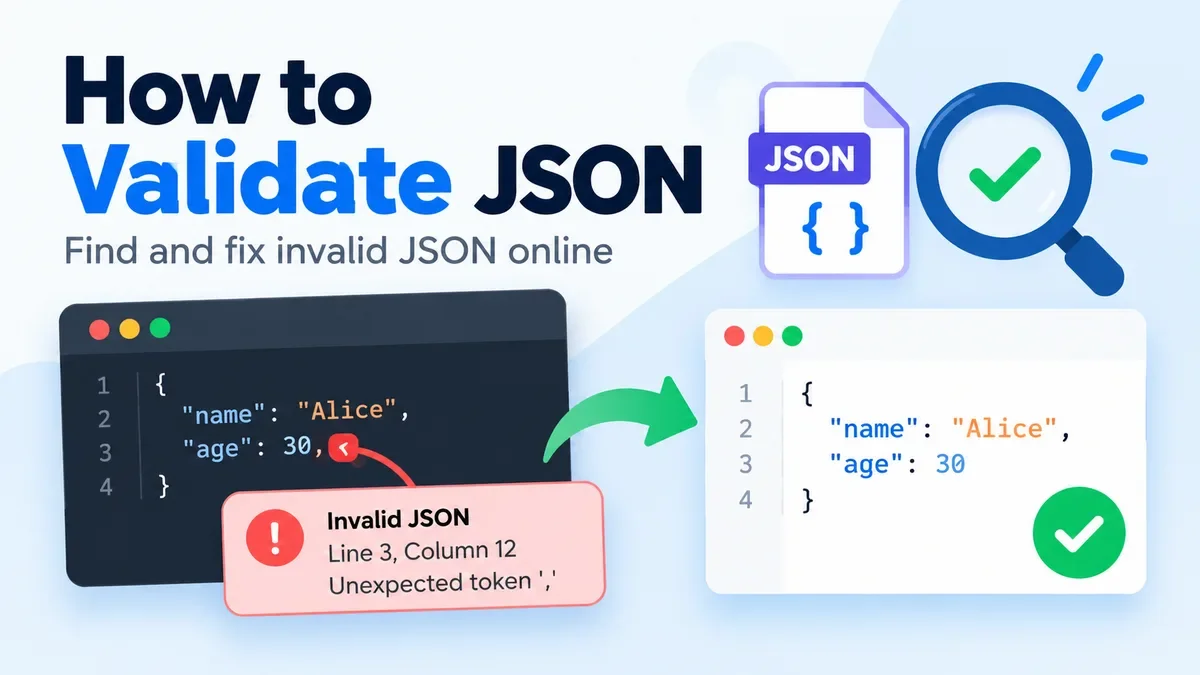
For example, this JSON looks almost correct:
{
  "name": "Alice",
  "age": 30,
}
The problem is the comma after 30. A trailing comma is allowed in some programming languages, but it is not valid JSON.
When you need to check whether JSON is valid, a JSON validator can find these syntax problems much faster than checking a large document manually.
You can use the ToolCMB JSON Formatter & Validator to validate, format, repair, and inspect JSON directly in your browser.
What does JSON validation mean?
JSON validation means checking whether a JSON document follows the syntax rules required by the JSON format.
A valid JSON document must use the correct structure for:
-
Objects
-
Arrays
-
Strings
-
Numbers
-
Boolean values
-
null
-
Property names
-
Commas
-
Brackets and braces
Validation is primarily a syntax check. It answers the question:
"Can this text be correctly parsed as JSON?"
It does not necessarily tell you whether the data itself makes sense for your application.
For example:
{
  "age": -500
}
This can be syntactically valid JSON even though an application may consider -500 an invalid age.
That distinction is important: JSON syntax validation is different from validating the meaning or business rules of the data.
How to validate JSON online
The easiest way to check a JSON document is to paste it into a JSON validator.
With ToolCMB, the basic process is:
-
Open the JSON Formatter & Validator.
-
Paste your JSON into the input area.
-
Press Format or use the validation controls.
-
If the JSON is invalid, check the reported line and column.
-
Correct the syntax error.
-
Validate the JSON again.
-
Format, copy, download, or convert the corrected JSON if needed.
The tool can also open a .json file or accept JSON through drag and drop. Validation and formatting run locally in your browser rather than sending the JSON to a remote server.
How to know if JSON is valid
A valid JSON document can be parsed successfully without a syntax error.
For example:
{
  "name": "Alice",
  "email": "alice@example.com",
  "active": true
}
This is valid JSON because:
-
Property names use double quotes.
-
String values use double quotes.
-
Values are separated with commas.
-
The object is enclosed in {}.
-
true is a valid JSON boolean.
An invalid version might look like this:
{
  "name": "Alice",
  "email": "alice@example.com",
  "active": true,
}
The final comma makes the document invalid.
A validator can identify the location of the problem instead of requiring you to inspect the entire document manually.
Common JSON validation errors
Many invalid JSON documents contain one of a small number of recurring mistakes.
1. Trailing commas
A trailing comma appears after the final property in an object or the final item in an array.
Invalid:
{
  "name": "Alice",
  "age": 30,
}
Valid:
{
  "name": "Alice",
  "age": 30
}
This is especially common when JSON is written by hand or copied from JavaScript objects.
2. Using single quotes
JSON strings and property names require double quotes.
Invalid:
{'name': 'Alice'}
Valid:
{"name": "Alice"}
Single quotes may be accepted by some programming languages, but they are not valid JSON string delimiters.
3. Unquoted property names
Object keys must be enclosed in double quotes.
Invalid:
{
  name: "Alice"
}
Valid:
{
  "name": "Alice"
}
4. Missing commas
Each property in an object must be separated from the next property by a comma.
Invalid:
{
  "name": "Alice"
  "age": 30
}
Valid:
{
  "name": "Alice",
  "age": 30
}
5. Missing or mismatched brackets
JSON objects use {} and arrays use [].
For example:
{
  "users": [
    {
      "name": "Alice"
    }
  ]
}
If one of the closing brackets is missing, the parser cannot determine where the structure ends.
Standard JSON does not support JavaScript-style comments.
Invalid:
{
  "name": "Alice",
  // User name
  "age": 30
}
Valid JSON would remove the comment:
{
  "name": "Alice",
  "age": 30
}
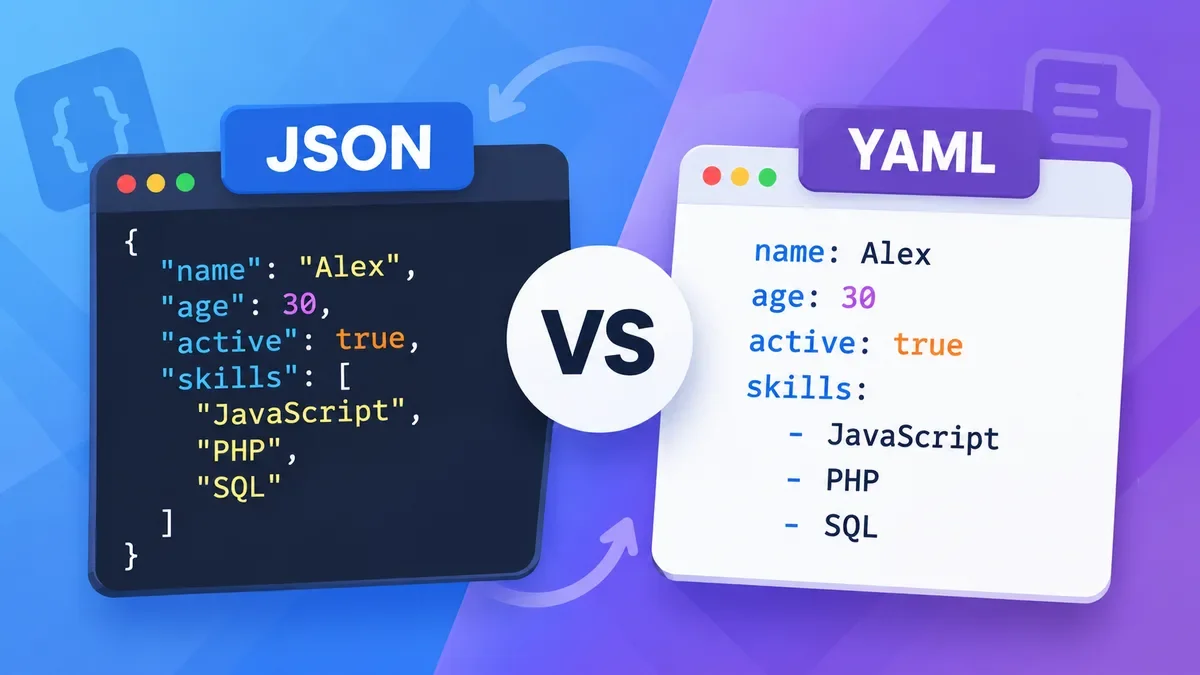
If you need comments in a configuration format, YAML may be more appropriate depending on the application.
7. JavaScript or Python values that are not JSON
Some values commonly seen in programming languages are not valid JSON.
For example:
{
  "active": True,
  "value": None
}
JSON uses lowercase:
{
  "active": true,
  "value": null
}
Similarly, values such as NaN and undefined are not standard JSON values.
How to find the exact JSON error
For a small JSON object, finding an error manually can be easy. For a large API response containing thousands of lines, it becomes much harder.
A useful validator should tell you more than simply:
"Invalid JSON."
ToolCMB reports the line and column where the parser detects the problem and highlights the relevant area. This makes it easier to locate the syntax that needs attention.
For example, if an API response contains hundreds of nested objects, knowing that the error occurs around a specific line and column can reduce debugging time significantly.
Fix JSON after validation
Finding an error is only part of the process. You may also want to repair common mistakes.
ToolCMB includes a Fix JSON feature that can repair several common problems, including:
-
Single quotes
-
Missing commas
-
Trailing commas
-
Unquoted keys
-
JavaScript-style comments
-
Python-style True, False, and None
-
NaN
-
JSONP wrappers
-
Some escaped or stringified JSON
-
Truncated JSON
After an automatic repair, you should still review the result before using it in an application. Automatic repair is useful for recovering malformed data, but it should not replace checking whether the corrected structure matches your application's expectations.
Validation is particularly useful when working with API responses or data copied from another application.
A practical workflow is:
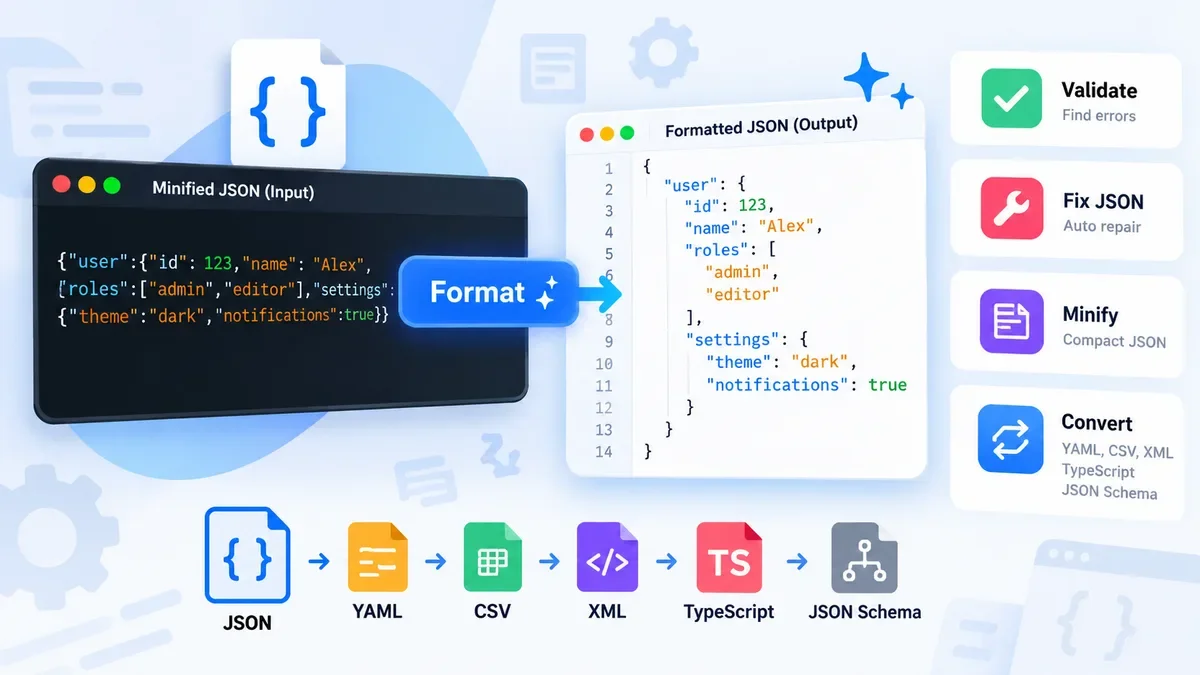
Validate → Fix → Format → Inspect → Convert
Formatting makes the structure easier for humans to read.
Minifying does the opposite: it removes unnecessary whitespace and produces a compact representation that can be useful when JSON is being transferred or stored.
Once the JSON is valid, ToolCMB can also display it as a tree or table and lets you search keys and values.
Validate large JSON files
Large JSON files can be difficult to inspect in a traditional text editor.
A browser-based JSON tool can make the structure easier to navigate by providing:
-
Formatted output
-
Tree view
-
Table view
-
Search
-
JSONPath filtering
-
Error locations
-
File input
-
Downloadable output
ToolCMB is designed to process JSON in a Web Worker, helping keep the interface responsive while working with larger documents. The site states that documents around 50 MB can work in modern desktop browsers, although practical limits depend on the browser and device.
JSON validation and privacy
JSON frequently contains information that should not be casually uploaded to third-party services.
API responses may contain:
For this reason, browser-based processing can be useful when working with sensitive development data.
ToolCMB processes JSON locally in the browser using a Web Worker. According to the tool's documentation, the JSON is not uploaded, logged, or stored on its server.
You can also verify the network behavior yourself by opening your browser's Developer Tools and checking the Network panel while processing a document.
What happens after JSON is valid?
Validation is often only the first step.
Once your JSON is valid, you may want to:
Beautify the document with indentation and line breaks so it is easier to read.
Minify JSON
Remove unnecessary whitespace to create a smaller JSON representation.
Explore JSON as a tree
A tree view is useful for navigating deeply nested objects and arrays.
Search JSON
Search keys and values without manually scanning the entire document.
Filter JSON with JSONPath
JSONPath allows you to select specific parts of a JSON document.
For example:
$.users[*].email
can select the email value from each object in a users array.
Other useful expressions include:
$.items[0]
to select the first item, or:
$..email
to find email properties at different levels of the document.
ToolCMB includes JSONPath filtering directly in its JSON tool.
After validating JSON, you may need to use the data somewhere else.
ToolCMB supports conversion from JSON to several formats, including:
-
YAML
-
CSV
-
XML
-
TypeScript
-
JSON Schema
-
Escaped JSON strings
For example, JSON data that needs to be opened in Excel can be converted to CSV.
For users in countries such as Germany, France, and Spain, the tool also provides a semicolon CSV delimiter option because spreadsheet applications in those markets commonly use semicolons to separate columns.
JSON validation vs. JSON Schema validation
These two concepts are related but different.
JSON syntax validation checks whether the document follows JSON syntax.
JSON Schema validation can check whether the data follows a defined structure and set of rules.
For example, a JSON document may be syntactically valid:
{
  "name": "Alice",
  "age": "thirty"
}
But an application's schema might require age to be a number.
So:
Valid JSON does not automatically mean valid application data.
If your API requires a particular structure, data type, or required field, JSON Schema or application-level validation may also be necessary.
When should you validate JSON?
JSON validation is useful whenever JSON comes from a source that might contain syntax errors.
Common situations include:
-
Debugging API responses
-
Checking configuration files
-
Preparing data for an application
-
Reviewing JSON copied from logs
-
Cleaning exported data
-
Testing API payloads
-
Converting JSON into another format
-
Troubleshooting parsing errors
-
Working with JSON Lines or NDJSON
If a program reports an error such as "Unexpected token" or "Unexpected end of JSON input," checking the document with a validator is often a good first debugging step.
A simple JSON validation workflow
For everyday development work, you can use this process:
1. Paste or open the JSON
Start with the data you need to check.
2. Validate it
Look for syntax errors and the reported line and column.
3. Fix the problem
Correct the syntax manually or use an automatic repair feature for common errors.
4. Format the JSON
Beautify the document so its structure is easier to inspect.
5. Inspect the data
Use tree, table, search, or JSONPath when working with larger documents.
6. Convert or download
Once the data is correct, export it in the format required by your workflow.
Final thoughts
JSON errors are often small but can prevent an entire API response, configuration file, or data payload from being parsed.
A good JSON validator should therefore do more than display a generic error. It should help you locate the problem, understand what went wrong, and continue working with the corrected data.
ToolCMB combines JSON validation with formatting, minification, repair, tree and table views, JSONPath filtering, search, and conversion tools. Because processing happens in the browser, it is also designed around a privacy-first workflow for developers working with data they may not want to upload to a third-party server.
If you regularly work with APIs, configuration files, logs, or exported JSON, keeping a validator and formatter available can make debugging much faster.