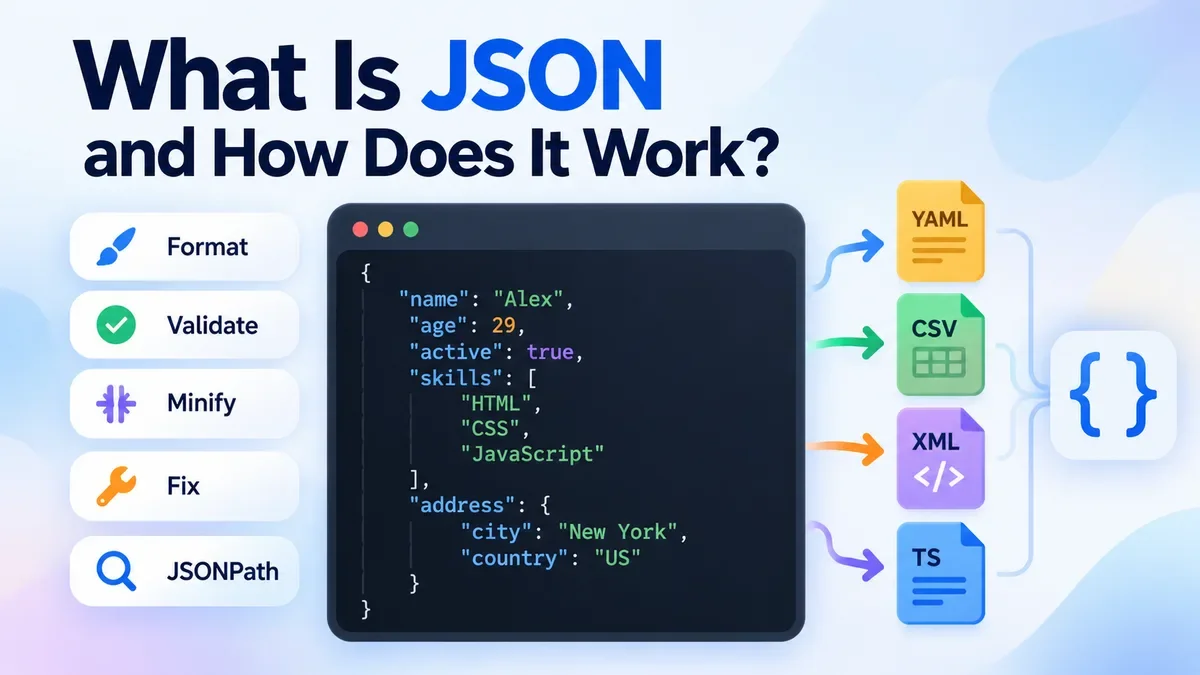
JSON, short for JavaScript Object Notation, is a lightweight text format used to represent and exchange structured data.
You will encounter JSON in many parts of modern software development. Web APIs use it to send data between servers and applications, configuration files use it to describe settings, and developers often use it when working with logs, databases, web applications, and data exports.
One reason JSON became so widely used is its simple structure. It is easy for software to parse while remaining relatively easy for people to read and edit.
If you have ever opened an API response and seen something like this:
{
  "name": "Alex",
  "age": 29,
  "active": true
}
you have already seen JSON in practice.
How Does JSON Work?
JSON represents information as a collection of structured values.
The most common JSON structure is an object. An object is surrounded by curly braces {} and contains one or more key-value pairs.
For example:
{
  "name": "Alex",
  "age": 29,
  "country": "Canada"
}
Here:
-
name is a key and "Alex" is its value.
-
age is a key and 29 is its value.
-
country is a key and "Canada" is its value.
The key identifies the information, while the value contains the actual data.
JSON can also contain nested objects and arrays, which makes it possible to represent more complex data.
JSON Objects
A JSON object starts with { and ends with }.
For example:
{
  "product": "Laptop",
  "price": 899.99,
  "inStock": true
}
Each property consists of a key followed by a colon and its value:
"key": value
Multiple properties are separated by commas.
JSON property names must use double quotes:
{
  "name": "Alex"
}
This is valid JSON.
The following is not valid JSON:
{
  name: "Alex"
}
Unquoted property names are one of the common mistakes developers encounter when working with JSON.
JSON Arrays
An array is an ordered collection of values. It starts with [ and ends with ].
For example:
{
  "colors": [
    "red",
    "green",
    "blue"
  ]
}
An array can contain strings, numbers, objects, or even other arrays.
For example:
{
  "users": [
    {
      "name": "Alex",
      "active": true
    },
    {
      "name": "Sam",
      "active": false
    }
  ]
}
This structure is common in API responses because one property can contain a list of multiple records.
What Data Types Does JSON Support?
JSON has a small set of basic data types:
String
A string is text enclosed in double quotes.
{
  "name": "Alex"
}
Number
JSON supports numbers such as integers and decimals.
{
  "age": 29,
  "price": 19.95
}
Boolean
A boolean can be either true or false.
{
  "active": true
}
Null
null represents the absence of a value.
{
  "middleName": null
}
Object
An object contains key-value pairs.
{
  "user": {
    "name": "Alex"
  }
}
Array
An array contains an ordered list of values.
{
  "tags": [
    "developer",
    "web",
    "api"
  ]
}
These simple building blocks can be combined to represent surprisingly complex data structures.
Why Is JSON Used So Often?
JSON became especially popular with web applications and APIs because it provides a convenient way to exchange structured data.
Imagine a weather application requesting information from a server. The server might return:
{
  "city": "London",
  "temperature": 18,
  "unit": "C",
  "rain": false
}
The application can read these values and use them to update the interface.
The same concept works for many other applications, including:
-
User profiles
-
Product catalogs
-
Payment information
-
API responses
-
Application settings
-
Configuration files
-
Analytics data
-
Logs
-
Database exports
JSON and APIs
One of the most common places developers encounter JSON is when working with APIs.
For example, an API might return:
{
  "id": 1042,
  "name": "Wireless Headphones",
  "price": 79.99,
  "available": true
}
A JavaScript application can read these properties and display the product information to a user.
Because JSON is text-based and supported by many programming languages, it works well as a format for communication between different systems.
JSON Syntax Rules
Although JSON looks simple, its syntax is strict.
Some important rules include:
-
Object property names must use double quotes.
-
Strings must use double quotes.
-
Properties inside objects are separated by commas.
-
Objects use {}.
-
Arrays use [].
-
JSON uses true and false for boolean values.
-
JSON uses null for an empty or missing value.
-
Comments are not part of standard JSON syntax.
For example, this is valid:
{
  "name": "Alex",
  "age": 29
}
But this is not valid JSON:
{
  'name': 'Alex',
}
It uses single quotes and has a trailing comma.
These small syntax differences are a common source of errors when JSON is copied from configuration files, programming code, logs, or other formats.
Common JSON Errors
Here are several mistakes developers frequently encounter.
Trailing Commas
Incorrect:
{
  "name": "Alex",
  "age": 29,
}
Correct:
{
  "name": "Alex",
  "age": 29
}
Single Quotes
Incorrect:
{'name': 'Alex'}
Correct:
{"name": "Alex"}
Unquoted Keys
Incorrect:
{
  name: "Alex"
}
Correct:
{
  "name": "Alex"
}
Missing Commas
Incorrect:
{
  "name": "Alex"
  "age": 29
}
Correct:
{
  "name": "Alex",
  "age": 29
}
JSON does not support JavaScript-style comments.
For example:
{
  "name": "Alex"
  // user name
}
is not valid standard JSON.
JSON formatting, also called JSON beautifying or pretty-printing, changes the visual layout of JSON without changing its underlying data.
For example, minified JSON might look like this:
{"name":"Alex","age":29,"skills":["HTML","CSS","JavaScript"]}
Formatted JSON is easier to inspect:
{
  "name": "Alex",
  "age": 29,
  "skills": [
    "HTML",
    "CSS",
    "JavaScript"
  ]
}
The information is the same. The difference is that indentation and line breaks make the structure easier to understand.
If you regularly work with API responses or large configuration files, a JSON formatter can save considerable time.
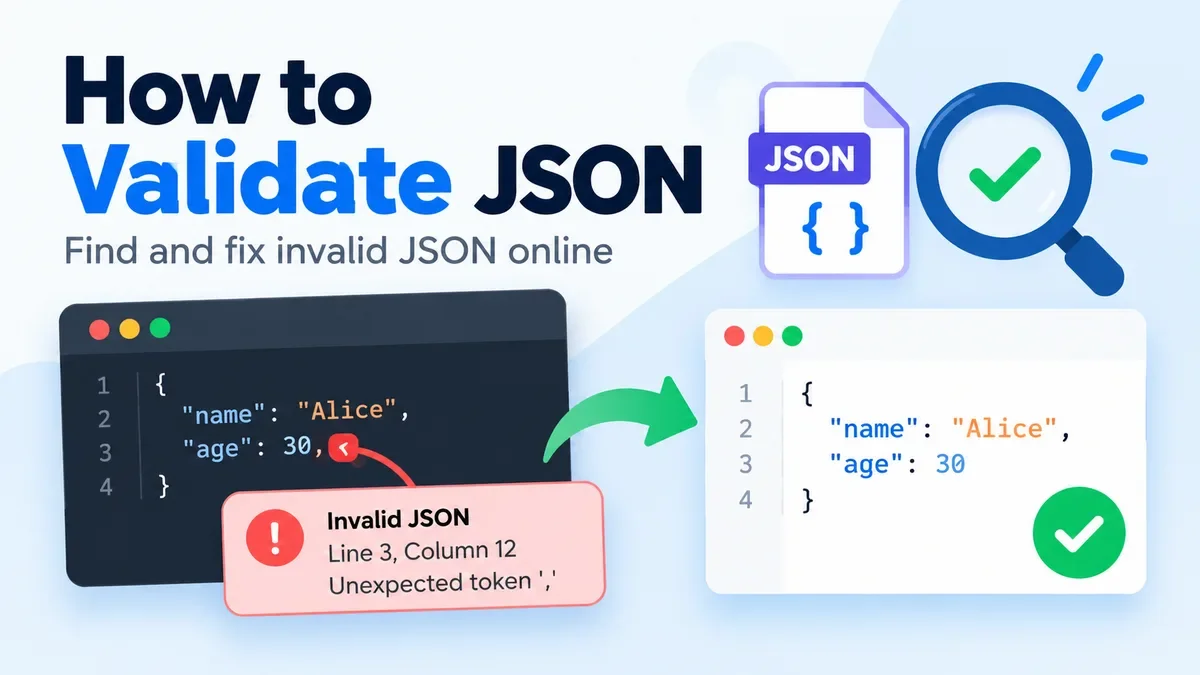
What Is JSON Validation?
Formatting and validation are related, but they solve different problems.
A formatter changes the presentation of JSON.
A validator checks whether the JSON follows the required syntax.
For example, if you have:
{
  "name": "Alex",
  "age": 29,
}
a validator can identify the trailing comma as a syntax problem.
ToolCMB's JSON Formatter & Validator can check JSON and identify errors by their location, including the relevant line and column. It can also provide explanations for common problems and offer one-click repair for several common JSON mistakes.
What Is JSON Minification?
JSON minification removes unnecessary whitespace such as indentation, line breaks, and spaces.
For example:
{
  "name": "Alex",
  "active": true
}
can become:
{"name":"Alex","active":true}
The data remains the same, but the text becomes smaller.
Minification can be useful when JSON is transmitted frequently or included in production application data. It can reduce the amount of text that needs to be transferred or stored.
For development, however, formatted JSON is usually easier to read and debug.
When working with larger JSON documents, formatting alone may not be enough.
ToolCMB's JSON tool combines several functions on one page. You can format or minify JSON, validate it, repair common syntax problems, and inspect the result as a tree or table. It also supports searching keys and values and filtering data with JSONPath.
For example, a JSON response containing hundreds or thousands of records can be difficult to navigate as plain text. A tree view lets you expand and collapse nested objects, while a table view can make arrays easier to scan.
What Is JSONPath?
JSONPath is a query syntax used to select specific parts of a JSON document.
For example:
$.users[*].email
can be used to select the email property from each object in a users array.
Another example:
$.items[0]
selects the first item in an array.
JSONPath becomes particularly useful when you are working with large API responses and only need to inspect a small part of the data.
ToolCMB includes a JSONPath filter so you can query structured JSON directly from the formatter interface.
JSON vs. YAML, XML, and CSV
JSON is not the only format used to represent structured data.
JSON
JSON is widely used for APIs, web applications, configuration data, and data exchange.
YAML
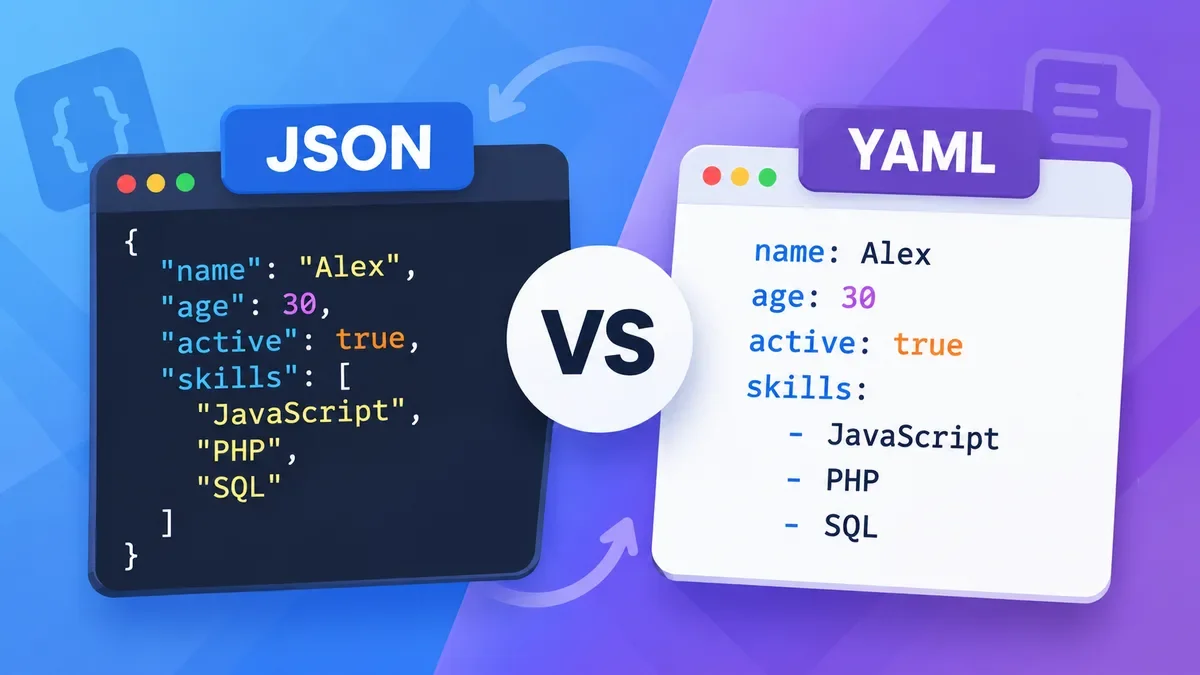
YAML is popular for configuration files, including many development and deployment workflows. Unlike JSON, YAML supports comments.
XML
XML is another structured markup format used in many enterprise systems and older integrations. It supports nested structures and attributes.
CSV
CSV represents tabular data using rows and columns. It works well for spreadsheets and simple data exports but is not designed for deeply nested structures.
The best format depends on the task.
For example:
ToolCMB can convert JSON into YAML, CSV, XML, and TypeScript, making it easier to move structured data between different workflows.
Is JSON Secure?
JSON itself is a data format, not a security system.
Whether JSON is safe depends on how the application receives, processes, stores, and displays the data.
Developers should still be careful with sensitive information such as:
-
API keys
-
Access tokens
-
Customer information
-
Internal configuration
-
Authentication data
-
Private application logs
For this reason, browser-based processing can be useful when working with sensitive JSON.
ToolCMB's JSON formatter processes JSON locally in the browser using a Web Worker rather than uploading the JSON to a server. The site states that JSON is not uploaded, logged, or stored on its server.
If you need to inspect a JSON response or fix a JSON syntax error, you can use a browser-based JSON tool.
A typical workflow is:
-
Paste your JSON or open a .json file.
-
Format or validate the content.
-
Review any reported errors.
-
Fix the invalid syntax or use an available repair option.
-
Inspect the formatted result.
-
Copy or download the corrected JSON.
ToolCMB's JSON Formatter supports pasting JSON, opening a JSON file, or dropping a file directly onto the page. After processing, you can format, minify, validate, repair, search, inspect, filter, copy, or download the result.
A JSON formatter is particularly useful when:
-
An API response appears on one long line.
-
You need to find a syntax error.
-
You are debugging an API request.
-
You want to inspect nested objects.
-
You need to understand an unfamiliar JSON file.
-
You want to convert JSON to another format.
-
You need to search through a large JSON document.
-
You want to extract specific values with JSONPath.
Instead of manually adding indentation or searching through thousands of characters, a formatter can organize the data and make its structure much easier to understand.
JSON Is Simple, but Structure Matters
JSON is popular partly because its basic concepts are easy to understand: objects contain key-value pairs, arrays contain ordered values, and values can be strings, numbers, booleans, null, objects, or arrays.
The challenge usually appears when JSON becomes large or contains an error.
That is where formatting, validation, viewing, filtering, and conversion tools become useful. Instead of treating JSON as one large block of text, you can work with its structure and quickly locate the information you need.
For everyday API debugging, configuration work, data inspection, and development tasks, a good JSON tool can turn an otherwise frustrating workflow into a few simple steps.
Frequently Asked Questions
What does JSON stand for?
JSON stands for JavaScript Object Notation. It is a text-based format for representing and exchanging structured data.
Is JSON a programming language?
No. JSON is a data format. Although its syntax originated from a subset of JavaScript's notation, JSON is used by many programming languages.
What is JSON used for?
JSON is commonly used for API communication, configuration files, web applications, logs, and structured data exchange.
What is the difference between JSON and JavaScript?
JavaScript is a programming language. JSON is a data representation format. JavaScript applications can create, read, and process JSON, but JSON itself does not contain executable program logic.
Why is my JSON invalid?
Common causes include missing commas, trailing commas, single quotes, unquoted property names, invalid values, or incorrectly escaped strings.
Standard JSON does not support comments. If comments are required, a different configuration format or a preprocessing step may be more appropriate.
Can JSON contain arrays?
Yes. Arrays are represented with square brackets and can contain strings, numbers, booleans, objects, null values, or other arrays.
Can JSON be converted to CSV?
Yes. JSON can be converted to CSV, although nested JSON structures may need to be flattened into columns. ToolCMB supports JSON-to-CSV conversion and provides delimiter options that can be useful for spreadsheet workflows.
Can JSON be converted to YAML?
Yes. JSON and YAML can represent many of the same types of structured data, and JSON can be converted to YAML when a YAML-based workflow is more convenient.
Yes. ToolCMB provides a free browser-based JSON formatter with formatting, validation, minification, repair, viewing, JSONPath filtering, and conversion features.
According to the ToolCMB JSON Formatter page, JSON processing happens in the browser using a Web Worker and the JSON is not uploaded, logged, or stored on the server.
If you regularly work with structured data, you may also find these ToolCMB capabilities useful:
-
JSON Formatter & Validator — format, validate, repair, minify, inspect, and filter JSON.
-
JSON to YAML — convert JSON into YAML.
-
JSON to CSV — convert JSON data for spreadsheet workflows.
-
JSON to XML — convert JSON into XML.
-
JSON to TypeScript — generate TypeScript types from JSON structures.
Keeping these related operations together can make a JSON debugging or data-conversion workflow much faster.
Final Thoughts
JSON is one of the most widely used formats for moving structured data between applications. Its syntax is relatively simple, but large documents and small syntax mistakes can make JSON difficult to read and troubleshoot.
Understanding objects, arrays, data types, and JSON syntax gives you the foundation to work with APIs and structured data more confidently. When a JSON document becomes difficult to read or contains errors, formatting and validation tools can help you identify the problem without manually inspecting every character.
For developers, the most useful approach is usually simple: format JSON when you need to understand it, validate it when you need to trust its syntax, minify it when you need a compact representation, and convert it when another workflow requires a different format.