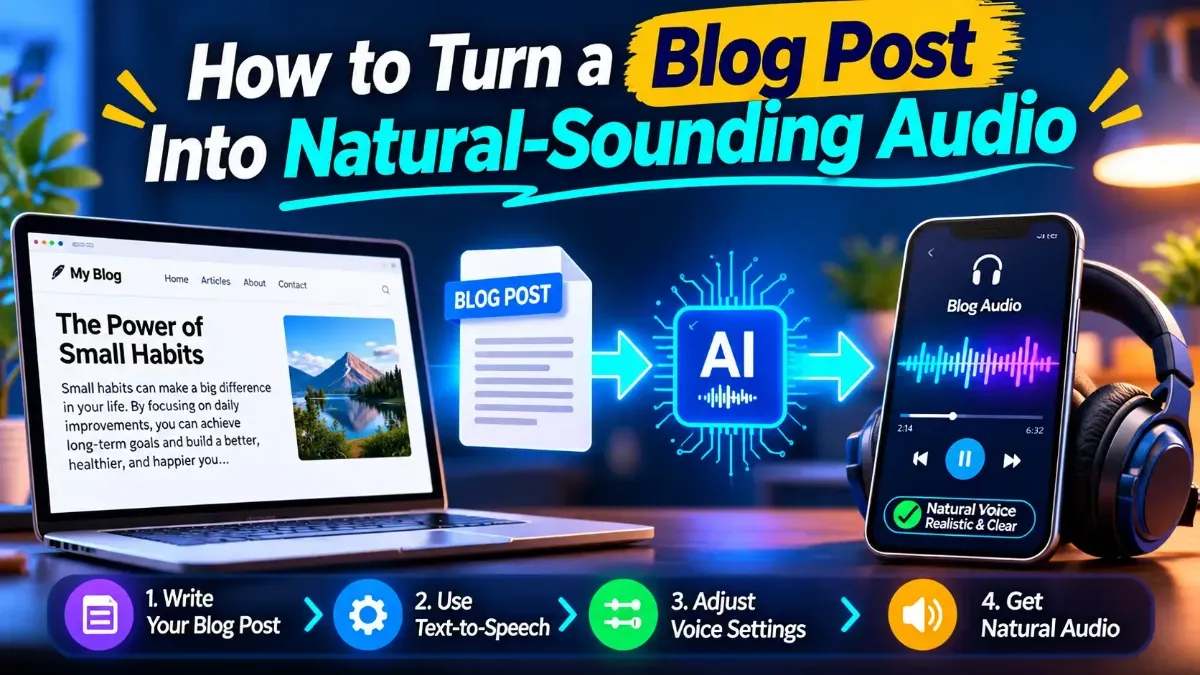
How to Turn a Blog Post Into Natural-Sounding Audio
Learn how to convert a blog post to audio that sounds clear and natural. Prepare your text, choose a suitable voice, and review the result before sharing.
Make AI voice sound natural by improving the script, adjusting pacing and pronunciation, and reviewing the audio in context. These practical steps help reduce robotic delivery.
 ToolCMB Team
7 min read
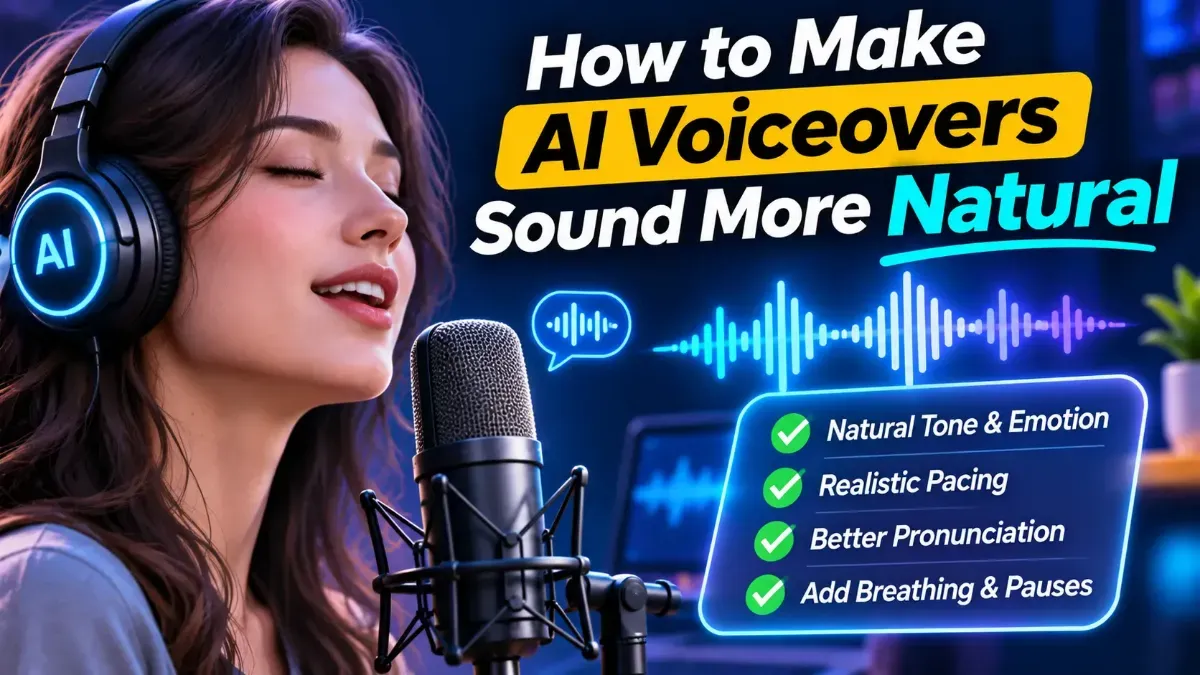
To make AI voice sound natural, start with a script written for speaking, then tune pronunciation, pacing, and pauses. Generate a short test, listen for awkward phrases or emphasis, and revise those sections before creating or sharing the full recording.
A convincing voiceover is not just a matter of choosing a voice. The words, sentence structure, and way the audio is prepared all affect how listeners experience it. These steps can help with explainers, tutorials, presentations, narration, and other recorded content.
Work through the process in stages rather than trying to fix everything with voice settings. A clear, speakable script gives the voice generator a better starting point, while careful review helps you catch issues that are hard to spot on the page.
Text that reads well on screen may sound stiff when spoken. Read your draft aloud and listen for long sentences, formal wording, and phrases that you would not normally say in conversation. Rewrite them in simpler language without changing the meaning.
For example, “Please proceed to the following step in order to complete the process” could become “Next, follow this step to finish.” Shorter wording is often easier to understand and gives the voice more natural places to pause.
Keep the intended audience in mind. A friendly tutorial may call for everyday phrasing, while a formal announcement may need a more measured style. Natural does not mean casual in every situation; it means the delivery fits the message.
Punctuation gives a voice generator clues about rhythm, but it is not a complete substitute for editing the script. A comma can suggest a brief pause, while a full stop creates a clearer break. If a sentence contains several separate ideas, split it into smaller sentences.
Use paragraph breaks to separate topics or steps. In longer narration, make sections manageable so you can review and replace a problem passage without regenerating everything. If your chosen tool supports pause controls or SSML, check its instructions and use those features only where they improve clarity. Support and behavior vary between tools.
Avoid adding repeated ellipses or excessive punctuation just to force dramatic pauses. That can make delivery uneven or cause an unintended tone. Try a clean version first, then adjust the specific places that sound rushed or flat.
AI voices may handle everyday words smoothly but stumble over names, place names, product terms, acronyms, and words with more than one common pronunciation. Numbers can also sound confusing when dates, decimals, phone numbers, or measurements are read as a continuous string.
Generate a short sample containing the hardest words before producing the whole voiceover. Listen closely, and make a pronunciation note for every word that sounds wrong. Depending on the tool, you may be able to select a pronunciation, use a phonetic spelling, or rewrite the surrounding sentence to make the intended reading clearer.
Do not assume a spelling workaround will sound right in every voice. Test it, listen in context, and make sure the written script remains understandable to anyone who needs to review it.
Choose a voice that suits the subject, audience, and level of formality. A bright, energetic delivery may fit a short promotional clip but feel distracting in a detailed lesson. A calm voice can support instructions, but an overly restrained delivery may make important points difficult to distinguish.
If the generator offers speed or style settings, make small adjustments and compare samples. Faster is not always more efficient: listeners need time to process unfamiliar terms and instructions. Slower is not always more natural either, especially if it creates unnatural gaps between words.
| Content type | Useful starting point | Listen for |
|---|---|---|
| Tutorial | Clear, steady delivery | Steps that run together or sound rushed |
| Story or narration | Expressive but controlled delivery | Flat passages or exaggerated emphasis |
| Work presentation | Measured, professional delivery | Overly formal phrasing and unclear terms |
| Short announcement | Direct, easy-to-follow delivery | Names, times, and key details being missed |
Do not judge a voiceover only by how its script looks. Listen to the audio at a normal volume, preferably in the setting where people will hear it. A passage that seems fine through headphones may feel too fast or too quiet on a phone speaker.
Listening while reading the script can help you locate a problem, but also listen once without following the text. That makes it easier to notice whether the meaning is clear to someone who is hearing it for the first time.
Editing can improve a recording, but heavy processing rarely fixes a script that sounds awkward. First address wording, pronunciation, and timing. Then check the overall volume and whether sections join smoothly. Trim unwanted silence at the beginning or end, but leave enough breathing room between ideas.
If you add background music or sound effects, keep them quiet enough that the spoken words remain easy to understand. Check the mix on more than one playback device when possible. Be thoughtful about usage rights for any voices, music, or sound effects you include, and follow the relevant tool terms and content permissions.
For a repeatable process, use this checklist:
If your script is in a supported text or subtitle format, the Text & Audio Converter can convert text and subtitle files into audio online. Prepare and proofread your text first, then review the generated result rather than assuming the first take will fit every use.
The most useful improvement is often a small script change. If a line sounds stiff, try saying the same idea in fewer, more familiar words before changing the voice settings.
Common causes include formal or lengthy sentences, incorrect pronunciation, unnatural pacing, and a voice style that does not fit the content. Review a short sample to identify the specific issue.
Choose the format that makes the intended reading clear, then test it with your selected voice. Dates, measurements, and phone numbers may need special attention.
Use sentence breaks and paragraph structure to guide pauses. If the tool offers pause controls, test them in context and avoid adding pauses everywhere.
Sometimes a small speed adjustment helps, but it may not solve awkward wording or pronunciation. Try editing the script and comparing short samples before changing the whole recording.
Listen to the full recording at a normal volume, check names and key details, and test it on a typical playback device. Confirm that the voice, volume, and pacing remain consistent.
We build fast, free and private browser tools — and write practical guides on how to use them.
Learn how to convert a blog post to audio that sounds clear and natural. Prepare your text, choose a suitable voice, and review the result before sharing.
Turn lecture notes into clear, portable audio for review. Learn how to prepare your notes, convert them to speech, and listen actively so audio supports—not replaces—studying.
Text-to-speech is fast and consistent, while recording your own voice brings natural expression and personal character. Compare quality, editing, privacy, and project needs to choose the right option.
Start typing to search tools and articles.