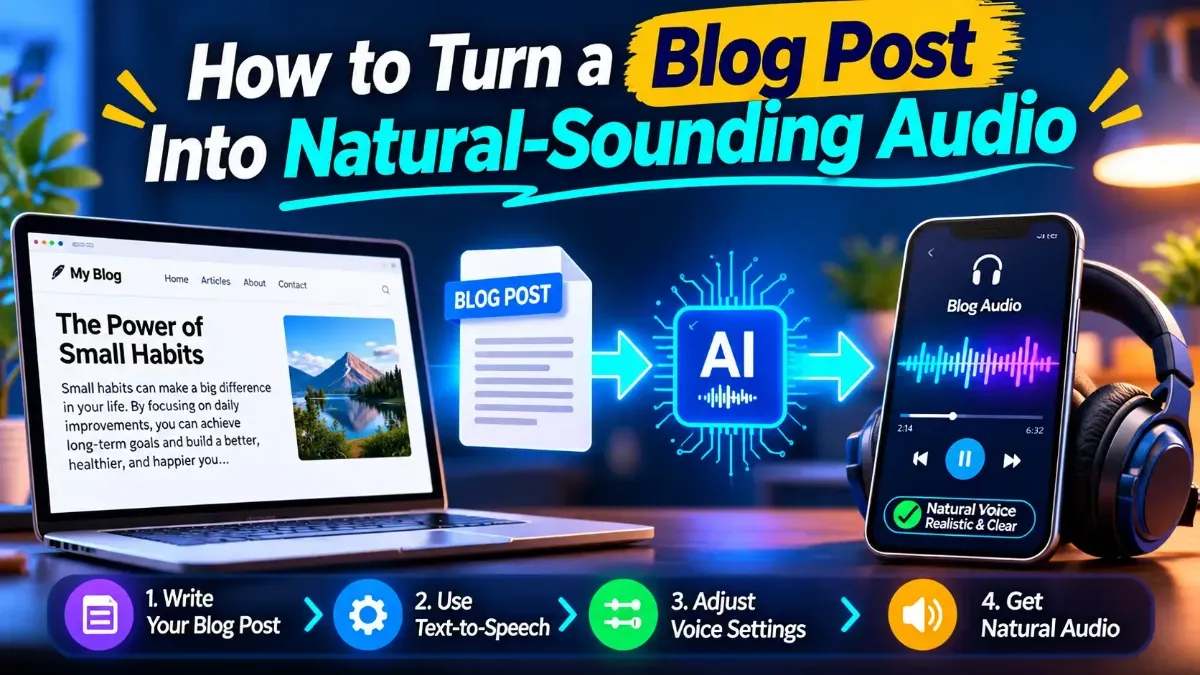
How to Turn a Blog Post Into Natural-Sounding Audio
Learn how to convert a blog post to audio that sounds clear and natural. Prepare your text, choose a suitable voice, and review the result before sharing.
Turn lecture notes into clear, portable audio for review. Learn how to prepare your notes, convert them to speech, and listen actively so audio supports—not replaces—studying.
 ToolCMB Team
7 min read
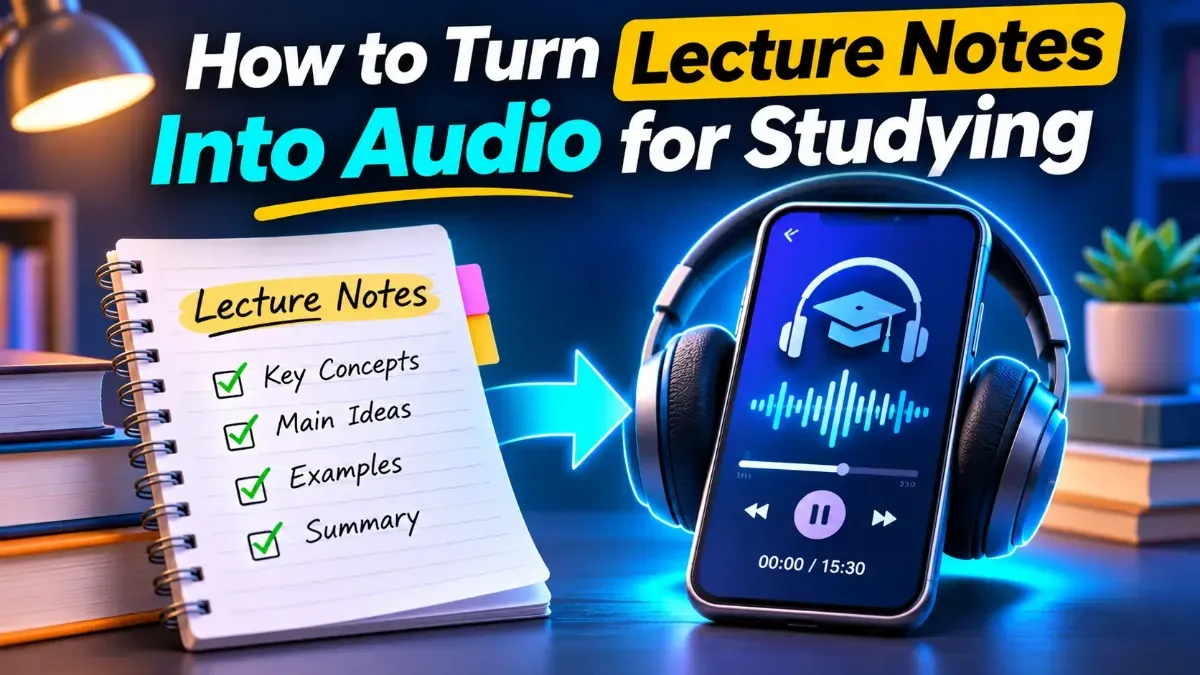
To turn lecture notes into audio, clean up the text, divide it into manageable sections, then use a text-to-speech converter to create a spoken version you can listen to while reviewing. Short, well-organized audio is easier to follow than a verbatim dump of a whole lecture, and active listening helps you remember more than simply letting it play in the background.
This method works with typed notes and text extracted from documents. The key is to prepare the material for listening: remove clutter, make headings clear, and preserve important terms, examples, and definitions.
Audio gives you another way to revisit information between study sessions. You can listen while taking a walk, commuting, or doing a task that does not need your full attention. It can also help you notice awkward wording or gaps in your notes: a sentence that looks fine on a page may be confusing when spoken aloud.
Audio is a supplement, not a shortcut around learning. Listening can support review, but it does not automatically test whether you understand a concept. Pair it with recall, written practice, or a quick check of the original notes.
Written notes often rely on formatting that speech cannot reproduce. A table may put related facts side by side, while a spoken version reads each cell in a sequence that is hard to follow. Before conversion, turn tables into short comparisons or labeled statements. For example, instead of a grid of terms and definitions, write each term followed by “means” and its explanation.
Use punctuation to signal structure. A heading can become a spoken introduction, such as “Next, the three stages of the process.” For a list, add a brief setup and keep each item concise. Avoid relying on bold text, color, indentation, or arrows to communicate meaning because those features may not be spoken.
Be careful with formulas and symbols. A text-to-speech voice may read notation in an unexpected way. Write the intended meaning in words when that improves clarity, and check technical sections by listening. Keep the original formula nearby so the spoken explanation does not replace the notation you need to recognize in class or on an exam.
| Source | Useful for | Before converting |
|---|---|---|
| Plain text (TXT) | Typed notes and clean summaries | Add headings and punctuation; remove formatting debris. |
| PDF text | Exported lecture notes or handouts | Check that the text extracts in the right reading order. |
| Scanned pages or images | Handwritten or photographed material | Run text recognition, then proofread names, numbers, and symbols. |
| Subtitle text (SRT or VTT) | Existing caption files with timestamps | Check whether timestamps and speaker labels should remain in the output. |
A clean TXT file is often the simplest starting point for typed notes. If you use a PDF, inspect the extracted text before converting: multi-column pages, footnotes, and diagrams can disrupt reading order. Subtitle formats can also be useful when you already have a caption file, but timestamps and caption breaks may not make sense as continuous study narration.
Audio is most useful when you decide what to do with it. Try one of these approaches instead of playing a long file without checking your understanding:
Choose a listening speed that lets you understand the material. Faster playback may save time for familiar summaries, but it can make dense explanations or new vocabulary harder to process. If your converter offers voice or speed settings, test a short excerpt before converting a large set of notes.
Lecture notes can contain personal details, unpublished research, or course materials you should not share. ToolCMB’s browser-based tools are designed to process files on your device, so they do not need to leave your device for conversion. Still, use your own judgment about sensitive content, and follow your school or employer’s policies. If you prefer, remove personal information before preparing a file.
Keep the original notes as your source of truth. Save the audio with a clear topic name, and store it alongside the matching notes so you can check a definition or correct a mistake later. For another workflow, you can also convert supported text or subtitle files with the Text & Audio Converter.
Yes, if you first convert the handwriting into text, such as with text recognition or manual transcription. Proofread the result carefully before generating audio.
It depends on the PDF and the converter’s supported inputs. If the text cannot be selected or is out of order, extract or correct it first, then use a text-friendly format.
There is no single ideal length. Make sections short enough to focus on one topic and easy to replay, rather than choosing a duration based on a fixed rule.
It can support review, especially when you pause to recall ideas and check your understanding. Listening alone does not show whether you can apply or explain the material.
ToolCMB’s Text & Audio Converter supports text and subtitle files, including TXT, SRT, and VTT. Check the tool for its current options before preparing your material.
We build fast, free and private browser tools — and write practical guides on how to use them.
Learn how to convert a blog post to audio that sounds clear and natural. Prepare your text, choose a suitable voice, and review the result before sharing.
Make AI voice sound natural by improving the script, adjusting pacing and pronunciation, and reviewing the audio in context. These practical steps help reduce robotic delivery.
Text-to-speech is fast and consistent, while recording your own voice brings natural expression and personal character. Compare quality, editing, privacy, and project needs to choose the right option.
Start typing to search tools and articles.