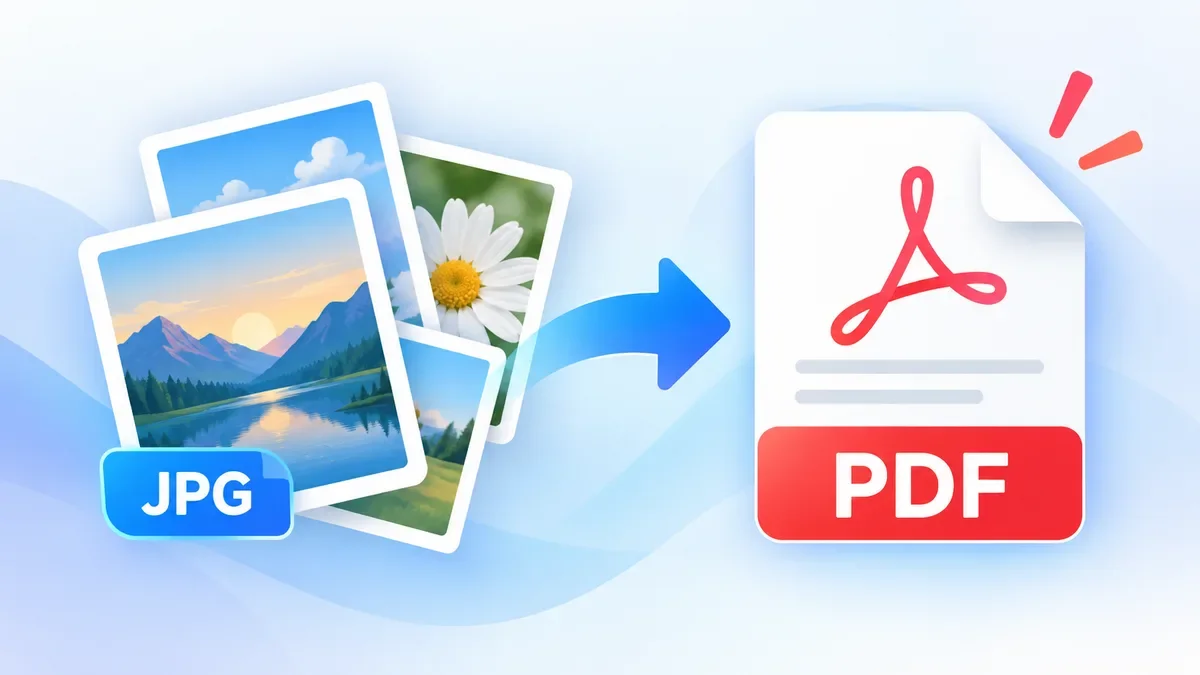
JPG is a convenient format for photos and screenshots, but a PDF is often easier to submit, print, email, or share as a document. If you have several JPG images, converting them into a single PDF can also make them easier to keep in the correct order.
With ToolCMB's JPG to PDF converter, you can create a PDF directly in your browser without uploading your images to a server. You can add multiple images, arrange their order, rotate them, choose the page layout, and download the finished PDF when you're ready.
How to Convert JPG to PDF
The process takes just a few steps.
1. Add your JPG images
Open the JPG to PDF converter and drag your images into the upload area, or choose files from your device.
You can also paste an image directly with Ctrl + V on Windows or ⌘ + V on Mac.
Although the tool is called JPG to PDF, it can also work with other common image formats, including PNG, WebP, GIF, BMP, and AVIF.
2. Arrange your images
If you're converting several photos or scanned pages, arrange them in the order you want them to appear in the PDF.
You can drag and drop images to change their order. You can also sort them by file name or date, reverse the order, rotate images, or remove individual files.
This is particularly useful when creating a PDF from scanned documents, receipts, application pages, or photos taken with a phone.
3. Choose the page size and layout
ToolCMB gives you control over how the images appear in the PDF.
You can choose a page size such as:
-
Same as image
-
A4
-
US Letter
-
Legal
-
A3
-
A5
You can also select portrait, landscape, or automatic orientation and choose whether to use no margin, a small margin, or a large margin.
If you're preparing a document for printing, A4 is a common choice in many countries, while US Letter is widely used in the United States and Canada.
4. Decide how images should fit
The converter lets you choose how images are placed on each page.
Use Fit when you want the complete image visible without cropping. Use Fill when you want the image to fill its available space, even if some parts need to be cropped.
You can also place multiple images on a single page. Available layouts include 1, 2, 4, 6, or 9 images per page.
For example, putting four receipt photos on each page can reduce the number of pages in an expense document.
5. Choose image quality
If preserving image quality is your priority, choose Original.
With the Original setting, JPEG images are embedded without unnecessary re-compression. This is useful when you want the PDF to retain the quality of the source photos.
If you need a smaller file for email or an upload form, you can choose Smaller file instead.
The best option depends on what you need the PDF for. A document that will be printed may benefit from higher quality, while a file being uploaded to a website may be better kept small.
6. Create and download the PDF
When everything looks correct, select Convert to PDF.
The PDF is generated on your device and can then be downloaded. You can choose between creating one combined PDF or generating a separate PDF for each image.
When using the separate-PDF option with multiple images, the files can be downloaded together as a ZIP archive.
Why Convert JPG Images to PDF?
There are several practical reasons to turn images into PDF documents.
Easier document sharing
A collection of JPG images can be difficult to manage when you need to send several files. Combining them into one PDF gives the recipient a single document to open and save.
Better for printing
PDF is designed around pages, making it easier to prepare images for printing. You can select a specific paper size and orientation before creating the document.
Useful for scanned documents
Photos or scans of receipts, forms, notes, and other paperwork can be combined into a single PDF while keeping the pages in the correct order.
Easier uploads
Some websites and online services accept PDF documents instead of individual image files. Converting your JPG images first can make the upload process simpler.
Is It Safe to Convert JPG to PDF Online?
It depends on how the converter processes your files.
ToolCMB processes the conversion directly in your browser. Your images are not uploaded to the ToolCMB server, which means the files stay on your device during the conversion.
This can be useful when working with personal photos, scanned documents, receipts, or other files you would rather not upload to a third-party server.
For particularly sensitive documents, you can also use the PDF password option available in the converter. The tool supports AES-256 encryption, and the password is not stored or sent to the server.
How to Make a Smaller JPG to PDF
If your PDF is too large to email or upload, there are several things you can try.
First, select Smaller file instead of Original quality when creating the PDF.
You can also reduce the number of images per document or resize very large source images before converting them.
If the PDF has already been created and is still too large, use the PDF Compressor to reduce the file size.
The right approach depends on whether image quality or file size is more important for your particular use case.
Can I Convert Multiple JPG Images to One PDF?
Yes. You don't have to convert your images one at a time.
Add multiple images to the converter, arrange them in the desired order, choose your page and layout settings, and create one combined PDF.
This is useful for:
The ordering step is especially useful because the images do not have to be selected in exactly the right order initially.
JPG to PDF Without Losing Quality
If you want to preserve the original JPEG quality, select Original before converting.
ToolCMB embeds JPEG photos without re-compressing them under this setting. Other supported image formats are also handled without unnecessary quality reduction when using the appropriate quality option.
Keep in mind that creating a PDF does not automatically improve the quality of a low-resolution JPG. If the original image is blurry or heavily compressed, the PDF will not restore detail that is already missing.
JPG to PDF for Printing
If your PDF is going to be printed, choose the page size based on the final document rather than simply using the default setting.
For example:
-
A4 — common for documents in Europe and many other countries
-
US Letter — common for documents in the United States and Canada
-
Legal — useful for longer paper documents
-
A3 — useful for larger printed material
-
Same as image — useful when you want to preserve the image's proportions
Choose portrait for vertically oriented documents and landscape for wide images.
If you're unsure, the automatic option can select a suitable page size and orientation based on the image and region.
JPG to PDF on iPhone and Android
You can use the converter from a mobile browser as well.
Open the JPG to PDF tool, select photos from your phone's gallery, arrange them if necessary, and create the PDF.
This is useful when you have just photographed receipts, forms, identification documents, or notes and need to turn them into a PDF without transferring the images to a computer first.
On supported browsers, the conversion happens on the device rather than requiring the photos to be uploaded to a server.
Photos taken on an iPhone may use the HEIC format instead of JPG.
If your browser or workflow does not handle the HEIC files directly, you can first use ToolCMB's HEIC to JPG converter and then convert the resulting JPG files to PDF.
This gives you a simple workflow:
HEIC → JPG → PDF
If you already have JPG, PNG, WebP, GIF, BMP, or AVIF files, you can use the JPG to PDF converter directly.
What If the PDF Is Still Too Large?
If you have created the PDF but the resulting file is too large for an email attachment or an online upload limit, try the PDF Compressor.
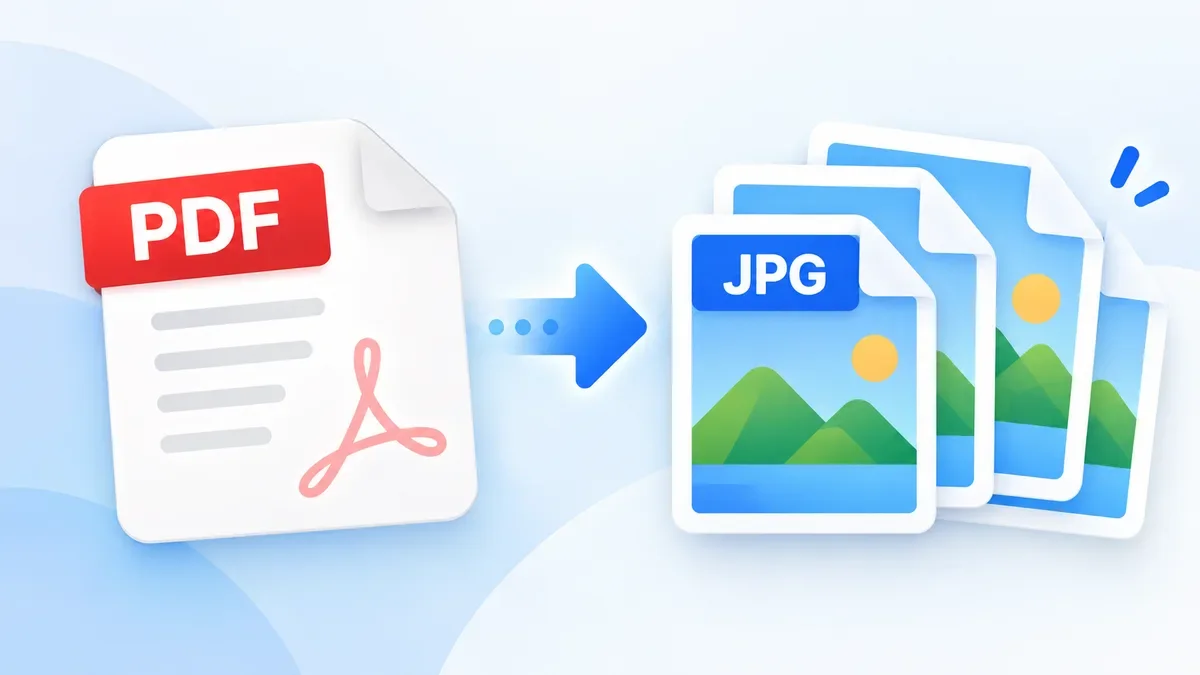
If you need to work in the opposite direction and extract images from an existing PDF, the PDF to JPG tool can be useful.
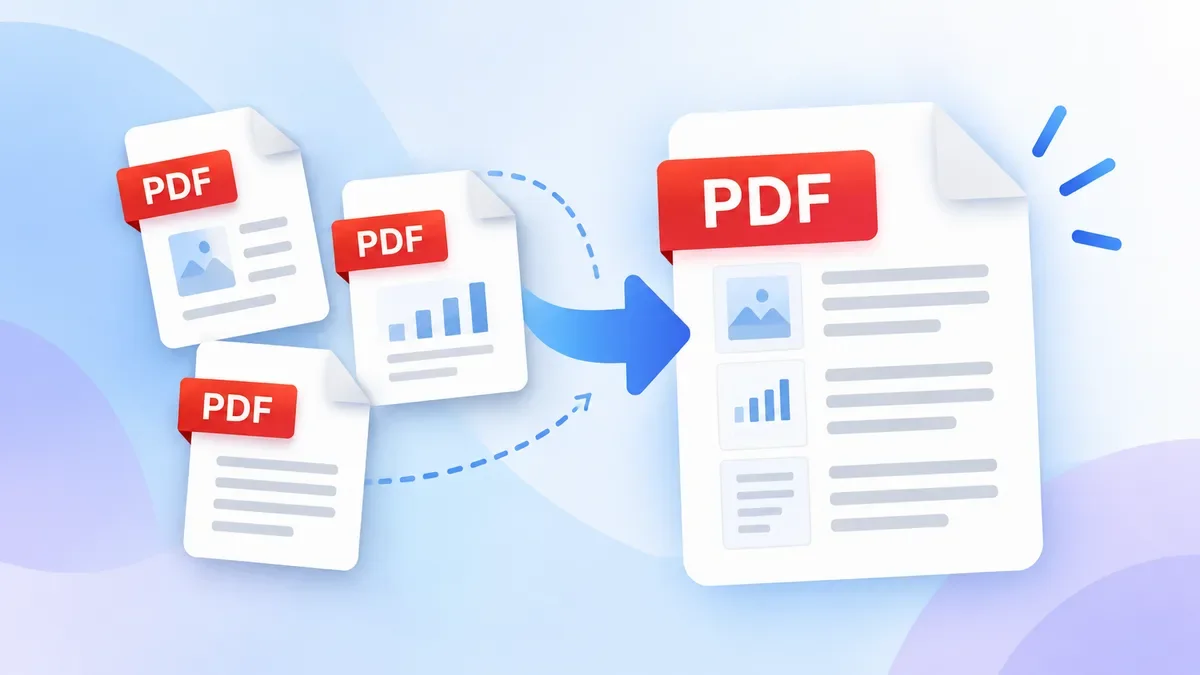
For combining several existing PDF documents rather than images, use the PDF Merge tool.
These tools can be used together depending on the document workflow you are working with.
JPG to PDF vs. Keeping JPG Files
JPG and PDF serve different purposes.
JPG is generally convenient for individual photographs and images. PDF is more suitable when you want to organize several images into a page-based document.
For example, keeping a single photograph as JPG may make sense when sharing it as an image. If you need to submit ten photographs as one document, converting them into a PDF can make the file easier to organize and review.
The best format therefore depends on what you plan to do with the files after conversion.
Frequently Asked Questions
Can I convert JPG to PDF for free?
Yes. ToolCMB's JPG to PDF converter is free to use and does not require an account or add a watermark to the resulting document.
No. The JPG to PDF conversion is performed directly in your browser, so the images are not uploaded to the ToolCMB server.
Can I convert several JPG files at once?
Yes. You can add multiple images and combine them into one PDF, or create a separate PDF for each image.
Can I change the order of JPG images?
Yes. Drag and drop the images to arrange them in the order you want them to appear in the PDF. You can also sort them by name or date.
Can I rotate JPG images before converting them?
Yes. You can rotate individual images or rotate all images before creating the PDF.
Can I put multiple JPG images on one PDF page?
Yes. You can choose 1, 2, 4, 6, or 9 images per page.
Can I protect the PDF with a password?
Yes. ToolCMB supports password protection using AES-256 encryption. The password is not stored or sent to the server.
Can I convert JPG to PDF on my phone?
Yes. The converter works in modern mobile browsers, allowing you to select photos from your phone and create the PDF on the device.
Will converting JPG to PDF reduce image quality?
Not when you use the Original quality option for JPEG images. If you choose a smaller-file option, images may be recompressed or resized to reduce the resulting PDF size.
If your workflow involves more than a simple JPG-to-PDF conversion, ToolCMB also provides related file and image utilities.
-
HEIC to JPG — convert iPhone HEIC images when JPG is required.
-
PDF Compressor — reduce the size of an existing PDF.
-
PDF Merge — combine multiple PDF documents.
-
PDF to JPG — extract PDF pages as JPG images.
The main advantage of using these tools together is that you can complete a larger file-conversion workflow without moving your files between several different websites.
Final Thoughts
Converting JPG to PDF does not need to be complicated. For a single image, you can simply add the file and convert it. For multiple images, you have more control over the result: arrange the pages, rotate images, select a paper size, choose the layout, adjust quality, and then download the finished PDF.
If privacy matters, ToolCMB's browser-based processing means your images stay on your device during conversion rather than being uploaded to a remote server.
For the best result, choose Original when image quality is more important than file size, and choose Smaller file when you need a PDF that is easier to email or upload.