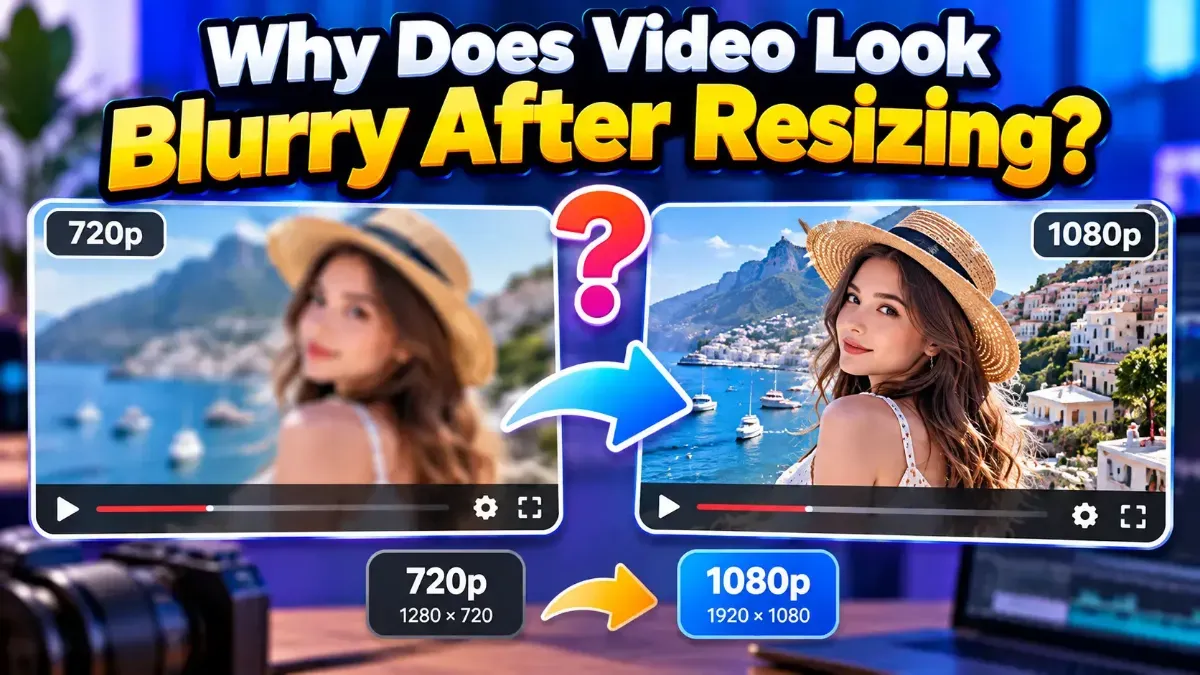
Why Does Video Look Blurry After Resizing?
If your video looks blurry after resizing, the cause is often upscaling, compression, or the wrong export settings. Learn how to identify the problem and improve the result.
For most website animations, MP4 is the better choice because it can deliver smoother motion in a smaller file. GIF still works well for simple, silent animations that need to loop automatically.
 ToolCMB Team
6 min read
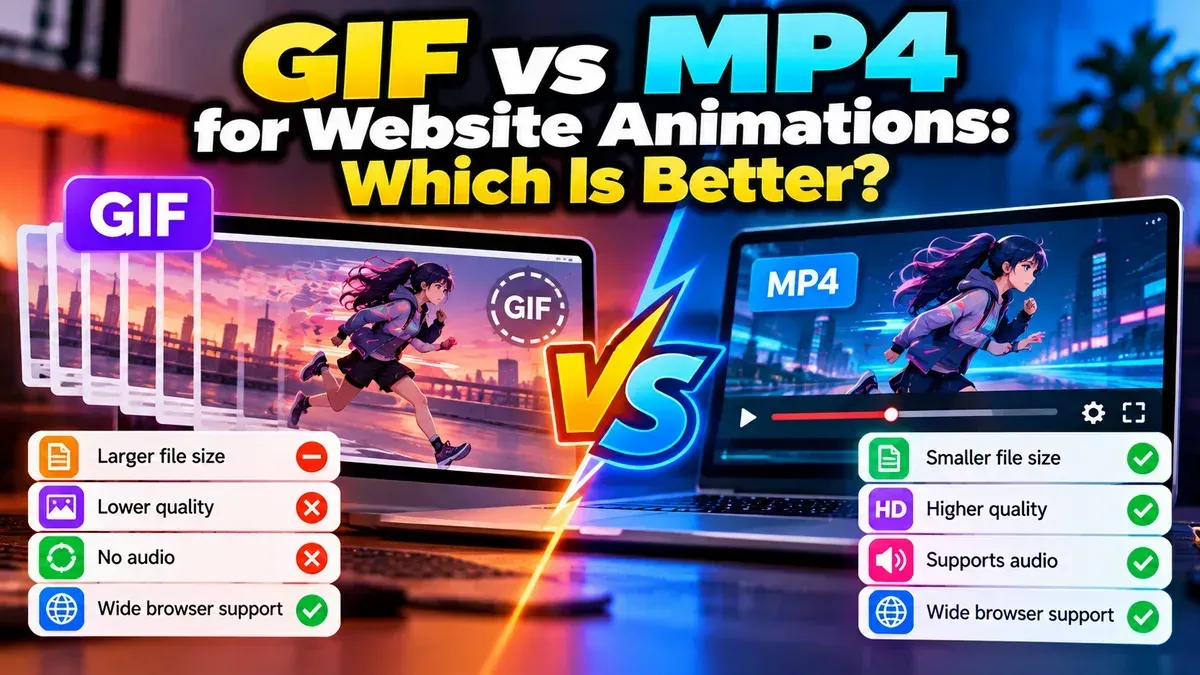
For most website animations, MP4 is better than GIF because it can show smoother motion at a smaller file size. GIF remains useful for short, silent animations that should loop automatically and need to work without video controls. The right choice depends on the animation, your page’s performance needs, and how you want visitors to interact with it.
GIF is an image format that can contain a sequence of frames. MP4 is a video container, commonly used with video codecs such as H.264. Both can show motion in a browser, but they behave differently: GIFs typically start and loop on their own, while MP4 playback can be controlled with video settings and browser policies.
| Factor | GIF | MP4 |
|---|---|---|
| File size | Often large for longer or detailed animation | Usually more compact for comparable motion |
| Color and image quality | Limited palette; gradients and photos can look rough | Generally better suited to full-color, smooth video |
| Looping | Usually loops automatically | Can loop when configured in the video element |
| Playback controls | No standard video controls | Can include controls, or play without visible controls |
| Transparency | Supports basic, single-color transparency | Typical MP4 workflows do not provide broadly reliable transparency |
| Sound | No audio | Can contain audio, though decorative web animations are usually muted |
Animation means storing many frames. A GIF can grow quickly as the animation gets longer, larger, or more visually complex. MP4 video compression is designed to represent motion efficiently, so an MP4 is often much smaller than a GIF with similar dimensions and playback quality. Smaller media can mean less data for a page to download, especially on a mobile connection.
The exact result depends on the source and export settings. A simple, tiny GIF may be smaller than a poorly compressed video, while a carefully encoded MP4 may reduce the size of a detailed animation substantially. Compare the actual files rather than assuming a format alone guarantees a particular result.
MP4 also handles natural-looking motion and a wide range of colors well. GIF has a limited color palette, which can produce banding in gradients, rough edges, or visible dithering in footage with many colors. For a screen recording, product demo, or animation with smooth shading, MP4 is generally the stronger choice.
GIF can be convenient when you need a short, silent animation that starts immediately and repeats without asking visitors to press play. It is also straightforward to add to a page as an image. That can be useful for a small icon-like animation, a simple diagram, or a brief visual reaction that does not need sound or playback controls.
Choose GIF when its simplicity matters more than the potential file-size savings, and check that the final file is not unnecessarily heavy. It can also be useful in places where the content system expects an animated image rather than a video. For animations that require transparent areas, GIF’s basic transparency may help, but inspect the edges: it does not provide the smooth, semi-transparent coverage available in some other formats.
An MP4 does not automatically behave exactly like a GIF just because it is embedded on a page. The video element needs suitable settings, and browsers may restrict autoplay if a video has sound. For a decorative animation, developers commonly use a muted, looping video that starts automatically, plays inline on mobile, and has no visible controls. A poster image can provide a still frame before playback begins.
Autoplay behavior can vary by browser, device, and user settings. Do not make essential instructions or information available only inside a motion effect. Consider providing controls for meaningful video, and respect visitors’ motion preferences when animation is nonessential.
If you already have a GIF and want to try a smaller video version, compare the converted file with the original before replacing it. Check the loop, dimensions, frame timing, and color, as well as whether any transparency is lost. A video is not a drop-in substitute in every situation, particularly if your design depends on transparent areas or a specific image-loading workflow.
You can convert a GIF to MP4 online in your browser. After conversion, review the result and test it in the page where it will appear. Keep the original GIF until you have confirmed that the video version meets your visual and technical needs.
Use MP4 as your starting point for most website animations where efficient delivery and smooth full-color motion are priorities. Use GIF for small, simple animations when easy looping and image-style embedding are more important than video compression. If the animation needs transparency, careful playback control, or accessibility support, evaluate those requirements before choosing either format.
There is no universal winner for every animation. The best format is the one that looks right, loads appropriately for your page, and behaves predictably for your visitors. Testing the actual media in context is more reliable than choosing by file extension alone.
Often, especially for longer or detailed motion, but not in every case. Compare the actual files and their visual quality.
Yes. A website can configure a video to loop. Autoplay may require the video to be muted, and browser behavior can vary.
Typical MP4 workflows do not offer broadly reliable transparency. If transparent animation is essential, check format and browser support for your specific use case.
MP4 is usually a better starting point for a detailed demo because it can preserve smoother motion with efficient compression. Add controls if visitors need to pause or replay it.
It should preserve the moving content, but playback, looping, color, and transparency may differ. Review the converted video before using it on your site.
We build fast, free and private browser tools — and write practical guides on how to use them.
If your video looks blurry after resizing, the cause is often upscaling, compression, or the wrong export settings. Learn how to identify the problem and improve the result.
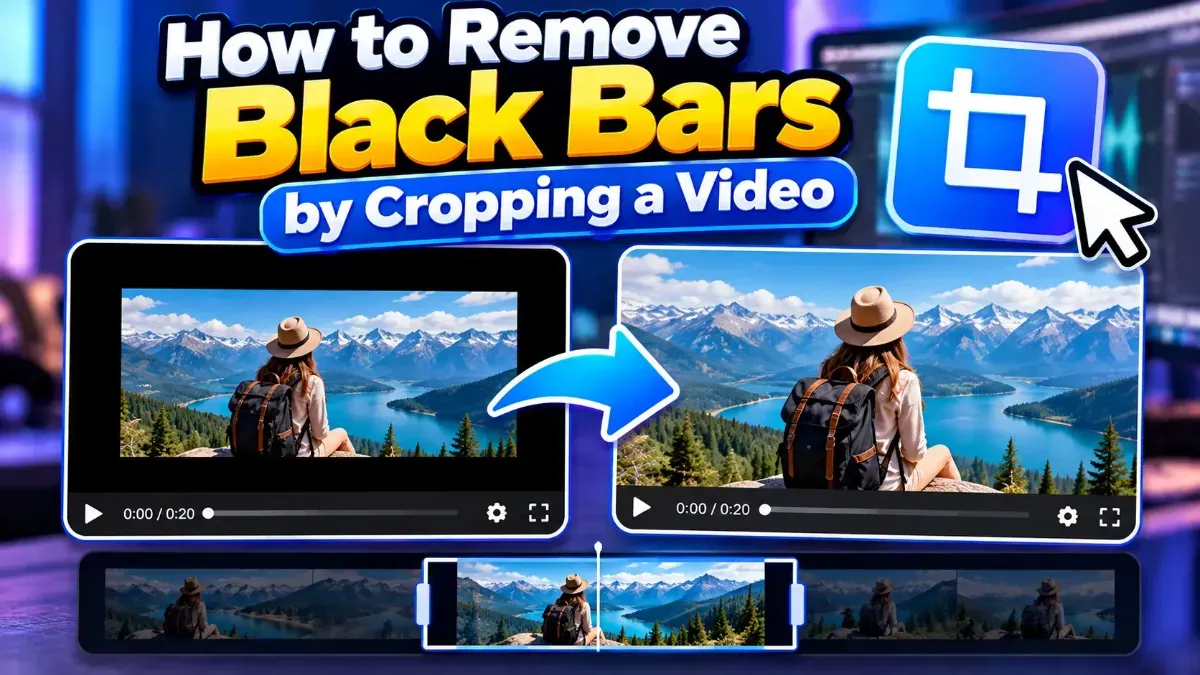
Learn how to remove black bars from a video by cropping the frame carefully. Find out when cropping works, how to choose an aspect ratio, and what to check before exporting.
A phone video can look upright on your phone but sideways on a computer because the devices may interpret its rotation information differently. Learn why it happens and how to fix it.
Start typing to search tools and articles.