Why Does Video Look Blurry After Resizing?
If your video looks blurry after resizing, the cause is often upscaling, compression, or the wrong export settings. Learn how to identify the problem and improve the result.
Blog
If your video looks blurry after resizing, the cause is often upscaling, compression, or the wrong export settings. Learn how to identify the problem and improve the result.
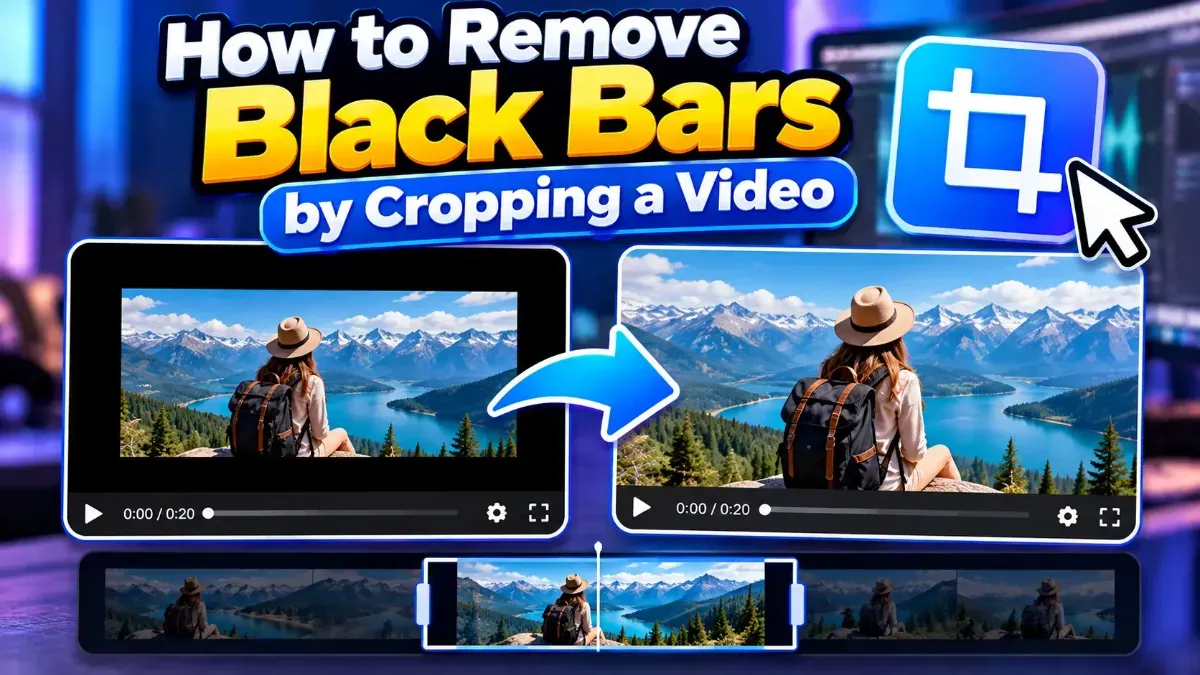
Learn how to remove black bars from a video by cropping the frame carefully. Find out when cropping works, how to choose an aspect ratio, and what to check before exporting.
A phone video can look upright on your phone but sideways on a computer because the devices may interpret its rotation information differently. Learn why it happens and how to fix it.
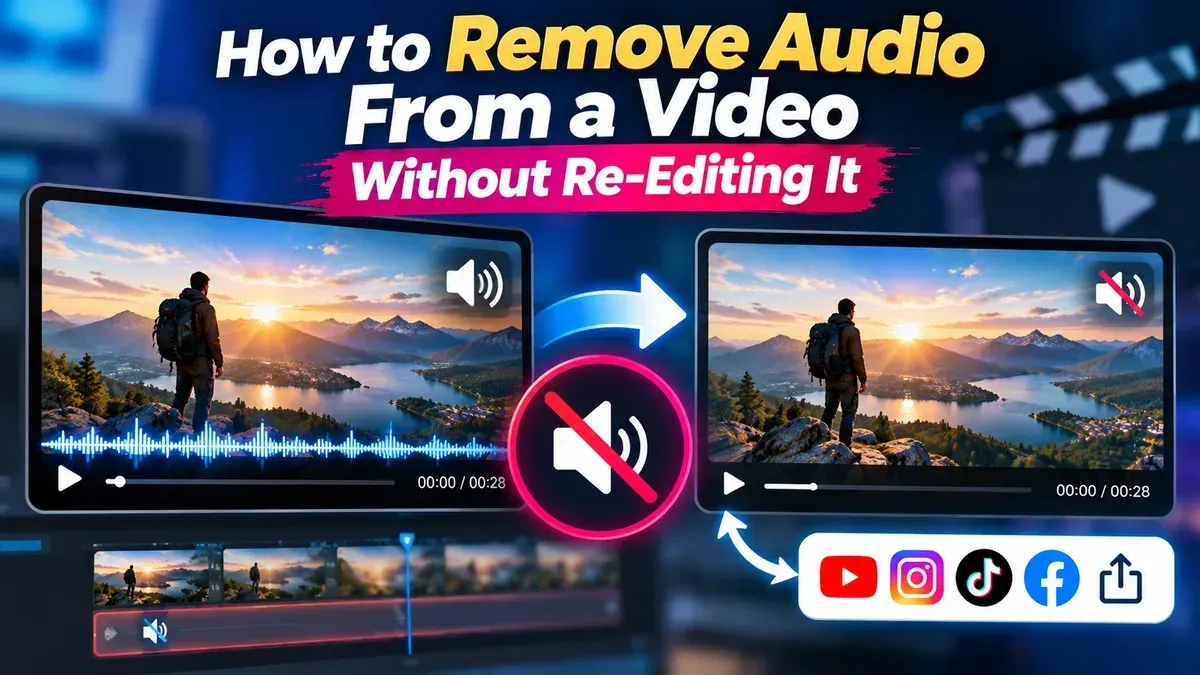
Need a silent version of a clip without opening a video editor? Learn how to mute a video, save a separate copy, and check the result while keeping your original file.
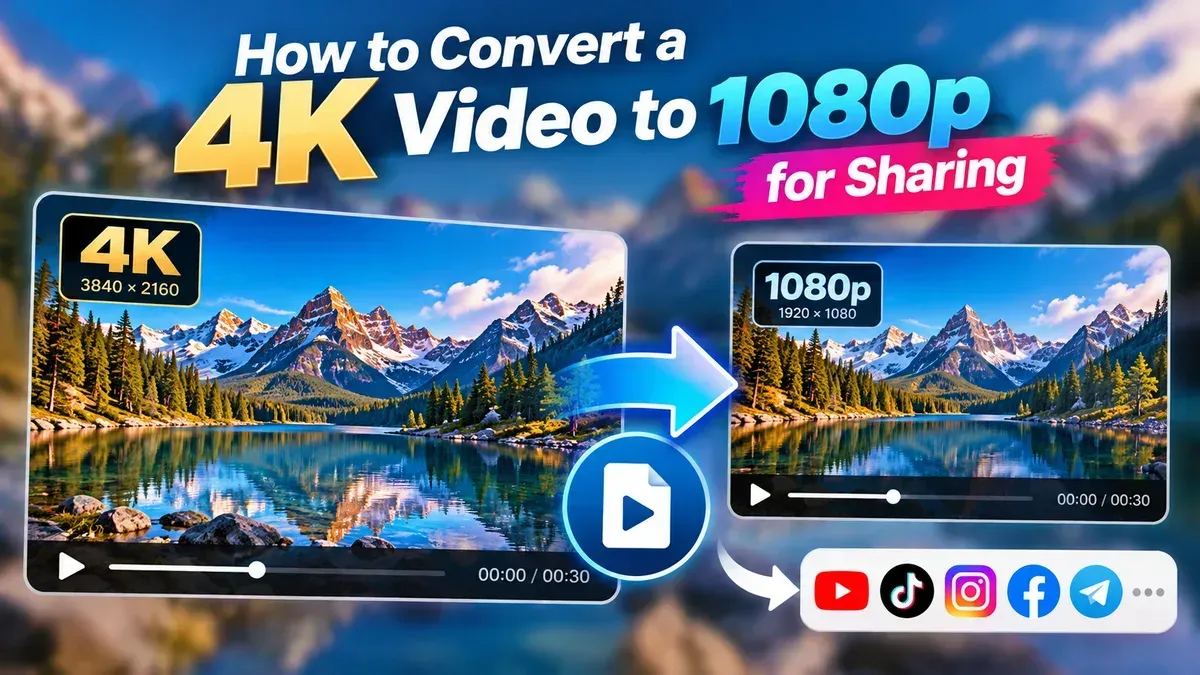
Learn how to convert a 4K video to 1080p for sharing, with practical steps for choosing resolution, keeping the right aspect ratio, and managing file size and quality.
Learn how to crop a vertical video for TikTok without stretching the image, cutting off important action, or hiding your subject behind app controls. Follow simple steps to frame and export a phone-ready video.
A 4K video can use roughly 7–90 GB per hour or more, depending mainly on bitrate, codec, frame rate, and recording settings. Use the bitrate formula to estimate your needs.
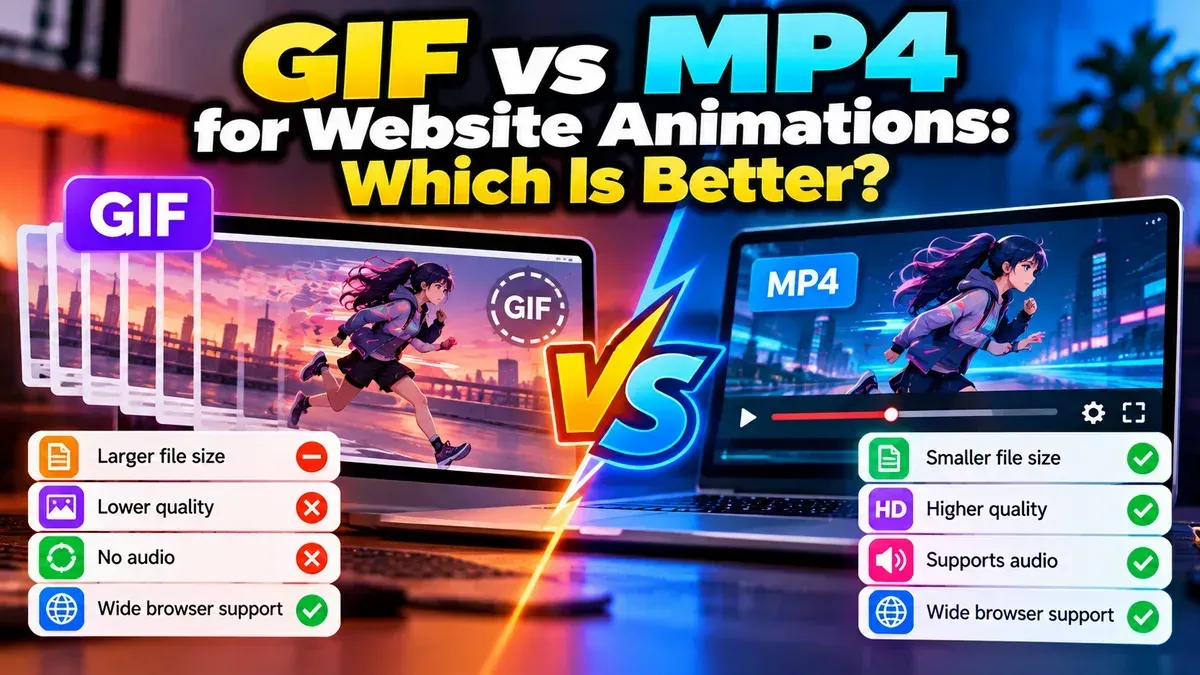
For most website animations, MP4 is the better choice because it can deliver smoother motion in a smaller file. GIF still works well for simple, silent animations that need to loop automatically.
For most 1080p video at 30 fps, start around 8–12 Mbps with H.264 or 5–8 Mbps with H.265. The right setting depends on motion, codec, and where you’ll watch or share the video.
Start typing to search tools and articles.