How to Make a Scanned PDF Editable in Word with OCR
Learn how OCR turns scanned PDF pages into editable Word text, how to convert a file, and what to check when formatting or recognition needs cleanup.
Learn how to rotate just one page in a PDF without changing the orientation of the rest. Follow simple browser-based steps and check the saved file before sharing.
 ToolCMB Team
6 min read
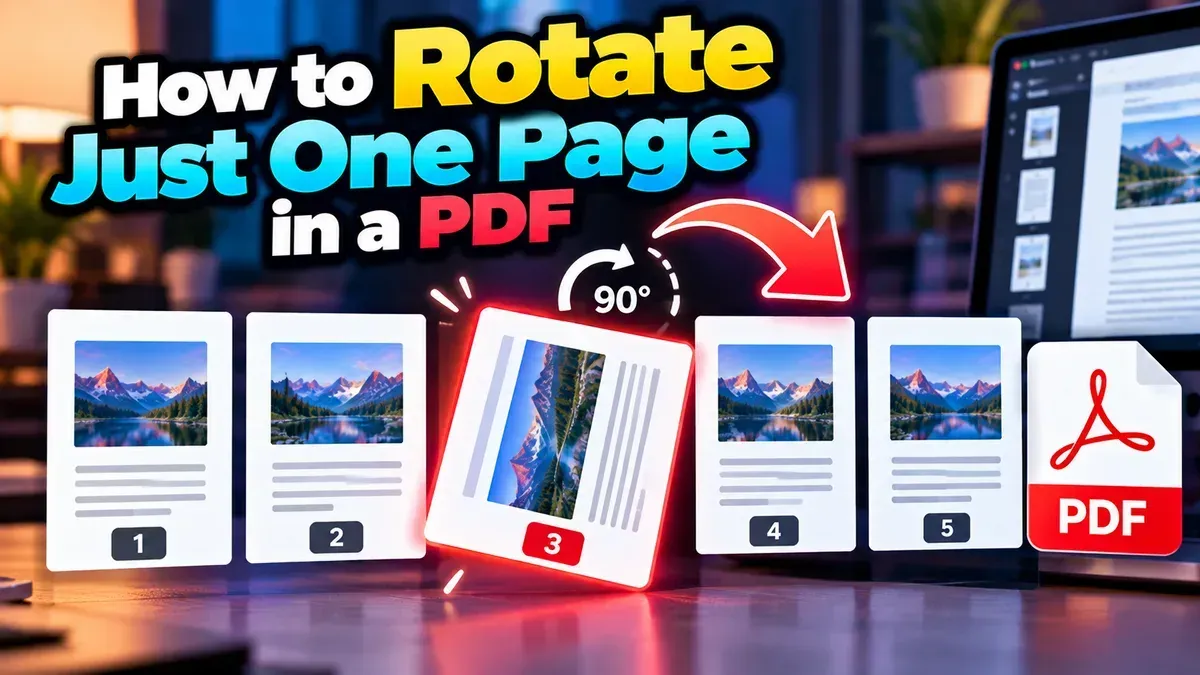
To rotate one page in a PDF, open the document in a PDF page-rotation tool, select the page that needs adjusting, choose the direction, and save the updated PDF. A page-specific rotator changes the selected page without turning every other page along with it.
This is useful when a scanned page, landscape chart, receipt, or inserted document appears sideways in an otherwise correctly oriented file. The steps are simple, but it is worth checking the page number and the saved result before sending or printing the PDF.
A browser-based page rotator is a convenient option when you want to make a targeted change without installing desktop software. With ToolCMB’s PDF Page Rotator, you can rotate individual pages or the entire PDF, then download the corrected document.
ToolCMB’s PDF tools run in your browser, so your files stay on your device. As with any file-handling task, keep the original PDF until you have checked that the updated copy is correct.
PDFs often combine pages from different sources. A document might be mostly portrait-oriented but include one landscape spreadsheet, a sideways scan, or a page that was fed into a scanner in the wrong direction. Rotating the whole file would fix that one page but make the rest harder to read.
Changing only the affected page keeps the document consistent. It can also make a difference when you print, present, archive, or share the file. A page that looks upright only in your current viewer may still appear sideways to someone else if the rotation was never saved into the PDF.
Some PDF readers let you rotate the current view. That can be helpful while reading, but it may only change how the page appears on your screen. It does not necessarily save a permanent change to the document.
A page-rotation tool edits the PDF and creates an updated file. After using one, close and reopen the downloaded copy—or check it in another viewer—to verify that the page still appears in the correct orientation.
| Approach | What it does | Best for |
|---|---|---|
| Rotate the view in a PDF reader | Changes the display in the current app or session; saving behavior varies. | Temporarily reading a sideways page. |
| Use a page-rotation tool | Applies rotation to selected PDF pages and lets you save an updated document. | Fixing a page before sharing, printing, or storing the file. |
| Rotate the entire PDF | Changes the orientation of every page selected for rotation. | When the whole document is sideways or upside down. |
The most common mistake is selecting the wrong page number. This can happen when the PDF has a cover, a blank page, or printed page numbers that do not match the file’s page order. Use the PDF’s page count and previews rather than relying only on numbers printed on the document.
Try the other direction. A clockwise turn and a counterclockwise turn produce different results, and a page that is upside down may need two quarter-turns. Check the preview after each adjustment.
Make sure you opened the updated file rather than the original. Some PDF readers keep an older copy open, so close the document and reopen the downloaded version. If needed, save it with a distinct filename to avoid confusing the two files.
Rotation changes the page’s orientation, but it does not necessarily crop, resize, or rearrange its contents. If the page is still difficult to read, it may need a separate crop or layout adjustment. Avoid making extra edits unless they are needed for the intended use.
Large PDFs and files containing high-resolution scans can take longer to open or process, depending on the device and browser. Wait for the operation to finish before closing the tab, and confirm that the completed file downloads successfully.
Give the final document a quick quality check. Open the downloaded copy, review the rotated page at a readable zoom, and scan the rest of the file to make sure other pages have not changed. If you are printing, use print preview to check page orientation and layout before printing the whole document.
For sensitive documents, use a workflow that suits your privacy needs. ToolCMB’s PDF page rotator works in the browser, and files stay on your device. You can rotate a selected PDF page online, then keep the original and updated copies until you are satisfied with the result.
Yes. Use a tool that lets you select individual pages, choose the page, and apply rotation only to that selection.
It should not when you select only that page. Review the finished document to confirm the other pages kept their original orientation.
Rotation changes the page’s orientation and normally does not require you to recreate its text or images. Keep the original and inspect the downloaded PDF to confirm it looks as expected.
You may have rotated only the viewer’s display rather than editing the PDF itself. Use a page-rotation tool that saves an updated file, then reopen that copy.
Yes, if the browser-based tool works with your device and you can select and download the PDF. For easier page selection, a larger screen may be more convenient.
We build fast, free and private browser tools — and write practical guides on how to use them.
Learn how OCR turns scanned PDF pages into editable Word text, how to convert a file, and what to check when formatting or recognition needs cleanup.
Learn how to reorder scanned PDF pages after scanning. Preview the pages, arrange them correctly in a browser-based tool, and check the finished file before sharing.
Remove an unwanted PDF page without rebuilding the document. Learn how to choose the right page, delete it, check the remaining pages, and save a clean copy.
Start typing to search tools and articles.