What does it mean to split a PDF?
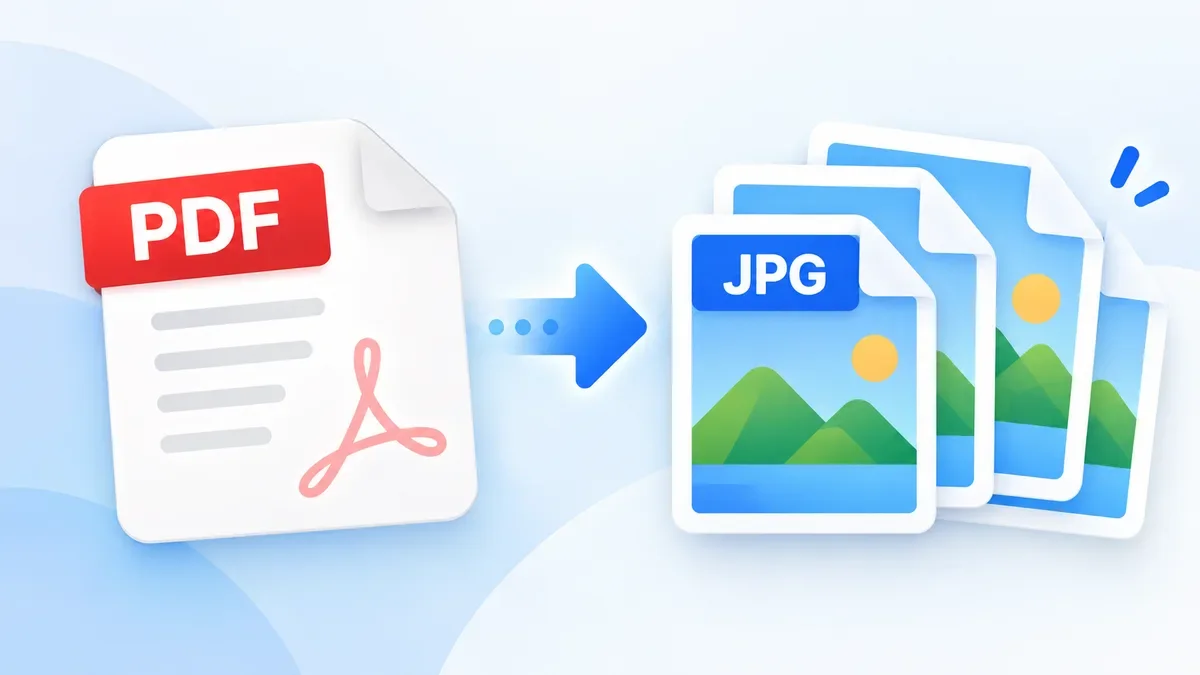
Splitting a PDF means dividing one PDF document into smaller PDF files. Depending on what you need, you might split every page into its own file, extract a few selected pages, or divide a long document into several smaller sections.
For example, a 20-page PDF could be divided into:
-
20 individual one-page PDF files
-
Pages 1–5 as one PDF
-
Pages 6–10 as another PDF
-
A selection such as pages 2, 7, and 15
-
Several smaller documents organized by section
This can be useful when you only need to send part of a document or when a large PDF needs to be divided into more manageable files.
Why split a PDF?
There are many everyday reasons to separate pages from a PDF.
Sharing specific pages
If someone only needs a few pages from a long report, you can extract those pages instead of sending the entire document.
Submitting documents online
Some application, university, job, or government portals have file-size or document requirements. Splitting a large PDF can make it easier to submit the relevant sections separately.
Organizing scanned documents
A scanner may create one large PDF containing several documents. Splitting the file can help you separate invoices, receipts, forms, or other records.
Working with large reports
Long reports, manuals, and research documents can be easier to manage when divided into smaller sections.
Sending documents by email
If a PDF is too large to send conveniently, splitting it into smaller files can make sharing easier. If the individual files are still too large, you can also use a PDF compressor.
How to split a PDF into separate pages
With a browser-based PDF splitter, the basic process is straightforward:
-
Open the PDF splitting tool.
-
Choose or drop your PDF file into the tool.
-
Select the pages or page ranges you want to separate.
-
Create the new PDF files.
-
Download the resulting files to your device.
The exact options depend on the PDF tool you are using. For simple documents, extracting a few pages may be enough. For larger files, selecting page ranges can help you organize the output into logical sections.
Can you split a PDF without uploading it?
Yes. ToolCMB is designed around browser-based file processing, so supported PDF operations can be performed on your own device rather than sending your documents to a remote server.
This can be particularly useful when working with documents that contain personal, financial, business, or other private information.
For example, ToolCMB's PDF Compressor processes PDFs in the browser using WebAssembly, while the PDF Merger also processes documents locally without uploading them.
A local workflow also means you do not need to wait for a file to be uploaded and processed on a server.
What types of PDFs are useful to split?
PDF splitting can be useful for many common document types, including:
-
Invoices and receipts
-
Business reports
-
Contracts
-
Application documents
-
School assignments
-
Research papers
-
Scanned documents
-
Manuals and guides
-
Forms
-
Multi-page statements
If a PDF contains several unrelated documents, splitting it into smaller files can make the files easier to name, store, and share.
Split only the pages you need
You do not always need to separate every page.
Suppose you have a 50-page report but only need pages 4, 8, and 20. Extracting those pages into a smaller PDF is more convenient than keeping the entire document.
Likewise, a page range such as pages 10–15 can be treated as a separate section when you need to send only one part of a larger document.
This is one reason page-level PDF tools are useful: you can work with the specific content you need rather than repeatedly editing the original document.
What should you do after splitting a PDF?
Your next step depends on what you are trying to accomplish.
If the new PDF is still too large to upload or email, use a PDF Compressor to reduce its file size. ToolCMB's compressor supports different compression levels as well as target sizes such as 1 MB, 2 MB, 5 MB, and other presets.
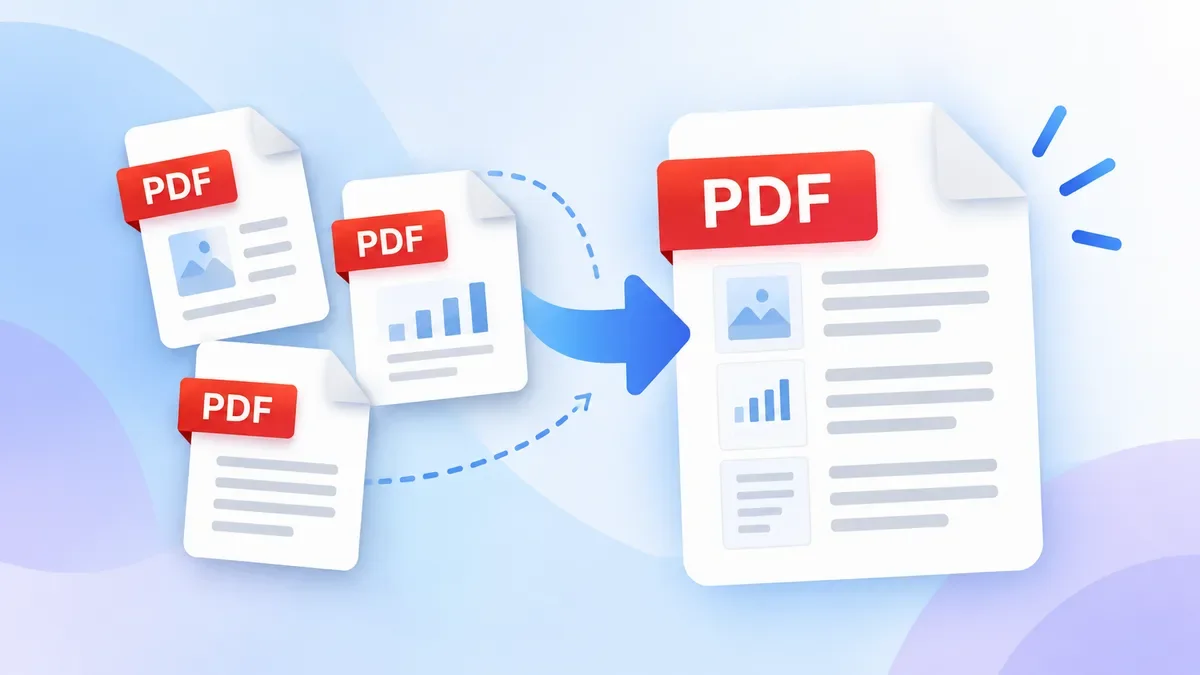
If you separated pages because you wanted to create a new document from selected sections, a PDF Merger can be useful for combining those pages or other PDF files again. ToolCMB's merger supports page-level reordering, rotating, deleting, and selecting page ranges.
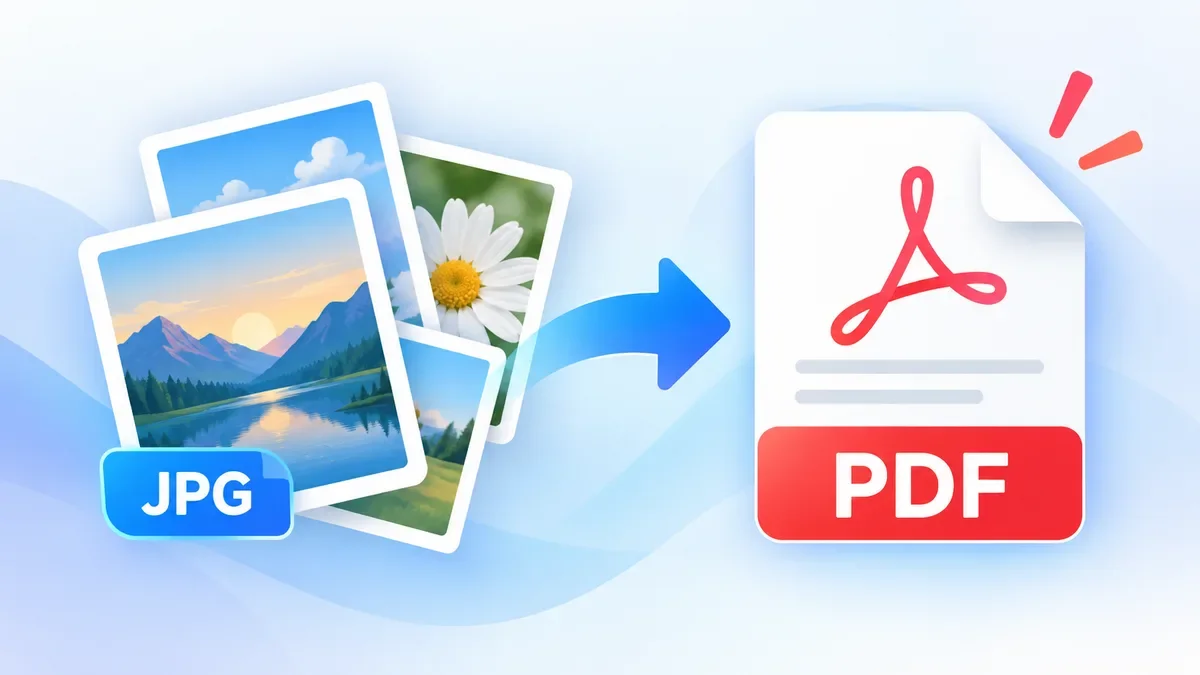
If your source material is made up of images rather than a PDF, the JPG to PDF tool can also turn photos, scans, and screenshots into PDF documents before you organize them.
The terms "split PDF" and "extract PDF pages" are often used interchangeably, but there is a small practical difference.
Splitting a PDF usually means dividing a document into multiple PDF files.
Extracting PDF pages usually means taking specific pages from the original document and creating a new PDF containing only those pages.
For example:
Original PDF: 30 pages
Extracted pages: 3, 7, 12, and 18
Result: a new PDF containing those four pages
Both workflows are useful when you do not need the entire original document.
Is it safe to split a private PDF online?
The answer depends on how the particular PDF tool handles files.
Some online PDF services upload documents to their servers for processing. If a document contains confidential information, that may be a concern.
A browser-based approach can reduce that concern because the file can be processed locally. ToolCMB's PDF tools are built around this privacy-first model: files are processed in the browser and are not uploaded to the server.
Even with local processing, you should still use a secure device and browser when handling sensitive documents.
Tips for splitting large PDF files
Before splitting a large PDF, consider what you actually need from it.
Extract only the necessary pages.
If you only need a few pages, there is no reason to create unnecessary copies of the entire document.
Keep the original PDF.
Save the source document separately before making changes.
Use meaningful file names.
Names such as invoice-january.pdf, report-section-1.pdf, or application-documents.pdf make files easier to find later.
Compress when necessary.
If the resulting PDF is still too large for an upload portal or email attachment, compress it after splitting.
Check the output before sharing.
Open the new PDF and make sure the required pages are present and in the correct order.
Frequently Asked Questions
Can I split a PDF into one file per page?
Yes, when the PDF splitting tool supports individual-page extraction. A multi-page document can be divided so that each page becomes its own PDF file.
Can I extract only certain pages from a PDF?
Yes. For example, you may want to create a new PDF containing only pages 2, 5, and 9 rather than splitting the entire document.
Can I split a PDF without installing software?
Yes. A browser-based PDF tool can perform the operation without requiring a desktop PDF application.
Will splitting a PDF reduce its quality?
Splitting itself does not necessarily reduce the quality of the original pages. A PDF can be divided into smaller documents without re-rendering the content.
Can I split a password-protected PDF?
This depends on the PDF tool and whether you have the required password or permission to open the document. ToolCMB's PDF tools support password-protected PDFs for supported operations, with passwords handled locally in the browser.
What if my split PDF is still too large?
Try compressing the resulting PDF. ToolCMB's PDF Compressor can optimize PDFs and can target a specific file size when you need to meet an upload limit.
Can I combine the pages again after splitting?
Yes. If you need to create a new document from several PDF files or selected pages, use a PDF merger. ToolCMB's PDF Merger can reorder pages and combine PDF files and images in the browser.
If you are working with PDF files, these tools can help with the rest of the workflow:
-
PDF Merger — combine PDF files and organize individual pages.
-
PDF Compressor — reduce PDF file size for email, sharing, and upload portals.
-
JPG to PDF — turn photos, scans, and screenshots into PDF documents.
Together, these tools cover several common PDF tasks without requiring you to install desktop software.
Final Thoughts
Splitting a PDF is useful whenever you need only part of a larger document. Whether you are extracting a few pages from a report, separating scanned documents, or preparing files for an online submission, a browser-based PDF tool can make the process much simpler.
For privacy-sensitive documents, local browser processing is especially useful because your files can stay on your device during the operation. ToolCMB follows this privacy-first approach across its file-processing tools, with the goal of providing fast, free utilities without requiring an account or file upload.