Combining several PDF files into one document is useful when you need to organize reports, applications, invoices, scanned documents, assignments, receipts, or other files that belong together.
Instead of installing desktop PDF software, you can merge PDF files online directly from a modern web browser. With ToolCMB's PDF Merger, the files are processed locally on your device, so you can combine documents without uploading them to a remote server.
What does it mean to merge PDF files?
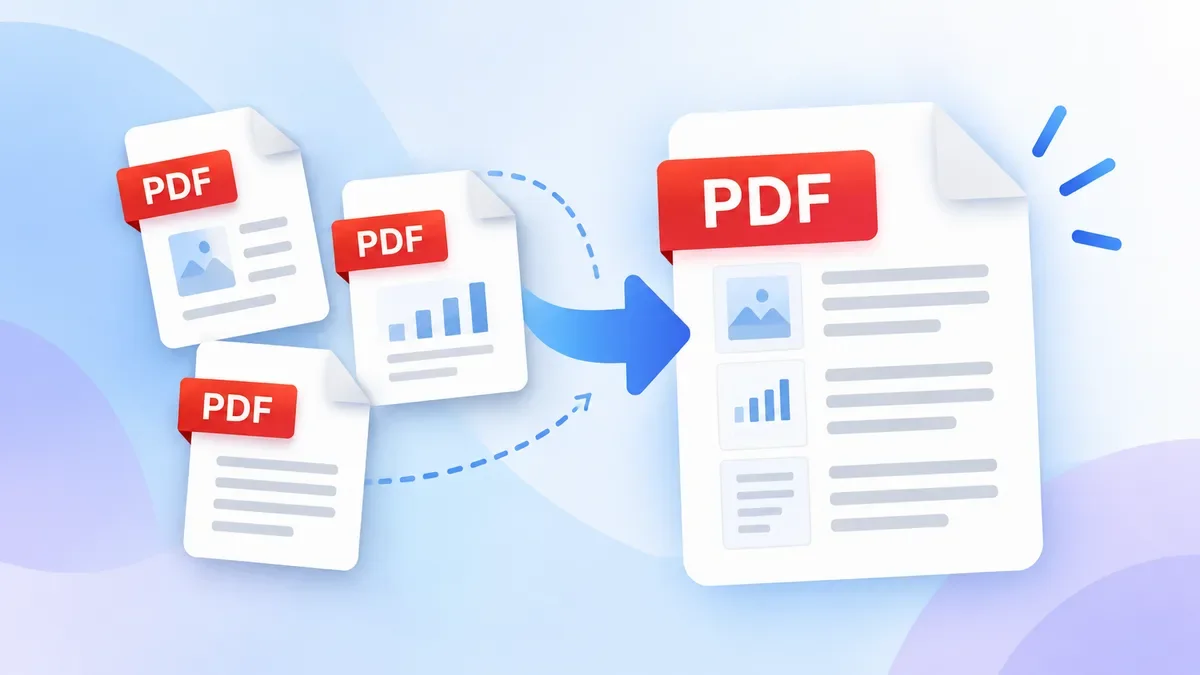
Merging PDFs means taking two or more separate PDF documents and combining their pages into a single PDF file.
For example, you might have:
-
cover.pdf
-
report.pdf
-
appendix.pdf
After merging them, you can create one file such as:
This can make documents easier to share, archive, print, or submit to an application portal.
The important part is that merging is different from converting or compressing a PDF. A PDF merger primarily combines the existing pages into a new document while allowing you to control their order.
How to merge PDF files online
You can merge PDF files with ToolCMB in three basic steps.
1. Add your PDF files
Open the PDF Merger and drag your files onto the page, or choose them from your device.
You can add multiple PDF files at once. ToolCMB also supports combining PDF documents with common image formats such as JPG, PNG, WebP, and GIF.
This can be useful if part of your document consists of scanned pages or photos that you want to include in the same PDF.
2. Arrange the files and pages
After adding the files, check their order before merging.
You can drag files to change their position. If you need more control, switch to the page view to work with individual pages.
Depending on what you need, you can:
For example, if you only need pages 1–3 and page 7 from a document, you can use a page range instead of merging the entire file.
This is especially helpful when several PDFs contain information that needs to be combined into a specific order.
3. Merge and download the PDF
When everything is in the correct order, click Merge PDF.
The combined document is created directly on your device and can then be downloaded as a single PDF file.
You can also choose options such as the output filename, page size, bookmarks, page numbers, and other document settings before creating the final file.
Can you merge PDF files without uploading them?
Yes. ToolCMB's PDF Merger is designed to process documents in your browser rather than uploading them to a server.
This can be useful when working with documents that contain private or sensitive information, such as:
-
Contracts
-
Invoices
-
Financial documents
-
Application forms
-
Scanned IDs
-
Business reports
-
Personal documents
Because processing takes place on your device, the PDF files do not need to leave your computer or phone.
This browser-based approach is also useful when privacy is an important consideration. The broader ToolCMB platform follows the same privacy-first approach for several file-processing tools.
Can I merge PDF files with images?
Yes.
You do not always need to convert images into PDF files first. ToolCMB's PDF Merger can combine PDF documents with JPG, PNG, WebP, and GIF images. Each image can become a page in the resulting document.
For example, you could combine:
-
A PDF application form
-
A scanned receipt as a JPG
-
A supporting document as a PDF
-
A PNG screenshot
The result can be downloaded as one PDF.
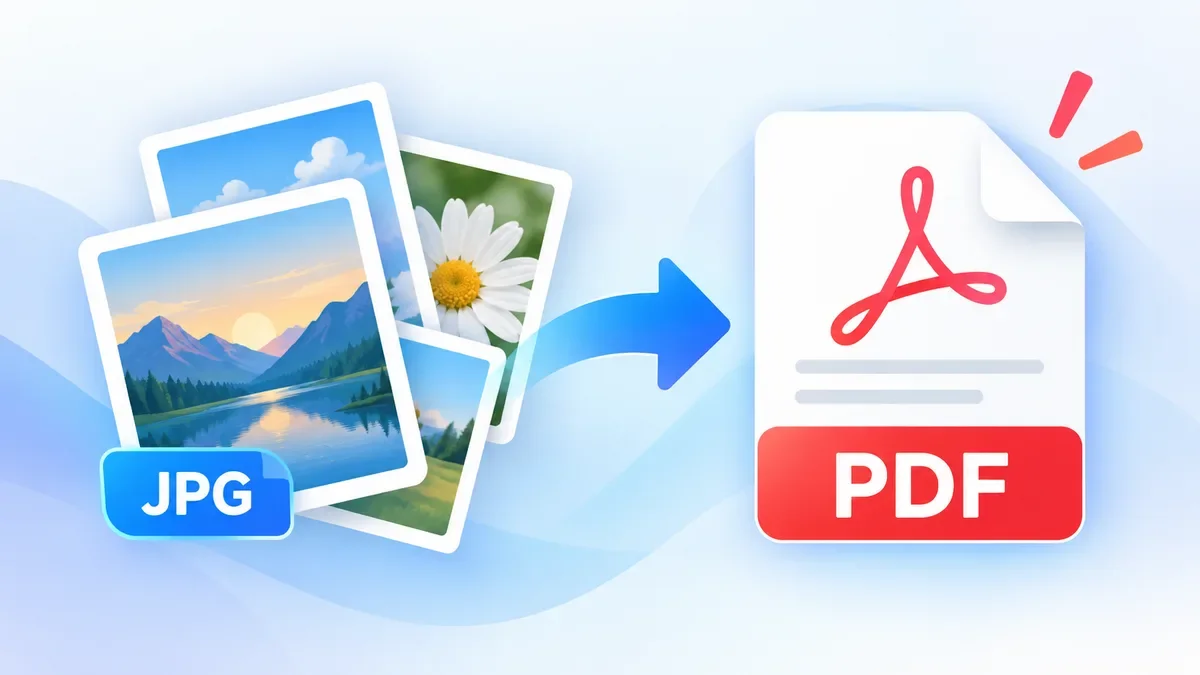
If you have many photos that need to become a PDF before merging, you can also use ToolCMB's JPG to PDF tool. It supports multiple images, page ordering, page sizes, margins, orientation, and different image-per-page layouts.
Does merging PDFs reduce quality?
Normally, merging should not require re-rendering the original PDF pages.
ToolCMB's PDF Merger copies the pages into the combined document rather than converting every page into an image. This means text remains searchable and selectable, while images and vector graphics are not unnecessarily re-compressed.
That makes merging different from some workflows where PDFs are converted into images and then rebuilt into another PDF.
If preserving searchable text and the original visual quality matters, avoid unnecessary PDF-to-image conversion before merging.
What if the merged PDF is too large?
Merging several PDFs can result in a larger final document, especially when the original files contain high-resolution scans or photographs.
If the resulting PDF is too large for email, an upload portal, or another service, you can use ToolCMB's PDF Compressor afterwards.
The PDF Compressor can reduce file size directly in the browser and includes options for different compression levels as well as target sizes such as 500 KB, 1 MB, 2 MB, 5 MB, and more.
A practical workflow is:
Merge PDFs → Check the result → Compress if necessary → Download
Keep the original PDFs when they are important, especially if you may need the highest-quality version later.
Can I merge password-protected PDFs?
ToolCMB's PDF Merger supports password-protected PDF files when you provide the required password.
The password is used in your browser to open the protected document. You can also optionally protect the resulting PDF with a new password using AES-256 encryption.
If you are working with confidential documents, make sure you know the passwords and keep them secure.
Common reasons to merge PDF files
There are many everyday situations where merging PDFs can save time.
Job applications
You may need to submit a resume, cover letter, certificates, and other supporting documents as a single PDF.
School and university assignments
Several sections or supporting documents can be combined into one organized file before submission.
Business documents
Reports, invoices, contracts, and supporting documents can be stored together instead of being sent as separate attachments.
Scanned documents
Multiple scanned pages can be organized into one document for easier sharing and archiving.
Receipts and expenses
Receipts saved as images can be combined with PDF expense reports or other documentation.
How to organize a PDF before merging
Before clicking Merge PDF, take a moment to check the final page order.
A simple structure might be:
-
Cover page
-
Main document
-
Supporting documents
-
Appendices
-
Additional receipts or images
If individual pages are out of order, use the page view to move them into the correct position.
You can also rotate pages that were scanned sideways or remove pages that are not needed.
For documents intended for printing, choosing a consistent page size can make the final result easier to work with. ToolCMB can scale pages to formats such as A4 or US Letter while preserving the orientation of portrait and landscape pages.
PDF merging vs. PDF compression
These two operations solve different problems.
PDF merging combines multiple documents into one.
PDF compression reduces the size of a PDF.
For example:
-
Have five PDFs that need to become one file? → Merge PDF
-
Have one PDF that is too large to upload? → Compress PDF
-
Have five PDFs that need to become one smaller file? → Merge first, then compress
ToolCMB provides both tools, so you can complete the two-step workflow without moving your documents between different websites.
If you frequently work with PDF files, several related tools can help with common tasks:
-
PDF Merger — combine multiple PDFs and images into one document.
-
PDF Compressor — reduce PDF file size for email and upload limits.
-
JPG to PDF — turn photos, scans, and screenshots into PDF pages before combining them.
-
PDF Splitter — split a large PDF or extract pages when you need only part of a document.
Using specialized tools for each task can be simpler than trying to perform every operation in a desktop PDF application.
Frequently asked questions
Is it free to merge PDF files online?
Yes. ToolCMB's PDF Merger is available for free and does not require an account or watermark.
How many PDF files can I merge?
ToolCMB supports up to 200 files in a single merge. The practical limitation is the available memory on your device rather than a fixed online upload limit.
Can I merge PDFs on my phone?
Yes. The PDF Merger works in modern browsers on phones, tablets, and computers, including Chrome, Safari, Edge, and Firefox.
Can I merge only selected pages?
Yes. You can enter page ranges or use the page view to select and organize individual pages before merging.
Can I change the order of pages?
Yes. You can drag files into a different order and use page view when you need to rearrange individual pages.
Will the merged PDF still be searchable?
Yes. The merger copies PDF pages rather than rasterizing them, so text remains searchable and selectable.
Are my PDF files uploaded?
No. The PDF Merger processes files locally in your browser, so they are not uploaded to ToolCMB's server.
What should I do if my merged PDF is too large?
Use the ToolCMB PDF Compressor after merging. You can choose a compression level or target file size depending on where you need to upload or send the document.
Final thoughts
Merging PDFs does not need to be complicated. If you only need to combine documents, the basic process is simple: add your files, arrange the pages, merge them, and download the result.
For documents containing private information, browser-based processing can also provide an important privacy advantage because the files can remain on your own device.
And if the final document is too large, compress it after merging rather than reducing the quality of the original files unnecessarily.