PDF is one of the most common formats for documents, but it is not always the most convenient format for sharing or displaying a single page. Sometimes you need a PDF page as a regular image that can be inserted into a presentation, uploaded to a website, attached to a form, or shared in a message.
That is where converting PDF to JPG can help.
Instead of working with an entire PDF document, you can create an image version of the page you need and use it like any other JPG image.
What does PDF to JPG conversion do?
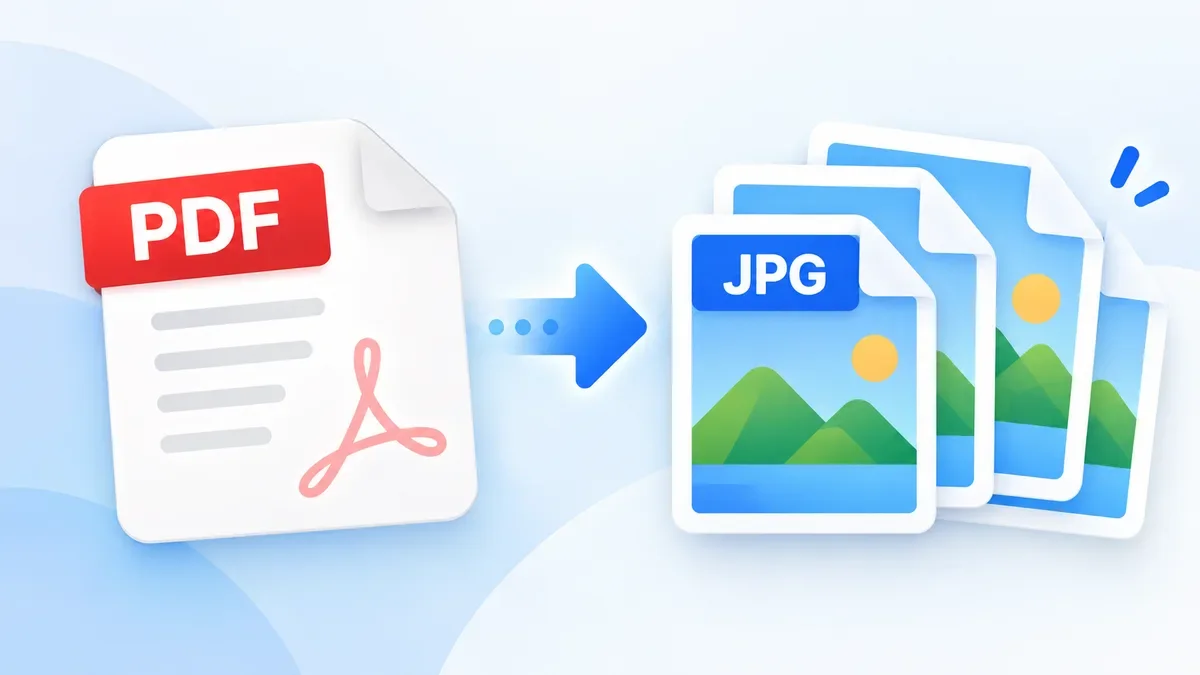
A PDF can contain text, images, vector graphics, fonts, and multiple pages. When you convert it to JPG, each selected PDF page is rendered as an image.
For example, a five-page PDF can produce five JPG images:
-
Page 1 → JPG
-
Page 2 → JPG
-
Page 3 → JPG
-
Page 4 → JPG
-
Page 5 → JPG
The original PDF is not changed. You are creating image copies of its pages.
JPG is particularly useful when the content only needs to be viewed as an image rather than searched, edited, or preserved as a structured PDF document.
How to convert a PDF to JPG online
With an online PDF to JPG converter, the process is usually straightforward:
1. Add your PDF
Choose the PDF file you want to convert or drag it into the converter.
If the document contains private information such as invoices, contracts, applications, or personal records, check how the service handles your files before uploading them.
2. Convert the PDF pages
The converter renders the PDF pages into JPG images.
For a multi-page document, each page can become a separate image. This makes it easier to use only the pages you actually need.
3. Download the JPG files
After conversion, download the resulting images and use them wherever JPG is supported.
Depending on the converter, multiple images may be provided individually or packaged together for easier downloading.
Why convert PDF to JPG?
There are several practical reasons to convert a PDF page into an image.
Share a single page
If someone only needs one page from a larger document, sending a JPG can be simpler than sending the entire PDF.
Create an image preview
JPG files are convenient for creating document previews on websites, dashboards, messaging applications, and other interfaces.
Use a PDF page in a presentation
A converted page can be inserted into presentation software as an image without requiring the original PDF to be opened separately.
Upload to an image-based service
Some websites and applications accept JPG or other image formats but do not accept PDF files. Converting the required page can make the document compatible with those systems.
Social platforms are generally designed around image and video content. A JPG version of a PDF page can therefore be easier to share than the original document.
PDF and JPG serve different purposes.
| PDF |
JPG |
| Designed for documents |
Designed for images |
| Can contain multiple pages |
Usually represents one image |
| Text can remain selectable |
Text becomes part of the image |
| Good for printing and document sharing |
Good for previews and visual sharing |
| Can preserve links, forms and document structure |
Focuses on visual appearance |
| Suitable for contracts, reports and applications |
Suitable for screenshots, previews and image uploads |
If you need searchable text, selectable content, forms, links, or a structured multi-page document, keeping the PDF is usually better.
If you mainly need a visual copy of a page, JPG can be more convenient.
Does converting PDF to JPG reduce quality?
It can.
PDF pages are not necessarily stored as ordinary images. A PDF may contain vector graphics and text that can scale cleanly at different resolutions. When a page is converted to JPG, the page becomes a raster image.
JPG also uses lossy compression, so the final image may not contain exactly the same information as the original PDF.
For documents containing small text, tables, diagrams, or fine lines, image resolution matters. A low-resolution JPG may make small details difficult to read.
For that reason, choose an appropriate output quality or resolution when the converter provides those options.
JPG works well for photographs and general-purpose images, but it is not ideal for every PDF page.
For example, a page containing mostly text, sharp diagrams, or areas of flat color may benefit from a lossless image format such as PNG.
If you only need a standard image that is widely supported and relatively small, JPG is often a practical choice.
The important thing is to choose the output format based on how you will use the converted page.
What can you do with the JPG files?
Once PDF pages have been converted to images, you can use them in many workflows:
-
Share a document page in a message
-
Add a page to a presentation
-
Create a thumbnail or preview
-
Upload a document page to an image-based form
-
Add a page to a website
-
Use a page as a reference image
-
Prepare visual content for social media
-
Store individual pages as image files
For larger documents, converting every page may not be necessary. If you only need a few pages, converting those pages can reduce the number of files you need to manage.
Is it safe to convert a private PDF online?
Privacy is an important consideration when working with PDFs.
Documents can contain sensitive information such as names, addresses, financial information, business records, applications, or identification documents.
A browser-based converter can provide an additional privacy advantage when the processing happens locally on your device. ToolCMB's file-processing approach is designed around browser-side processing, meaning files can be handled on the device instead of being uploaded to a remote server. The same privacy-first approach is used across ToolCMB's PDF and image utilities.
This can be especially useful when working with documents that you would rather not send to a third-party server.
However, you should still review the specific tool's privacy information before processing sensitive files.
What if the PDF is too large?
PDF files containing scanned pages or high-resolution photographs can become quite large.
If your workflow produces a large PDF or you need to reduce an existing PDF before or after working with it, ToolCMB also provides a PDF Compressor. It supports several compression levels, target file sizes, batch processing, and ZIP downloads, with processing performed in the browser.
For example, a PDF that needs to meet an upload limit can be compressed toward a target such as 500 KB, 1 MB, or another supported size.
It is generally a good idea to keep the original document and treat the compressed version as a separate copy.
PDF conversion is often only one step in a larger file workflow. Depending on what you are trying to accomplish, another tool may be more appropriate.
PDF Compressor
Use the PDF Compressor when the main problem is file size rather than file format. It can reduce PDF size while retaining searchable text and vector content in normal compression modes.
PDF Merger
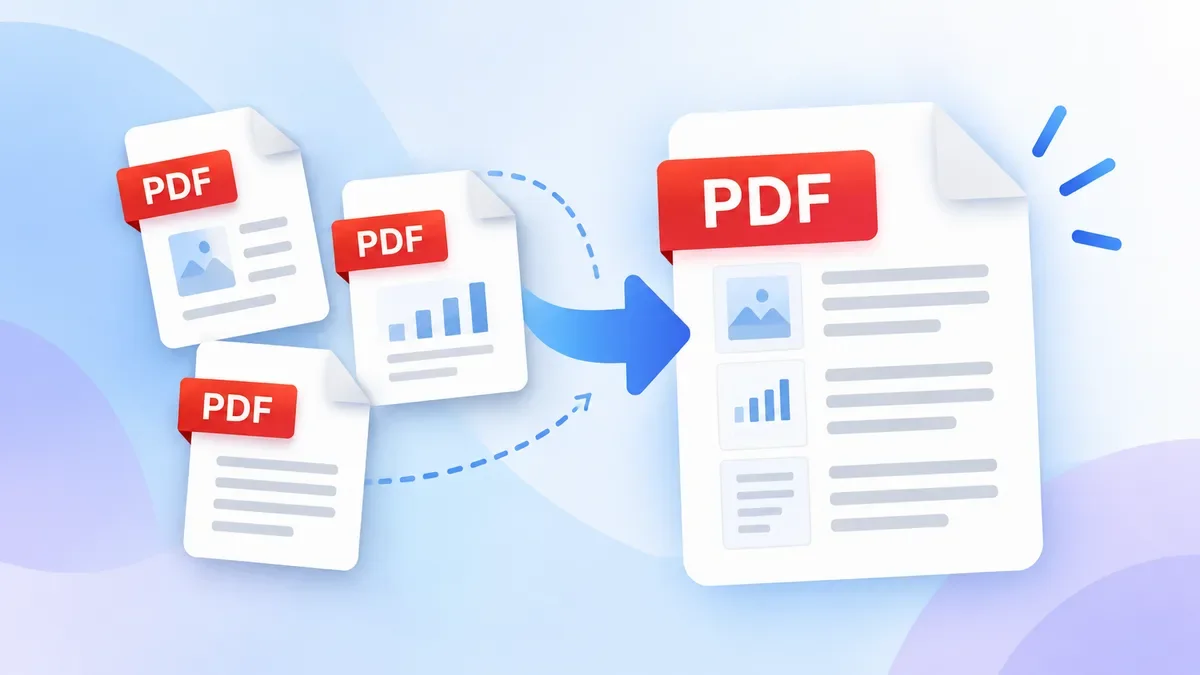
If you have several PDFs or images that need to become one document, the PDF Merger lets you combine files, reorder pages, rotate pages, and work with images and PDFs together.
JPG to PDF
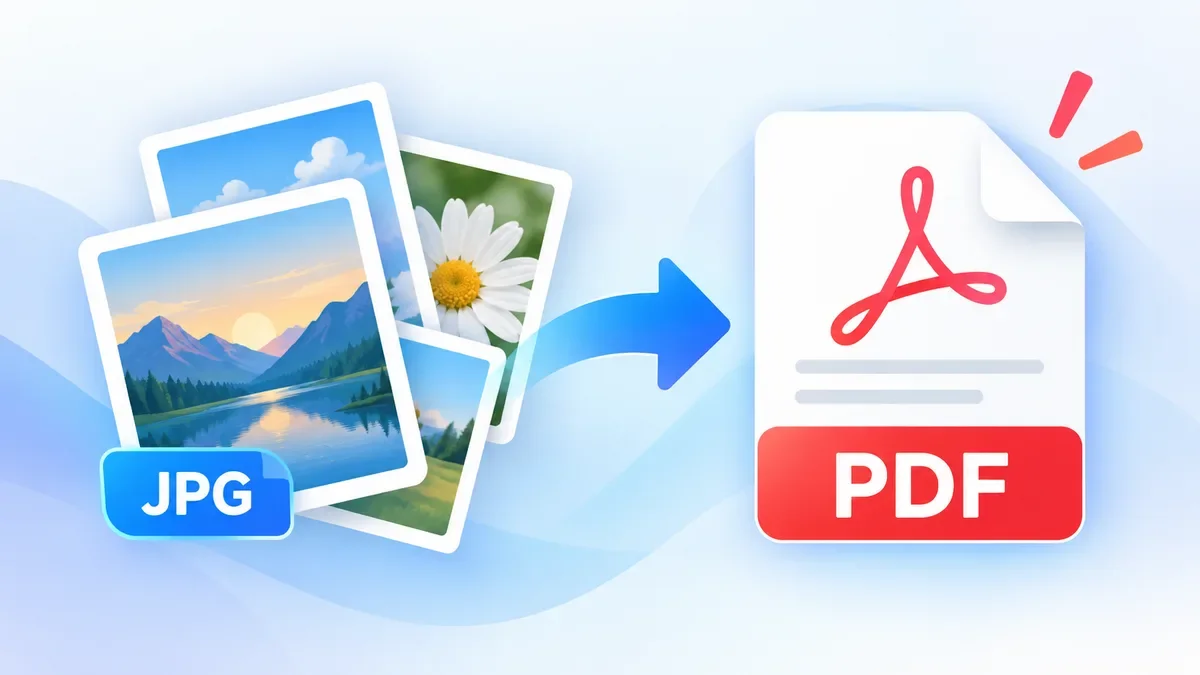
If you need to reverse the workflow, ToolCMB's JPG to PDF converter can combine JPG, PNG, WebP, GIF, BMP, and AVIF images into a PDF. It also provides page-size, orientation, margin, layout, and image-quality options.
Image Resizer
After converting a PDF page to JPG, you may need to change the image dimensions or file size. ToolCMB's Image Resizer supports pixel dimensions, percentages, print sizes, aspect ratios, and several output formats.
Tips for better PDF to JPG results
Keep the original PDF
Conversion creates an image copy. Keep the original PDF if you may later need searchable text, links, forms, or the original document structure.
Use enough resolution for text
If the JPG will be used to read a document, avoid unnecessarily low resolution. Small fonts and fine details can become difficult to read after rasterization.
Avoid repeated JPG conversion
JPG uses lossy compression. Re-saving an already compressed JPG multiple times can gradually reduce image quality.
Compress only when necessary
If the converted image is already small enough for your intended use, additional compression may not provide much benefit.
Consider PNG for text-heavy pages
If a page contains mainly text, line drawings, or sharp graphics, PNG may sometimes produce a better visual result than JPG.
Frequently asked questions
Can I convert a multi-page PDF to JPG?
Yes. A multi-page PDF can be converted into separate JPG images, with each image representing a PDF page.
Will converting PDF to JPG change the original PDF?
No. PDF to JPG conversion creates new image files. Your original PDF remains unchanged.
Is JPG smaller than PDF?
Not necessarily. File size depends on the contents of the document, image resolution, compression settings, and how the PDF was created. A JPG version of a page can be smaller or larger than the corresponding PDF page.
Can I convert a scanned PDF to JPG?
Yes. A scanned PDF is already largely image-based, so converting its pages to JPG is a common use case.
Can I convert only one page from a PDF?
This depends on the converter's page-selection features. If you only need a specific page, converting only the required page avoids creating unnecessary image files.
Will text remain selectable after converting PDF to JPG?
No. The page becomes an image, so the text is no longer stored as selectable PDF text. If you need searchable or selectable text, keep the original PDF.
Can I use JPG images from a PDF on a website?
Yes. JPG is widely supported by browsers and content-management systems. If the image is intended for a website, you may also want to resize or compress it to improve loading performance.
What should I do if the JPG file is too large?
You can resize the image or reduce its quality. ToolCMB's Image Resizer supports output quality and file-size limits, while the PDF Compressor can help when the source document itself is too large.
Final thoughts
Converting PDF to JPG is useful when you need the visual content of a document page in a standard image format. It can simplify sharing, previews, presentations, website uploads, and other image-based workflows.
The best format depends on what you need to do next. Keep the PDF when searchable text, document structure, forms, or multiple pages matter. Choose JPG when you primarily need a convenient visual copy.
For sensitive documents, browser-based processing is also worth considering because keeping files on your own device can reduce the need to send them to a remote conversion server.