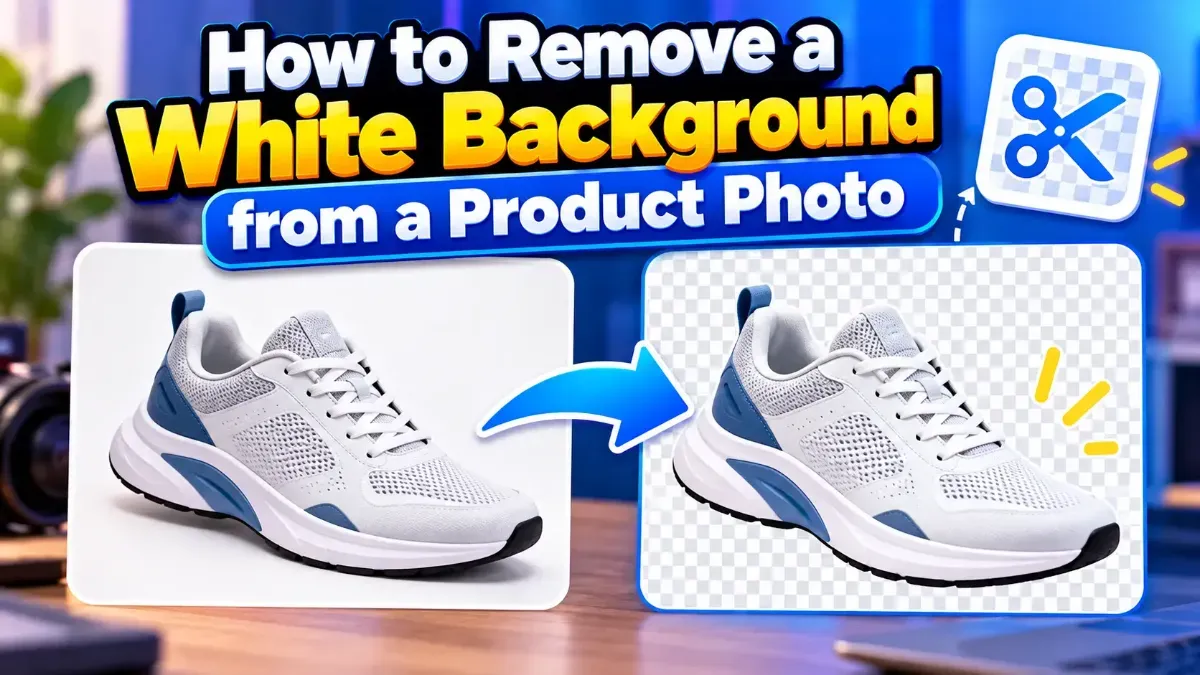
How to Remove a White Background from a Product Photo
Learn how to remove a white background from a product photo, preserve clean edges, export a transparent PNG, and avoid common cutout mistakes.
Learn how to extract text from a screenshot on Windows or Mac using built-in features, PowerToys, or browser-based OCR. Get clearer results and keep private information in mind.
 ToolCMB Team
6 min read
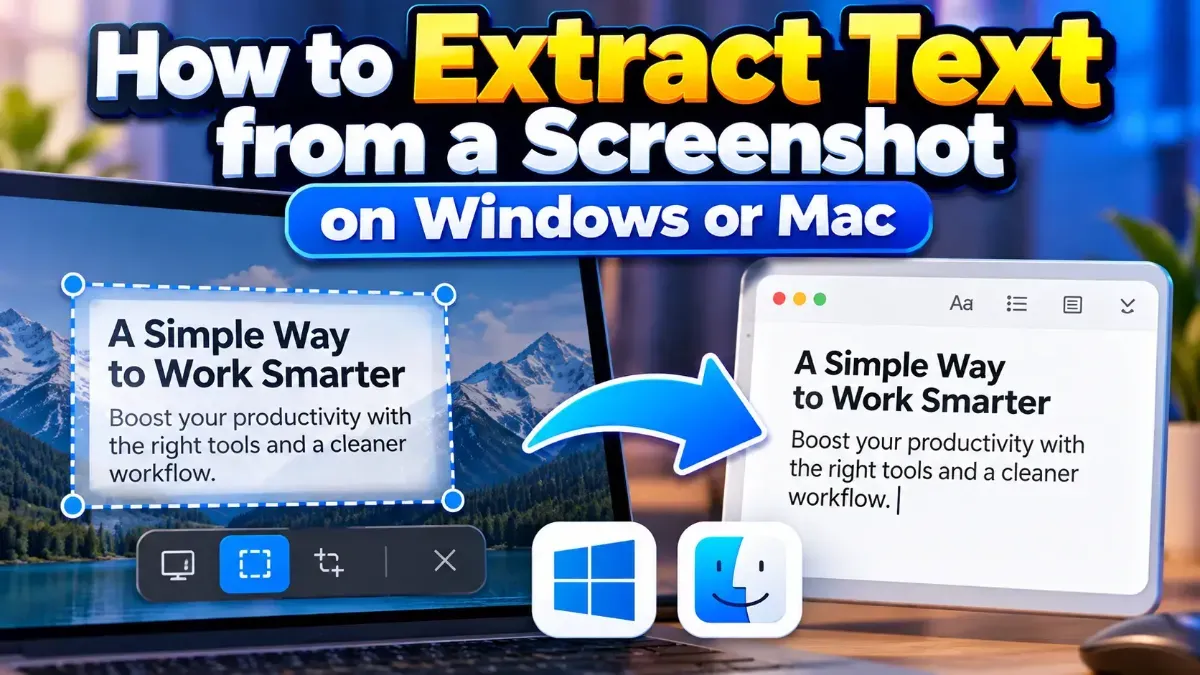
To extract text from screenshot Windows Mac users can try built-in text recognition first, then use an OCR tool if their computer does not offer it or the result needs improvement. On Windows, check Snipping Tool or PowerToys; on a compatible Mac, use Live Text to select words directly from an image.
OCR, short for optical character recognition, converts letters in an image into selectable text. It can save time when you need to copy a line from an error message, a receipt, a presentation, or a document that is only available as a screenshot. Here’s how to do it on both operating systems, plus how to improve the result.
The best method depends on your operating system, its version, and whether the text is already saved as an image. Use this table to choose a starting point.
| Device | First option to try | Good alternative |
|---|---|---|
| Windows | Text actions in Snipping Tool, if available | PowerToys Text Extractor or an OCR tool |
| Mac | Live Text in a supported macOS app | Browser-based OCR |
Feature availability and names can vary by operating system version. If you do not see the option described below, update the relevant app if possible or try one of the alternatives.
Some versions of the Windows Snipping Tool include text recognition, often shown as a Text actions button after you capture or open a snip. If your version has this feature, you can copy recognized text without installing a separate OCR app.
If Text actions is missing, your Snipping Tool version may not include it. Try Windows updates or use another method rather than assuming the screenshot itself is the problem.
Microsoft PowerToys includes a Text Extractor utility on supported installations. It lets you select an area of the screen and copy detected text to the clipboard. You may need to install PowerToys and enable the utility first.
This approach can be useful for text in an image or app window, not just a screenshot file. If the shortcut does not work, check PowerToys settings and confirm the utility is enabled.
If built-in options are unavailable, OCR can read a saved image file. ToolCMB’s Image to Text tool supports JPG, PNG, and scanned images. Open the tool in your browser, choose the screenshot, run text recognition, and copy the result for review.
ToolCMB’s tools run in the browser, so files stay on your device. Still, take care when sharing or displaying sensitive information on screen, and check that you selected the correct image before starting.
Live Text can recognize text in images on compatible Macs and supported macOS versions. If it is available, you can often select words in an image much as you would select text in a document. The feature may work in apps such as Preview or Photos, depending on your system and the image.
If you cannot select the words, confirm that your Mac and macOS version support Live Text, then try opening the image in another supported app. A blurry, rotated, or low-contrast screenshot can also make recognition harder.
For a screenshot that Live Text cannot read, open a browser-based OCR tool and select the image file. The general steps are similar on Windows and Mac: choose a JPG or PNG, start recognition, copy the output, and check it carefully. This is also handy when you want to process an image without searching through system settings.
OCR works best when the image clearly shows the characters. If the first result has errors, improve the screenshot or select a smaller region and try again.
Pay extra attention to email addresses, URLs, serial numbers, dates, prices, and code. A single misread character can change the meaning, even when the rest of the text looks correct.
First, check whether the screenshot contains actual text or a visual representation of text. OCR can recognize printed or displayed characters, but it cannot recover words that are hidden, cut off, or too blurred to distinguish.
When the screenshot contains a table or multiple columns, check the layout after pasting. OCR may capture the words but arrange them in a different order from the image.
Often, yes. Try Snipping Tool text actions on Windows or Live Text on a compatible Mac. If those features are unavailable, a browser-based OCR tool is another option.
Yes. OCR tools commonly support image formats such as JPG and PNG. A clear, high-quality image usually gives the recognition process a better chance of reading the words correctly.
OCR can mistake similar-looking characters, miss punctuation, or misread small, blurry, or low-contrast text. Compare the output with the image and correct important details before using it.
Choose a method that fits your privacy needs. ToolCMB tools run in the browser and files stay on your device. Avoid exposing sensitive screenshots to other people while you work.
Sometimes, but results depend on how legible the handwriting is and how well the OCR method supports it. Printed text is generally easier to recognize, so plan to proofread handwritten results closely.
We build fast, free and private browser tools — and write practical guides on how to use them.
Learn how to remove a white background from a product photo, preserve clean edges, export a transparent PNG, and avoid common cutout mistakes.
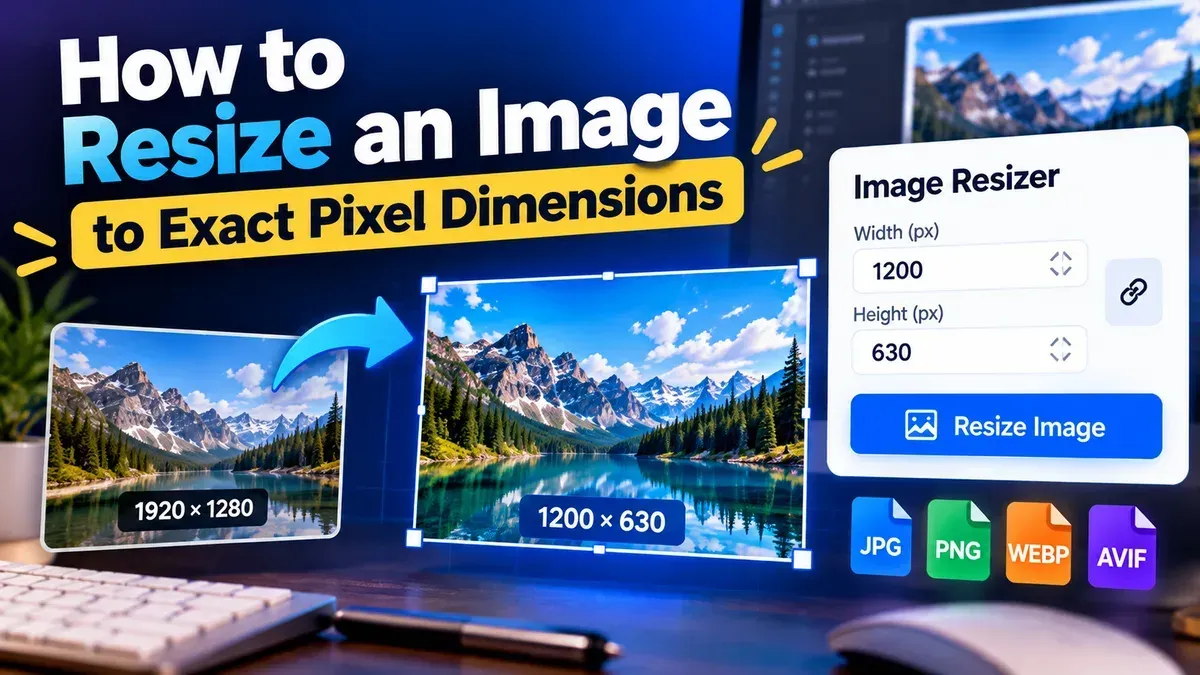
Learn how to resize an image to exact pixel dimensions without stretching it. Choose the right fit, preserve quality, and check the final file before sharing.
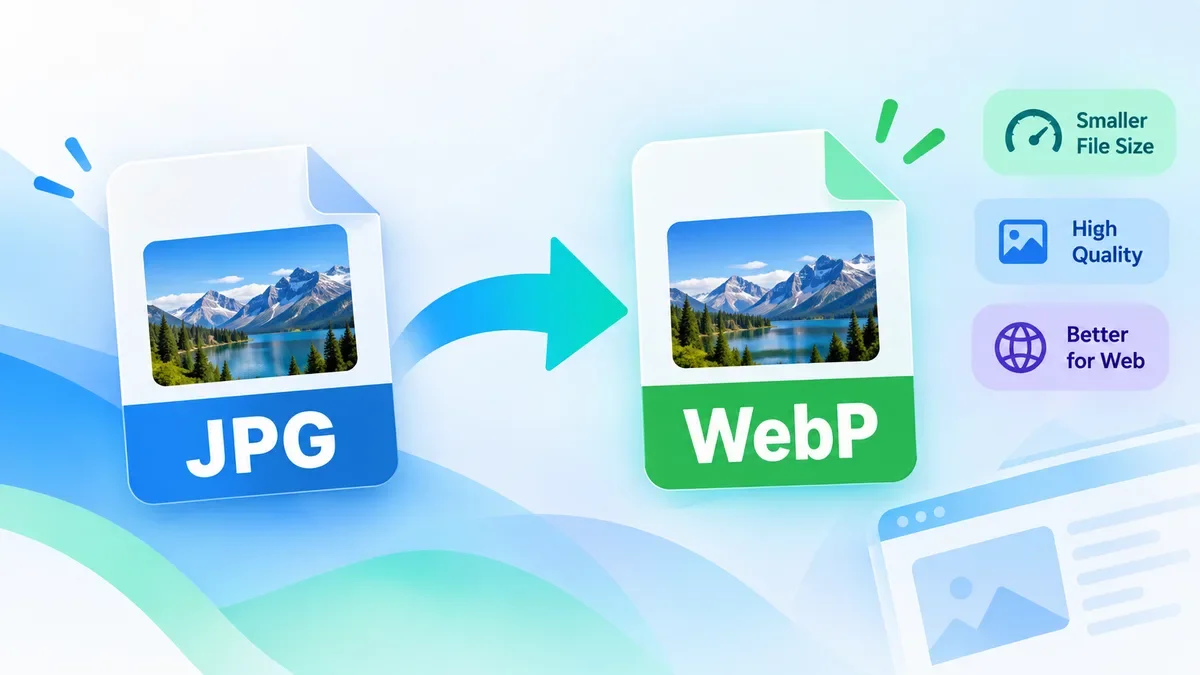
Convert JPG images to WebP online for free with ToolCMB. Learn when WebP is a better choice than JPG, how to convert images without installing software, and what to check before using WebP on a website.
Start typing to search tools and articles.