How to Convert PNG to JPG
Learn how to convert PNG to JPG online, understand what happens to transparency and image quality, and choose the right format for photos, websites, screenshots, and everyday sharing.
Convert JPG images to WebP online for free with ToolCMB. Learn when WebP is a better choice than JPG, how to convert images without installing software, and what to check before using WebP on a website.
 ToolCMB Team
7 min read
ToolCMB Team
7 min read
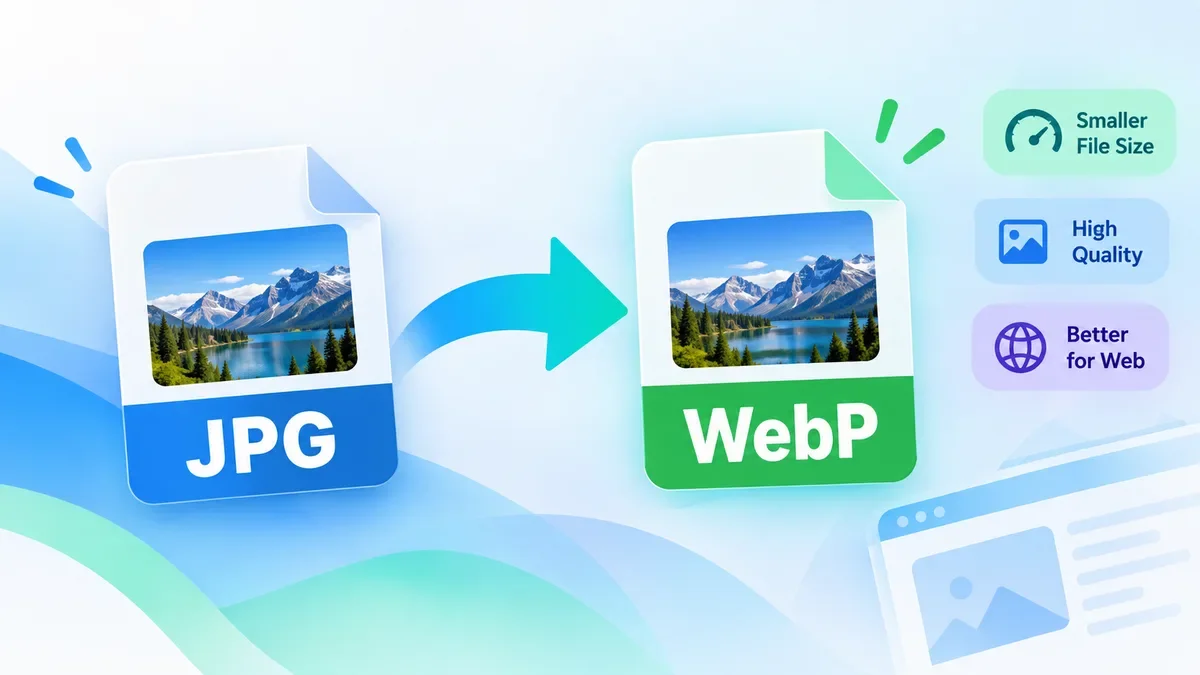
JPG is one of the most widely used image formats on the web, but it is not always the best choice for modern websites. If you are trying to reduce image file sizes or improve page performance, converting JPG images to WebP can be a useful part of your image optimization workflow.
With ToolCMB, you can convert JPG images to WebP online without needing to install an image editor or desktop conversion program.
The process is straightforward: select your JPG image, let the browser process the conversion, and download the resulting WebP file.
WebP is a modern image format developed for the web. It supports both lossy and lossless compression and can often produce smaller files than traditional formats while maintaining suitable image quality.
This makes WebP particularly useful for websites where image file size can affect loading performance.
However, converting every JPG to WebP is not automatically the right choice. The best format depends on how the image will be used, the required quality, and browser or application compatibility.
Using a JPG to WebP converter is usually much faster than opening an image editor and exporting the file manually.
Open the JPG to WebP tool on ToolCMB and select the JPG image you want to convert.
For example, you might convert:
After selecting the image, the converter processes the JPG and creates a WebP version.
Depending on the tool's available settings, you may be able to adjust the output quality before conversion. A higher quality setting generally preserves more visual detail, while a lower setting can produce a smaller file.
For most website images, the goal is not simply to achieve the smallest possible file. A better approach is to find a reasonable balance between image quality and file size.
Once the conversion is complete, download the resulting WebP file.
You can then use it in your website, blog, CMS, online store, or other web project.
The main reason to convert JPG to WebP is image optimization.
A smaller image can require less data to download, which can be particularly useful for pages containing many photographs or other image-heavy content.
WebP can be useful for:
The actual reduction in file size depends on the original JPG, its dimensions, compression level, and the WebP settings used during conversion.
JPG remains a practical format and is still widely supported. There is no need to convert an image simply because WebP is newer.
A simple rule is:
| Use case | Recommended approach |
|---|---|
| Existing JPG that works well | Keep JPG if there is no optimization need |
| Website photographs | Consider WebP |
| Reducing image download size | Test WebP |
| Modern web projects | WebP is often a good option |
| Maximum compatibility with older software | JPG may be preferable |
| Images requiring repeated editing | Keep an original copy |
For important images, keep the original JPG file even after creating a WebP version. The WebP file can be treated as an optimized version for web delivery.
It can, depending on the conversion settings.
If a lossy WebP conversion is used, some image information may be discarded to reduce the file size. At appropriate quality levels, the visual difference may be difficult to notice, while the resulting file can be significantly smaller.
For images where preserving every detail is important, use a suitable quality setting or consider whether a lossless workflow is more appropriate.
It is a good idea to compare the converted image with the original before publishing it.
Converting JPG to WebP is only one part of image optimization.
If the resulting WebP file is still larger than you need, consider these steps:
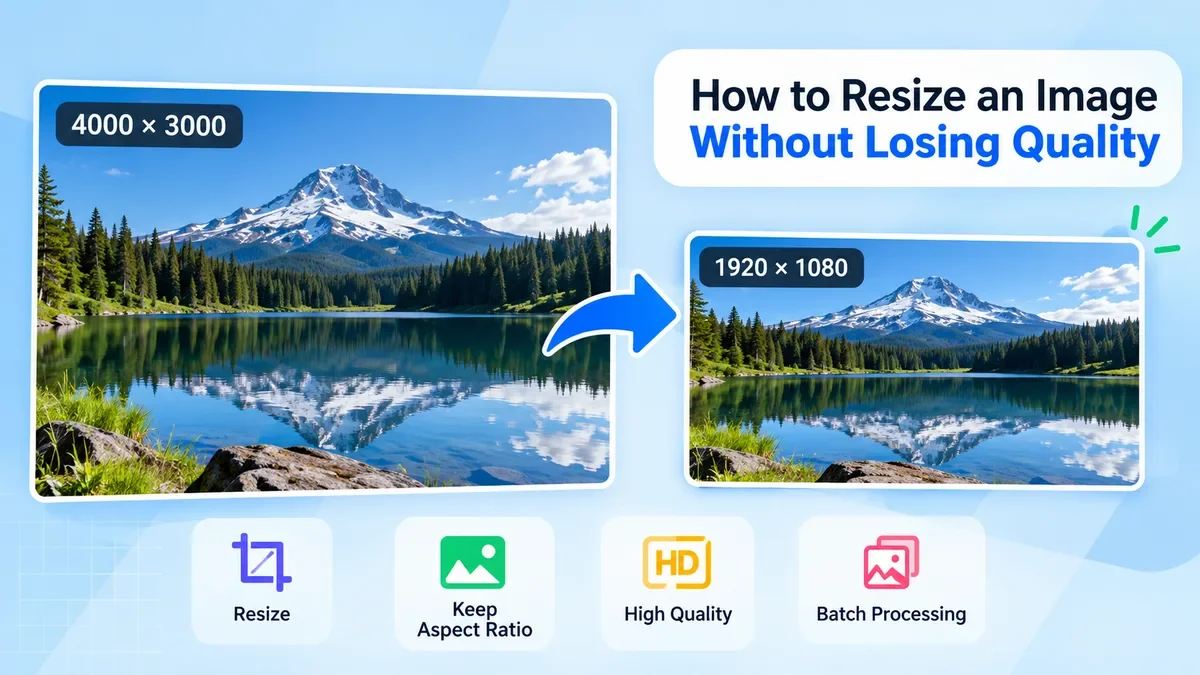
Do not upload a 4000-pixel-wide image when your website only displays it at 1200 pixels wide.
Resizing the image before publishing can substantially reduce the amount of data the browser needs to download.
ToolCMB's Image Resizer can be useful when you need to change image dimensions.
Compression can further reduce the file size.
For images that are already in WebP format, a WebP or image compression tool can help optimize the file further without manually editing the image.
There is usually a point where additional quality produces very little visible improvement but noticeably increases file size.
For web images, compare the result visually instead of automatically choosing the highest possible quality.
Yes. An online converter can handle the conversion directly from your browser.
This can be convenient when you only need to convert a few images and do not want to install software such as a desktop image editor.
ToolCMB is designed around browser-based utilities, so common image conversion tasks can be handled directly from the website.
Yes, especially when a website contains many large images.
Images can account for a significant portion of the data loaded by a web page. Optimizing them can therefore be a useful part of improving the overall page experience.
However, image format is only one factor. Image dimensions, compression, responsive images, caching, and the way images are delivered also affect performance.
For that reason, converting every image to WebP should be treated as part of a broader image optimization workflow rather than a guaranteed performance fix.
Keep the original JPG when it is important or difficult to recreate.
For example, if you are optimizing product photography, original photos, or important website assets, it is safer to maintain an original copy separately and use the WebP version as the web-optimized file.
This also gives you more flexibility if you later need to create another format or different image size.
JPG to WebP conversion is often only one step in preparing images for the web.
Depending on what you need to accomplish, you can also use related ToolCMB image utilities such as:
This creates a useful workflow: convert → resize → compress → publish, rather than treating format conversion as the only image optimization step.
ToolCMB provides free online utility tools. You can use the JPG to WebP converter to convert compatible JPG images without purchasing desktop image-conversion software.
Neither format is universally better. WebP can be a strong choice for web delivery because it can provide efficient compression, while JPG remains widely supported and useful for many workflows.
Yes. If you need a JPG version of a WebP image, use a WebP to JPG converter.
A smaller image can reduce the amount of data a browser needs to download, but overall page speed depends on many factors. WebP conversion can help, but it should be combined with appropriate image dimensions, compression, caching, and other performance optimizations.
Usually, no. Keep the original JPG if you may need to edit, reuse, or convert the image again later.
Yes. WebP is widely used for web images. Before publishing, check that your target browsers, applications, or publishing platform support the format you need.
Converting JPG to WebP is a simple way to prepare images for modern websites and other online projects. The most important goal is not simply to change the file extension, but to find a practical balance between image quality, file size, and compatibility.
If you only need a quick conversion, use ToolCMB's JPG to WebP converter. If the image is still too large afterward, consider resizing or compressing it before uploading it to your website.
We build fast, free and private browser tools — and write practical guides on how to use them.
Learn how to convert PNG to JPG online, understand what happens to transparency and image quality, and choose the right format for photos, websites, screenshots, and everyday sharing.
Learn how to resize an image without losing quality. This guide explains how to choose the right dimensions, preserve aspect ratio, avoid stretching, use the right resampling method, and resize images for websites, social media, printing, and other common uses.
PNG and JPG are two of the most widely used image formats, but they are designed for different purposes. Learn when to use PNG for transparency and sharp graphics, when JPG is better for photographs and smaller file sizes, and how to choose the right format for websites, social media, and everyday images.
Start typing to search tools and articles.