Why Does Video Look Blurry After Resizing?
If your video looks blurry after resizing, the cause is often upscaling, compression, or the wrong export settings. Learn how to identify the problem and improve the result.
Need a silent version of a clip without opening a video editor? Learn how to mute a video, save a separate copy, and check the result while keeping your original file.
 ToolCMB Team
7 min read
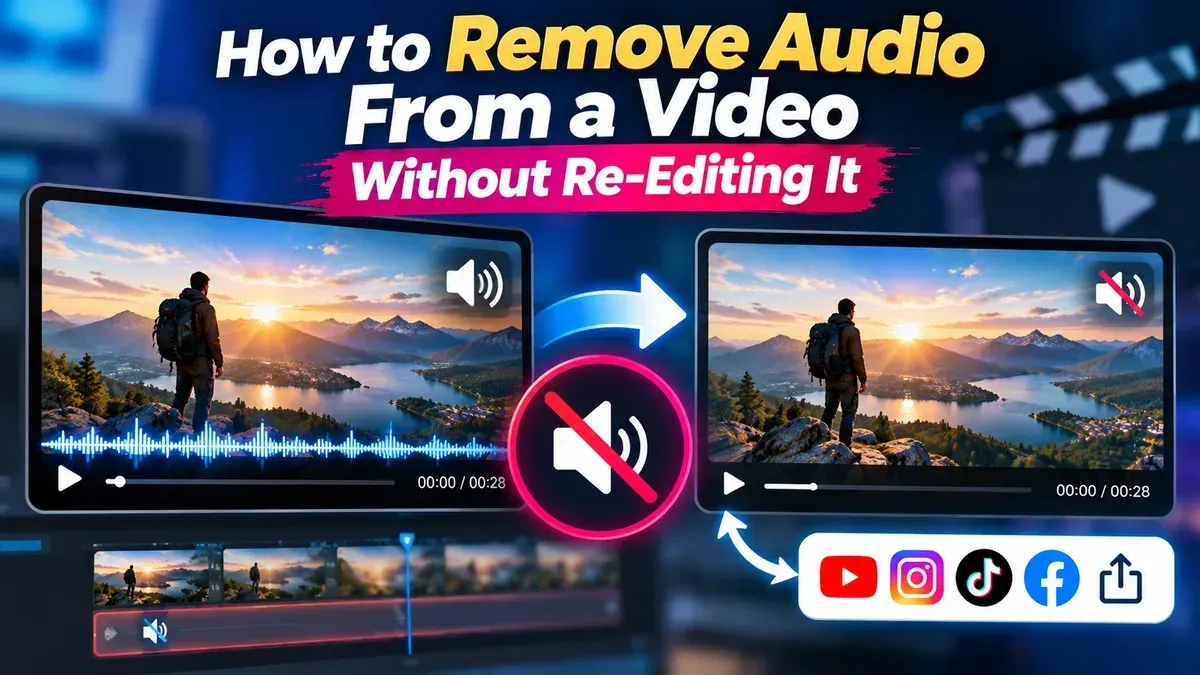
To remove audio from video without re editing, create a muted copy of the video with a browser-based tool instead of reopening a full video editor. The original file stays unchanged; you download a new version with the sound removed or muted. This is useful when you need a silent clip quickly and do not want to rebuild your timeline.
Before you start, decide whether you want all audio gone or only a particular sound removed. Muting removes the audio from the finished version, while changing or replacing selected sounds usually requires editing. For a completely silent video, a simple mute-and-export workflow is often enough.
A mute tool processes a video file and gives you a silent version to save. You do not need to adjust cuts, transitions, captions, or visual effects. Keep your original file as a backup, then work with a copy so you can return to the source if needed.
That is all you need for a straightforward silent copy. You can mute a video online without installing a dedicated editor or making changes to the source file.
A video file can contain both visual data and one or more audio streams. A mute workflow creates an output with the sound removed or made inaudible, while retaining the video content. The original file is not overwritten when you download the result as a separate copy.
The exact technical process can vary. A tool may remove an audio stream or produce a video whose sound is silent. Either way, the practical test is playback: open the finished file and make sure no audio can be heard. If you need a specific file structure for professional delivery, check the output requirements of the platform or recipient.
Muting does not mean selectively editing the soundtrack. If you want to keep dialogue but remove background music, silence only one section, or replace a sound, you will need an editor with audio controls. A mute tool is best when the whole video should have no audible sound.
Choose the simplest option that meets your goal. A dedicated mute tool is convenient for removing all sound; an editor gives you finer control when the audio or picture needs additional changes.
| Task | Mute tool | Video editor |
|---|---|---|
| Make the entire clip silent | Usually the simplest choice | Works, but may involve extra steps |
| Remove only one sound or section | Often not designed for this | Better suited to selective edits |
| Keep the original untouched | Download a separate output copy | Save an edited copy or project |
| Change cuts, titles, or effects too | Not its main purpose | Designed for broader edits |
A quick review helps catch the wrong file, incomplete processing, or an output that does not meet your needs. Do not rely only on a thumbnail: thumbnails show the picture, not whether the soundtrack is silent.
Videos can contain personal moments, private conversations, or details in the background. ToolCMB’s online tools run in your browser, and files stay on your device rather than being sent away for processing. Still, take care to select the intended file and save the output somewhere you can find it.
When using any video service, consider whether your device, browser, and chosen tool fit your privacy needs. Avoid uploading sensitive footage to a service unless you understand how it handles files. Keeping a separate original also gives you a fallback if you need to make a different version later.
For a clip that simply needs to be silent, there is no need to reconstruct the edit. Make a separate muted copy, play it back, and keep the original until you are sure the result is right.
You can create a version with the audio muted while retaining the visual content. The tool produces a new output file, so keep your original as a separate backup.
No. Saving the processed result as a new file leaves the source untouched. Avoid replacing or deleting the original until you have checked the new version.
A simple mute removes all audible sound rather than separating speech from noise. For selective audio changes, use an editor with audio controls.
You can use a browser-based tool on a phone if your browser can select the video and download the result. The steps and available file controls may vary by device.
Play the downloaded copy and listen at several points, including any section where the source had sound. Check that you are playing the exported file, not the original.
We build fast, free and private browser tools — and write practical guides on how to use them.
If your video looks blurry after resizing, the cause is often upscaling, compression, or the wrong export settings. Learn how to identify the problem and improve the result.
Learn how to remove black bars from a video by cropping the frame carefully. Find out when cropping works, how to choose an aspect ratio, and what to check before exporting.
A phone video can look upright on your phone but sideways on a computer because the devices may interpret its rotation information differently. Learn why it happens and how to fix it.
Start typing to search tools and articles.