How to Convert JPG to WebP Online
Convert JPG images to WebP online for free with ToolCMB. Learn when WebP is a better choice than JPG, how to convert images without installing software, and what to check before using WebP on a website.
HEIC offers better compression and can save storage space, while JPG remains one of the most widely supported image formats. Learn the practical differences between HEIC and JPG, when to use each format, and when converting HEIC to JPG makes sense.
 ToolCMB Team
10 min read
ToolCMB Team
10 min read
If you have an iPhone, you have probably encountered HEIC photos. They can look just like ordinary pictures, but the file behaves differently from the more familiar JPG format.
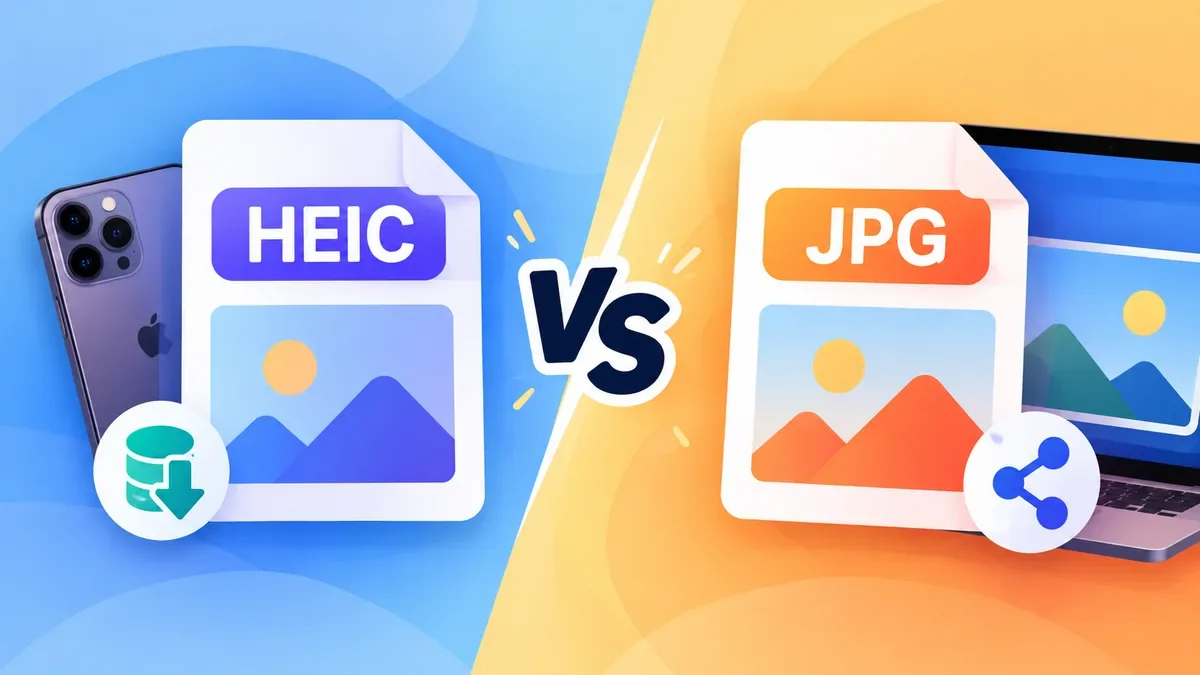
Both HEIC and JPG are useful for digital photography, but they solve different problems. HEIC focuses on efficient storage and modern image capabilities, while JPG has an enormous advantage in compatibility.
So, which one should you use?
For most people, the simplest answer is:
Keep HEIC when storage efficiency matters. Use JPG when compatibility matters.
| Feature | HEIC | JPG |
|---|---|---|
| Main advantage | Efficient storage | Broad compatibility |
| File size | Usually smaller at comparable quality | Usually larger |
| Image quality | Excellent at efficient compression | Excellent and widely supported |
| Apple devices | Excellent support | Excellent support |
| Older software | May have compatibility limitations | Usually supported |
| Websites and forms | Support varies | Very widely supported |
| Best for | Photo storage and modern workflows | Sharing, uploading and compatibility |
The choice is therefore less about which format is universally "better" and more about where the image needs to go next.
HEIC is the file format commonly associated with Apple's implementation of HEIF (High Efficiency Image File Format).
Apple introduced HEIF support with iOS 11 and uses it for photos captured in the High Efficiency camera setting. Apple explains that HEIF provides better compression than JPEG, allowing photos to use less storage while maintaining visual quality.
The main reason HEIC is attractive for smartphone photography is simple: you can store more photos using less space.
This becomes particularly useful when you have thousands of photos on an iPhone or in a cloud photo library.
HEIF is also designed to support capabilities beyond a traditional single JPEG image, including additional image data and more advanced photographic workflows.
JPG, also called JPEG, is one of the most established digital image formats.
It became extremely popular because it offers a practical balance between image quality and file size while being supported by a huge range of devices and software.
You will commonly encounter JPG when:
Uploading a profile picture
Submitting an image to an online form
Sending a photo by email
Uploading images to older websites
Sharing photos with different devices
Working with older photo-editing software
Preparing images for services that specifically request JPG
This broad compatibility is JPG's biggest advantage.
You may have a technically more efficient HEIC photo, but if the website you're using does not accept HEIC, compatibility becomes more important than compression efficiency.
There is no simple rule that says every HEIC photo will look better than every JPG photo.
Image quality depends on factors such as the original image, compression settings, resolution, and how the file was created or converted.
HEIC was designed to provide efficient compression while maintaining high visual quality. Apple specifically highlights its improved compression compared with JPEG.
For everyday photos, the difference may not be obvious when viewing the images normally.
However, converting a HEIC image to JPG is not a way to make the image "higher quality." The conversion creates a JPG version of the image, and JPG has its own compression characteristics.
If you already have a HEIC photo that looks good, keeping the original HEIC file is generally sensible when you do not need JPG compatibility.
This is one of HEIC's biggest advantages.
HEIC uses more modern compression technology and is intended to achieve good image quality with less storage space than JPEG in many situations. Apple introduced HEIF partly because of this storage efficiency.
For example, imagine two versions of the same photograph:
HEIC: 2 MB
JPG: 3.5 MB
The exact numbers will vary significantly depending on the image and encoding settings, so you should not expect every HEIC file to be a specific percentage smaller.
The important point is that HEIC is designed to be storage-efficient.
This makes it particularly useful for smartphone photo libraries.
Apple added HEIF/HEVC support with iOS 11 and provides a High Efficiency camera setting. On supported devices, this allows photos to be captured using HEIF rather than JPEG.
Apple also provides a Most Compatible option. With that setting enabled, new photos are captured using JPEG instead.
This gives you a straightforward choice:
High Efficiency → HEIC
Better storage efficiency and a modern image format.
Most Compatible → JPG
More compatibility with devices, websites, and software.
You do not necessarily need to change the iPhone setting just because you occasionally need a JPG. Keeping HEIC for your photo library and converting individual images when necessary can be a more convenient workflow.
This is where JPG still has a major practical advantage.
HEIC support has improved considerably, but not every website, form, application, or older software supports the format.
Apple itself notes that when sharing HEIF media with systems that do not support it, photos may be automatically shared in a more compatible format such as JPEG.
This is why you may encounter situations such as:
"Please upload a JPG or PNG file."
If your iPhone photo is HEIC, you need to convert it before uploading.
The problem is not necessarily the quality of your photo. It is simply that the destination expects a different image format.
HEIC is a good choice when:
If your photos stay on an iPhone, iPad, Mac, or within a compatible Apple workflow, there may be little reason to convert everything to JPG.
HEIC's efficient compression can reduce the amount of storage required for a large photo library.
If compatibility is not an immediate concern, keeping the original HEIC file can preserve the advantages of the format.
JPG is usually the better choice when compatibility is the priority.
For example:
Many websites and forms still specifically request JPG, JPEG, or PNG.
If you do not know what software or device the recipient is using, JPG is often the safer option.
Some older applications may not recognize HEIC files correctly.
If a website, printer, form, or application specifically requests JPG, converting the image is usually easier than changing your entire photo workflow.
If you have an iPhone photo that needs to be uploaded somewhere that does not support HEIC, you can convert it to JPG.
A useful workflow is:
Select the HEIC image.
Convert it to JPG.
Check the resulting dimensions and file size.
Download the JPG.
Upload the converted file to the destination.
For occasional conversions, a browser-based tool can be more convenient than installing desktop software.
ToolCMB's image tools are designed around this type of workflow. Its image processing runs directly in the browser, so images can be processed on the user's device rather than uploaded to a server.
If you need to change more than the file format, the ToolCMB Image Resizer can also open HEIC/HEIF files and save them as JPG, PNG, WebP, AVIF and other supported formats. It supports resizing, cropping, file-size limits, batch processing and ZIP downloads.
Yes.
This can actually be useful when the destination has both a format requirement and a file-size limit.
For example, suppose an online form requires:
JPG format
Maximum 2 MB
Maximum 2,000 pixels wide
Instead of simply converting the HEIC file to JPG, you can resize the image during the same workflow.
ToolCMB's Image Resizer supports HEIC/HEIF input, JPG output, exact pixel dimensions, percentage scaling and file-size limits such as 100 KB, 200 KB, 500 KB and 1 MB.
That can be useful for profile photos, application forms, websites and other uploads where the original iPhone image is unnecessarily large.
If you are publishing images on a website, the decision becomes slightly different.
JPG remains a practical compatibility format, but modern websites can also use formats such as WebP and AVIF when appropriate.
For example, a common workflow could be:
Original HEIC → resize/compress → WebP or AVIF for web delivery
or:
Original HEIC → JPG → use where broad compatibility is required
ToolCMB's image tools support formats including JPG, PNG, WebP, AVIF and HEIC/HEIF, making it possible to use the same browser-based workflow for different image requirements.
It can, because JPG uses its own lossy compression.
However, the practical result depends on the conversion settings and the original image.
For an ordinary photo used on a website, in an email, or in an online form, a properly converted JPG can still look excellent.
If the original HEIC is important as a master copy, it is better to keep the original and create a JPG copy when compatibility is required.
That way, you do not have to choose between preserving the original and having a widely compatible version.
Usually, no.
There is little reason to convert an entire photo library simply because JPG is more compatible.
A more practical approach is:
Keep HEIC → convert only when necessary.
For example:
| Situation | Recommended format |
|---|---|
| iPhone photo library | HEIC |
| Saving storage | HEIC |
| Sharing with an unknown system | JPG |
| Website specifically requiring JPG | JPG |
| Older software | JPG |
| Modern web delivery | WebP / AVIF where supported |
| Keeping the original | HEIC |
This approach gives you the benefits of HEIC without creating unnecessary copies of every photo.
There is no single winner for every situation.
Choose HEIC when your priority is efficient storage and you mainly work with modern devices and software that support the format.
Choose JPG when you need maximum compatibility.
For many iPhone users, the best solution is not to pick one format forever. Keep your original photos in HEIC and convert individual images to JPG when a website, application, recipient, or other service requires it.
The important difference is therefore not simply HEIC vs JPG quality.
It is efficiency vs compatibility.
HEIC is designed to store modern photos efficiently. JPG has decades of compatibility behind it.
And when you need to bridge the two, a browser-based image converter or resizer can make the process quick without requiring you to install additional software.
HEIC has advantages in compression efficiency and modern image capabilities, while JPG has much broader compatibility. The better format depends on how you plan to use the image.
HEIC is designed to provide efficient compression and often produces smaller files at comparable visual quality. The exact file size depends on the image and encoding settings.
Apple introduced HEIF support with iOS 11 and uses it as part of the High Efficiency camera option. The format helps reduce storage requirements while maintaining good image quality.
Convert HEIC to JPG when you need compatibility with a website, application, device, or service that does not accept HEIC. Otherwise, there may be no need to convert the original.
Yes. A browser-based image tool can handle the conversion without requiring a desktop application. ToolCMB's image tools support HEIC/HEIF input and JPG output directly in the browser.
Often, yes. HEIC is designed for more efficient compression, although the actual difference depends on the image and encoding settings.
Yes. JPG and JPEG generally refer to the same image format. The different extensions do not represent two fundamentally different formats.
HEIC is optimized for efficient photo storage. JPG is optimized for compatibility.
If you primarily use modern Apple devices, keeping your photos in HEIC makes sense. If you need to upload, share, or use a photo somewhere that expects JPG, convert a copy rather than changing your entire photo library.
And if the converted image is still too large, resize it at the same time to meet the destination's pixel or file-size requirements.
We build fast, free and private browser tools — and write practical guides on how to use them.
Convert JPG images to WebP online for free with ToolCMB. Learn when WebP is a better choice than JPG, how to convert images without installing software, and what to check before using WebP on a website.
Learn how to convert PNG to JPG online, understand what happens to transparency and image quality, and choose the right format for photos, websites, screenshots, and everyday sharing.
Learn how to resize an image without losing quality. This guide explains how to choose the right dimensions, preserve aspect ratio, avoid stretching, use the right resampling method, and resize images for websites, social media, printing, and other common uses.
Start typing to search tools and articles.