How to Convert JPG to WebP Online
Convert JPG images to WebP online for free with ToolCMB. Learn when WebP is a better choice than JPG, how to convert images without installing software, and what to check before using WebP on a website.
PNG and JPG are two of the most widely used image formats, but they are designed for different purposes. Learn when to use PNG for transparency and sharp graphics, when JPG is better for photographs and smaller file sizes, and how to choose the right format for websites, social media, and everyday images.
 ToolCMB Team
11 min read
ToolCMB Team
11 min read
Choosing between PNG and JPG can seem simple until you need to decide which format is better for a particular image.
Both formats are widely supported and work well across modern browsers, image editors, operating systems, and common online services. However, PNG and JPG use different compression approaches, which makes each format better suited to different types of images.
The easiest way to choose is to look at the image itself.
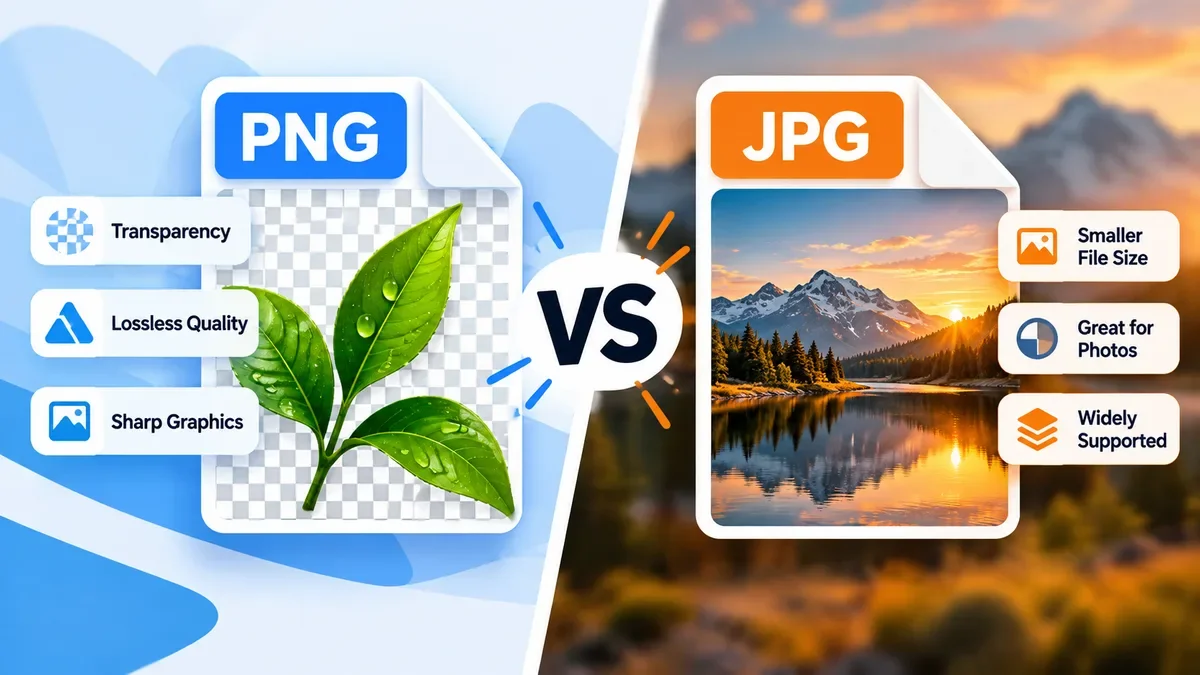
If you are working with a photograph, JPG is often the practical choice. If you are working with a logo, screenshot, illustration, interface graphic, or an image that needs a transparent background, PNG is usually the better option.
| Feature | PNG | JPG |
|---|---|---|
| Compression | Lossless | Lossy |
| Transparency | Yes | No |
| Best for | Graphics, screenshots, logos | Photos and complex images |
| Image quality | Preserves original image data | Some data is discarded during compression |
| Typical file size | Often larger | Usually smaller for photographs |
| Repeated editing | Better suited | Can accumulate quality loss |
| Web use | Useful for graphics and transparency | Useful for photographs and compatible fallbacks |
The important difference is compression.
PNG uses lossless compression, which means the decoded image can reproduce the stored image data without the losses associated with JPEG compression. JPG uses lossy compression, which removes some image information to achieve smaller files.
That difference is useful rather than a flaw. JPG's compression makes it particularly effective for photographs, while PNG's lossless approach works well when preserving sharp edges and fine graphic details is important.
PNG is a strong choice when image quality and transparency are important.
One of PNG's biggest advantages is support for an alpha channel. This allows parts of an image to be transparent.
For example, PNG is useful for:
Logos
Website graphics
Icons
Product cutouts
UI elements
Overlays
Images that need to sit on different backgrounds
If you need a logo without a solid background, PNG is generally much more appropriate than JPG.
JPG does not support an alpha transparency channel, so converting a transparent PNG to JPG requires the transparent areas to be replaced with a background color.
PNG is often a good choice for screenshots, especially screenshots containing text, interface elements, borders, and solid-color areas.
Lossy compression can introduce visible artifacts around sharp edges and text. PNG's lossless compression helps preserve these details.
For example, a screenshot of a website dashboard may look cleaner as PNG than as a heavily compressed JPG.
PNG is useful for graphics with sharp boundaries and relatively simple color areas.
Examples include:
Logos
Charts
Diagrams
Simple illustrations
App screenshots
Interface elements
If the image contains lots of text or geometric shapes, preserving crisp edges can be more important than achieving the smallest possible file size.
If an image will be opened, edited, and saved many times, a lossless format can help avoid the cumulative quality loss associated with repeatedly applying lossy JPEG compression.
For an editing workflow, however, it is still better to keep an original master file in an appropriate editing format and export a PNG or JPG copy when needed.
JPG is usually the better choice for photographs and other images containing many subtle colors and tones.
JPG was designed to efficiently compress continuous-tone images such as photographs.
A modern photograph can contain millions of pixels and many subtle variations in color. JPG can reduce the amount of data substantially while maintaining visually acceptable quality at appropriate compression settings.
That makes JPG practical for:
Photos
Travel images
Product photography
Blog images
Social media photos
Website photography
If you need to send, upload, or store many photographs, JPG can significantly reduce file sizes compared with uncompressed or losslessly compressed alternatives.
Smaller files can also mean less storage and less data transferred when an image is downloaded.
For websites, this matters because unnecessarily large images can increase page weight.
However, file size should not be reduced blindly. Excessive JPEG compression can create visible artifacts, especially around text, sharp edges, and high-contrast details.
JPG is a convenient format for photographs shared through many common platforms and services.
If you are exporting a photo from an image editor and do not need transparency, JPG is often a sensible default.
There is no single answer for every website.
The best format depends on the image.
For a photographic hero image, JPG can be a practical choice when you need broad compatibility and reasonable file size.
For a transparent logo, PNG may be more appropriate.
For a screenshot containing lots of text, PNG may preserve the details better.
However, modern websites should also consider newer formats such as WebP and AVIF. These formats can provide better compression for many web images, while WebP also supports transparency and both lossy and lossless compression.
The goal should not be to use PNG or JPG everywhere. The goal is to deliver an image in a format that provides the required visual quality without unnecessarily increasing the file size.
The file format itself is not a shortcut to better search rankings.
What matters more is whether images provide a good user experience and whether the page is technically well optimized.
Large image files can contribute to slower page loading, so choosing an appropriate format and compressing images can be useful for website performance.
For example, instead of uploading a huge PNG photograph simply because PNG preserves quality, you may get a much smaller file by using JPG, WebP, or another appropriate format.
At the same time, aggressively compressing every image can make the page look worse.
A better approach is:
Choose the appropriate format.
Resize the image to the dimensions actually needed.
Compress it at a reasonable quality level.
Check the result visually.
Keep the original image separately when necessary.
Sometimes, yes.
Converting PNG to JPG can make sense when:
The image does not need transparency.
The image is mainly photographic.
You need a smaller file.
A service specifically requires JPG.
You are preparing images for a workflow that works better with JPEG.
However, conversion is not always an improvement.
If your PNG contains a transparent background, converting it to JPG will remove that transparency. If it contains sharp text or graphics, JPEG compression may also introduce artifacts.
Before converting, ask what the image will be used for.
This can also be useful, but converting a JPG to PNG does not restore image data that was already lost through JPEG compression.
JPG to PNG conversion can be useful when:
A workflow requires PNG.
You need to work with the image in a lossless format afterward.
You need PNG features such as transparency in a subsequent editing workflow.
But simply converting an existing JPG to PNG will not magically make the original photograph higher quality.
The best results usually come from keeping the original source image and exporting it directly into the format required for the final use.
PNG technically preserves the stored image data because its compression is lossless.
JPG, on the other hand, uses lossy compression. Depending on the quality setting, some image information is discarded to reduce the file size.
That does not mean PNG always looks better to the human eye.
A well-compressed JPG photograph can look excellent while being considerably smaller than a PNG version of the same photograph.
For example, a photograph with gradients, textures, and many colors can often tolerate JPEG compression very well.
A screenshot containing small text and sharp interface elements may show compression artifacts much more easily.
So the more useful question is not:
"Which format has better quality?"
It is:
"Which format provides enough quality for this image while keeping the file size appropriate?"
There is no fixed rule that says PNG is always a certain percentage larger than JPG.
File size depends on:
Image dimensions
Number of colors
Image complexity
Compression settings
Transparency
Encoder implementation
Amount of detail in the image
A photograph may become much smaller as JPG than as PNG.
A simple graphic may compress surprisingly well as PNG.
That is why comparing the actual output files is often more useful than relying on a fixed file-size rule.
Use this simple decision process.
Choose PNG if:
You need transparency.
You are working with a logo.
You have a screenshot with text.
You have a diagram or graphic.
Sharp edges are important.
You want lossless compression.
Choose JPG if:
You are working with a photograph.
Transparency is not required.
You want a smaller file.
Some compression is acceptable.
You are sharing or publishing photographic content.
Consider WebP or AVIF if:
The image is primarily for a modern website.
Your publishing workflow supports the format.
You want stronger compression than traditional PNG/JPG in many cases.
Choosing the right format is only part of image optimization. Sometimes you already have an image and simply need to convert, resize, crop, or reduce its file size.
That is where an image utility can save time.
ToolCMB provides a collection of browser-based image and file utilities, including tools for common image conversion and processing tasks.
For example, if you have a PNG but need a JPG version, an image converter can handle the format change. If your image is too large for a website or upload limit, an image compressor can reduce its file size. If the dimensions are wrong, an image resizer can help prepare the image before publishing.
You can explore the available tools on the ToolCMB Tools page.
Related tools can include:
PNG to JPG
JPG to PNG
JPG to WebP
PNG to WebP
WebP to JPG
Image Compressor
Image Resizer
Image Cropper
These tools are particularly useful when your goal is to perform an action on an existing file rather than simply learn about image formats.
Imagine you have a 3000 × 2000 pixel photograph from your phone.
You want to publish it on a blog.
Keeping it as a large PNG may preserve the image without loss, but the resulting file may be unnecessarily large for a photograph.
A better workflow could be:
Original photo → resize to the required dimensions → export as JPG or WebP → compress → check visual quality → publish
Now consider a transparent company logo.
The workflow would be different:
Original logo → export as PNG or SVG → preserve transparency → optimize → publish
The important point is that the correct format depends on the purpose of the image.
Neither PNG nor JPG is universally better.
PNG is the better choice for transparency, screenshots, logos, diagrams, and graphics where preserving sharp details matters.
JPG is the better choice for most photographs when you want a good balance between visual quality and file size.
For modern websites, you should also consider WebP or AVIF where appropriate. These newer formats can often provide better compression, but PNG and JPG remain useful because of their established workflows and broad compatibility.
If you are unsure, start with the type of image:
Photo → JPG
Transparent graphic → PNG
Screenshot or text-heavy graphic → PNG
Modern web image → Consider WebP or AVIF
And when you already have an image that needs to be changed, resized, cropped, or compressed, use the appropriate image tool rather than manually recreating the file.
Not in every situation. PNG is better when you need lossless compression, transparency, or sharp graphic details. JPG is usually more efficient for photographs.
For many photographs, JPG is significantly smaller than PNG. However, the actual file size depends on the image and compression settings.
No. JPG does not support an alpha transparency channel. If you need transparency, PNG, WebP, or another suitable format should be considered.
No. Converting a JPG to PNG does not restore image information that was already lost during JPEG compression.
Use the format that fits the image. JPG is often appropriate for photographs, while PNG works well for transparent graphics, screenshots, logos, and images where lossless quality matters. WebP or AVIF may be better options for many modern web images.
JPG is generally a practical choice for photographs because it can provide good visual quality at a relatively small file size.
PNG is a common choice when a raster logo requires transparency. If the original logo is available as a vector, SVG is often preferable for scalable web graphics.
Yes. PNG can be converted to JPG, but transparent areas cannot remain transparent because JPG does not support alpha transparency.
Yes, but the conversion does not restore quality that was previously lost through JPG compression.
Choose an appropriate image format, resize images to the dimensions you actually need, and compress them without introducing unacceptable visual quality loss. For many modern websites, WebP or AVIF can also be considered.
We build fast, free and private browser tools — and write practical guides on how to use them.
Convert JPG images to WebP online for free with ToolCMB. Learn when WebP is a better choice than JPG, how to convert images without installing software, and what to check before using WebP on a website.
Learn how to convert PNG to JPG online, understand what happens to transparency and image quality, and choose the right format for photos, websites, screenshots, and everyday sharing.
Learn how to resize an image without losing quality. This guide explains how to choose the right dimensions, preserve aspect ratio, avoid stretching, use the right resampling method, and resize images for websites, social media, printing, and other common uses.
Start typing to search tools and articles.