How to Convert JPG to WebP Online
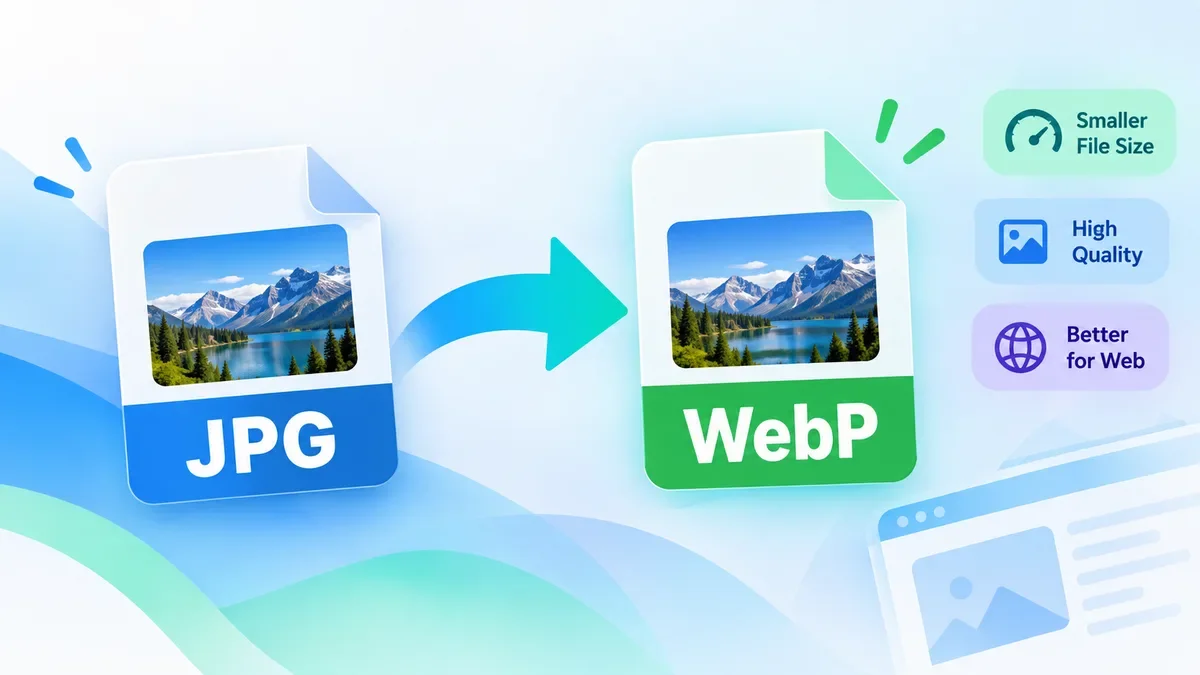
Convert JPG images to WebP online for free with ToolCMB. Learn when WebP is a better choice than JPG, how to convert images without installing software, and what to check before using WebP on a website.
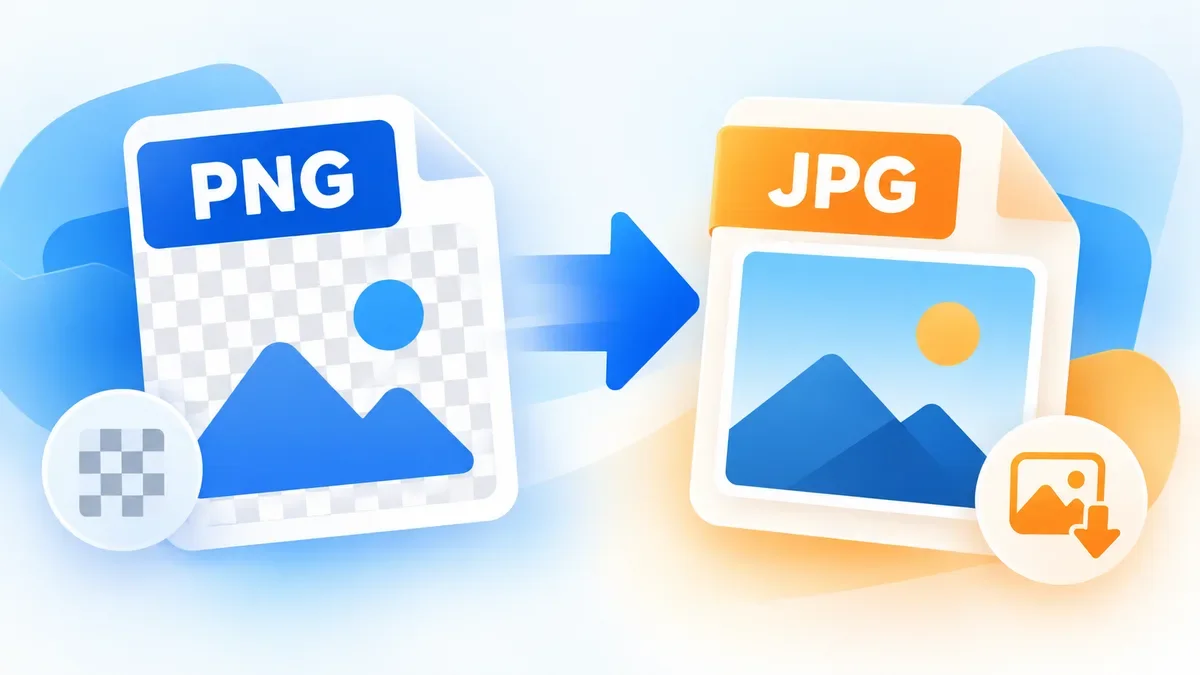
Learn how to convert PNG to JPG online, understand what happens to transparency and image quality, and choose the right format for photos, websites, screenshots, and everyday sharing.
 ToolCMB Team
8 min read
ToolCMB Team
8 min read
PNG and JPG are both widely used image formats, but they are designed for different purposes.
PNG uses lossless compression, which means the format can preserve the original image data more accurately. It is particularly useful for screenshots, illustrations, logos, icons, and images that require transparency.
JPG uses lossy compression. It can reduce image file size considerably by discarding some image information that is usually less noticeable in photographs.
This makes JPG a practical choice when you want to:
Reduce the size of a large image
Upload an image to a website with a file-size limit
Send photos through email or messaging services
Store photographs using less disk space
Use an image format that is broadly supported by websites and applications
The best format depends on the type of image and how you plan to use it.
Using an online converter is usually the fastest way to change a PNG image into a JPG.
Open the PNG to JPG converter and select the PNG file you want to convert.
You can use a photograph, screenshot, illustration, or another PNG image.
Start the conversion process. The converter changes the image from PNG format to JPG format while keeping the image dimensions unless the tool provides additional resizing options.
Once the conversion is complete, download the resulting JPG image and check that it looks correct before using it.
For a single image, this process usually takes only a few steps and does not require image-editing software.
This is one of the most important differences between PNG and JPG.
PNG can contain transparent pixels. JPG cannot.
For example, imagine a PNG logo with a transparent background. When that image is saved as JPG, the transparent areas cannot remain transparent because the JPG format has no alpha channel.
Depending on the converter and its settings, transparent areas may be filled with a solid background color.
If keeping transparency is important, PNG is usually the better choice. If you need a smaller file and do not need transparency, JPG may be more appropriate.
| Feature | PNG | JPG |
|---|---|---|
| Compression | Lossless | Lossy |
| Transparency | Yes | No |
| Typical file size | Larger | Smaller |
| Photographs | Good | Excellent |
| Logos and graphics | Excellent | Can work, but may show artifacts |
| Screenshots | Excellent | May reduce sharpness |
| Web photos | Good | Often practical |
| Repeated editing | Better | Quality can decrease with repeated saves |
There is no universally better format.
Use PNG when image quality, transparency, or sharp edges are important. Use JPG when you are primarily working with photographs or need a smaller file.
It can.
Because JPG uses lossy compression, some image information may be discarded during conversion. The difference is often difficult to notice in photographs at reasonable quality settings, but it can be more visible around text, sharp edges, icons, and simple graphics.
For example, a detailed photograph may still look very good after conversion, while a screenshot containing small text can show compression artifacts.
If the original PNG is important for future editing or archiving, keep a copy of the original file before converting it.
Converting PNG to JPG can reduce file size, but the result depends on the image itself and the JPG quality setting.
If the JPG is still too large, image resizing can provide another useful way to reduce file size.
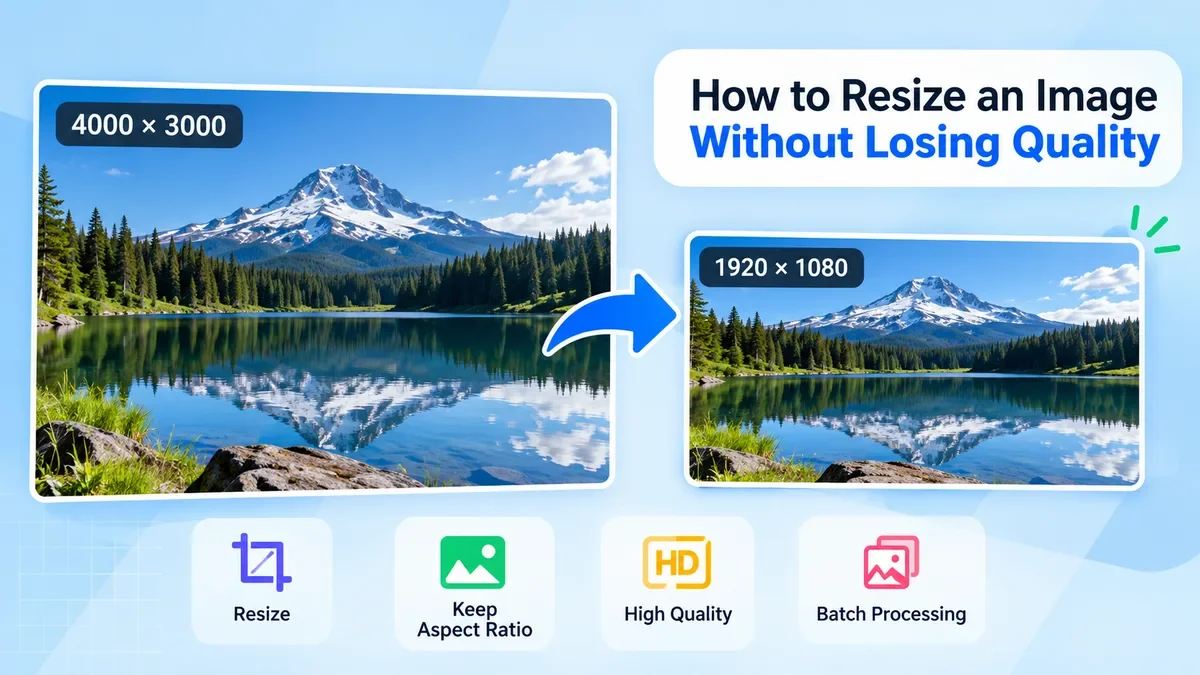
For example, a 4000 × 3000 pixel photograph may not need its original dimensions when it is being used as a small website image.
A practical workflow can therefore be:
PNG → JPG → Resize if necessary
ToolCMB also provides related image utilities, including image resizing and cropping, so you can choose the appropriate tool based on what you need to do with the image. The broader ToolCMB strategy also groups image conversion, resizing, cropping, and compression as related utility functions rather than treating each page as an isolated tool.
Converting every PNG to JPG is not always a good idea.
Keep the PNG format when:
You need a transparent background
You are working with a logo or icon
The image contains sharp text or simple graphics
You want to preserve lossless image data
You expect to edit the image again
The image contains details that could be affected by JPG compression
For these situations, reducing the file size by other means may be better than changing the format.
JPG is often a better option when:
The image is a photograph
Transparency is not required
You want a smaller file
You are preparing images for general web use
You need to meet an upload-size restriction
You are sharing photographs through email or messaging
For photographs, JPG's compression can provide a useful balance between visual quality and file size.
If you are preparing images for a website, file format is only one part of image optimization.
You should also consider:
Image dimensions
File size
Compression quality
The visual importance of the image
The image's role on the page
Mobile users and slower connections
A large PNG photograph may be unnecessarily heavy for a website. Converting it to JPG and then resizing it to the dimensions actually required by the page can produce a much more practical file.
However, you should not convert an image to JPG simply because JPG is smaller. For logos, screenshots, illustrations, and transparent graphics, PNG may still be the better choice.
JPG is not the only alternative to PNG.
For websites, WebP can also be useful because it supports both lossy and lossless compression and can support transparency.
The right choice depends on where the image will be used.
For example:
PNG: transparency, screenshots, graphics, lossless images
JPG: photographs and broad compatibility
WebP: modern web delivery and smaller image files in supported workflows
If you specifically need a WebP file instead, ToolCMB also provides PNG to WebP and JPG to WebP conversion options as part of its image tools.
You do not need to convert every image through PNG first.
If your original image is WebP, you can use a WebP to JPG converter when you specifically need a JPG file.
Similarly, HEIC images from Apple devices can be converted directly to JPG when compatibility is the main concern.
ToolCMB's image conversion tools are designed around these common format-to-format workflows, including WebP to JPG and HEIC to JPG.
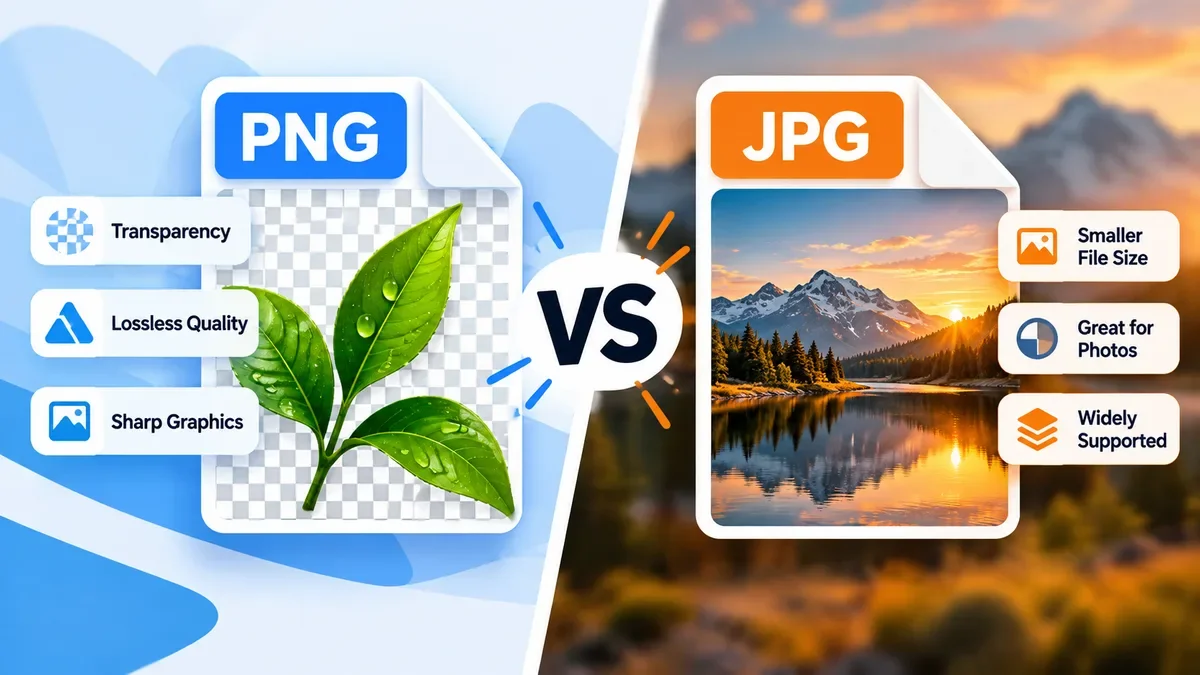
Neither format is always better. PNG is generally better for transparency, screenshots, logos, and graphics, while JPG is often better for photographs and smaller file sizes.
Yes. An online PNG to JPG converter can perform the conversion directly in your browser without requiring a desktop image editor.
Often, yes, especially when the PNG contains photographic content. The actual file-size reduction depends on the image and JPG compression settings.
No. JPG does not support transparency. If you need a transparent background, keep the image as PNG or use another format that supports transparency.
The conversion itself does not necessarily change the pixel dimensions. However, a separate image-resizing step can change the width and height if you need a different image size.
Usually, PNG is a good choice for screenshots because it can preserve text and sharp interface elements more clearly. If you have a strict file-size requirement, JPG may still be useful, but check the result for visible compression artifacts.
Yes, but converting JPG back to PNG does not restore the image quality that was lost during the original JPG compression. The resulting PNG will simply store the already-compressed image using PNG encoding.
Depending on what you need to do with your image, you may also find these tools useful:
PNG to WebP — convert PNG images to WebP
JPG to WebP — convert JPG images to WebP
WebP to JPG — convert WebP images to JPG
HEIC to JPG — convert HEIC photos to JPG
Image Resizer — change image dimensions
Image Cropper — crop an image to the area you need
Keeping these tools connected through relevant internal links gives users a natural next step instead of forcing them to search for another solution.
PNG and JPG serve different purposes, so the best format depends on the image and how you intend to use it.
If you need transparency, lossless image data, or sharp graphics, PNG is often the better choice. If you are working with photographs and want a smaller, widely supported file, JPG is usually a practical option.
For a quick format change, an online PNG to JPG converter can handle the conversion in a few steps. If the resulting image is still larger than you need, resizing or compression can be used as the next step.
Keeping the original PNG is also a good practice when the image may need to be edited or converted again in the future.
We build fast, free and private browser tools — and write practical guides on how to use them.
Convert JPG images to WebP online for free with ToolCMB. Learn when WebP is a better choice than JPG, how to convert images without installing software, and what to check before using WebP on a website.
Learn how to resize an image without losing quality. This guide explains how to choose the right dimensions, preserve aspect ratio, avoid stretching, use the right resampling method, and resize images for websites, social media, printing, and other common uses.
PNG and JPG are two of the most widely used image formats, but they are designed for different purposes. Learn when to use PNG for transparency and sharp graphics, when JPG is better for photographs and smaller file sizes, and how to choose the right format for websites, social media, and everyday images.
Start typing to search tools and articles.