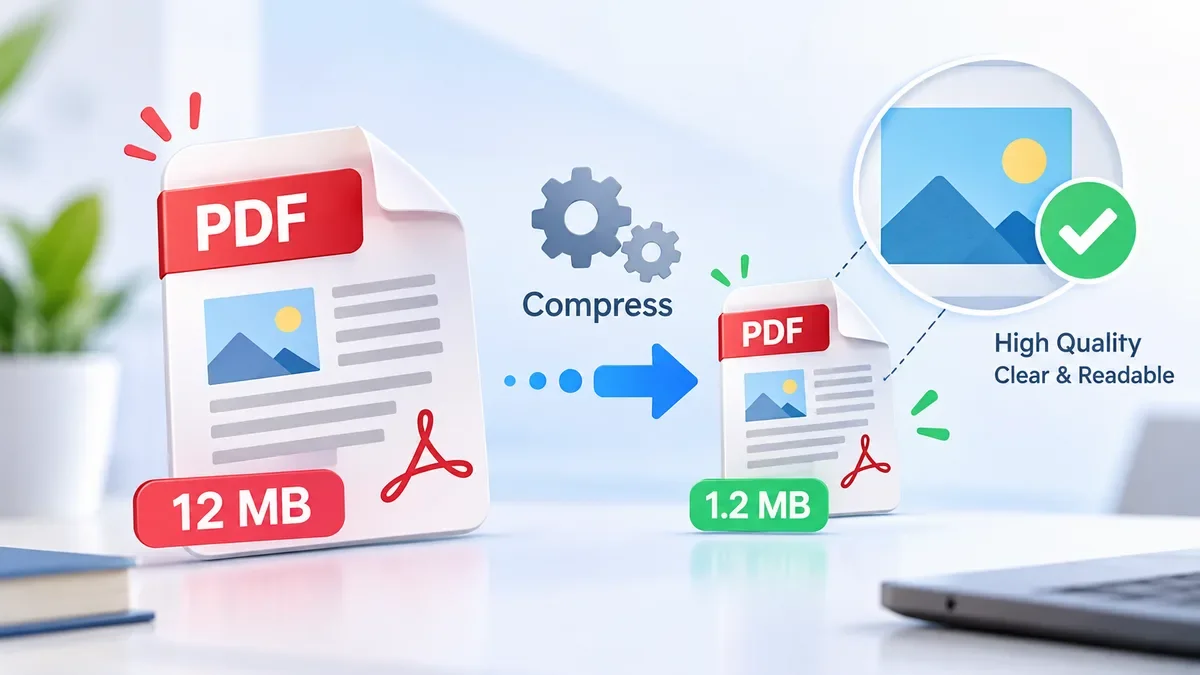
A large PDF can be difficult to email, upload to an application portal, or share with other people. The good news is that you usually do not need to sacrifice readability just to make a PDF smaller.
The key is to choose a compression method based on what is inside the document and how you plan to use it.
What Does PDF Compression Do?
PDF compression reduces the amount of data stored inside a PDF file.
A PDF may contain much more data than you actually need. For example, a scanned document might contain pages saved as high-resolution images, while a presentation exported to PDF may include large images, duplicate fonts, thumbnails, and other document data.
A PDF compressor can optimize these elements to reduce the final file size.
Good compression should make the file smaller while keeping the parts that matter intact, such as:
-
Searchable text
-
Fonts
-
Vector graphics
-
Links
-
Bookmarks
-
Form fields
-
Annotations
-
Important images
The amount of reduction depends on the original PDF. A text-based document may become only slightly smaller, while a scanned PDF containing large photographs can often be reduced much more.
Can You Compress a PDF Without Losing Quality?
Yes, but there is an important distinction between lossless compression and lossy compression.
Lossless compression removes unnecessary data and optimizes the structure of the PDF without intentionally reducing image quality. This is useful for contracts, legal documents, invoices, and archive copies.
Lossy compression reduces file size further by optimizing images, usually by lowering their resolution or using more efficient image encoding. When done carefully, the visual difference can be difficult to notice while the file becomes significantly smaller.
For everyday sharing, a moderate compression setting is often a better balance than trying to make the file as small as possible.
The Best Way to Compress a PDF
If you need a quick way to reduce a PDF, you can use the ToolCMB PDF Compressor.
The tool processes PDFs directly in your browser, so the files do not need to be uploaded to a server. It supports individual files as well as batch compression.
Step 1: Add your PDF
Open the PDF Compressor and add one or more PDF files.
You can drag and drop files into the tool or choose them from your device. You can also paste a PDF from your clipboard on supported devices.
Your original files are not modified.
Step 2: Choose the compression level
The right compression level depends on what you are going to do with the PDF.
Lossless
Use this when preserving the original image quality is more important than achieving the smallest possible file size. It is suitable for contracts, legal documents, and archival copies.
High quality
A good choice when the document will be printed or needs to retain high visual quality.
Balanced
This is the practical choice for most PDFs. It provides a useful reduction in file size while keeping the document looking good for email and everyday sharing.
Strong
Use this when a website or application has a relatively strict file-size limit.
Extreme
This prioritizes the smallest possible file size and is generally better suited to screen-only documents where maximum visual quality is not essential.
The available ToolCMB compression levels are designed around different use cases, including printing, sharing, strict upload limits, and screen viewing.
Step 3: Use a target file size when necessary
Sometimes you do not simply need a smaller PDF. You need a PDF below a specific limit.
For example, an application website might require a document under 2 MB.
Instead of repeatedly guessing which compression setting to use, you can use the Compress to a target size option.
ToolCMB supports target sizes such as 100 KB, 200 KB, 500 KB, 1 MB, 2 MB, 5 MB, 10 MB, and 20 MB. The compressor attempts to find the best quality that fits the selected limit.
This can be particularly useful for:
-
Job applications
-
University applications
-
Government forms
-
Visa applications
-
Online document portals
-
Email attachments
How to Choose the Right Compression Level
There is no single compression setting that is best for every PDF.
| PDF type |
Recommended approach |
| Legal or archival document |
Lossless |
| Contract |
Lossless |
| Professional brochure |
High quality |
| Business report |
Balanced |
| Email attachment |
Balanced |
| Job application |
Balanced or target size |
| Online application |
Target size |
| Large scanned document |
Balanced or Strong |
| Screen-only document |
Strong or Extreme |
If you are unsure, start with Balanced and compare the result with the original.
Why Scanned PDFs Are Often So Large
Scanned documents are one of the easiest types of PDFs to reduce.
When you scan a paper document, each page may be stored as a high-resolution image. A document that contains mostly text can therefore become surprisingly large.
For example, a scanner may capture a page at a much higher resolution than you need for viewing it on a computer or phone.
Reducing unnecessary image resolution can significantly decrease the file size.
For black-and-white documents, converting images to grayscale can also reduce the amount of data. ToolCMB includes a grayscale option specifically for scanned documents and documents intended for black-and-white printing.
What Happens to Text When You Compress a PDF?
A good PDF compression workflow should avoid unnecessarily turning text into images.
Keeping text as text has several advantages:
-
It remains searchable.
-
You can select and copy it.
-
It stays sharp when zoomed in.
-
Screen readers can continue to access properly tagged content.
-
The document generally remains easier to edit or process later.
ToolCMB's normal compression process keeps text and vector graphics as text and vectors rather than rasterizing the entire document.
However, there is an important exception.
If you enable an option such as Flatten pages, the pages are converted into images. This can help when an extremely small file size is required, but text will no longer be selectable or searchable.
For normal documents, avoid flattening unless you genuinely need it.
How to Compress a PDF for Email
Email providers commonly impose attachment-size limits, so a PDF that looks perfectly reasonable on your computer may still be too large to send.
For a normal document:
-
Open the PDF Compressor.
-
Add your PDF.
-
Start with the Balanced setting.
-
Check the resulting file size.
-
Preview important pages.
-
Download the compressed PDF.
-
If it is still too large, try Strong or use a target size.
This approach avoids unnecessarily reducing quality.
If the document is confidential, browser-based processing can also be useful because you do not need to send the file to an external processing server. ToolCMB performs the compression locally in the browser.
How to Compress a PDF for a Job Application
Job portals often have strict upload requirements.
Your resume might be only a few pages but still exceed the portal's limit because it contains high-resolution photos, graphics, or scanned certificates.
If the portal says something like "PDF must be under 2 MB", use a target size instead of repeatedly compressing the document manually.
Before submitting, check:
-
The file is below the required limit.
-
Your name and contact information are readable.
-
Text can still be selected.
-
Images and logos are clear enough.
-
The page layout has not changed.
-
The PDF opens correctly.
Keep the original resume separately so you can create a higher-quality version later if necessary.
How to Compress a PDF Without Making Images Blurry
Images are often responsible for a large portion of a PDF's file size.
The goal is not necessarily to preserve the original image resolution. Instead, the image should have enough resolution for the way the PDF will actually be viewed.
A photograph intended for a computer screen does not always need the same resolution as an image intended for professional printing.
For that reason, moderate image downsampling can produce a large reduction in file size while keeping the document visually sharp.
ToolCMB's compressor analyzes how images are displayed in the document and optimizes them according to the selected compression settings.
Should You Use Lossless or Lossy PDF Compression?
Choose lossless compression when:
-
The PDF is an archive copy.
-
Image quality must remain unchanged.
-
You are working with legal or important records.
-
The file will be edited or processed again.
Choose lossy compression when:
-
The PDF is too large to email.
-
You need to upload it to a website.
-
The document is mainly intended for screen viewing.
-
You need a substantial reduction in file size.
For most everyday documents, moderate lossy compression is usually a reasonable compromise between size and quality.
What If the PDF Is Still Too Large?
If normal compression does not reduce the file enough, check what is making the document large.
A PDF may contain:
ToolCMB provides additional options for removing certain types of metadata and editor data, attachments, and other information when appropriate. Some options should be used carefully because they can affect document functionality or accessibility.
For example, accessibility tags should generally not be removed simply to save a small amount of space, because tagged PDFs can be important for screen-reader users.
What About Password-Protected PDFs?
Some PDF files are protected with a password.
ToolCMB can work with password-protected PDFs in the browser. The resulting protected document can also retain password protection using AES-256 encryption.
If you are compressing an important protected document, make sure you know the password and verify that the resulting file opens correctly before deleting or replacing the original.
Be Careful With Digitally Signed PDFs
Digitally signed PDFs are different from ordinary documents.
Changing the contents of a signed PDF can invalidate its digital signature.
If a PDF contains a digital signature, check the signature requirements before compressing or modifying the document. ToolCMB specifically warns that changes to a signed PDF can invalidate its signature.
For important signed documents, keep the original untouched.
What If You Need to Merge PDFs Before Compressing?
Sometimes the problem is not just file size. You may have several PDF files that need to become one document.
In that case, you can first use the ToolCMB PDF Merger to combine the documents and then compress the resulting PDF.
The PDF Merger can combine PDFs and images, reorder pages, rotate or delete pages, and preserve searchable text, bookmarks, and supported form fields. The merging process happens in the browser without uploading the files.
A useful workflow is:
Merge → Review → Compress → Download
This is especially convenient for applications, reports, invoices, and multi-page document submissions.
What If You Only Need Some Pages?
If the PDF contains unnecessary pages, removing them can be more effective than compressing the entire document.
For example, if a 20-page document contains only 8 pages that you need to submit, extracting those pages first can reduce the final file size without reducing the quality of the pages you keep.
Use a PDF page extraction or splitting tool when the main problem is unnecessary content rather than oversized images.
Privacy Matters When Compressing PDFs
PDF files can contain sensitive information such as:
-
Contracts
-
Invoices
-
Resumes
-
Identification documents
-
Financial records
-
Business reports
-
Application documents
Uploading these files to an unknown server may not be appropriate for every situation.
ToolCMB takes a browser-based approach: PDF compression runs locally on your device rather than sending the document to a remote server.
This means there is no server-side upload queue to wait for, and your original PDF stays on your device.
Frequently Asked Questions
Does compressing a PDF reduce quality?
It can, depending on the compression method. Lossless compression does not intentionally reduce image quality, while lossy compression can reduce image resolution or image quality to achieve a smaller file. Choosing a moderate setting can provide a good balance.
What is the best PDF compression level?
For most everyday documents, Balanced is a good starting point. Use Lossless when preserving the original quality is critical, High quality for print-oriented documents, and Strong or Extreme when file size is more important than visual quality.
Can I compress a PDF to a specific size?
Yes. A target-size option can be useful when an upload portal requires a PDF below a particular limit, such as 1 MB, 2 MB, or 5 MB.
Will compressed PDF text remain searchable?
With normal compression, text can remain text rather than being converted into an image. Avoid flattening pages unless you specifically need extreme compression.
Can I compress multiple PDFs at once?
Yes. ToolCMB supports batch PDF compression and can package multiple results into a ZIP download.
Is it safe to compress a confidential PDF online?
It depends on how the service processes your files. A browser-based tool that processes files locally can avoid sending the document to a remote server. ToolCMB's PDF Compressor processes files locally in the browser.
Should I keep the original PDF?
Yes. Compression can be irreversible, particularly when image quality or document data is removed. Keep the original file and use the compressed copy for sharing or uploading.
Final Thoughts
The best way to compress a PDF is not simply to choose the strongest compression available. Instead, choose the smallest file size that still provides the quality and functionality you need.
For important documents, start with Lossless or High quality. For everyday email and sharing, Balanced is usually a practical choice. When an application or website has a strict upload limit, use a target file size and check the final document before submitting it.
If you regularly work with PDFs, you can also combine several browser-based workflows: merge documents when necessary, remove pages you do not need, and then compress the final PDF.
With the right approach, you can make a PDF significantly smaller while keeping it readable, searchable, and useful.