Why Does Video Look Blurry After Resizing?
If your video looks blurry after resizing, the cause is often upscaling, compression, or the wrong export settings. Learn how to identify the problem and improve the result.
Learn how to extract a frame from a video at a specific time, choose the right timestamp, and save a clear still image using a browser-based tool.
 ToolCMB Team
7 min read
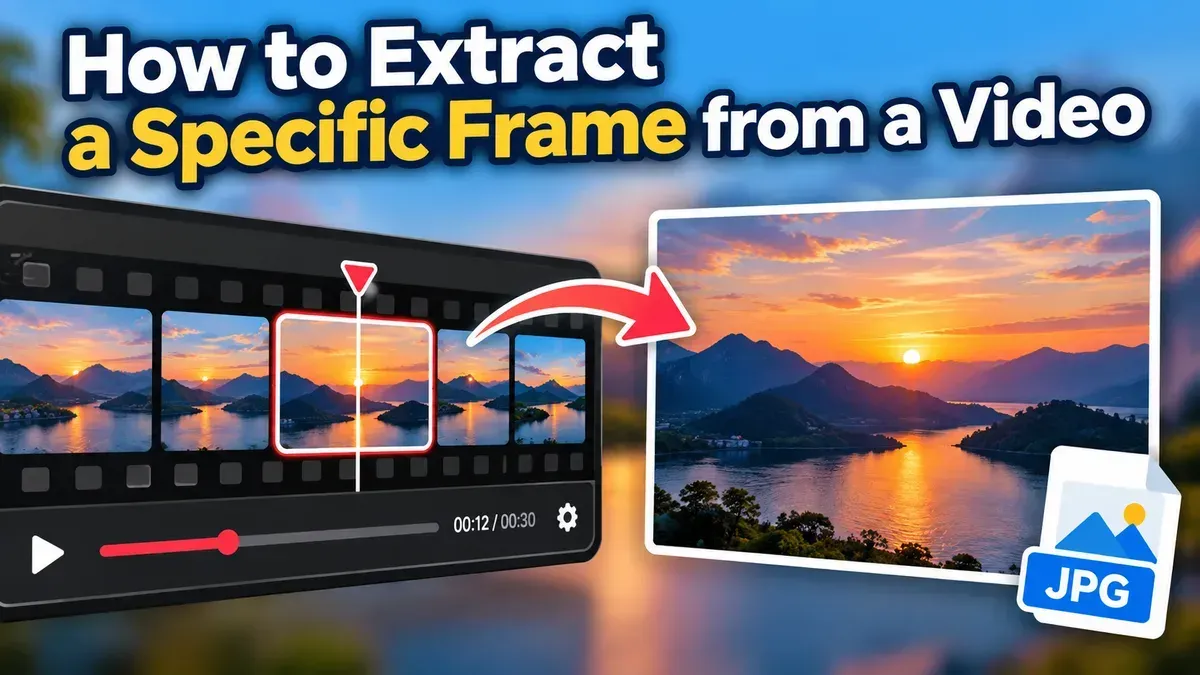
To extract a frame from a video at a specific time, open the video in a frame-extraction tool, enter the timestamp you want, preview the result, and save the still image. A dedicated extractor can be more precise than taking a screenshot, and ToolCMB’s browser-based tool processes your video on your device.
This is useful when you need a thumbnail, a reference image, a visual for notes, or a still from a recorded event. The key is choosing the right moment and understanding what affects the quality of the image you save.
Follow these steps to capture a still from a video. The exact controls may vary between tools, but the general process is similar.
For a quick capture, you can also use the tool’s frame-extraction controls to select a timestamp and save the resulting image. The preview step is worth taking: being one or two frames earlier or later can make a noticeable difference in fast-moving footage.
A timestamp identifies a position in the video’s playback timeline. For example, 00:02:15 usually means two minutes and 15 seconds from the start. Some tools accept a shorter format, such as 2:15, while others may let you include fractions of a second.
Remember that the timestamp is not necessarily a guarantee of a particular numbered frame. Videos are made up of individual images displayed in sequence, and the number of images per second is called the frame rate. At 30 frames per second, for example, the video contains about 30 frame positions in each second of playback. A tool may select the closest available frame to the time you enter.
If you are matching an exact moment in a clip, try a timestamp slightly before or after your first choice and compare the previews. This is especially helpful when a person is turning, a ball is moving, or a camera is panning.
The best frame is not always the most dramatic moment. Look for a point where the subject is visible, the camera is relatively steady, and movement has not made important details look smeared.
A frame extractor captures what is in the video; it cannot restore detail that the camera did not record. If the source is low-resolution, out of focus, or heavily compressed, the saved image will have similar limitations.
A screenshot can be convenient when you only need a quick reference. It captures the video as it appears on your screen, which can include player controls, window borders, or other on-screen elements. The result may also be limited by your display size or the way the video player renders the image.
A frame extractor works directly with the video file to produce a still image from a selected point in the clip. That makes it a practical choice when you want to specify a timestamp, avoid capturing player controls, or save an image for later use. Either method can be suitable—the right one depends on whether convenience or control matters more.
| Method | Useful for | Things to consider |
|---|---|---|
| Frame extractor | Choosing a timestamp and saving a standalone still | The selected result depends on the source video and available frame positions |
| Screenshot | Capturing something quickly while watching | May include player controls and reflect your screen’s display size |
Start with the best source file you can access. A frame taken from a high-resolution original will generally retain more visible detail than one taken from a small preview or a copy that has been repeatedly compressed. However, a larger image file does not automatically mean the subject will look sharp: focus, lighting, camera movement, and the recording itself also matter.
When you inspect the preview, look closely at faces, edges, and small details. If they appear soft, move to another nearby frame before saving. A moment when the subject pauses can be clearer than one with a lot of movement.
Also consider how you plan to use the image. A frame for a personal note may not need the same resolution or framing as a still you plan to print or include in a presentation. Avoid enlarging a small frame and expecting it to gain detail; resizing can change its dimensions but cannot recreate missing visual information.
Video can contain personal details, private conversations, or information visible in the background. Before using any online tool, consider where the file is processed and whether it needs to be uploaded.
ToolCMB’s video frame extractor runs in your browser, so the video stays on your device rather than being sent to a server for processing. This can be helpful when working with personal or sensitive footage. You should still handle the original video and saved images carefully, especially if you plan to share them.
For a one-off still or several selected moments, an online extractor can be a straightforward option. You can extract individual video frames and save them as images without installing desktop software.
Yes. Enter the timestamp in the format the tool accepts, then preview the result. The tool may return the closest available frame rather than a separate image for every possible fraction of a second.
It does not change the original video. The still image reflects the detail present in the selected source frame, including any blur or compression already in the video.
Often, yes, if your mobile browser supports the tool and can access the video file. The available file-selection options depend on your device and browser.
It is usually more convenient when you need a particular timestamp or a clean still without player controls. A screenshot can be faster for an informal reference.
No. ToolCMB’s frame extractor processes the video in your browser, so the file stays on your device.
We build fast, free and private browser tools — and write practical guides on how to use them.
If your video looks blurry after resizing, the cause is often upscaling, compression, or the wrong export settings. Learn how to identify the problem and improve the result.
Learn how to remove black bars from a video by cropping the frame carefully. Find out when cropping works, how to choose an aspect ratio, and what to check before exporting.
A phone video can look upright on your phone but sideways on a computer because the devices may interpret its rotation information differently. Learn why it happens and how to fix it.
Start typing to search tools and articles.