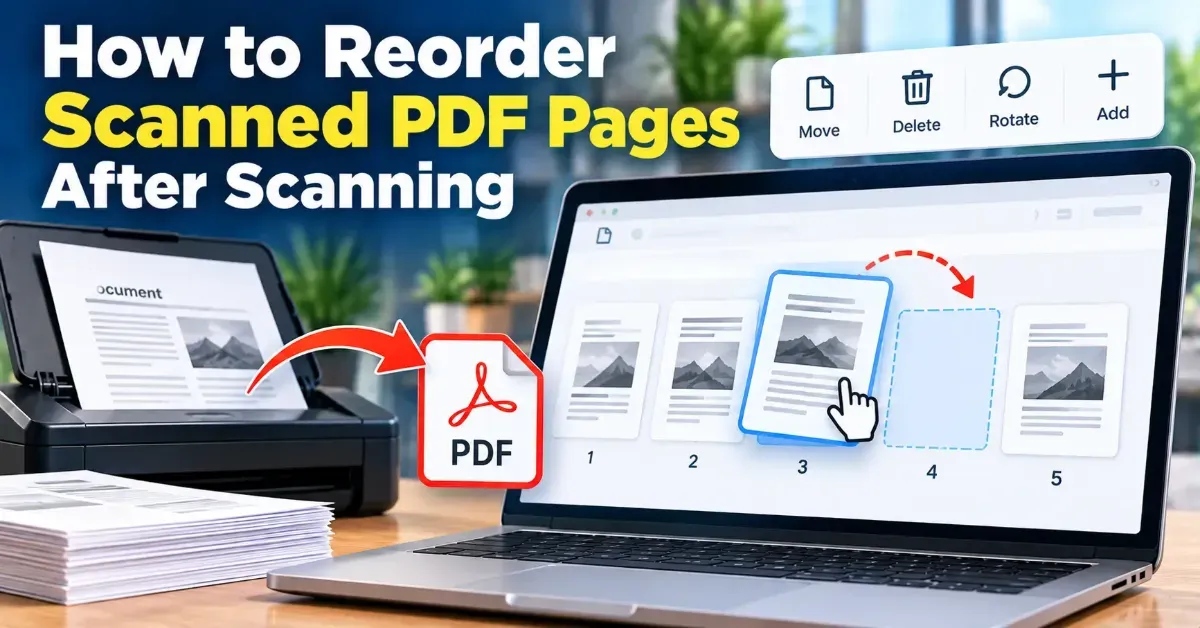
How to Reorder Scanned PDF Pages After Scanning
Learn how to reorder scanned PDF pages after scanning. Preview the pages, arrange them correctly in a browser-based tool, and check the finished file before sharing.
Learn how OCR turns scanned PDF pages into editable Word text, how to convert a file, and what to check when formatting or recognition needs cleanup.
 ToolCMB Team
6 min read
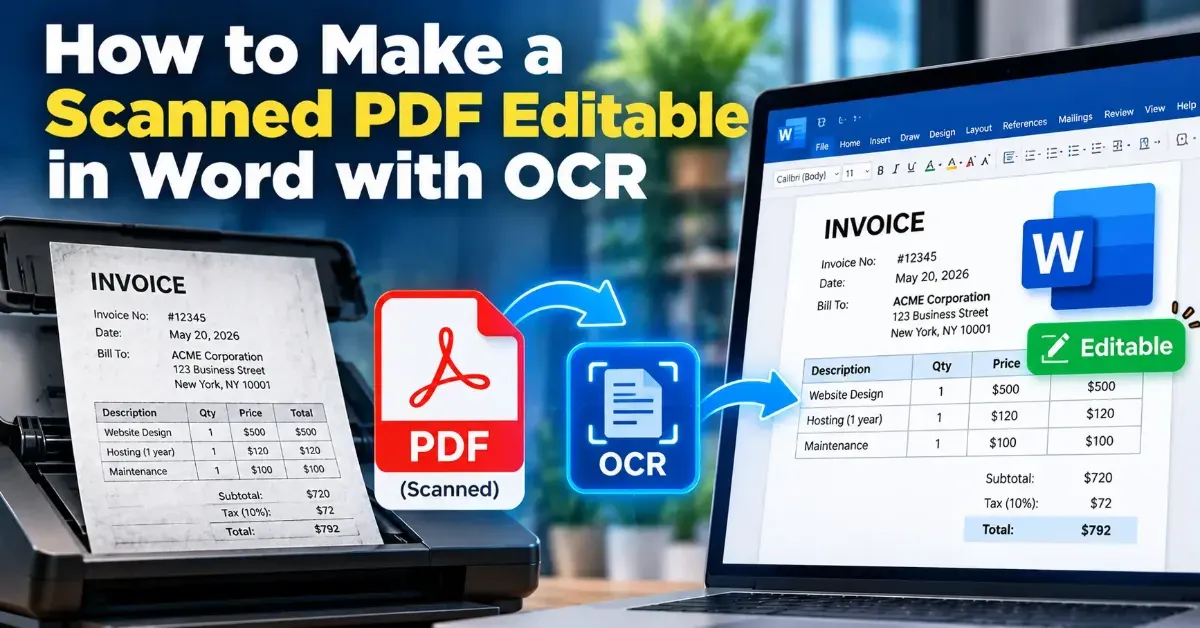
To make a scanned PDF editable in Word with OCR, use optical character recognition (OCR) to identify the words on each page and convert them into document text. Upload or open the PDF in an OCR conversion tool, choose Word as the output, then review the converted document for recognition and formatting errors.
A scanned PDF is often a collection of page images, not text that Word can edit. OCR gives the images a layer of recognized text, so you can correct wording, copy passages, and reuse the content. The result is helpful, but it may not reproduce every page detail exactly—especially in documents with complex layouts or low-quality scans.
When a scanner or phone saves a document as a PDF, each page may be stored as an image. The words look readable to you, but they are not necessarily selectable or searchable. OCR analyzes the shapes on the page, identifies likely letters and numbers, and turns them into digital text.
A conversion tool can then place that recognized text into a Word document. Depending on the file and conversion settings, it may also try to preserve headings, columns, images, tables, and spacing. Text recognition and layout reconstruction are separate challenges: a tool can recognize the words correctly while still arranging them differently from the original.
OCR works best when letters are distinct and pages are complete. If you can control the scan, use a clear image, keep the page flat, and avoid shadows, glare, and motion blur. Make sure the document is not tilted and that the edges of the text are visible.
If you are working with an existing PDF, check the pages before conversion. Rotate sideways pages, remove blank pages if they are not needed, and use a cleaner copy if you have one. A scan with faint print, stains, compression artifacts, or a patterned background can be harder to recognize. Enlarging an already blurry image usually does not restore missing detail.
Choose the correct recognition language whenever the option is available. For a document that uses more than one language, expect to check each section carefully. Names, addresses, dates, currency amounts, serial numbers, and technical terms deserve particular attention because a single character error can change their meaning.
Do not assume that a successful conversion means the document is ready to use. Compare the Word file with the original PDF, especially if accuracy matters. OCR may confuse characters such as “I” and “1,” “O” and “0,” or punctuation and marks in small print.
For long documents, use Word’s search function to locate important terms and review the corresponding passages in the PDF. If a page converts poorly, you can correct it manually or try a clearer scan of that page. Save a new version after editing so the OCR output remains available as a reference.
| PDF type | What you can usually do | Best next step |
|---|---|---|
| Text-based PDF | Select and copy existing text in many PDF readers. | Convert or export the text to Word; OCR may not be necessary. |
| Scanned PDF | View the page image, but the words may not be selectable. | Use OCR to recognize the page text, then export to Word. |
| Mixed PDF | Select text on some pages, while other pages are images. | Check the output carefully; image-only pages may need OCR. |
Try selecting a sentence in the PDF to see which kind you have. If you can highlight individual words, the PDF likely already contains text. If you can only select the whole page as an image—or cannot select anything—OCR is likely needed to create editable text.
Scanned documents can contain personal, business, or financial information. Before using any conversion service, consider what the document contains and how the service handles files. ToolCMB’s online tools are designed to run in your browser, so files stay on your device. You can use the PDF OCR to Word tool to convert a scan without sending the file away from your device.
Regardless of the conversion method, keep the original in a secure location and avoid sharing the editable document more widely than necessary. If you are handling sensitive records, follow your organization’s rules for document processing and storage.
Confirm that you used an OCR-enabled converter and that the PDF pages contain readable print. If the scan is extremely faint, blurry, or blank, try a better source file. Handwriting may not be recognized as reliably as printed text.
OCR prioritizes recognizing content, and page design can be difficult to reproduce. Rebuild complex tables or columns in Word if needed. For simple editing, it may be faster to keep the text and apply clean headings and spacing rather than match every original detail.
Check the recognition language and compare the affected section with the source page. Improve the scan if possible, then run OCR again. Always manually verify critical figures and names.
Usually not as normal text. A scan is often an image, so you need OCR to recognize its words before editing them in Word.
It can retain some layout, but complex tables, columns, and page designs may change. Review and adjust the Word document after conversion.
Some tools may recognize certain handwriting, but results vary. OCR is generally more dependable with clear, printed text.
Blur, low contrast, skewed pages, unusual fonts, and small print can make characters difficult to distinguish. The selected language can also affect recognition.
No. Keep it as a reference so you can check the converted text and restore details that OCR missed.
We build fast, free and private browser tools — and write practical guides on how to use them.
Learn how to reorder scanned PDF pages after scanning. Preview the pages, arrange them correctly in a browser-based tool, and check the finished file before sharing.
Remove an unwanted PDF page without rebuilding the document. Learn how to choose the right page, delete it, check the remaining pages, and save a clean copy.
Learn how to rotate just one page in a PDF without changing the orientation of the rest. Follow simple browser-based steps and check the saved file before sharing.
Start typing to search tools and articles.