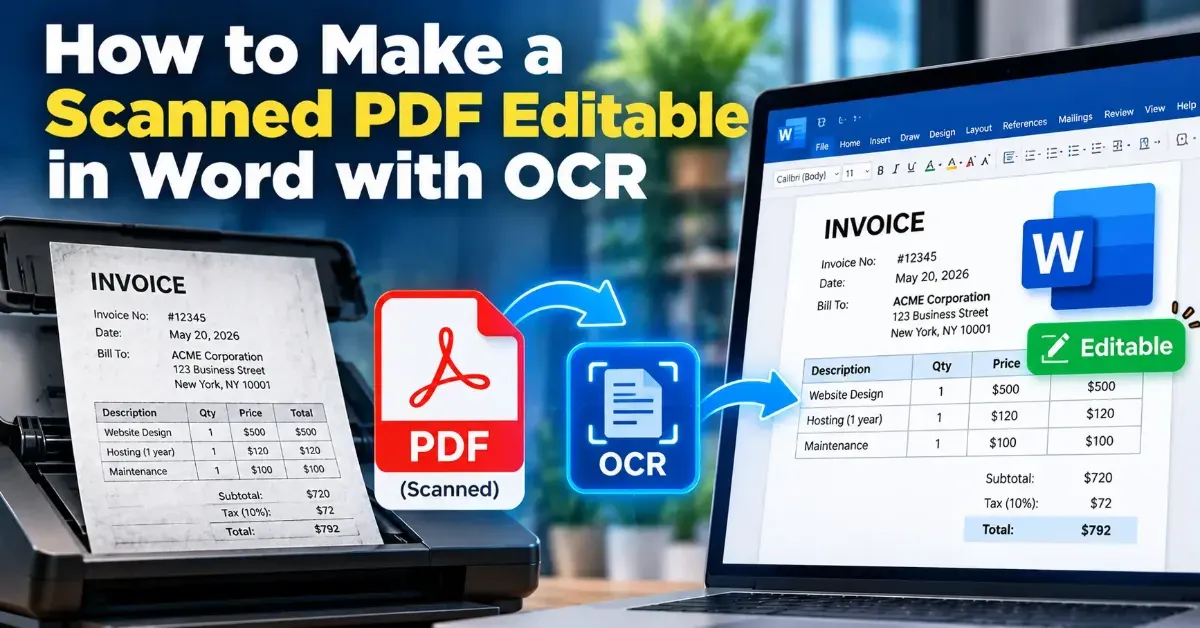
How to Make a Scanned PDF Editable in Word with OCR
Learn how OCR turns scanned PDF pages into editable Word text, how to convert a file, and what to check when formatting or recognition needs cleanup.
Learn how to reorder scanned PDF pages after scanning. Preview the pages, arrange them correctly in a browser-based tool, and check the finished file before sharing.
 ToolCMB Team
7 min read
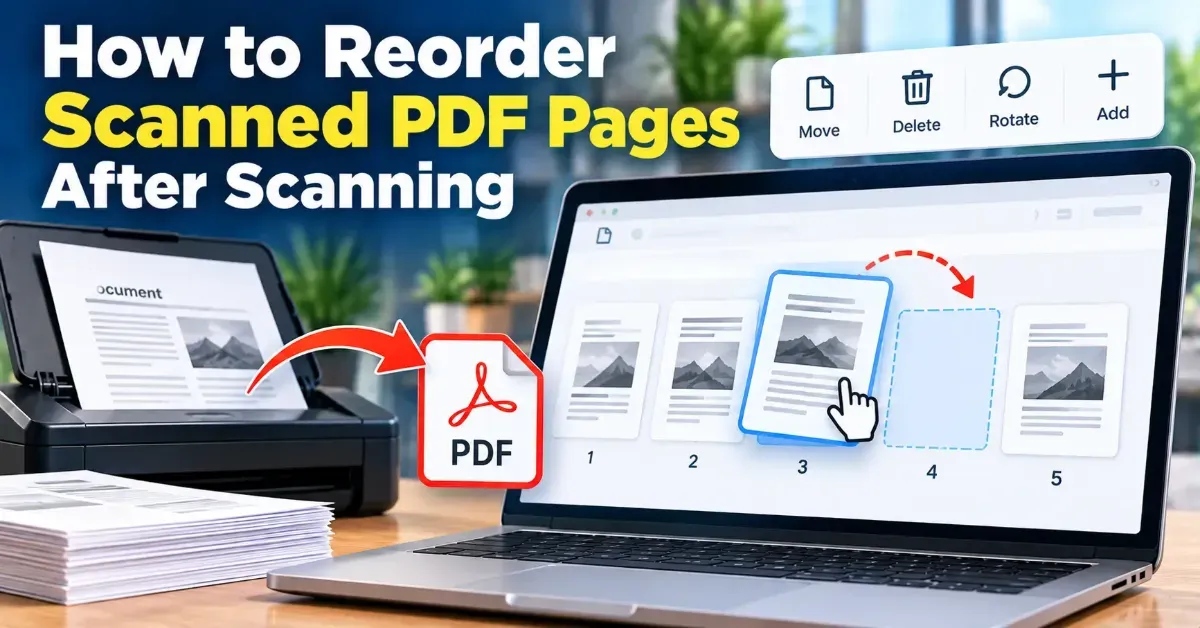
To reorder scanned PDF pages, open the PDF in a page-reordering tool, move the pages into the sequence you want, and download the revised file. Before you begin, keep a copy of the original and preview the finished PDF to confirm that every page is present, upright, and in the right order.
A scan captures pages as images, so a document can look correct on paper but end up shuffled in the PDF. This can happen when pages are fed through a scanner in batches, placed on the glass in the wrong sequence, or saved with an unexpected page order. You usually do not need to scan the document again: you can rearrange the existing PDF pages and preserve the scanned content.
The simplest approach is to work from a copy, identify the intended sequence, rearrange the page previews, and inspect the exported file. These steps work well for reports, application packets, receipts, forms, and other scanned documents.
For a short document, moving pages may take only a moment. For a large scan, it helps to work in sections: arrange the opening pages, then the main body, then attachments. Take a final pass through the entire document before exporting.
It is easy to recognize a misplaced page when it has a printed number. Scans of single-sided forms, old letters, and notes may not have useful numbering, so rely on other clues. Look for a heading that continues on the next page, a date sequence, a table that spans two sheets, or a sentence that starts at the bottom of one page and continues at the top of another.
If you are handling a two-sided document, watch for the difference between the front and back of each sheet. A scanner may capture all fronts first and all backs second, rather than recording each sheet as a pair. The correct digital order may therefore alternate between the two groups. Use content, page numbers, and the original paper stack to establish the sequence.
For documents that need to follow a defined order, such as a form packet or filing, use the recipient’s instructions as your guide. Do not assume that the order in which pages were scanned is the order in which they should be submitted. If the correct sequence is uncertain, confirm it before sharing the file.
There are several ways to fix a scanned PDF. The best choice depends on whether the pages are already in one file and whether you need any other edits.
| Situation | Practical approach | Keep in mind |
|---|---|---|
| Pages are in one PDF but shuffled | Reorder the page previews | Check every page after moving items |
| Pages are separate image files | Put the images in order, then combine them into a PDF | Use filenames or a written list to preserve sequence |
| A page is sideways | Rotate that page separately, if your PDF editor supports it | Rotation and reordering are different changes |
| A paper page was missed or scanned badly | Rescan or replace the affected page, then arrange the full set | Reordering cannot restore missing or unreadable content |
Changing the order does not rewrite the words in a scanned page or improve the scan itself. If you need searchable text, you may need optical character recognition (OCR). If a page is blurred, cut off, or missing, rearranging the PDF cannot correct that source problem.
Thumbnails are useful for spotting page titles, illustrations, and obvious differences, but small text may be hard to read in a preview. Open individual pages when you are unsure. In particular, check pages with similar layouts, such as repeated forms or monthly statements, because they can be easy to confuse.
A page can be in the correct position and still be upside down or sideways. Finish the sequence first, then inspect orientation. If your chosen tool does not rotate pages, use a PDF editor that provides rotation controls and check the saved result afterward.
Keeping the unedited scan gives you a reliable reference if the rearrangement goes wrong. Use filenames that distinguish the versions, for example contract-original.pdf and contract-final-order.pdf. Avoid repeatedly saving over the only copy, especially when the document is important or difficult to recreate.
Scanned PDFs can contain addresses, signatures, account details, medical information, or other private material. Choose a workflow that fits the sensitivity of the file and review the tool’s privacy information before using it. ToolCMB tools run in your browser, and files stay on your device rather than being sent away for processing.
When you are ready to arrange the file, use the online PDF page reorder tool to put its pages in the intended sequence. Then open the downloaded copy and confirm that it is ready to store, print, or send.
Yes. If the pages are already inside a PDF and the scan itself is usable, you can rearrange the page sequence without rescanning. Rescan only when content is missing, unclear, or incorrectly captured.
Reordering changes where pages appear in the document; it does not edit the content on each scanned page. It also does not automatically make image-based text searchable.
Yes. Use headings, dates, sentence continuity, form fields, and other visual clues to establish the sequence. For ambiguous pages, compare them with the original paper document if it is available.
Some PDF tools offer both rearranging and rotating, but these are separate operations. If rotation is unavailable, use a PDF editor with rotation controls and verify the orientation after saving.
Open the downloaded file and review it from the first page to the last. Confirm the page count, sequence, orientation, and readability, and make sure the file opens as expected.
We build fast, free and private browser tools — and write practical guides on how to use them.
Learn how OCR turns scanned PDF pages into editable Word text, how to convert a file, and what to check when formatting or recognition needs cleanup.
Remove an unwanted PDF page without rebuilding the document. Learn how to choose the right page, delete it, check the remaining pages, and save a clean copy.
Learn how to rotate just one page in a PDF without changing the orientation of the rest. Follow simple browser-based steps and check the saved file before sharing.
Start typing to search tools and articles.