How to Make a Scanned PDF Editable in Word with OCR
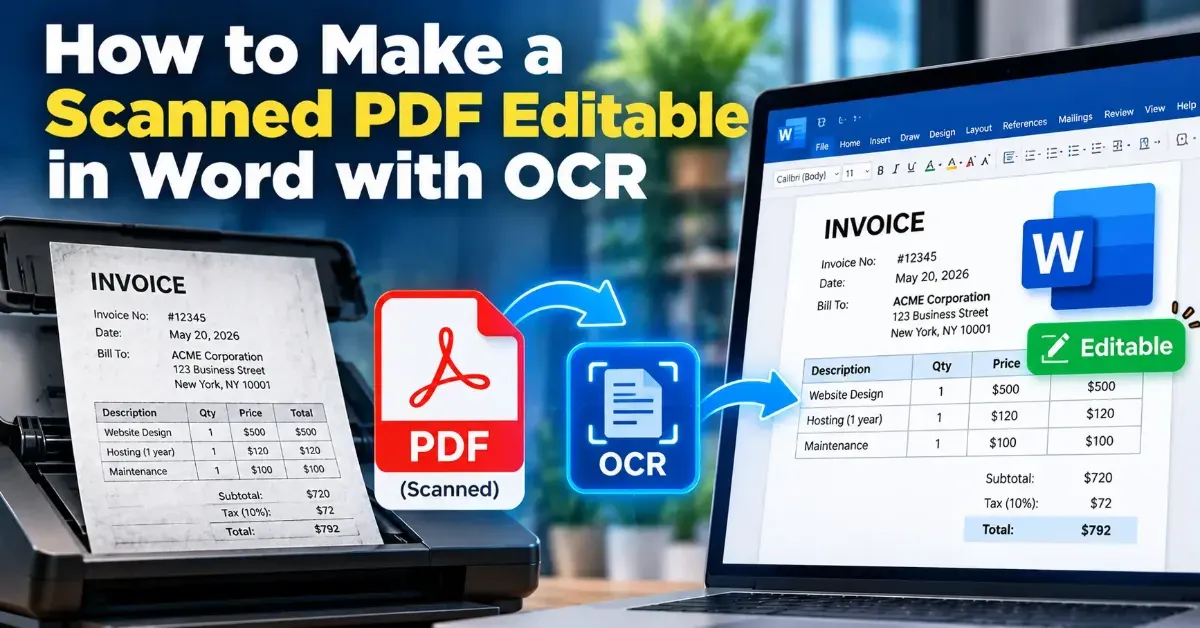
Learn how OCR turns scanned PDF pages into editable Word text, how to convert a file, and what to check when formatting or recognition needs cleanup.
Remove an unwanted PDF page without rebuilding the document. Learn how to choose the right page, delete it, check the remaining pages, and save a clean copy.
 ToolCMB Team
6 min read
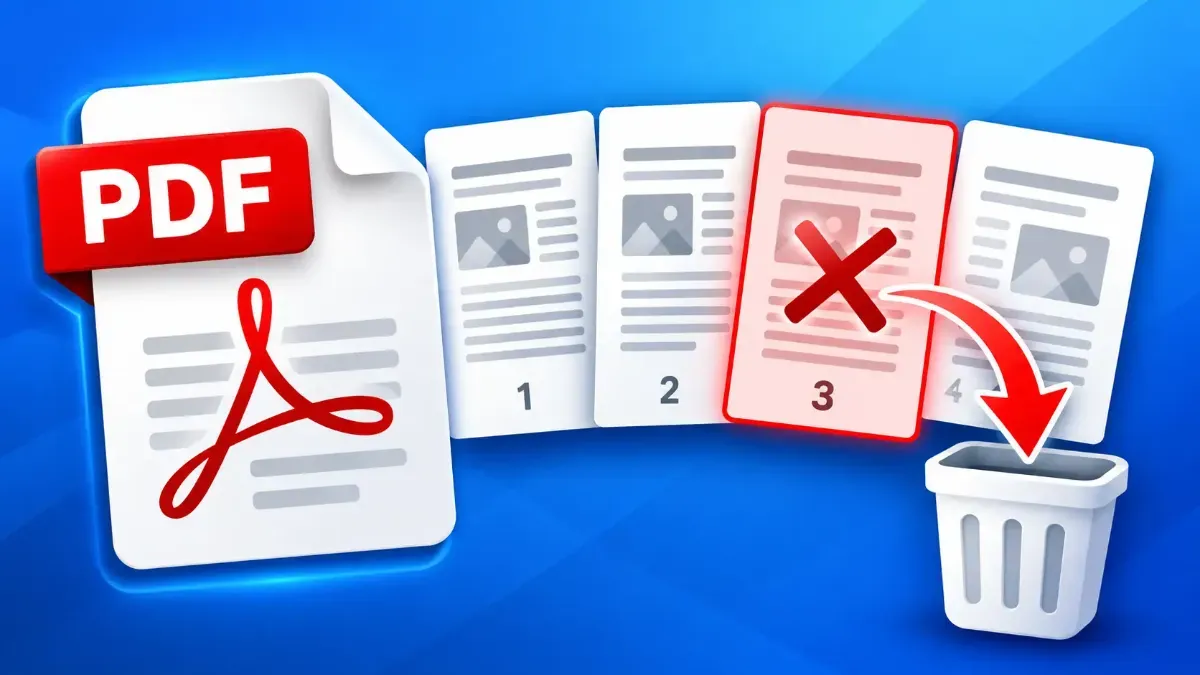
You can delete a page from a PDF without rebuilding the document: open the file in a PDF page-removal tool, select the page or pages you do not want, and save the edited PDF. The rest of the document can remain intact, including its order and layout, so you do not have to recreate every page from scratch.
This is useful when a report includes a duplicate, a proposal contains an outdated page, or a PDF accidentally includes a blank sheet. The key is to identify the right pages before removing them, then check the saved copy to make sure the document still makes sense.
The general process is straightforward. In a browser-based tool such as ToolCMB’s PDF Page Deleter, you choose a PDF, select the pages to remove, and download the updated file. You can do this without recreating the remaining pages in a word processor or design program.
For example, if a 12-page PDF has an unwanted page 5, the edited file should contain the other 11 pages in their existing sequence. The page that was originally page 6 becomes page 5 in the shorter file. That change in numbering is expected.
One common source of mistakes is the difference between a PDF’s position count and the number printed on the page. A cover may not have a printed number, or a report may start its printed numbering at 1 after several introductory pages. A page labeled “3” in the document might therefore be the fifth page in the PDF viewer.
Use the page thumbnail and nearby content to confirm the page you mean. If the tool displays page previews, look at the page itself rather than relying on a number alone. When a document has hundreds of pages or multiple sections, double-check the selection before deleting.
Removing a page changes the document’s page sequence; it does not usually mean you must rebuild the content on the other pages. Those pages remain in the file, and the pages following the deletion move up in the sequence. For instance, after removing page 2, the original page 3 becomes page 2 in the edited PDF.
Still, review the finished document rather than assuming everything is right. Check whether the removed page contained a reference, instruction, signature, or information that is mentioned elsewhere. Also look for features that matter to your use case, such as page orientation, links, or form fields. If the PDF is part of a formal submission, compare the final page count with the requirements before sending it.
| Approach | Best for | What to consider |
|---|---|---|
| Delete selected pages | Removing a blank, duplicate, or unwanted page | Check page selection and review the saved PDF |
| Recreate the document | Making broad changes to layout or content across many pages | Can take longer and may alter formatting |
| Export a new PDF from the source file | When you still have the editable original and need more substantial edits | Fonts, spacing, or page breaks may differ after export |
If you only need to remove a few pages, direct deletion is usually the simpler option. Recreating or exporting the whole document may be useful when you also need to rewrite content or change the overall design, but it is unnecessary for a small page-removal task.
Do not overwrite your only copy before reviewing the edited PDF. Keeping the original gives you a way to start again if you removed the wrong page or discover that the document needs it after all.
A filename such as proposal-final-clean.pdf makes it easier to distinguish the updated copy from the original. Avoid names that are so similar you could attach the wrong version by mistake.
You do not always need to read every word again, but check the first page, the pages around the deletion, and the final page. Confirm that the remaining material flows correctly and that no page appears blank or out of order.
PDFs can contain personal, financial, or business information. ToolCMB’s online tools run in your browser, so files stay on your device rather than being uploaded to a server. You can use the PDF Page Deleter to select and remove unwanted pages, then save the clean copy locally.
Removing a page is not the same as redacting information. If a page contains private details, deleting the entire page removes it from the edited document, but it does not hide sensitive text that remains on other pages. Likewise, if you need to change a sentence, correct a number, or replace an image, you will need an editing approach that supports those changes.
Be especially careful with signed or officially submitted PDFs. Removing a page may affect how the document is treated, and some digital signatures can become invalid when a PDF is changed. Check the relevant requirements before editing a document that must preserve a signature or meet a formal standard.
Yes. A page-removal tool can remove a selected page while keeping the remaining pages in the PDF. Their page positions shift to close the gap.
It may, particularly if the page contains large images or other substantial content. The amount depends on what the PDF contains and how it is saved.
Many page-removal tools let you select multiple pages before applying the change. Review every selected page, especially when removing a range.
If you saved over your only copy, recovery may be difficult. Keep the original PDF or make a duplicate before editing so you can restore a page if needed.
It removes the selected page from the edited PDF. It does not remove related information that appears elsewhere, and page deletion is not a substitute for redacting details that remain visible.
We build fast, free and private browser tools — and write practical guides on how to use them.
Learn how OCR turns scanned PDF pages into editable Word text, how to convert a file, and what to check when formatting or recognition needs cleanup.
Learn how to reorder scanned PDF pages after scanning. Preview the pages, arrange them correctly in a browser-based tool, and check the finished file before sharing.
Learn how to rotate just one page in a PDF without changing the orientation of the rest. Follow simple browser-based steps and check the saved file before sharing.
Start typing to search tools and articles.