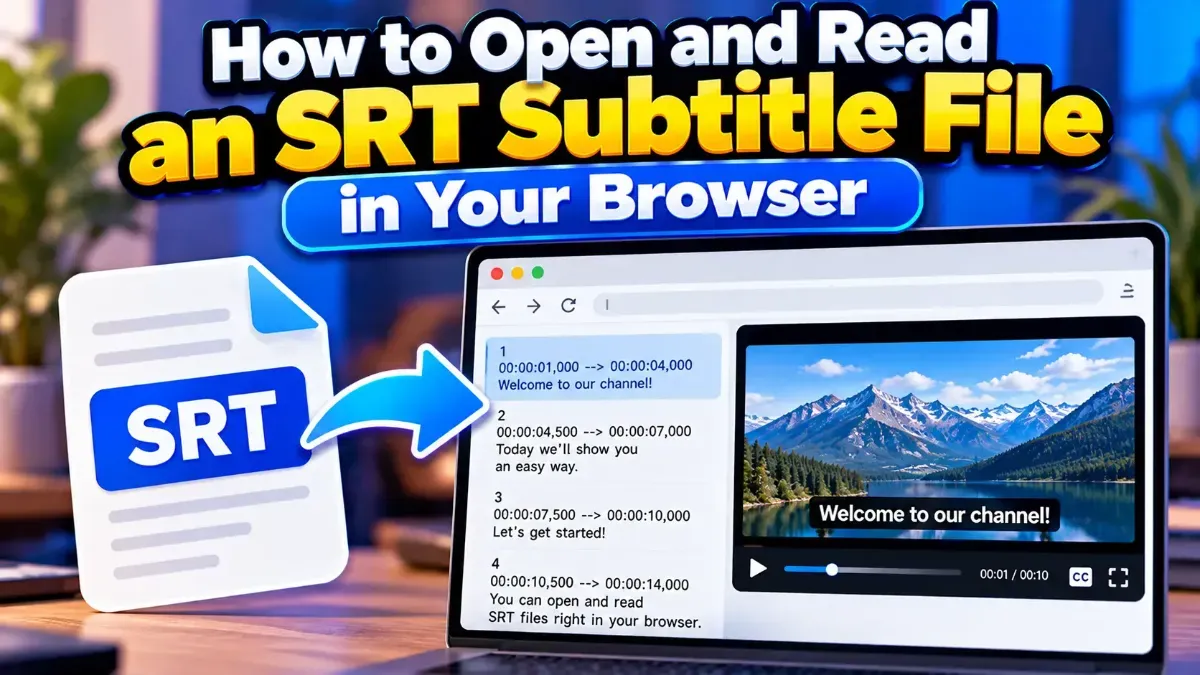
How to Open and Read an SRT Subtitle File in Your Browser
Learn how to open and read an SRT subtitle file in your browser, understand its timestamps and cues, and troubleshoot common formatting problems.
Turn an SRT subtitle file into spoken audio with AI text-to-speech. Learn how to prepare subtitles, generate a voice track, and check timing and quality.
 ToolCMB Team
7 min read
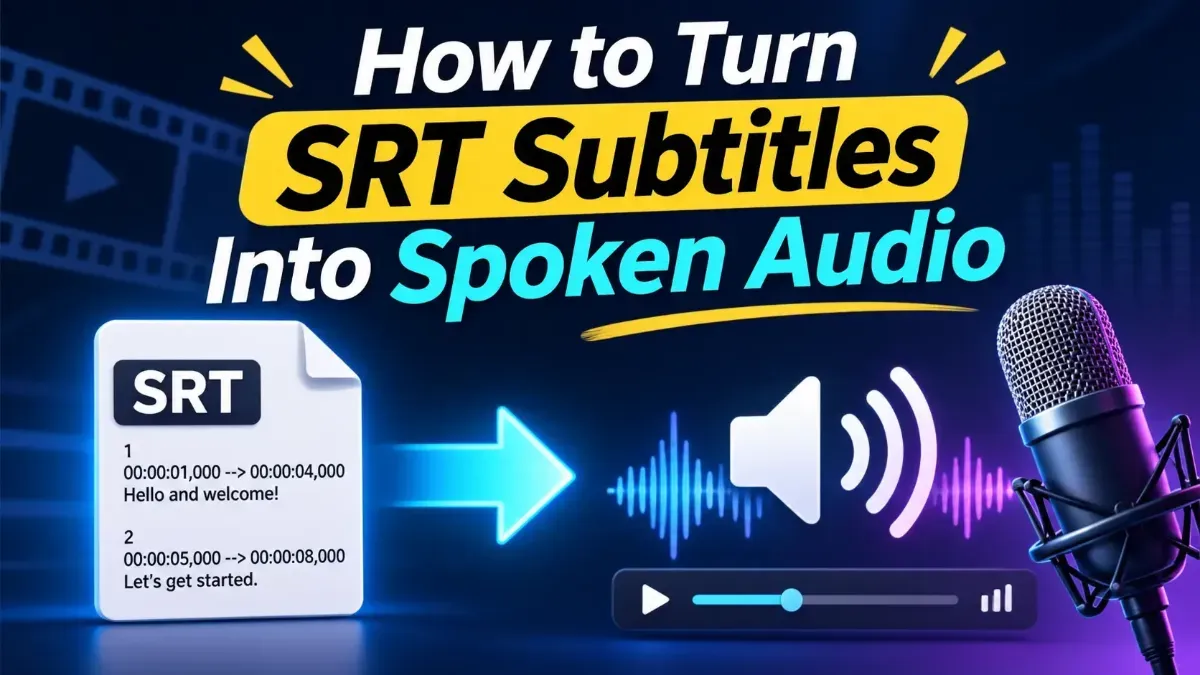
To convert SRT subtitles to audio with AI, open a text-to-speech tool that accepts SRT files, choose an available voice, and convert the subtitle text into speech. Before you start, check the subtitles for errors and decide whether you need a continuous narration track or audio timed to the original video.
SRT files contain numbered subtitle entries, timestamps, and the words shown on screen. Text-to-speech turns those words into spoken audio, but it does not automatically guarantee that the finished voice track will match the timing of every subtitle. Knowing the difference helps you choose the right workflow.
A subtitle-to-speech tool can save you from copying dialogue line by line. For a straightforward conversion, you can use ToolCMB’s Text & Audio Converter, which supports subtitle files such as SRT and VTT. It runs in your browser, so your files stay on your device.
An SRT file is a plain-text subtitle format. A typical entry includes a cue number, a start and end time, and one or more lines of dialogue. The timestamps indicate when the subtitle appears on screen; they are not part of the spoken sentence.
A subtitle-aware converter uses the entries to identify the words to speak and generally excludes the numbering and timestamps from the narration. Still, it is worth checking the result. Unusual formatting, malformed entries, or notes such as [door slams] may be handled differently depending on the tool. If a sound description should be spoken, keep it. If not, remove it before conversion.
Subtitle wording is also designed for reading quickly, not always for listening. For example, a subtitle may use an abbreviation, an unfinished sentence, or a line break that makes sense on screen but sounds strange aloud. Read the script as a listener would and make small edits where needed.
Not necessarily. Converting subtitle text to speech creates spoken audio from the words, but a continuous narration track may not preserve the original start and end times of each SRT cue. The AI voice may also take more or less time to say a line than the subtitle was displayed.
If you need a voice track that follows the video closely, treat synchronization as a separate editing step. Import the audio and video into an editor, then align the speech with the relevant scenes. For precise cue-by-cue timing, use a workflow that supports subtitle timestamps or create separate audio segments and position them against the video. Always review the finished result from start to finish.
| Your goal | Practical approach |
|---|---|
| Listen to the subtitle dialogue | Convert the SRT into a continuous speech track and check it by listening. |
| Create narration for a video | Generate the voice track, then place and adjust it in a video or audio editor. |
| Match each subtitle cue closely | Use a cue-aware workflow and verify the timing of every spoken segment. |
| Make an accessible audio version | Review names, context, speaker changes, and useful sound descriptions before publishing. |
A few minutes of cleanup can make the generated audio easier to follow. Keep edits focused on how the text sounds, not just how it looks on screen.
The file may have been read as ordinary text instead of parsed as an SRT subtitle file. Check that you selected the subtitle-import option or use a converter that supports SRT input. If needed, clean the file or copy only the dialogue into a text-to-speech tool.
Those words are likely part of the subtitle text the tool received. Edit the SRT to remove unwanted labels and bracketed notes, then generate the audio again.
This is usually a timing issue rather than a speech-generation error. Align the generated audio in an editor, shorten or revise lines where appropriate, and check for long gaps or speech that overlaps important sounds.
Try a spelling that better reflects the desired pronunciation, or use a pronunciation setting if one is available. Test the change on a short passage before regenerating a long file.
Subtitle files can contain private conversations, unreleased scripts, or personal information. ToolCMB’s online tools run in your browser, and files stay on your device rather than being sent to a server. As with any tool, review the page and your browser’s file permissions if you have specific privacy requirements.
When the audio is ready, keep the original SRT alongside the generated file. The subtitle file is useful for corrections and timing edits later, while the audio gives you a convenient spoken version of its text.
Yes. Use a text-to-speech converter that accepts SRT files, then select the subtitle file directly. The tool should extract the dialogue for speech generation.
No. Text-to-speech reads the text in the file. Translate the subtitles separately if you need spoken audio in another language.
Yes. You can use it as a starting voice track, but you may need to align it with the video and adjust pauses or line timing in an editor.
Subtitle timing describes when text appears on screen, while speech duration depends on the words and voice speed. A generated track may not preserve each cue’s original timing.
Yes. Make a copy of the file and remove the cues you do not need before converting, or copy the selected dialogue into a text-to-speech tool that accepts plain text.
We build fast, free and private browser tools — and write practical guides on how to use them.
Learn how to open and read an SRT subtitle file in your browser, understand its timestamps and cues, and troubleshoot common formatting problems.
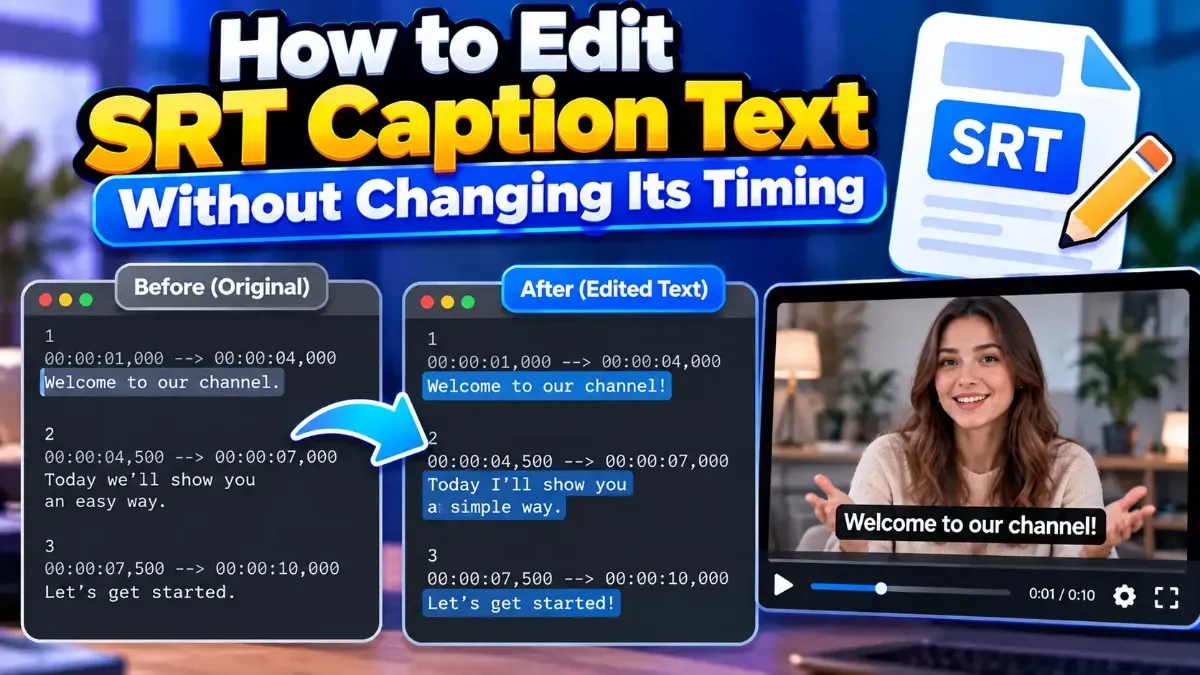
Learn how to edit SRT text without changing timing. Keep every cue’s timestamps intact while correcting captions, then check the file before using it with your video.
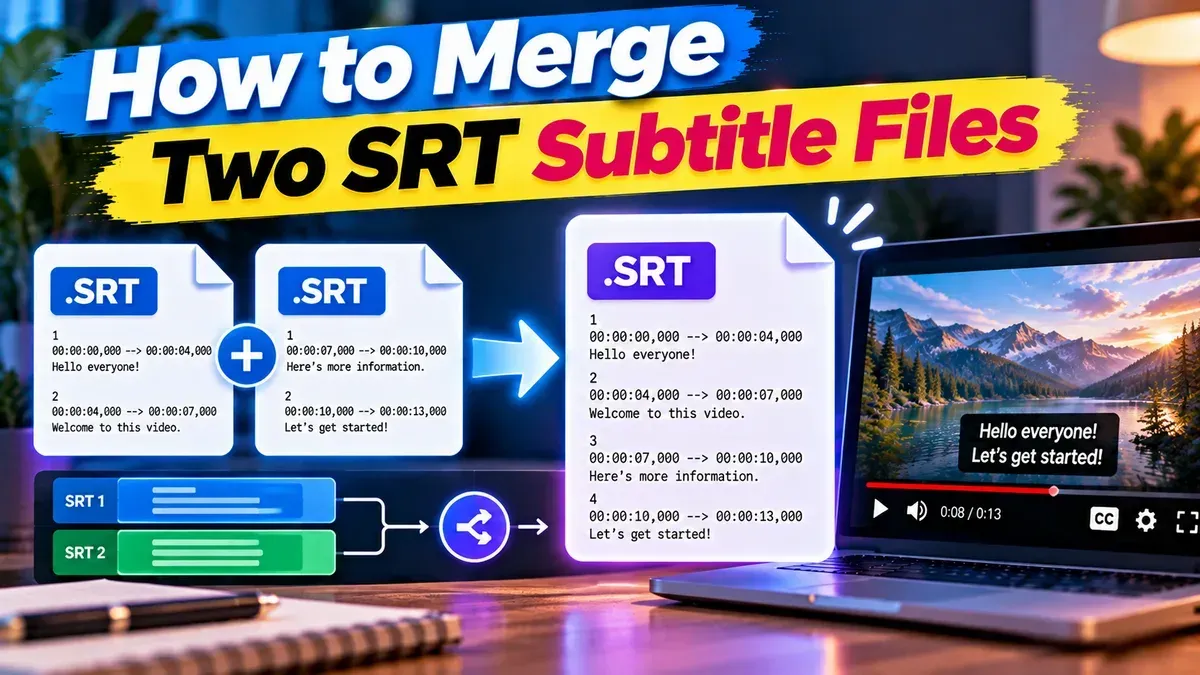
Learn how to merge two SRT subtitle files while keeping their timing intact. Find out how to handle cue order, overlaps, offsets, and common formatting issues.
Start typing to search tools and articles.