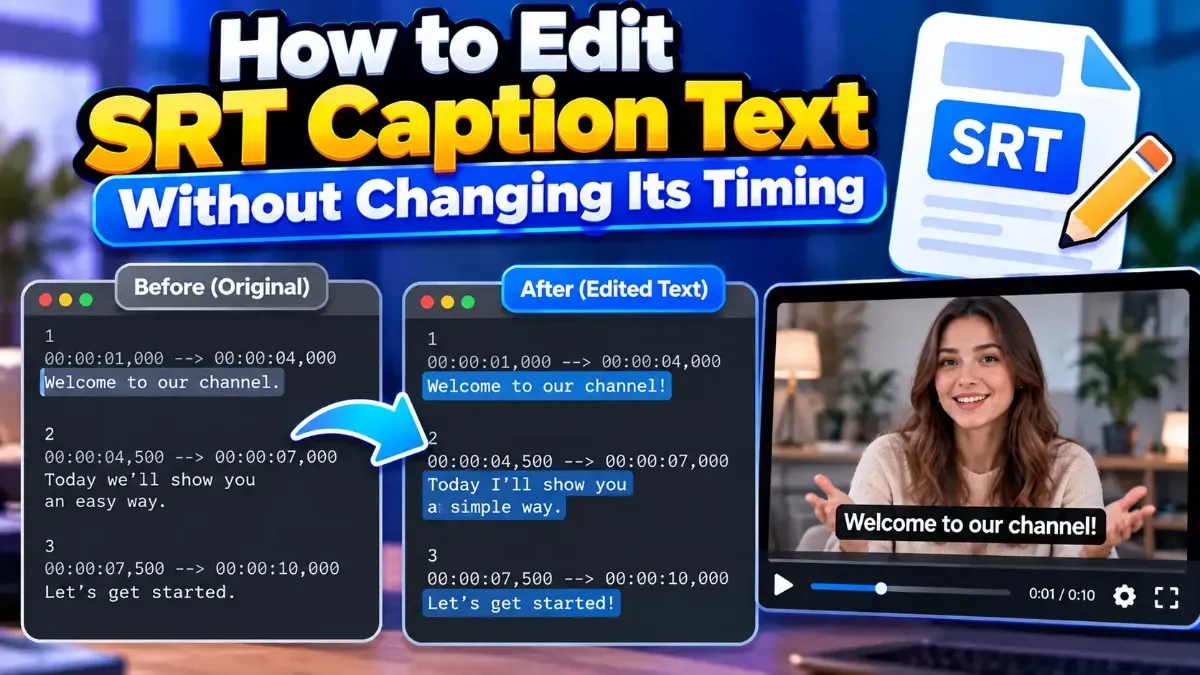
How to Edit SRT Caption Text Without Changing Its Timing
Learn how to edit SRT text without changing timing. Keep every cue’s timestamps intact while correcting captions, then check the file before using it with your video.
Learn how to open and read an SRT subtitle file in your browser, understand its timestamps and cues, and troubleshoot common formatting problems.
 ToolCMB Team
6 min read
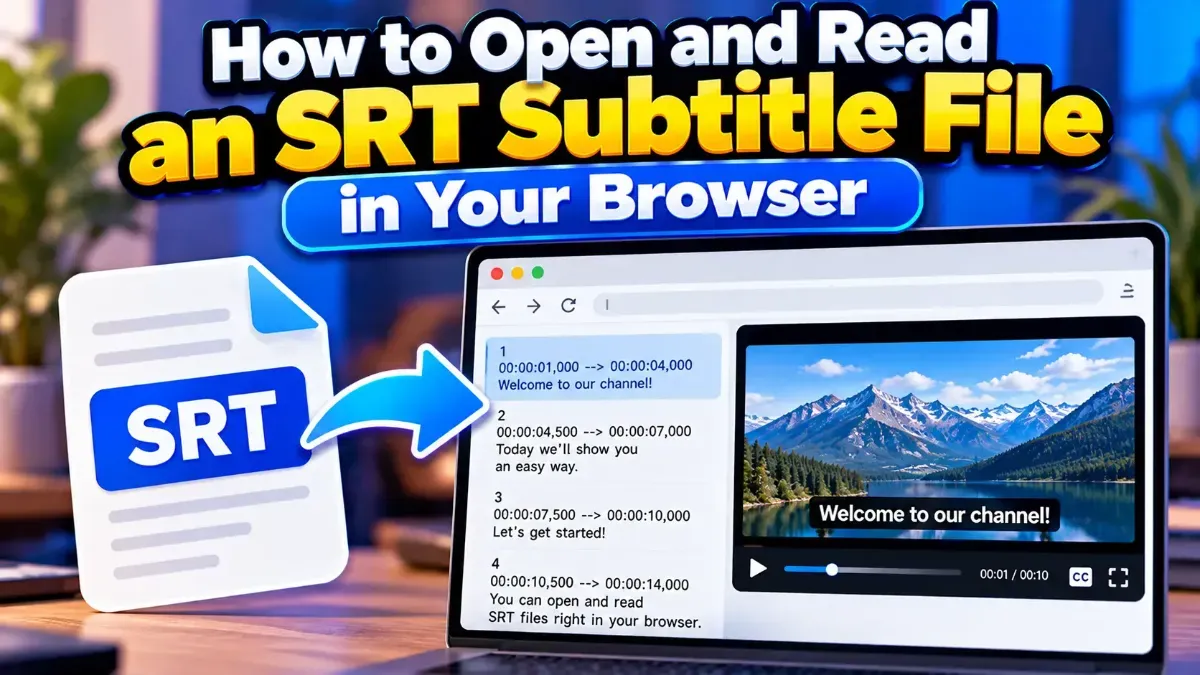
To open and read an SRT file in browser, use a browser-based subtitle viewer or open the file as plain text. A subtitle viewer organizes each caption with its timestamp, making the file easier to scan than a block of raw text. SRT files are plain-text files, so you do not need special video software just to inspect them.
This guide explains what is inside an SRT file, how to view one in your browser, and what to check if the subtitles do not display as expected.
SRT, short for SubRip Subtitle, is a text format commonly used to store timed captions for video. It does not contain the video itself. Instead, it tells a video player what text to show and when to show it.
An SRT file is usually made up of repeated subtitle cues. Each cue contains a number, a start and end time, the subtitle text, and a blank line before the next cue. A simple example looks like this:
1
00:00:01,200 --> 00:00:03,500
Welcome to the video.

2
00:00:04,000 --> 00:00:06,250
Let's get started.
The timestamp format is hours, minutes, seconds, and milliseconds. In SRT, a comma separates the seconds from the milliseconds. The arrow marks the time range during which the caption should appear.
For a formatted view, use a browser-based SRT viewer. It can make it easier to inspect individual cues, timestamps, and text without manually searching through the raw file.
episode.srt alongside episode.mp4.ToolCMB's browser tools process files on your device rather than sending them to a server. That can be useful when you want to inspect a subtitle file without uploading it to an online storage or conversion service.
Sometimes. An SRT file is plain text, so a browser may display its contents when you open the file directly. Depending on your browser and device, it may instead download the file or ask which app should open it. The result is usually raw text rather than a neatly organized subtitle view.
If your browser shows a download, open the downloaded file with a text editor or use an SRT viewer. If you see the file's contents as text, you can read the cues there, but a viewer may be more convenient for navigating a long subtitle track.
Once the file is open, use the cue structure to understand what you are seeing:
For example, a cue with the range 00:00:12,000 --> 00:00:14,000 is timed to display from 12 seconds to 14 seconds. The actual appearance can vary with the video player and its settings.
| Option | Best for | What to expect |
|---|---|---|
| Browser-based SRT viewer | Scanning cues and checking subtitle timing | A more organized view of the file's subtitle information |
| Text editor | Reading or manually changing the raw file | Plain text with numbering, timestamps, and cue separators |
| Video player | Watching captions in sync with the video | Subtitle display alongside the video, if the player supports SRT |
Choose a viewer when your goal is to inspect or understand the subtitle track. Choose a text editor if you need to make direct changes to the text. To check whether captions are correctly timed with a particular video, open the video and subtitle together in a compatible player.
Check whether the file includes line breaks between cues. A text editor may wrap long lines visually, but that does not necessarily mean the file's actual line breaks are missing. A subtitle viewer can help you distinguish separate cues.
This can be an encoding issue. Try opening the file in a text editor that lets you choose a character encoding, then check whether the text reads correctly. Avoid resaving the file with a different encoding unless you know which format your video player expects.
Look for the standard timestamp pattern, including two-digit time fields, a comma before milliseconds, and an arrow between the start and end times. Also check that each cue's end time comes after its start time. A viewer can make such irregularities easier to spot, though it may not repair them.
The SRT may be intended for a different cut, language version, or frame timing of the video. A file can be structurally readable but still be out of sync. Inspect it alongside the exact video version it is meant to accompany.
An SRT file is a text file, so opening it to read its contents is generally different from running an application. Still, be cautious with files from unknown sources, and do not follow links or instructions that appear in suspicious subtitle text. If privacy matters, prefer a tool that processes the file locally in your browser rather than requiring an upload.
For a quick check, the SRT Viewer lets you inspect a subtitle file in your browser. If you need to edit the raw content, make a copy first so you can keep the original unchanged.
No. You can inspect it with a browser-based SRT viewer or open it as plain text in a text editor.
Usually, yes, if your mobile browser supports the viewer's file selection feature. You can also use a text editor app that reads plain-text files.
No. It contains subtitle text and timing information, not video or audio. The video is a separate file.
Browsers handle local text files differently. If it downloads, open the file with a text editor or select it in an SRT viewer.
Yes. Since SRT is plain text, you can edit captions and timestamps with a text editor. Keep a backup and preserve the cue structure when making changes.
We build fast, free and private browser tools — and write practical guides on how to use them.
Learn how to edit SRT text without changing timing. Keep every cue’s timestamps intact while correcting captions, then check the file before using it with your video.
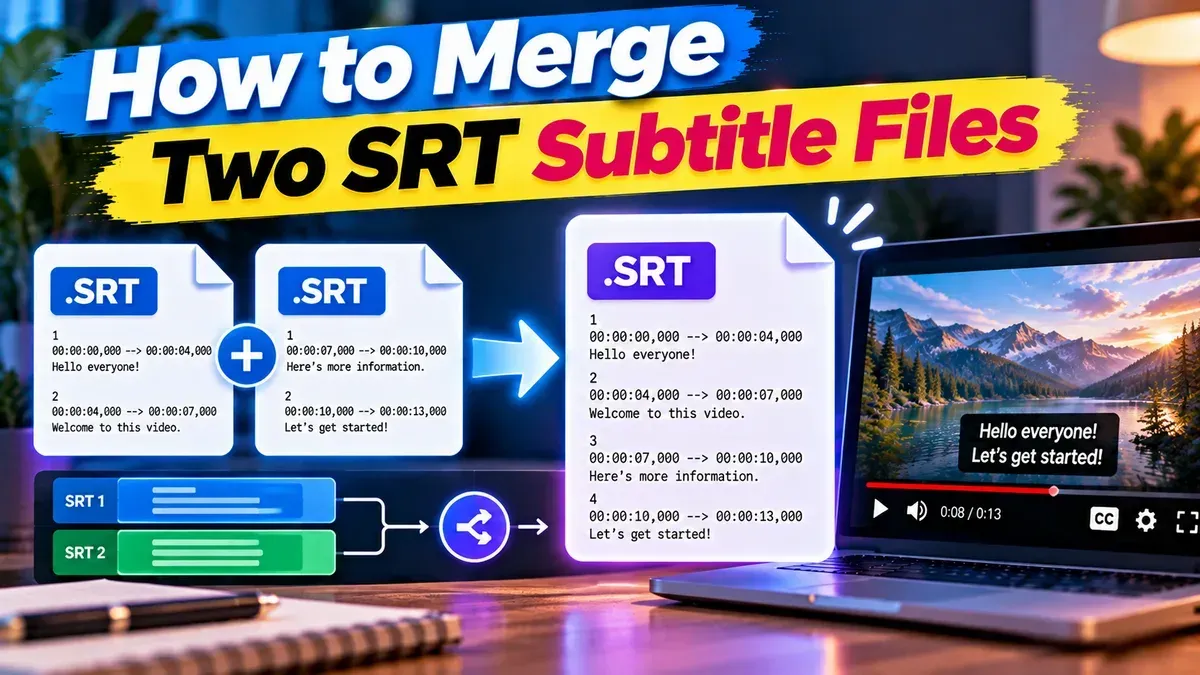
Learn how to merge two SRT subtitle files while keeping their timing intact. Find out how to handle cue order, overlaps, offsets, and common formatting issues.
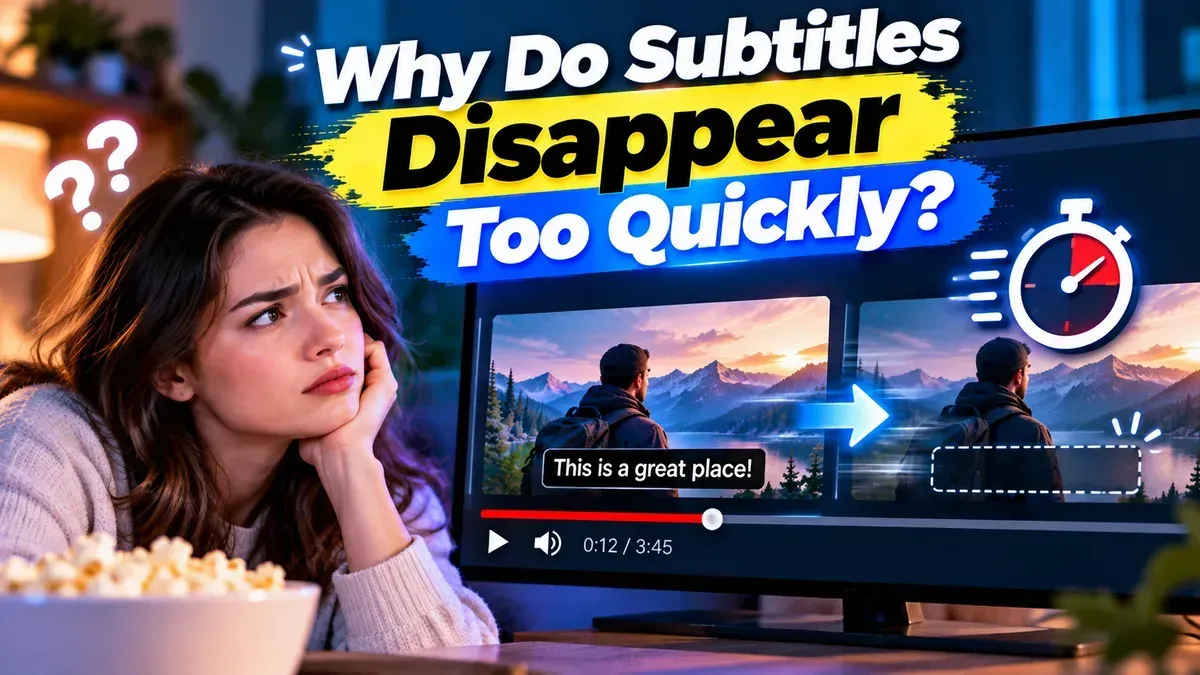
Subtitles may disappear too quickly because their display duration is too short, their timestamps are incorrect, or a player is handling the file differently than expected. Learn how to diagnose and fix the timing.
Start typing to search tools and articles.