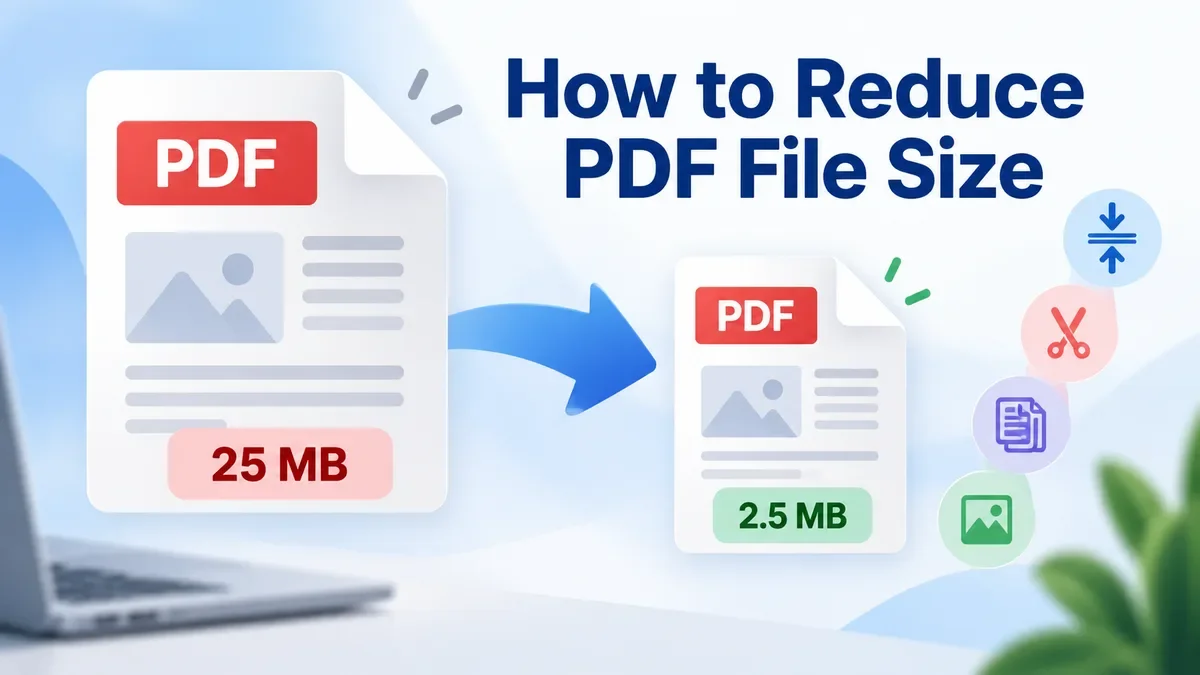
Large PDF files can become a problem when you need to send them by email, upload them to a website, submit an application, or store them on a device with limited space.
A document that looks simple on screen can contain high-resolution images, embedded fonts, scanned pages, metadata, and other data that make the file much larger than expected.
The good news is that you usually do not need to recreate the document from scratch. There are several practical ways to reduce PDF file size while keeping the document useful and readable.
Why are some PDF files so large?
PDF file size depends on what is inside the document.
A PDF containing mostly text may be relatively small, while a scanned document with dozens of high-resolution pages can be much larger. Images are often one of the biggest contributors to PDF file size.
Common reasons a PDF becomes large include:
-
High-resolution photos or scanned pages
-
Many images embedded in the document
-
Unnecessarily large source images
-
Multiple pages that are no longer needed
-
Embedded fonts and document resources
-
Repeated or unnecessary document data
For example, a scanned 20-page document can be much larger than a 20-page text-based PDF because every scanned page may contain a large image.
1. Compress the PDF
The simplest option is to use a PDF compressor.
A PDF compression tool can optimize the data inside a document and reduce its file size without requiring you to edit every page manually.
This is particularly useful when you need to:
-
Email a PDF
-
Upload a document to a website
-
Submit an application
-
Share a report
-
Reduce storage requirements
-
Make a document easier to download
The amount of compression you can achieve depends heavily on the original PDF. Image-heavy documents generally have more potential for size reduction than PDFs containing mostly text.
How to compress a PDF
The basic process is straightforward:
-
Open a PDF compression tool.
-
Select or drag your PDF into the tool.
-
Let the tool process the document.
-
Check the resulting file size and document quality.
-
Download the compressed PDF if the result meets your needs.
If the document contains important images, inspect several pages after compression. A smaller file is not always better if the text or images become difficult to read.
2. Remove pages you do not need
Sometimes the best way to make a PDF smaller is not to compress it at all.
If the document contains pages that you do not need to share, removing those pages can produce a much smaller file.
For example, imagine you have a 100-page PDF but only need pages 10 through 20. Sending the complete document may be unnecessary.
A PDF page extraction tool can help you create a new document containing only the pages you need.
This approach is especially useful for:
It also makes the final document easier for the recipient to navigate.
3. Split a large PDF into smaller files
If you need to keep the entire document but cannot conveniently share it as one large file, splitting the PDF is another option.
For example, a 200-page report could be divided into several smaller documents based on chapters, sections, or other logical groups.
Splitting a PDF does not necessarily reduce the total amount of information. Instead, it makes the document easier to manage and share in smaller parts.
This can be useful when:
-
A website has a file-size upload limit
-
You only need to send individual sections
-
Different people need different parts of a document
-
A large document is difficult to work with on a mobile device
For documents that are already well organized, splitting them by section can be more practical than trying to compress the entire file aggressively.
4. Reduce the size of images before creating the PDF
If you are creating a PDF from photos or scanned documents, the original images can have a major impact on the final file size.
A camera or smartphone may produce images that are much larger than necessary for a document.
For example, a high-resolution photo may be ideal for printing, but that same resolution may be unnecessary for a PDF that will only be viewed on a screen.
One practical workflow is:
-
Resize or compress the images.
-
Convert them to an appropriate image format if necessary.
-
Create the PDF from the optimized images.
-
Check the final document size.
This is particularly useful for photo-heavy PDFs.
However, avoid reducing image quality too aggressively when the document contains small text, diagrams, charts, receipts, or other details that need to remain readable.
5. Convert only the pages you actually need
Sometimes you do not need the entire PDF as a PDF.
If you only need a few pages as images for a presentation, website, message, or other workflow, converting selected PDF pages to JPG can be more convenient.
A PDF-to-JPG tool can turn PDF pages into image files that are easier to use in certain situations.
However, conversion is not automatically a compression method.
Depending on the source PDF and image settings, converting pages to JPG can sometimes result in files that are larger than the original PDF. Use this approach when you actually need image files rather than simply trying to reduce PDF size.
6. Convert images to PDF carefully
The opposite workflow can also be useful.
If you have several JPG images that need to be combined into a single document, converting JPG files to PDF can make them easier to send and organize.
For example, you might have:
-
Scanned receipts
-
Photos of documents
-
Application pages
-
Multiple screenshots
-
Signed forms
Combining them into one PDF can make sharing easier. After creating the PDF, you can then use a PDF compression tool if the resulting document is larger than necessary.
How much can you reduce a PDF?
There is no fixed percentage that applies to every PDF.
A document containing large photographs may shrink substantially after compression, while a text-heavy PDF may show only a modest reduction.
The final size depends on factors such as:
-
Number of pages
-
Image resolution
-
Image formats
-
Existing compression
-
Amount of text
-
Embedded fonts
-
Scanned content
-
Document structure
For this reason, it is better to compare the original and compressed file rather than expecting a specific percentage reduction.
How to choose the right method
The best method depends on what is making your PDF large.
If the PDF is too large because of images:
Start with PDF compression or optimize the images before creating the document.
If you only need part of the document:
Extract the pages you need instead of sending the entire PDF.
If the document is large but must remain complete:
Consider splitting it into smaller PDF files.
If you need individual pages as images:
Convert the required PDF pages to JPG.
If you have multiple images that need to become one document:
Convert the images to PDF and compress the resulting document if necessary.
Using the right method is often better than simply applying maximum compression.
Keep readability in mind
Reducing file size should not come at the expense of usability.
After processing a PDF, open the new file and check:
-
Text remains sharp and readable
-
Images are still clear enough
-
Charts and diagrams are understandable
-
Page formatting has not changed unexpectedly
-
Important information has not been removed
This is especially important for resumes, invoices, contracts, application documents, and other files where readability matters more than achieving the smallest possible file size.
Privacy matters when working with documents
PDF files can contain personal, financial, business, or other sensitive information.
Before using an online document-processing service, check how the service handles uploaded files and whether processing can happen locally in the browser.
For privacy-sensitive workflows, browser-based processing can be particularly useful because the file can be processed on the user's device rather than being uploaded to a remote server.
This is one reason privacy-focused browser tools can be useful for everyday file processing.
A simple PDF size-reduction workflow
For most users, you can start with this workflow:
Step 1: Check the current PDF file size.
Step 2: Decide whether you need the entire document.
Step 3: If not, extract only the required pages.
Step 4: If you need the complete document, compress the PDF.
Step 5: Open the compressed version and check readability.
Step 6: If the file is still too large, consider splitting it into smaller documents or optimizing the original images.
This approach avoids unnecessarily aggressive compression and gives you more control over the final document.
Frequently Asked Questions
Does compressing a PDF reduce quality?
It can. The effect depends on the type of compression and the contents of the PDF. Image-heavy documents are generally more affected than text-based documents.
What is the fastest way to reduce PDF size?
For an existing PDF, using a PDF compressor is usually the most direct approach. If you only need some pages, extracting those pages first can reduce the file size even further.
Can I reduce a PDF without removing pages?
Yes. PDF compression can reduce the file size while keeping the same pages and general document structure.
Why is my scanned PDF so large?
Scanned PDFs often contain high-resolution images for every page. Those images can account for a large portion of the document's total file size.
Should I split or compress a large PDF?
It depends on your goal. Compress the PDF when you need the complete document in one file. Split it when different sections can be shared separately or when you need to meet an upload-size limit.
Does converting PDF to JPG make the file smaller?
Not necessarily. Conversion changes the file format but does not guarantee a smaller result. If your goal is specifically to reduce file size, PDF compression is usually the more appropriate starting point.
Once you know what is making your document difficult to manage, different PDF utilities can solve different problems. A PDF compressor is useful for reducing file size, while PDF merge, PDF split, PDF page extraction, PDF-to-JPG, and JPG-to-PDF tools are useful for different document workflows.
Instead of applying maximum compression to every document, choose the tool that matches the actual problem. This usually produces a better result while preserving the information you need.