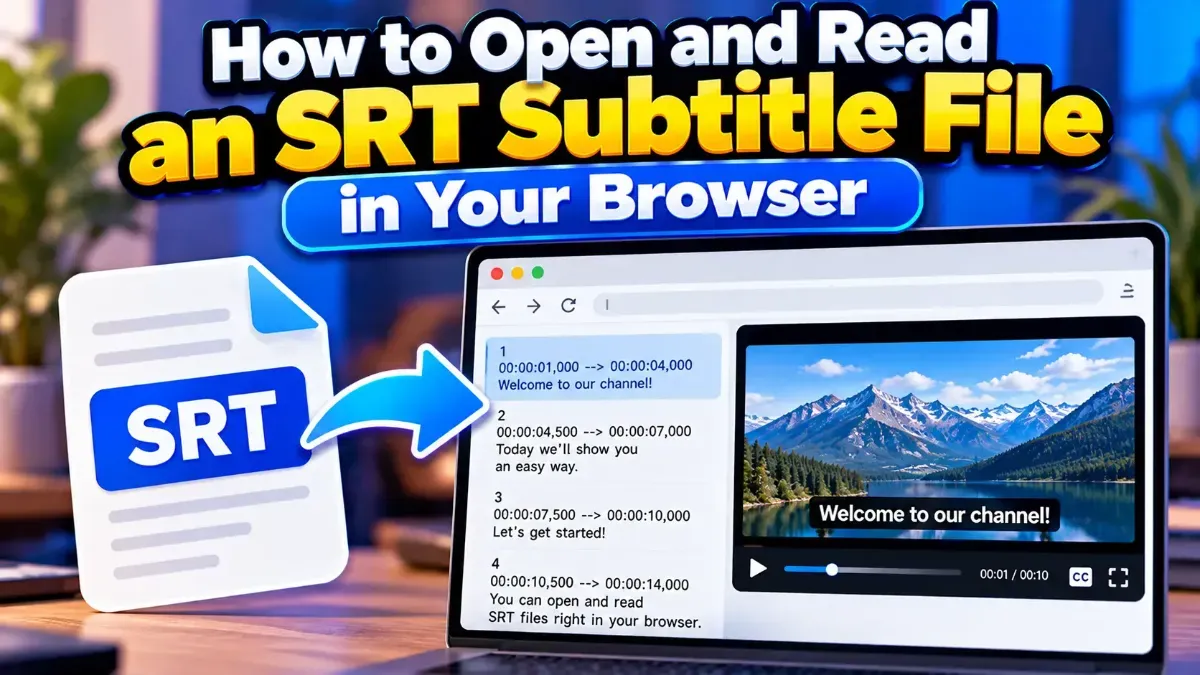
How to Open and Read an SRT Subtitle File in Your Browser
Learn how to open and read an SRT subtitle file in your browser, understand its timestamps and cues, and troubleshoot common formatting problems.
Learn how to fix SRT subtitles out of sync by identifying a constant delay or gradual drift, measuring the timing difference, and applying the right correction.
 ToolCMB Team
6 min read

To fix SRT subtitles out of sync, first determine whether every subtitle is delayed by about the same amount or whether the gap grows as the video plays. A fixed delay needs a time shift; gradual drift usually needs the subtitle timing rate adjusted. Check the corrected subtitles near the beginning, middle, and end before you replace the original file.
SubRip Subtitle files, commonly called SRT files, store each caption’s start and end time. A typical cue looks like this:
12
00:01:24,500 --> 00:01:27,000
The train leaves in five minutes.
The timestamps are hours, minutes, seconds, and milliseconds. When those times do not match the dialogue or action in the video, the subtitle may appear too early, too late, or increasingly far out of place.
Before editing, confirm that the subtitle file belongs to the exact video version you are watching. A subtitle made for a theatrical cut may not match an extended edition, and a file for one release may not line up with another. Different opening logos, removed scenes, or edits can shift the timing even when the title is the same.
| What you notice | Likely issue | What to try |
|---|---|---|
| Subtitles are late or early by roughly the same amount throughout. | Fixed offset | Shift all subtitle cues earlier or later. |
| Subtitles start close to correct but become more misaligned over time. | Timing-rate drift | Adjust the timing scale between two known sync points. |
| Only one scene or a stretch of the video is misaligned. | Different edit, missing scene, or local timing issue | Check the source version and retime the affected section. |
Use dialogue with a clear beginning, or a visible event that coincides with a caption, as your reference. Avoid guessing from a pause, music, or a scene where the speech is difficult to hear.
A fixed delay means the subtitle cues are consistently too early or too late. For example, if a caption appears about two seconds after the corresponding line at the start and near the end, shift the subtitle timings by approximately two seconds earlier.
You can use SRT Sync to adjust subtitle timing and address a consistent delay. ToolCMB tools run in your browser, so files stay on your device.
When subtitles are close to correct at the beginning but increasingly wrong later, a simple shift will not solve the issue. The subtitle timeline may be running at a slightly different rate from the video timeline. This can happen when files come from different video versions or have been converted between frame rates.
To estimate a timing-rate correction, identify two sync points far apart: one near the start and another near the end. Note each point’s time in the SRT and the matching time in the video. A larger gap between the points makes your estimate more useful, provided both references are clear.
The basic mapping is:
adjusted video time = scale × subtitle time + offsetThe scale is the difference between the two video times divided by the difference between the two SRT times. The offset then aligns the first reference point. In practice, use a subtitle editor or timing tool that can retime cues across an interval, and check its controls carefully: some tools describe the operation as changing speed, scaling, or syncing between points.
For instance, if a subtitle cue matches at the opening but is noticeably early by the final scene, the later cues need to move later relative to the early cues. Avoid changing the entire file based only on the last caption. Confirm the adjustment with a middle reference, too; a good correction should improve alignment across the video, not merely at its endpoints.
Save the corrected subtitles as a new SRT file and test them in the same video player and with the same video file you plan to use. Some players have their own subtitle-delay setting. If that setting is active, it can make a correctly timed SRT look wrong or make an incorrect file seem right.
If only one part of the video is off, investigate whether the video contains a cut, inserted clip, or missing scene. A single global offset or timing-rate adjustment may not fix a local mismatch. You may need to retime a section separately or find subtitles made for the same edit.
Subtitle drift is not always caused by a bad SRT file. The video and subtitle may come from different releases, or one may have been edited or converted after the other. A player’s subtitle-delay setting, an incorrect file pairing, or a timing adjustment made previously can also cause a mismatch.
Frame rate can be part of the problem, but avoid changing timing based on a frame-rate label alone. First compare actual sync points. If the mismatch grows steadily, a timing-rate correction may be appropriate; if it stays about the same, an offset is the simpler fix.
For the cleanest result, start with the right version of the subtitle, use clear reference cues, make one type of adjustment at a time, and test the whole timeline. That approach helps avoid correcting the opening while making the ending worse.
If a caption appears after the matching speech, shift it earlier. If it appears before the speech, shift it later. Confirm the direction with a clear cue before applying the change to the full file.
That pattern usually indicates gradual timing drift. The SRT and video may have different timing rates or may come from different versions. Compare reference points near the beginning and end, then retime between them.
Yes. If one cue is mistimed while the surrounding captions match, edit that cue rather than shifting the whole file. If many consecutive cues are wrong, retime that section or check for a scene difference.
No. An SRT is a separate subtitle text file. Editing it does not change the video, but save a corrected copy so you can restore the original if needed.
Players may have separate subtitle-delay settings or handle external subtitle files differently. Test the SRT with any player-level delay reset, and use the same video version for each check.
We build fast, free and private browser tools — and write practical guides on how to use them.
Learn how to open and read an SRT subtitle file in your browser, understand its timestamps and cues, and troubleshoot common formatting problems.
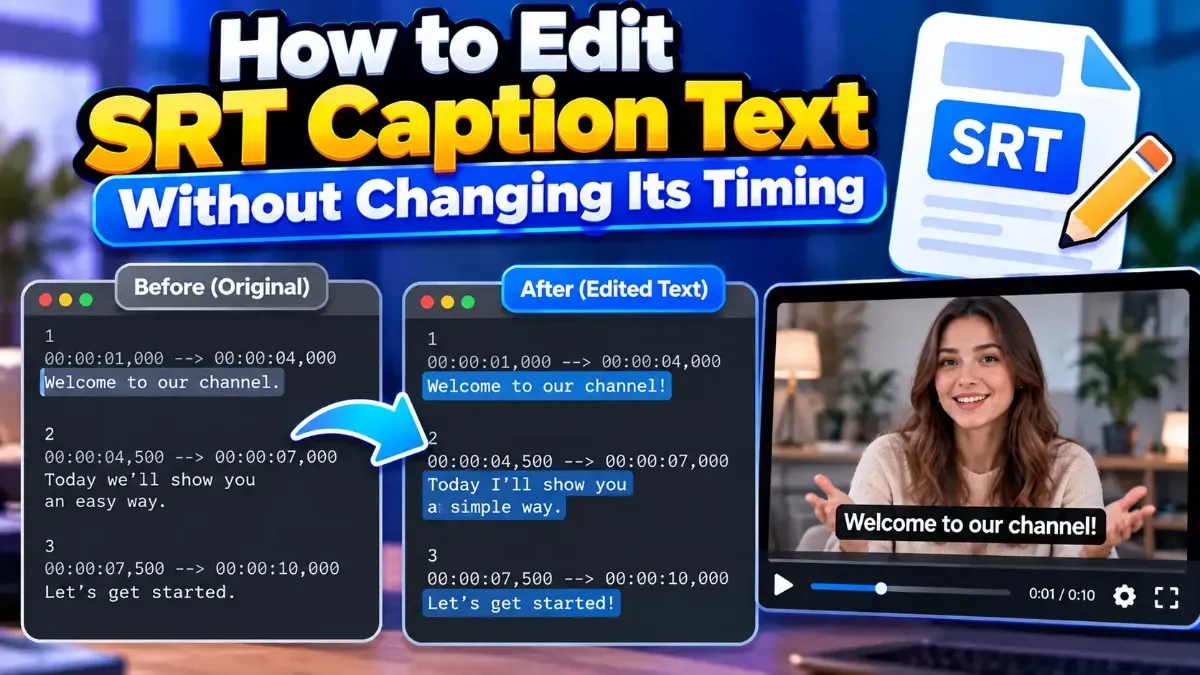
Learn how to edit SRT text without changing timing. Keep every cue’s timestamps intact while correcting captions, then check the file before using it with your video.
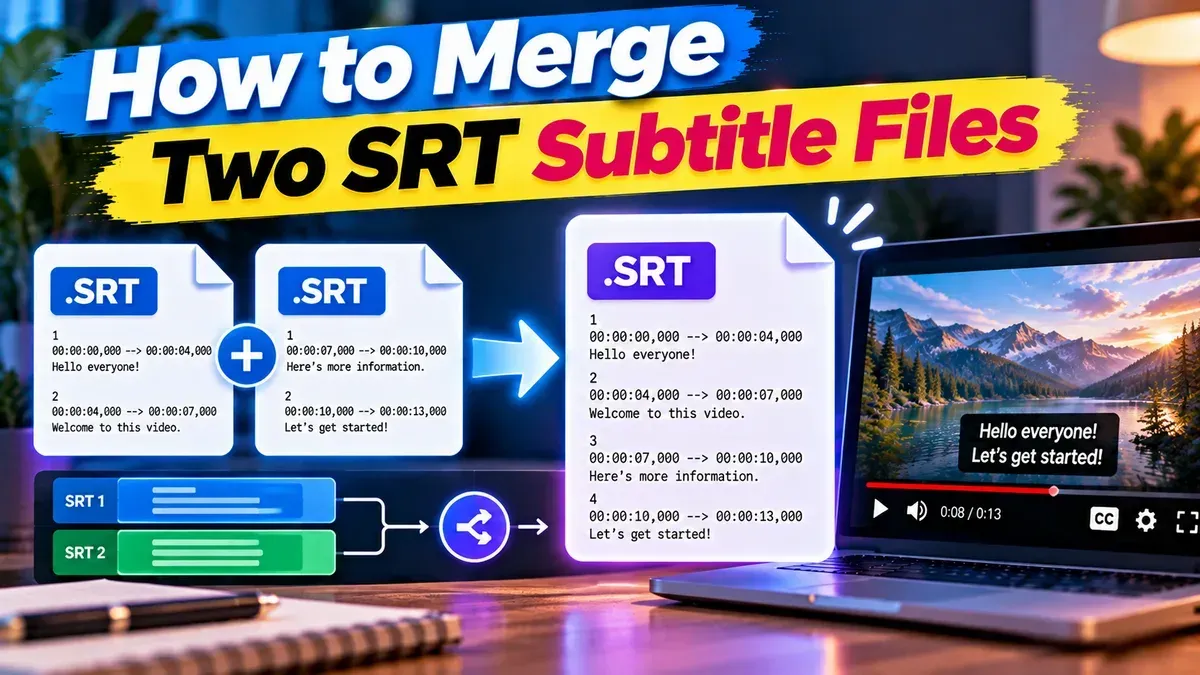
Learn how to merge two SRT subtitle files while keeping their timing intact. Find out how to handle cue order, overlaps, offsets, and common formatting issues.
Start typing to search tools and articles.