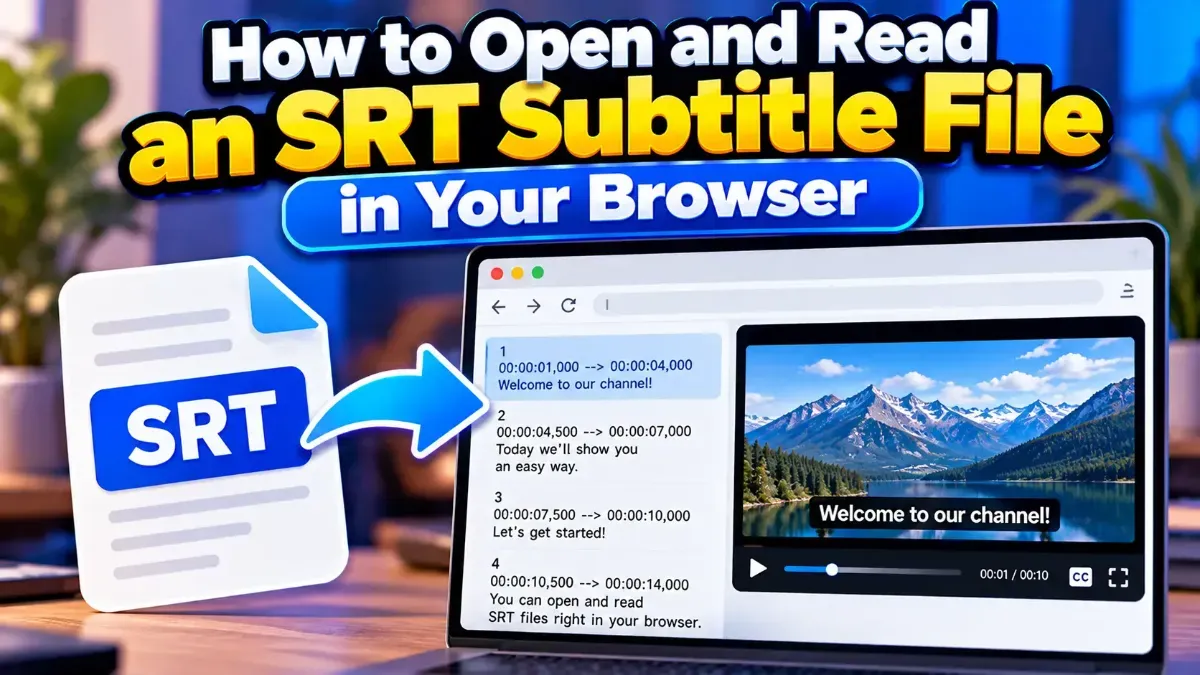
How to Open and Read an SRT Subtitle File in Your Browser
Learn how to open and read an SRT subtitle file in your browser, understand its timestamps and cues, and troubleshoot common formatting problems.
Learn how to check an SRT file for timestamp errors, including malformed timecodes, out-of-order cues, overlaps, and subtitles that start or end at the wrong time.
 ToolCMB Team
7 min read

To check an SRT file for timestamp errors, inspect each cue’s timecode format, confirm that its end time comes after its start time, and make sure cues appear in chronological order. Then review any overlaps and compare questionable timings with the video. An SRT validator can automate the first checks and help you find lines that need attention.
Each subtitle cue in a SubRip Subtitle (SRT) file has a cue number, a start and end timestamp, subtitle text, and a blank line before the next cue. The timestamp line uses this structure:
00:00:04,500 --> 00:00:07,200The two timecodes represent hours, minutes, seconds, and milliseconds. In standard SRT formatting, a comma separates the seconds from the milliseconds, and the arrow between the timecodes is written as a space, two hyphens, a greater-than sign, and another space.
A cue with the example timecodes begins at 4.5 seconds and ends at 7.2 seconds. The subtitle text appears on the line or lines below the timestamp. A blank line separates that cue from the next one.
A timestamp issue can prevent a subtitle player from reading a cue, put a caption at the wrong moment, or make the file behave differently across players. Look for these common problems:
00:00:05,80 is not in the standard three-digit millisecond format.00:72:10,000 has an invalid minutes value.Before editing, save a copy of the original SRT file. This gives you a way to restore the source if a correction shifts other cues or introduces a new problem. If you are editing a subtitle file supplied by someone else, keep the original unchanged until you have checked the finished version.
Open the file in a plain-text editor or use a validator to check for formatting problems. Look for cue numbers, timestamp lines, subtitle text, and blank lines separating cues. A validator can scan the file much faster than checking every line manually and can flag malformed timestamps, numbering issues, and other common structure problems.
For a quick automated check, use the SRT Validator. It can identify issues in numbering, timestamps, and subtitle formatting. Review the results as a checklist: a reported issue points you to a line to inspect, while a clean validation does not guarantee that every subtitle is synchronized perfectly with the video.
For every cue, verify that the start and end timecodes both use the required format. Then compare the values: the start should be earlier than the end. When reading timecodes manually, compare hours first, then minutes, seconds, and milliseconds. A cue beginning at 00:01:12,400 and ending at 00:01:15,000 has a valid forward interval.
Also check that the numbers are plausible for the video. For example, a cue that unexpectedly begins several hours into a short clip may contain a mistyped hour value. If the video has been edited or trimmed, remember that a valid SRT can still use timings from an older version.
Read the cues from top to bottom and confirm that their times progress in a sensible order. For consecutive cues, compare the previous end time with the next start time. If the next cue starts before the previous one ends, note the overlap. If it starts much later, check whether the gap is intentional or whether a cue is missing or mistimed.
Do not automatically remove every overlap or gap. Two speakers may talk at the same time, and subtitles may be deliberately displayed together. Conversely, a large gap during continuous dialogue can indicate a missing cue or an end time that is too early. Use the video and audio to decide whether the timing makes sense.
Text inspection can catch structural errors, but only playback can confirm synchronization. Load the SRT alongside the correct video and watch the moments around flagged or suspicious cues. Check whether each subtitle appears as the dialogue begins, stays visible long enough to read, and disappears at an appropriate point.
If a caption is late or early, adjust the relevant timestamp and replay that section. If many cues are shifted by roughly the same amount, the file may need a consistent timing offset rather than many individual edits. If the timing drifts progressively, the subtitle track may have been prepared for a video with a different frame rate or running time. Confirm the video version before making broad changes.
Save the edited file with the .srt extension and preserve the original encoding if your editor gives you a choice. Run the file through the validator again, then test it in the player or editing application where it will be used. Rechecking matters because a manual correction can accidentally remove a comma, alter a cue number, or create a new overlap.
| Issue | What to check | Possible next step |
|---|---|---|
| Malformed timestamp | Digits, comma, arrow, spacing, and time ranges | Correct the timestamp syntax and validate again. |
| End before start | Whether the start and end values were reversed or mistyped | Correct the order using the video as a reference. |
| Out-of-order cue | Whether the cue belongs elsewhere in the sequence | Fix its timing or move the cue, keeping numbering consistent. |
| Overlap or gap | Whether the timing matches speech, speakers, and scene changes | Adjust only if playback confirms a problem. |
Manual review is useful when you want to understand the file, check a small number of cues, or judge timing against the video. Its drawback is that scanning a long file line by line takes time, and easy-to-miss punctuation errors can slip through.
A validator is useful for finding repeatable structural problems across many cues. It can quickly point out invalid formatting, numbering problems, and suspicious timestamps. It cannot determine whether a caption matches the spoken words or whether a flagged overlap is intentional; those decisions need context from the video.
For reliable results, combine both approaches: validate first to find likely errors, make careful corrections, then watch the relevant sections and validate once more. This separates machine-checkable rules from timing decisions that require human judgment.
Use HH:MM:SS,mmm --> HH:MM:SS,mmm. The comma separates seconds from three millisecond digits, and the arrow separates the start and end times.
No. Overlaps may be intentional, such as when speakers talk at the same time. Check the video before changing overlapping cues.
Yes. A file can follow the correct format while its captions appear too early, too late, or at the wrong points in the video. Playback is needed to confirm synchronization.
Check for a mistyped timestamp, a cue placed out of order, or a timing offset between the SRT and the video version. Review the relevant section in playback before adjusting the cue.
Investigate each warning, but use judgment. Structural errors generally need correction; overlaps and unusual gaps may be intentional and should be checked against the video.
We build fast, free and private browser tools — and write practical guides on how to use them.
Learn how to open and read an SRT subtitle file in your browser, understand its timestamps and cues, and troubleshoot common formatting problems.
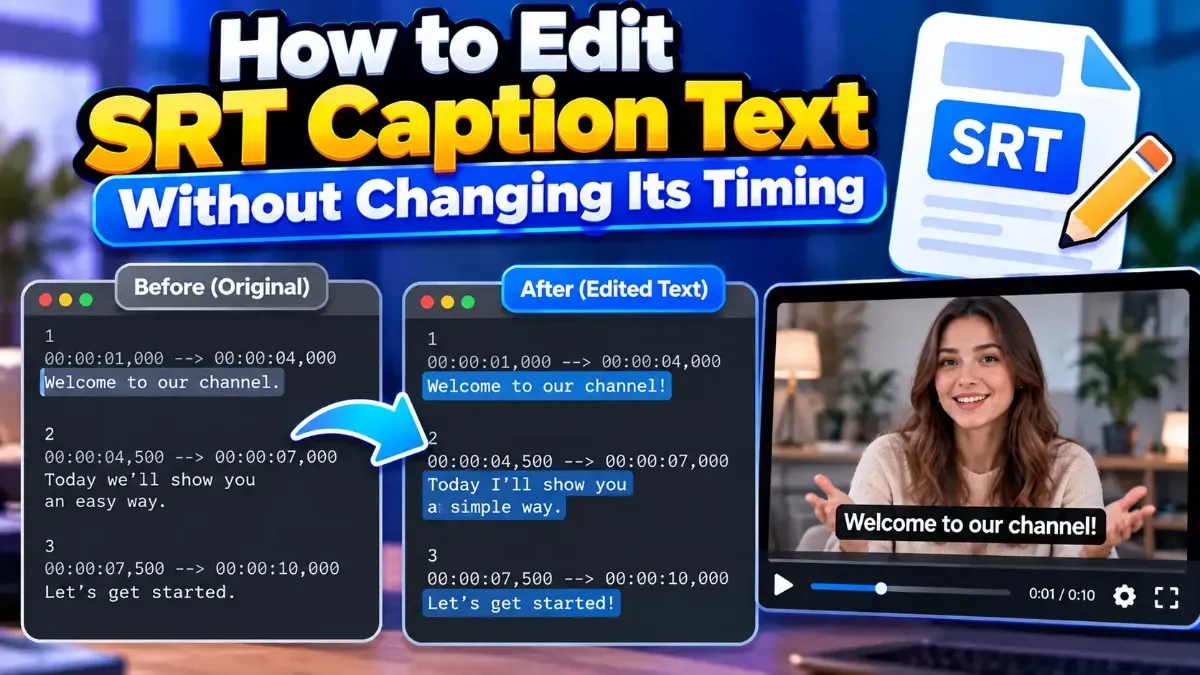
Learn how to edit SRT text without changing timing. Keep every cue’s timestamps intact while correcting captions, then check the file before using it with your video.
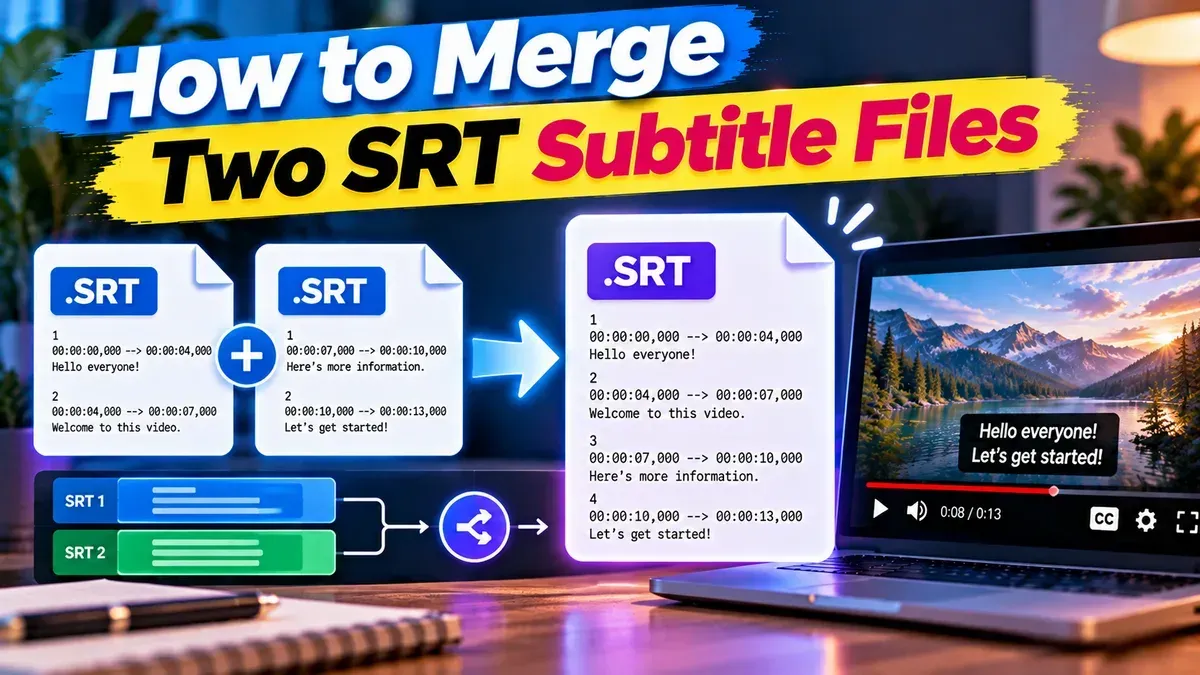
Learn how to merge two SRT subtitle files while keeping their timing intact. Find out how to handle cue order, overlaps, offsets, and common formatting issues.
Start typing to search tools and articles.