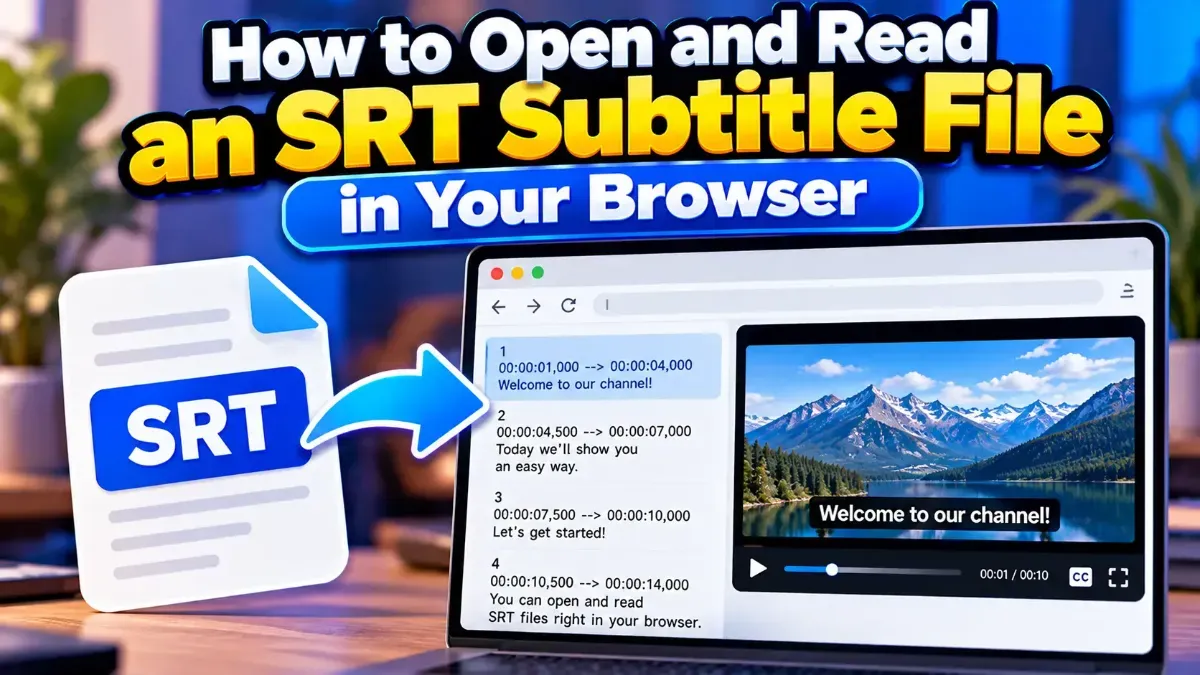
How to Open and Read an SRT Subtitle File in Your Browser
Learn how to open and read an SRT subtitle file in your browser, understand its timestamps and cues, and troubleshoot common formatting problems.
Learn how to convert VTT captions to SRT, understand the differences between the formats, and check your subtitle file for timing or formatting issues.
 ToolCMB Team
6 min read
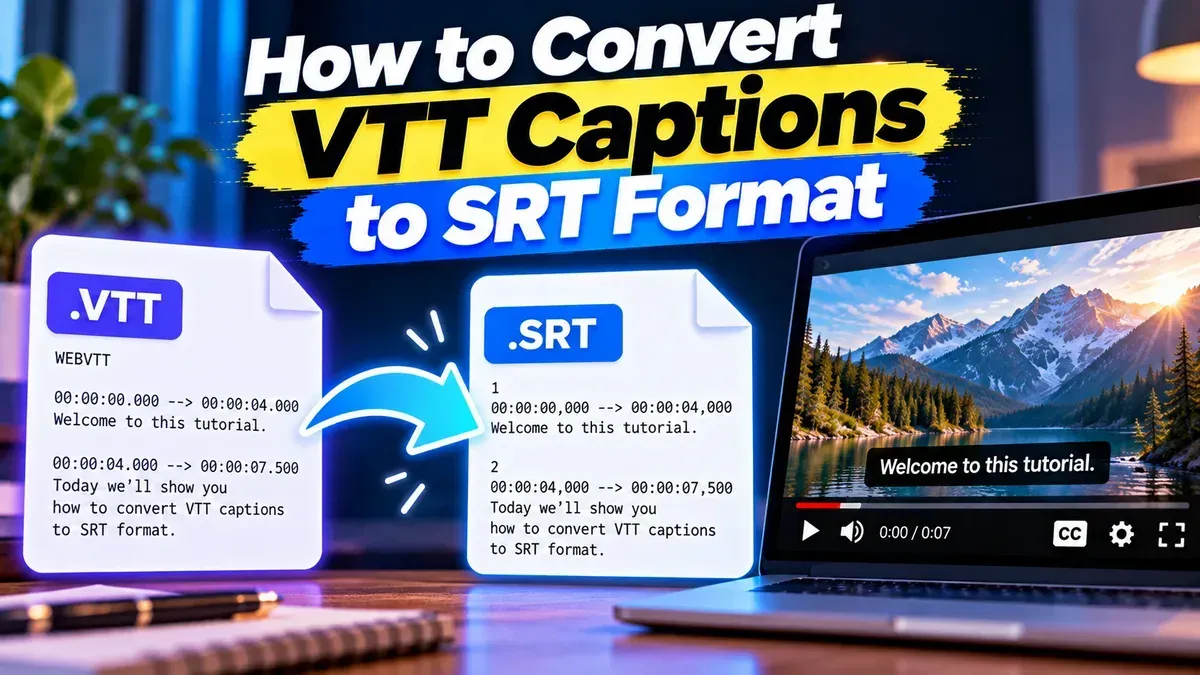
To convert VTT captions to SRT, change the WebVTT file’s timestamp format and cue structure into SubRip’s numbered subtitle blocks. You can do this with a converter or by editing a plain-text file, then check the result in the video player where you plan to use it. The main thing to watch for is that SRT does not support every styling and positioning feature available in WebVTT.
VTT, commonly saved with the .vtt extension, is the WebVTT caption format used on the web. SRT, usually saved as .srt, is a widely supported subtitle format used by many video players and editing tools. Both formats store text cues with start and end times; neither format contains the video itself.
A basic WebVTT file begins with a WEBVTT header. Its cue timestamps use a period before the milliseconds, like this:
WEBVTT

00:00:01.200 --> 00:00:03.500
Welcome to the video.
An SRT file uses numbered cues and a comma before the milliseconds:
1
00:00:01,200 --> 00:00:03,500
Welcome to the video.
The caption text and timing are generally preserved during a straightforward conversion, but format-specific details may need attention.
For most people, a converter is the simplest option. It handles the structural changes for you and saves time when a file contains many caption cues.
.vtt subtitle file on your device. If you received a file with a different extension, check that it is actually a WebVTT text file..srt extension. Keep the original VTT file until you have checked the new one.ToolCMB’s online tools run in your browser, so files stay on your device. If your captions contain sensitive information, it is still sensible to work on a device and in a browser you trust.
Because subtitle files are plain text, you can make a simple conversion in a text editor. This approach is practical for a short file, but take care: one missing timestamp or separator can cause a cue to display incorrectly.
WEBVTT header and any VTT-only notes or metadata that are not subtitle cues. Do not delete caption text or timing lines.00:00:04.250 to 00:00:04,250.start time --> end time. Each cue’s start time should be earlier than its end time..srt extension.Before using a manually converted file, check that every cue has a number, a valid timing line, and caption text. For larger files or files with advanced WebVTT features, an automated converter is usually less error-prone.
Basic dialogue captions usually transfer cleanly, but VTT and SRT do not represent every feature in the same way. A converter may simplify or omit some information to create a valid SRT file.
Conversion changes the subtitle file, not the timing or content of the video. If the captions are already out of sync in the VTT file, converting the format alone will not fix that problem.
Open the converted file in a text editor and scan a few cues near the beginning, middle, and end. Then test it in the destination player. These checks can help identify common problems:
.srt, contains numbered blocks, and uses timestamps with commas before milliseconds. Make sure the player has loaded the subtitle file.If the SRT will be used for a public video, also proofread spelling, speaker names, and line breaks. A file can be technically valid and still need editorial corrections.
Keep the VTT file when your website or video platform expects WebVTT, or when you need its cue placement, styling, or web-specific features. Choose SRT when the receiving player or editing workflow asks for SubRip subtitles. If you are unsure, check the software’s supported subtitle formats before converting, and retain the original in case you need to switch back.
A basic conversion preserves cue start and end times while changing the file structure and timestamp punctuation. It does not automatically correct captions that are already out of sync.
Yes. You can use an online converter in your browser, or edit a plain-text VTT file manually. Always review the resulting SRT before using it.
Not reliably. SRT has more limited support for styling and cue placement, so these features may be removed or displayed differently by the target player.
Yes. The WEBVTT header belongs to a VTT file and is not part of the standard SRT cue structure.
Yes, a converter can create a VTT file from SRT. However, features that were lost during the original conversion, such as VTT-specific positioning or metadata, may not be recoverable.
We build fast, free and private browser tools — and write practical guides on how to use them.
Learn how to open and read an SRT subtitle file in your browser, understand its timestamps and cues, and troubleshoot common formatting problems.
Learn how to edit SRT text without changing timing. Keep every cue’s timestamps intact while correcting captions, then check the file before using it with your video.
Learn how to merge two SRT subtitle files while keeping their timing intact. Find out how to handle cue order, overlaps, offsets, and common formatting issues.
Start typing to search tools and articles.