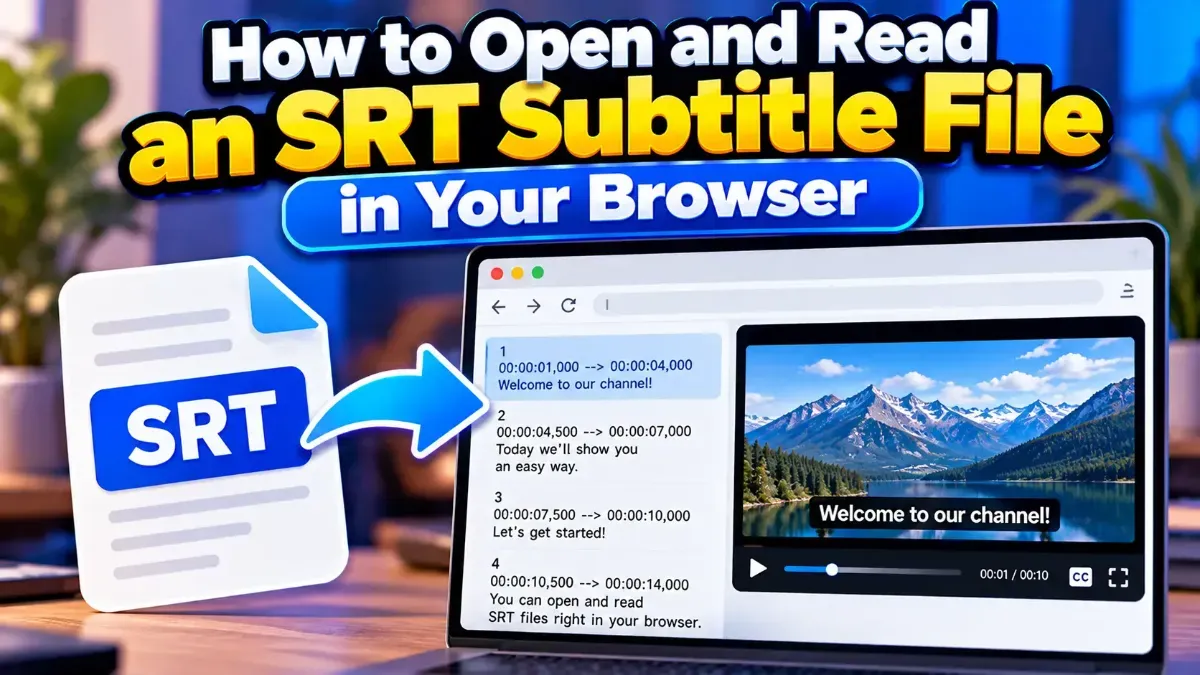
How to Open and Read an SRT Subtitle File in Your Browser
Learn how to open and read an SRT subtitle file in your browser, understand its timestamps and cues, and troubleshoot common formatting problems.
Learn how to turn a transcript into an SRT subtitle file by adding accurate timings, formatting captions correctly, and checking the finished file.
 ToolCMB Team
7 min read
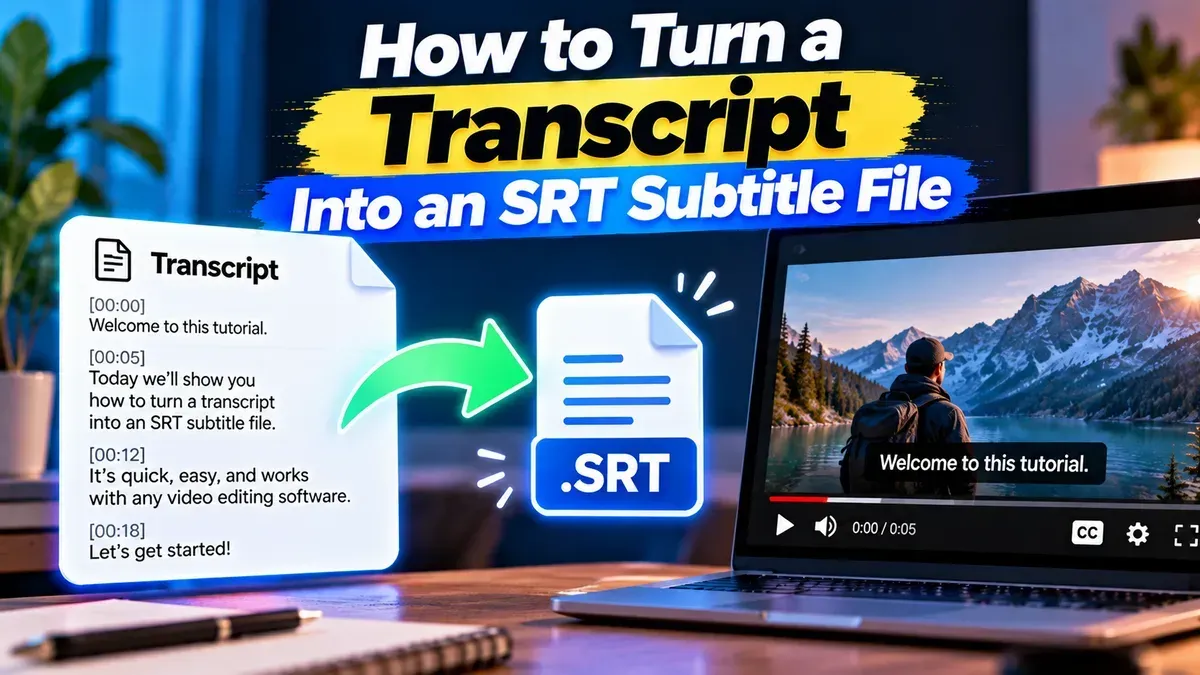
To turn transcript into SRT subtitle file, you need to divide the transcript into caption-sized sections and give each section a start time and an end time. Then format the entries using SRT’s numbering and timestamp structure, save the result as a plain-text .srt file, and check it against the video or audio.
A transcript by itself usually does not contain timing information, so the main job is syncing each line to the moment it is spoken. You can do that manually by playing the recording and noting the times, or use a subtitle editor that supports audio or video playback.
An SRT file is a simple text file made up of numbered subtitle entries. Each entry has a sequence number, a timestamp range, the subtitle text, and a blank line before the next entry. The timestamp range tells a media player when to show and hide the caption.
A basic entry looks like this:
1
00:00:01,200 --> 00:00:03,600
Welcome to the tutorial.

2
00:00:04,000 --> 00:00:06,500
Today, we’ll prepare the project files.
The timestamp uses hours, minutes, seconds, and milliseconds. In SRT, a comma separates seconds from milliseconds. The arrow sits between the start and end times, with spaces on either side.
If your transcript already includes timecodes, you can use those as a starting point. Still compare them with the recording: transcript timecodes may mark paragraphs or speaker turns rather than precise caption boundaries.
Good timing is only part of a useful subtitle file. Captions should be comfortable to read while the viewer watches the action. Keep each entry concise, use line breaks thoughtfully, and preserve the speaker’s meaning rather than cutting words just to make a caption shorter.
There is no single line length or display duration that fits every video, language, platform, and viewing situation. As a practical starting point, avoid putting a whole long sentence into one caption. Split it into meaningful phrases and check that viewers have enough time to read each one. Fast dialogue may require tighter phrasing, while a slower presentation can accommodate longer captions.
When a sentence continues across entries, use punctuation and line breaks to show the relationship between the parts. Don’t add a full stop simply because a caption ends if the sentence is still continuing. For conversations, make speaker changes clear using the style required by your project or platform.
A converter can help arrange text into an SRT-like structure, but it cannot infer accurate dialogue timing from a transcript that has no timecodes. You’ll still need to add or review the timing and check the result with the recording.
| Approach | Best for | What to keep in mind |
|---|---|---|
| Manual editing | Short clips, detailed timing, or custom caption breaks | You control every line and timestamp, but the work can take longer. |
| TXT-to-SRT conversion | Preparing plain text in subtitle-file structure | Check whether you need to add or adjust timecodes after conversion. |
| Subtitle editor with playback | Longer recordings or frequent timing changes | Use playback to sync captions, then review the exported file. |
If you already have the transcript in a plain-text file, try TXT to SRT to convert the text into an SRT subtitle file structure. Review the output and make sure the timings match your media; formatting text as subtitles is not the same as verifying synchronization.
Also check that the final entry has a valid timestamp and that the file does not contain leftover transcript headings or editing notes. If the subtitles display incorrectly, reopen the file in a plain-text editor and inspect its punctuation, spacing, and encoding. UTF-8 is a sensible choice for text containing accented characters or non-English scripts.
For privacy-conscious workflows, a browser-based tool can be convenient when it processes files locally. ToolCMB’s browser tools are designed to run on your device, so files do not leave the device. You can use the TXT to SRT converter for the text-formatting step, then review the finished subtitles against your recording.
Yes, but you must add timing yourself or use a subtitle editor that helps you sync captions with playback. A transcript alone does not specify when each line should appear.
Yes. Enter the sequence number, timestamp range, and caption text for each entry, separated by blank lines. Save the file as plain text with an .srt extension.
It uses the format HH:MM:SS,mmm --> HH:MM:SS,mmm. For example: 00:00:02,000 --> 00:00:04,500.
Not necessarily. A text converter can format content, but timing must come from timecodes or be checked and adjusted against the recording.
Load it with the video or audio in a player or editor that supports SRT files. Check several sections for correct timing, readable breaks, and accurate text.
We build fast, free and private browser tools — and write practical guides on how to use them.
Learn how to open and read an SRT subtitle file in your browser, understand its timestamps and cues, and troubleshoot common formatting problems.
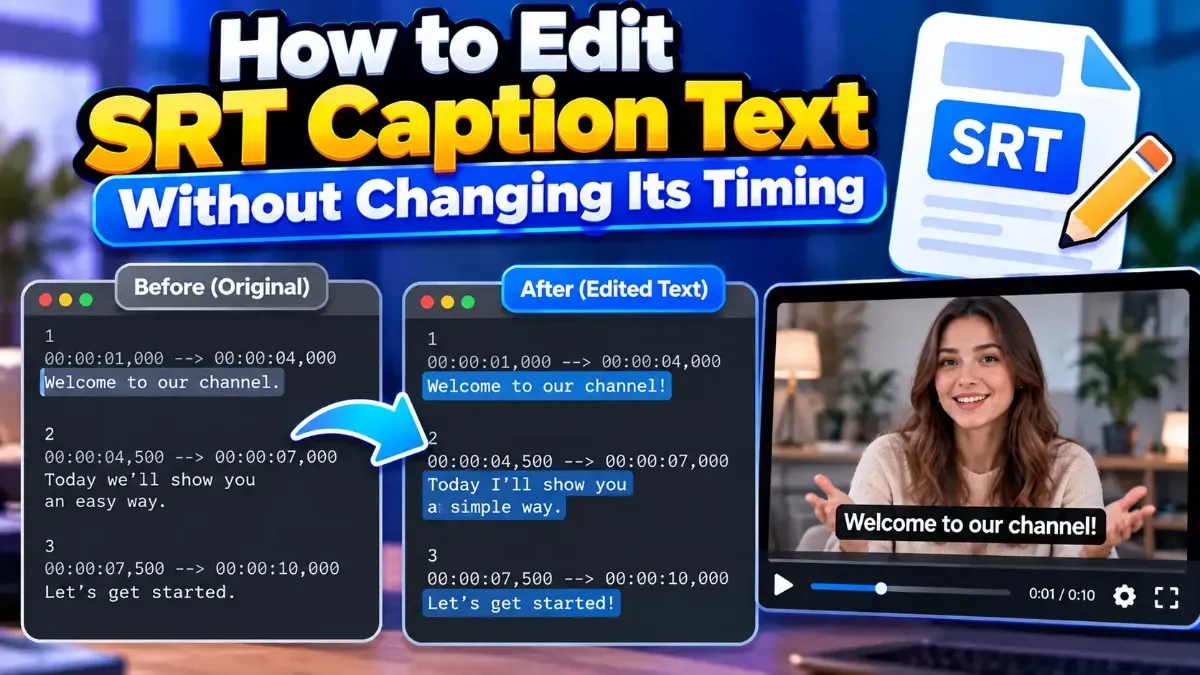
Learn how to edit SRT text without changing timing. Keep every cue’s timestamps intact while correcting captions, then check the file before using it with your video.
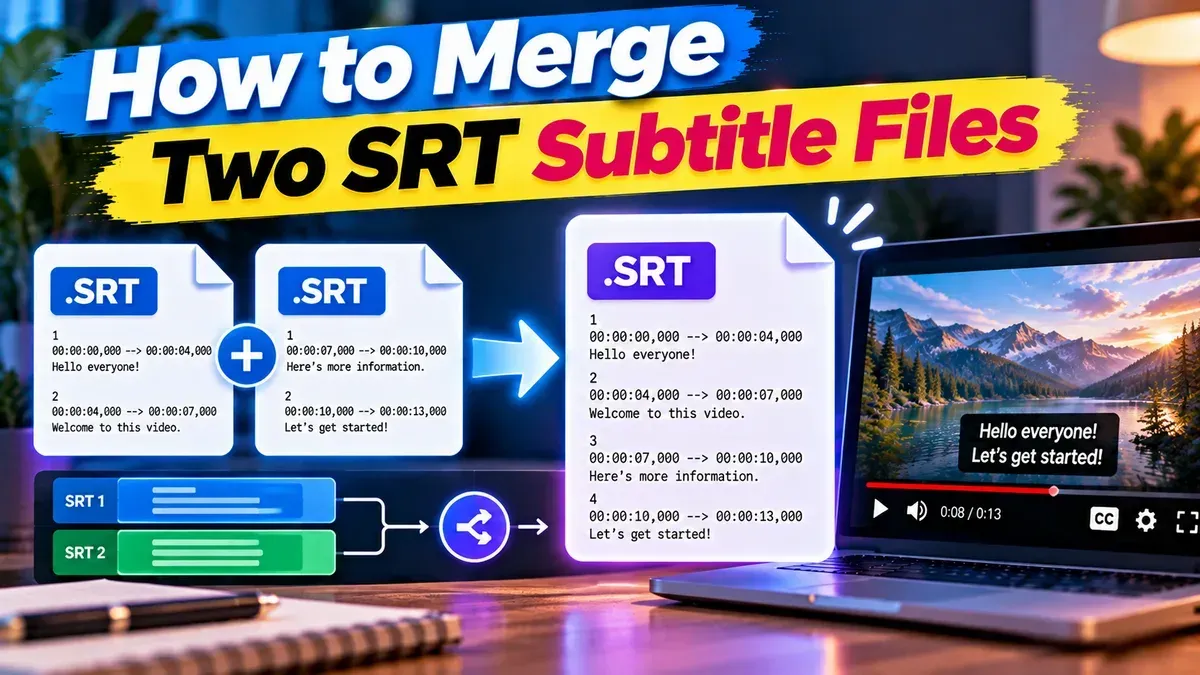
Learn how to merge two SRT subtitle files while keeping their timing intact. Find out how to handle cue order, overlaps, offsets, and common formatting issues.
Start typing to search tools and articles.