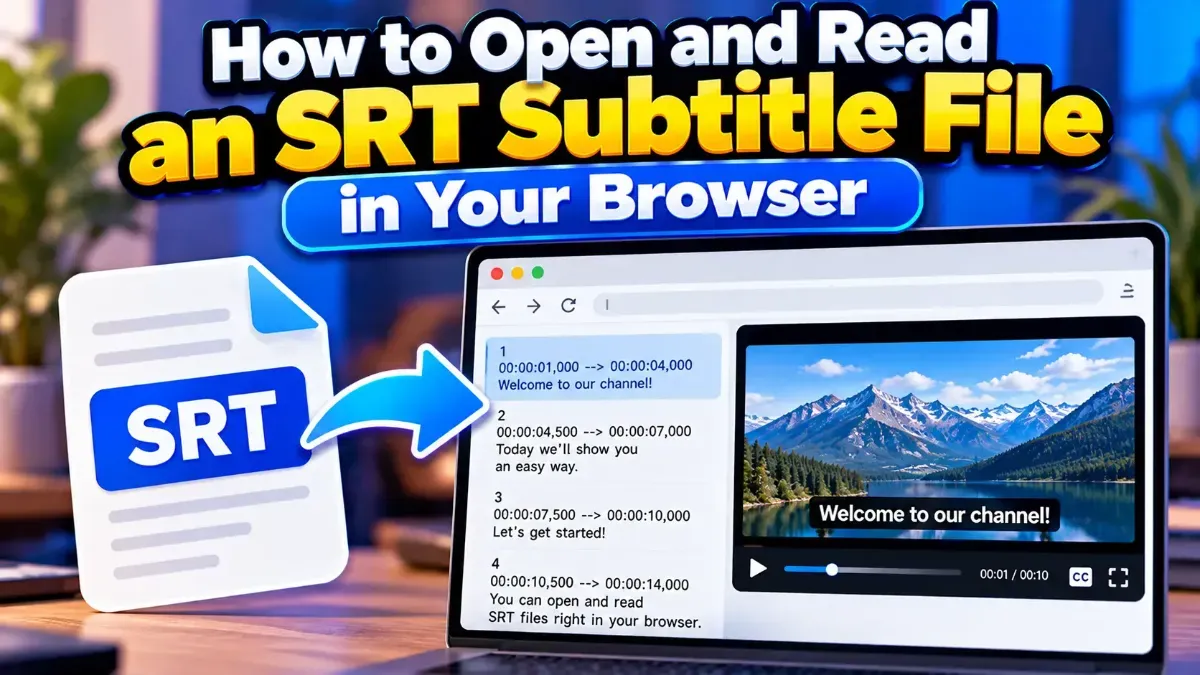
How to Open and Read an SRT Subtitle File in Your Browser
Learn how to open and read an SRT subtitle file in your browser, understand its timestamps and cues, and troubleshoot common formatting problems.
Learn how to use a subtitle characters per second calculator to measure caption reading speed, identify rushed subtitles, and make practical timing and line-break improvements.
 ToolCMB Team
6 min read
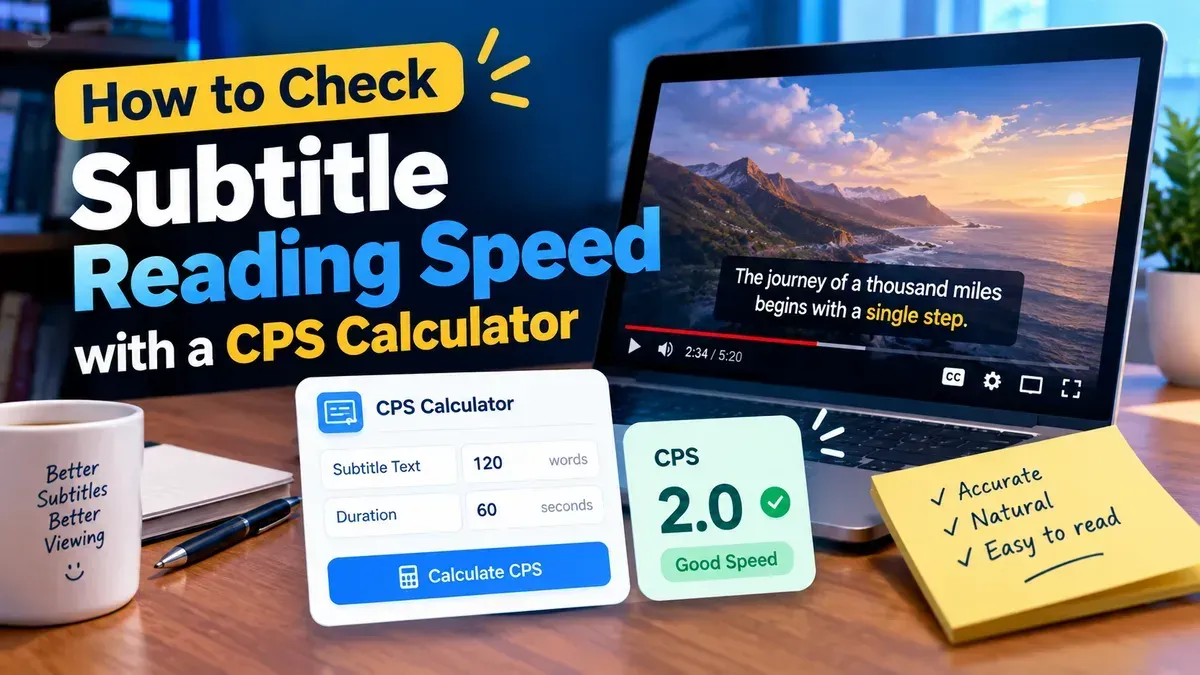
A subtitle characters per second calculator measures how quickly viewers need to read a caption by dividing its character count by its on-screen duration. Use it to spot subtitles that may be too dense or too brief, then review the timing and wording in the context of the video.
CPS, or characters per second, is a practical quality check during subtitle editing. It does not decide whether a subtitle is good on its own: language, reading comfort, dialogue, and what is happening on screen all matter. Still, a quick calculation can help you find captions worth revising before you export or publish.
A subtitle characters per second calculator works out the average number of characters a viewer must read each second a subtitle is visible. The basic formula is:
CPS = number of characters ÷ subtitle duration in seconds
For example, if a caption contains 44 characters and remains on screen for 2.5 seconds, its reading speed is 17.6 CPS. The result describes the caption’s average reading pace; it does not measure how long an individual viewer will actually take to read it.
Character-count conventions can differ. Some workflows count spaces and punctuation, while others may treat line breaks or special characters differently. Use the same counting method consistently, and check what your calculator includes when you need to match a specific platform or delivery specification.
To check a caption directly, try the Subtitle CPS Calculator. It is a quick way to calculate characters per second and decide which subtitles may deserve another look.
There is no single CPS limit that works for every language, audience, genre, and delivery requirement. A value that feels manageable for familiar dialogue may be difficult when viewers are also reading names, following action, or processing unfamiliar terms. Treat the result as a prompt to review, not a universal verdict.
As a practical editing approach, compare captions within the same project. If most of the subtitles are comfortable to read but one has a noticeably higher CPS, check that outlier first. Also look at very low CPS values: a long display time is not automatically a problem, but it can make a caption feel disconnected if it lingers after the speaker finishes.
| What you notice | What to check | Possible adjustment |
|---|---|---|
| High CPS | Dense wording, a brief display time, or both | Trim wording, extend the duration, or split the caption |
| Low CPS with an awkward pause | Whether the subtitle stays after the line is finished | Adjust the end time to better match the speech or scene |
| Uneven pace between nearby captions | Whether one caption carries too much of the sentence | Redistribute text across captions at natural phrase boundaries |
| Comfortable CPS but hard-to-follow text | Vocabulary, syntax, line breaks, and visual distractions | Rewrite for clarity and preview the scene again |
Remove unnecessary repetition and filler where doing so preserves the speaker’s meaning and tone. Prefer a clear, direct sentence over a cramped literal rendering. Be careful with jokes, emotional dialogue, and important details: cutting too much can change the point of a line.
Break captions at a phrase boundary when possible, rather than splitting a name or separating words that belong together. A good line break makes the sentence easier to scan. Keep line length and layout requirements for your intended platform in mind, since a readable CPS cannot fix an awkwardly arranged caption.
When the scene allows, extend a subtitle’s duration to reduce its CPS. Keep the display aligned with the spoken line and nearby captions; avoid extending it so far that it remains on screen during a separate thought or an important visual moment. Timing changes should also respect any applicable delivery rules.
Viewers may need extra attention for unfamiliar names, technical language, multiple speakers, or a scene with rapid visual action. A calculator cannot see those conditions, so use your judgment and preview the subtitle at normal playback speed. If available, ask someone unfamiliar with the material to review a difficult section.
CPS focuses on the amount of text displayed over time. It is different from words per minute, which estimates reading speed by word count, and from subtitle duration, which is simply how long a caption appears. Each measure answers a different question.
For example, two captions can have the same CPS but feel different to read because one contains common short words and the other includes long names or specialized terms. CPS is most useful alongside checks for synchronization, spelling, line breaks, speaker identification, and whether the subtitle covers important parts of the image.
For sensitive material, choose tools and workflows that fit your privacy needs. ToolCMB’s browser-based tools are designed to run on your device, so your content does not need to be uploaded to use them. You can use the CPS calculator to check a reading-speed calculation without replacing your full subtitle quality review.
CPS means characters per second. It describes the number of subtitle characters viewers are asked to read for each second the caption is on screen.
Count the characters, measure the subtitle’s duration in seconds, and divide the count by the duration. For example, 35 characters displayed for 2.5 seconds equals 14 CPS.
There is no universal value that guarantees comfortable reading for every audience and scene. Use CPS to spot captions that may need attention, then review the language, timing, and viewing context.
Counting rules vary by tool and specification. Many checks include spaces and punctuation, but confirm the calculator’s method and use it consistently for comparisons.
Yes. A low result can mean the text is easy to read, but it may also indicate that a caption stays on screen longer than the dialogue or thought it represents. Check synchronization and pacing as well as the number.
We build fast, free and private browser tools — and write practical guides on how to use them.
Learn how to open and read an SRT subtitle file in your browser, understand its timestamps and cues, and troubleshoot common formatting problems.
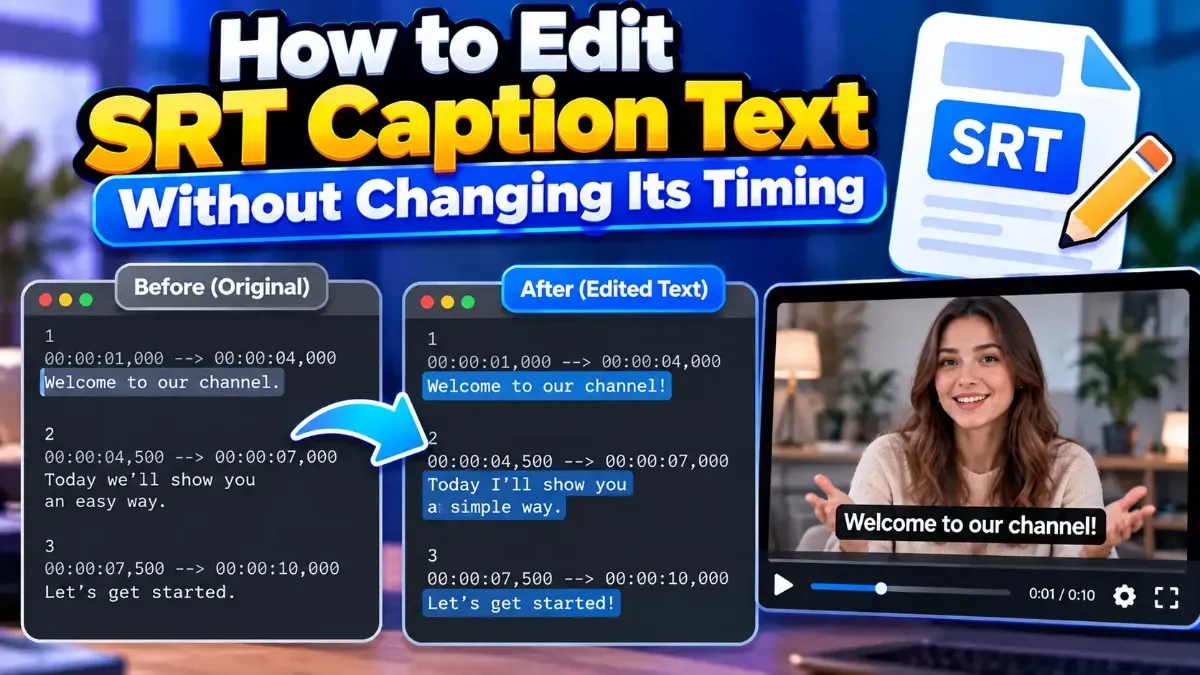
Learn how to edit SRT text without changing timing. Keep every cue’s timestamps intact while correcting captions, then check the file before using it with your video.
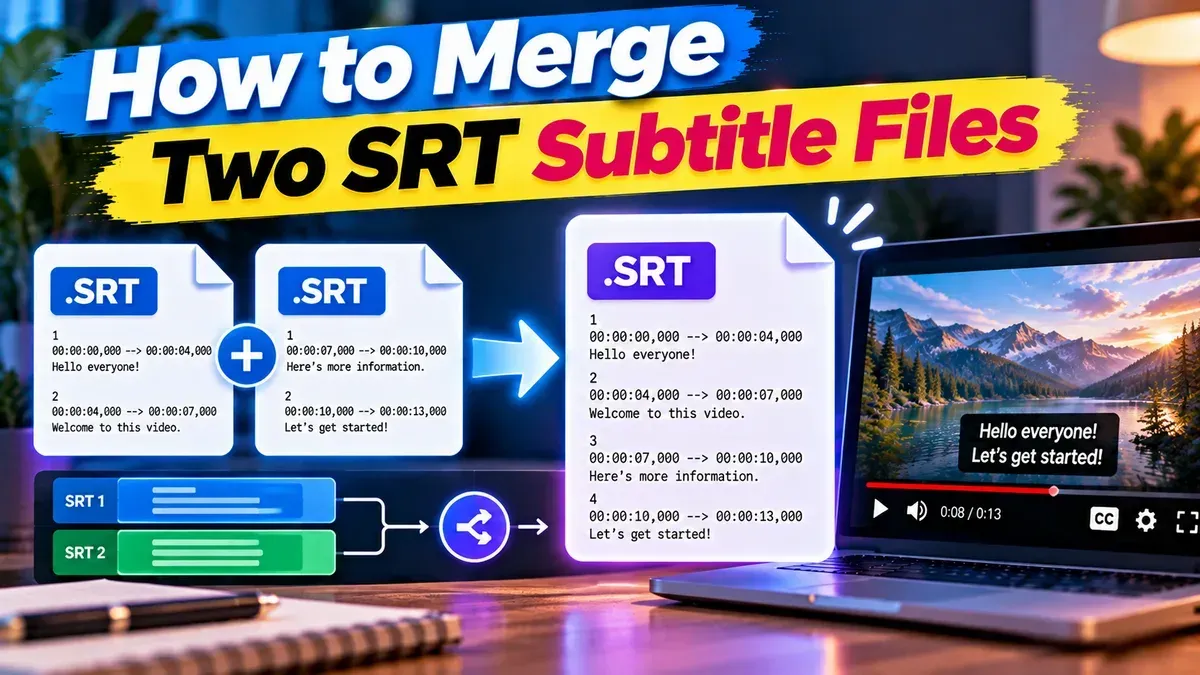
Learn how to merge two SRT subtitle files while keeping their timing intact. Find out how to handle cue order, overlaps, offsets, and common formatting issues.
Start typing to search tools and articles.