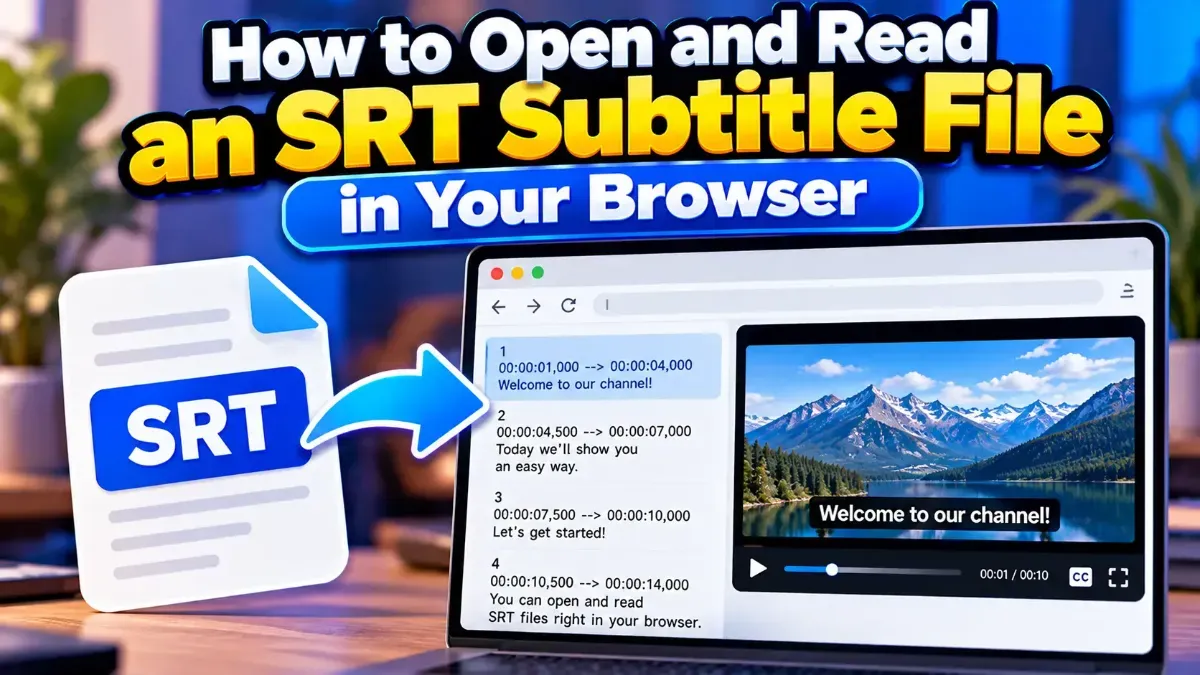
How to Open and Read an SRT Subtitle File in Your Browser
Learn how to open and read an SRT subtitle file in your browser, understand its timestamps and cues, and troubleshoot common formatting problems.
A practical subtitle character limit checklist for setting line lengths, checking reading speed, and reviewing subtitles before you publish.
 ToolCMB Team
7 min read
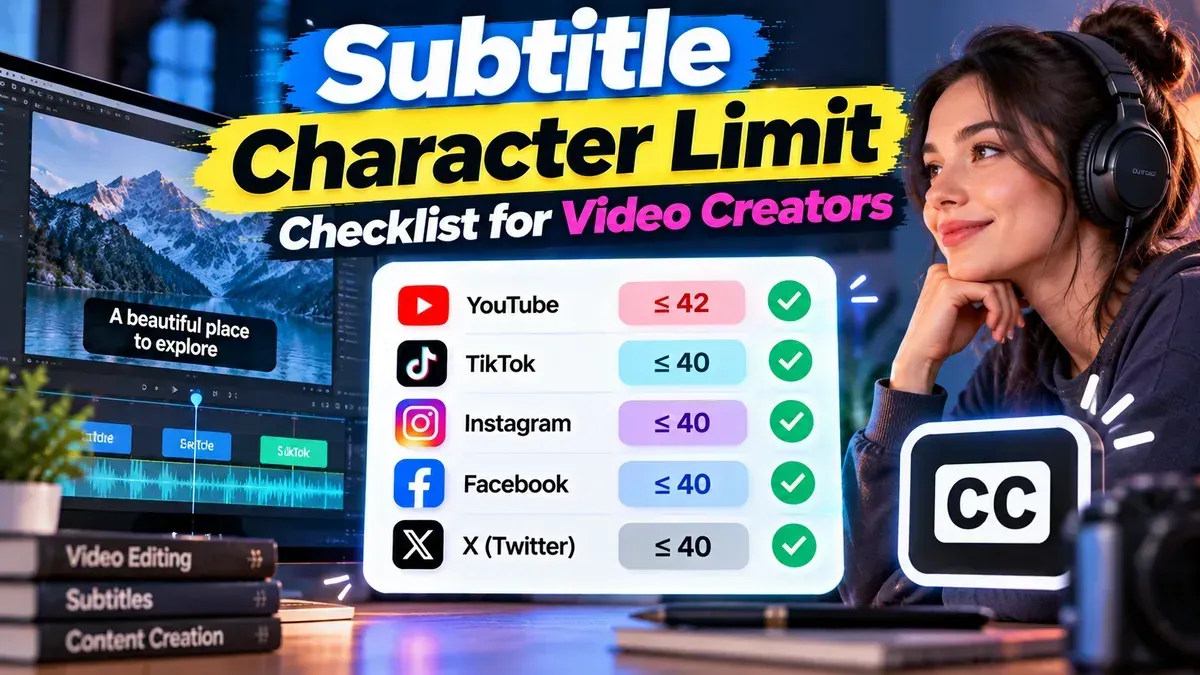
A subtitle character limit checklist helps you create lines that are easier to read without cutting off dialogue or crowding the screen. There is no universal character limit for every video: the right limit depends on the platform, subtitle format, language, display area, and viewing conditions.
Use the checklist below to choose a sensible working limit, check each line, and review the result in context. Treat character counts as a practical guide—not a substitute for watching the video with subtitles turned on.
A character limit describes how many characters appear on a subtitle line. Reading speed describes how quickly viewers must process the text while it is on screen. Both matter, but they answer different questions: “Does this line fit?” and “Can viewers read it in time?”
Subtitle guidance varies. Different platforms and production briefs may set different limits, and rules can change depending on the language, font, screen size, or type of content. Some workflows specify a maximum number of characters per line; others focus on reading speed, line count, or a combination. Follow the applicable specification whenever one is provided.
If you are creating subtitles without a formal specification, begin with short, clear lines and test them in the actual viewing context. A desktop editing preview may make text look comfortable even when it feels crowded on a phone. Conversely, a strict character cap can lead to awkward phrasing if applied without considering meaning and timing.
The Subtitle Character Counter can help you spot long lines by counting characters in subtitle files. Use the result to flag lines for review, then decide whether a wording change, better line break, or timing adjustment is the right fix.
Keep words together in ways that match how people understand a sentence. A line break should not make the viewer pause in the wrong place or temporarily misread the speaker’s meaning. Read the subtitle aloud or silently as a viewer would, rather than judging it only by its number of characters.
Subtitles do not always need to reproduce every hesitation or repeated word, but editing must preserve the speaker’s intent and relevant tone. Do not remove important qualifications, jokes, names, or instructions just to meet a target. If a line is too dense, consider whether its timing can be improved or whether the thought can be divided naturally.
Reading speed depends on more than the number of characters. Familiar vocabulary, sentence complexity, on-screen action, and the audience all affect how quickly text can be followed. Give viewers enough time to read, but avoid leaving a subtitle onscreen so long that it appears unrelated to the current moment.
Check whether subtitles cover faces, signs, graphics, or other information viewers need to see. Ensure there is enough contrast against changing backgrounds and that the text remains readable on smaller screens. Follow the required style guide for placement, punctuation, speaker identification, and sound descriptions.
| Check | What it tells you | What to do |
|---|---|---|
| Characters per line | Whether a line may be too wide or dense | Compare each line with the project’s stated limit or chosen working target |
| Characters per subtitle | How much text appears at once | Check the total across all lines in the subtitle event |
| Reading speed | How quickly viewers must process the text | Review text length together with the subtitle’s on-screen duration |
| Line breaks | Whether the text is grouped naturally | Keep related words together and avoid confusing splits |
| Playback and display | How subtitles work in the real video | Watch on the intended platform and, when possible, a smaller screen |
Before publishing, run through the checklist once more: confirm the applicable requirements, check every line, review timing and line breaks, and play the video from beginning to end with subtitles enabled. If the video will appear in multiple formats, check each version separately because cropping and display size can affect readability.
For a fast text-only check, the subtitle character counter can identify lines that deserve a closer look. Keep the final decision editorial: the clearest subtitle is one that fits the screen, reads naturally, and gives the audience enough time to understand the moment.
No. Limits depend on the platform, project requirements, language, display conditions, and subtitle style. Follow the specification for your destination when one is available.
Usually, spaces are part of the visible line and may be included in character counts. Check how your counting tool handles spaces and any special characters in your file.
Yes. A line may meet its character target but remain difficult because it is shown too briefly, uses dense wording, or breaks at an awkward point.
Review it rather than trimming automatically. Concise wording, a natural split, or an appropriate timing change may help, but preserve the speaker’s meaning and follow the project rules.
Yes. Translated text can have different line lengths and reading demands. Check the localized subtitles for character length, timing, natural breaks, and playback readability.
We build fast, free and private browser tools — and write practical guides on how to use them.
Learn how to open and read an SRT subtitle file in your browser, understand its timestamps and cues, and troubleshoot common formatting problems.
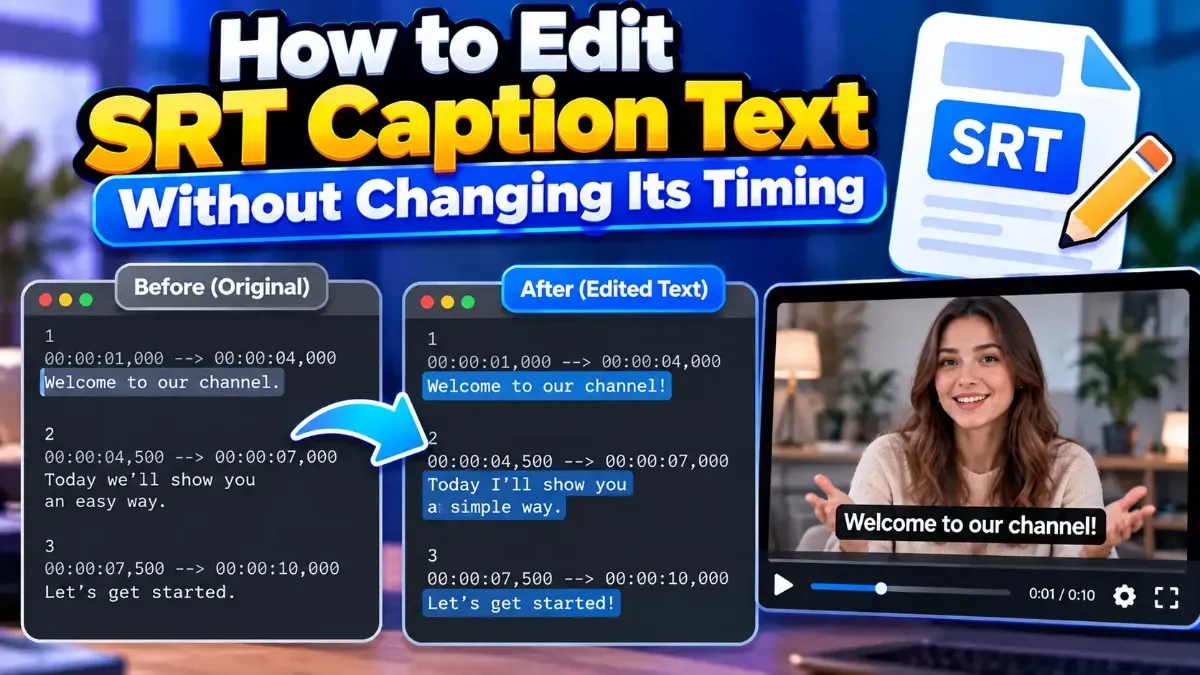
Learn how to edit SRT text without changing timing. Keep every cue’s timestamps intact while correcting captions, then check the file before using it with your video.
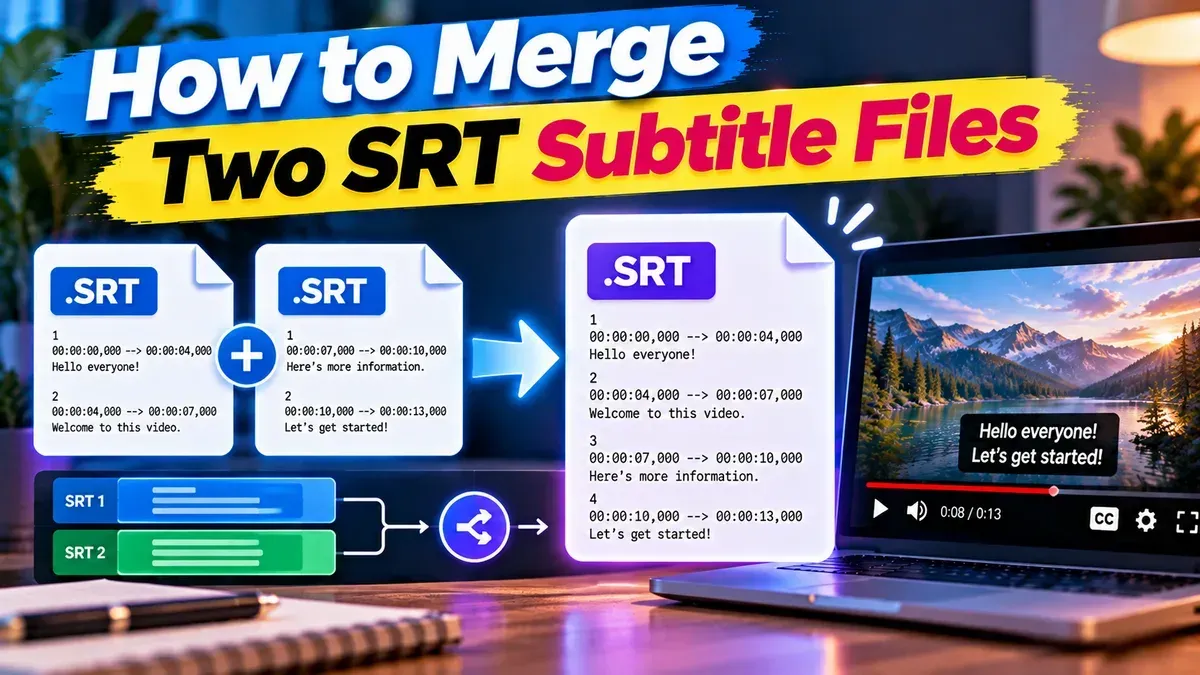
Learn how to merge two SRT subtitle files while keeping their timing intact. Find out how to handle cue order, overlaps, offsets, and common formatting issues.
Start typing to search tools and articles.