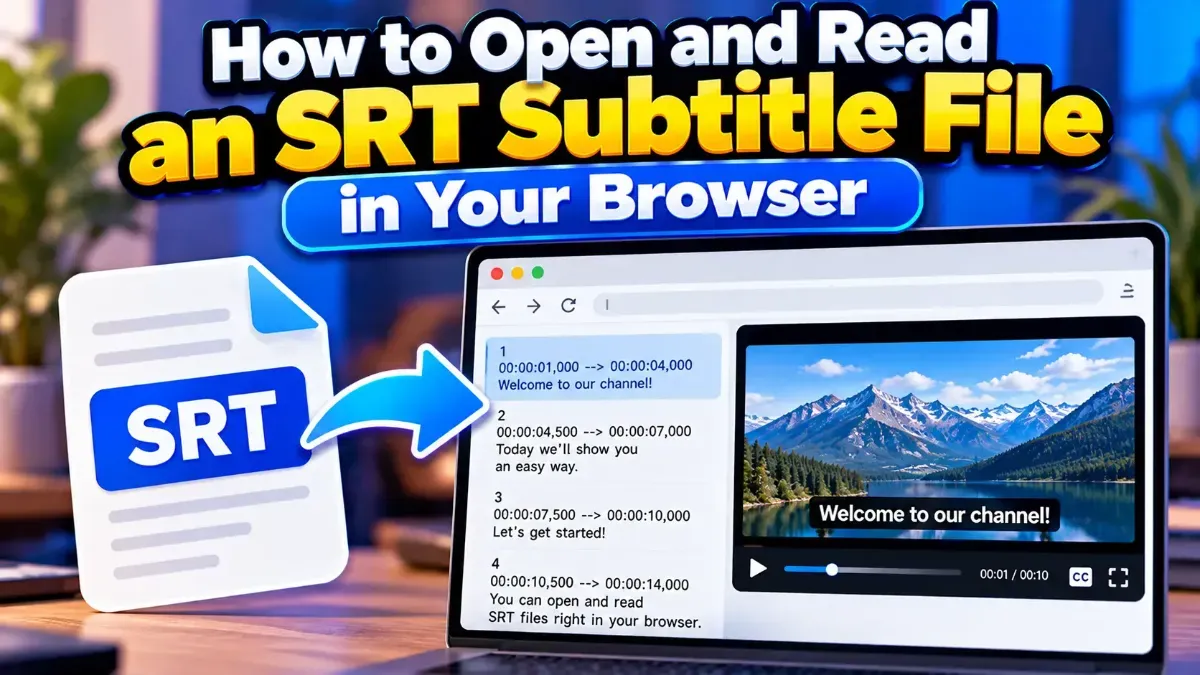
How to Open and Read an SRT Subtitle File in Your Browser
Learn how to open and read an SRT subtitle file in your browser, understand its timestamps and cues, and troubleshoot common formatting problems.
Split an SRT file into smaller subtitle files by time or subtitle count. Learn how to choose a method, set practical segment sizes, and check the results.
 ToolCMB Team
6 min read
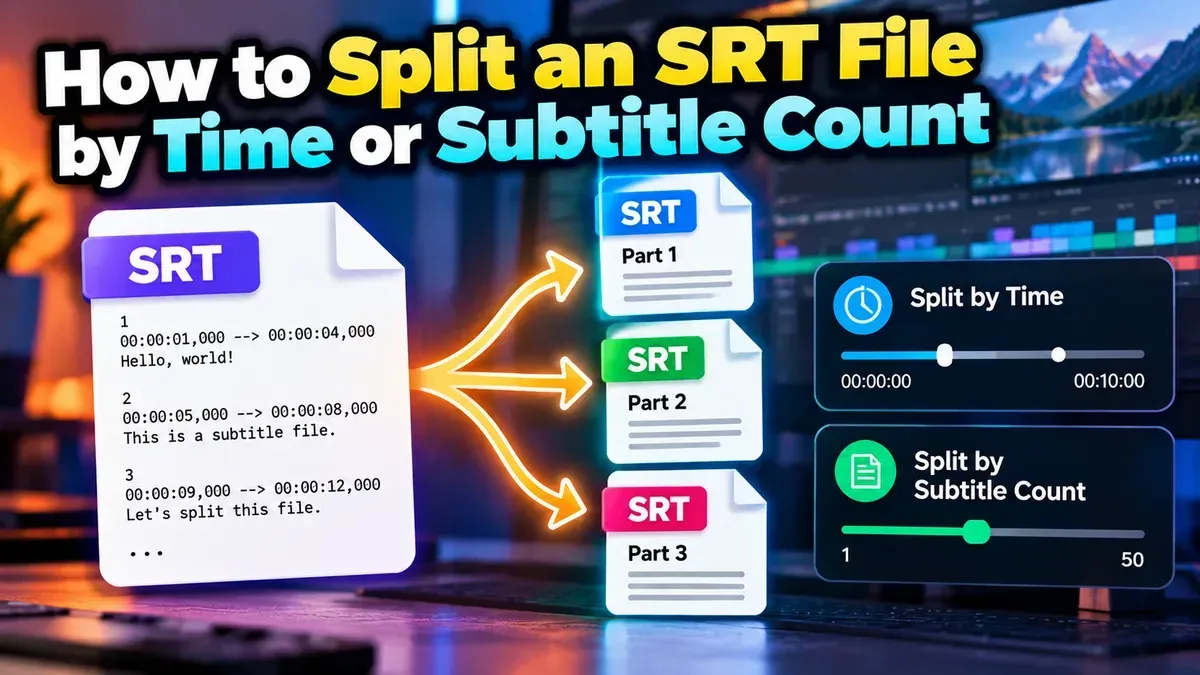
To split an SRT file by time, choose time intervals and divide the subtitles according to their timestamps. You can also split by subtitle count, which creates parts with a set number of subtitle entries. Use time-based splitting to match video sections, and count-based splitting to make a long file easier to review or manage.
SRT files are plain-text subtitle files, so splitting one does not require changing the video. The important part is to preserve the timestamps and subtitle sequence so the resulting files remain usable and easy to check.
Time-based splitting is useful when subtitle files need to correspond to specific sections of a video. For example, you might divide a long recording into hourly files, or separate a movie into parts that match a planned edit. Each subtitle has a start and end time, so the split can be based on where entries fall in the video timeline.
This method is usually the better choice when the time boundaries matter more than having the same number of subtitles in every part. A quiet scene may contain few entries, while a fast conversation may contain many. As a result, time-based parts can vary in size.
Count-based splitting creates files after a chosen number of subtitle entries. It can be convenient when you are reviewing, translating, or correcting subtitles in manageable batches. It is also useful when you want each output file to contain roughly the same number of entries.
However, equal counts do not mean equal durations. One group of 500 subtitles might cover a short, dialogue-heavy section, while another group of 500 could span much longer. Choose this method when the workload per batch matters more than matching video chapters or time ranges.
| Method | Best for | Keep in mind |
|---|---|---|
| By time | Matching files to video sections or time ranges | Parts may contain different numbers of subtitles |
| By subtitle count | Breaking a large file into manageable editing batches | Parts may cover different amounts of video time |
An SRT entry typically contains a sequence number, a timestamp range, the subtitle text, and a blank line before the next entry. A timestamp looks like 00:02:15,400 --> 00:02:18,200, meaning the subtitle begins at 2 minutes, 15.4 seconds and ends at 2 minutes, 18.2 seconds.
Because entries have both a start and an end time, a subtitle can cross a chosen split boundary. How a tool handles that entry can depend on its splitting rules: it may place the entry in one part, include it based on a boundary rule, or otherwise handle the edge case. Check the output around boundaries rather than assuming every split works the same way.
Also distinguish between keeping original timestamps and resetting timestamps. If a segment is intended to accompany the original full-length video, its entries generally need to retain their positions on that video's timeline. If the video itself has been cut into separate clips, you may need timestamps that start from the beginning of each new clip. That is a separate adjustment from simply dividing the SRT file.
There is no single ideal segment size. Start with the purpose of the files, then choose a setting that makes the next task straightforward.
If you are unsure, make a small test split first. It is easier to confirm timestamp behavior and output naming with a few parts than to discover an issue after preparing many files.
Open each output file and confirm it is readable as plain text, with numbered entries, valid timestamp arrows, subtitle text, and blank lines between entries. Look at the first and last entries in every part, then test the files in the application where they will be used. If you are combining parts later, preserve their order and check for duplicate or missing subtitles where they meet.
For a straightforward browser-based workflow, split your subtitle file with Subtitle Split, then review the output before using it in a video project. The tool is designed to split subtitle files by time or subtitle count, so you can choose the approach that matches your goal.
Yes. Splitting an SRT file changes the subtitle files, not the video. The subtitles will still refer to their timestamps, so use the appropriate part with the matching video or section.
Choose time when parts should match video ranges. Choose subtitle count when you want manageable batches with a target number of entries.
Not necessarily. A split may preserve the original timeline. Check the output and reset timestamps only if the part must match a separate video clip that starts at zero.
Check that timestamps and subtitle text are intact, parts are in the right order, and entries around each boundary have not been missed or duplicated.
Yes. An entry may begin before a boundary and end after it. Review entries near the split point and confirm the tool's output behaves as your project requires.
We build fast, free and private browser tools — and write practical guides on how to use them.
Learn how to open and read an SRT subtitle file in your browser, understand its timestamps and cues, and troubleshoot common formatting problems.
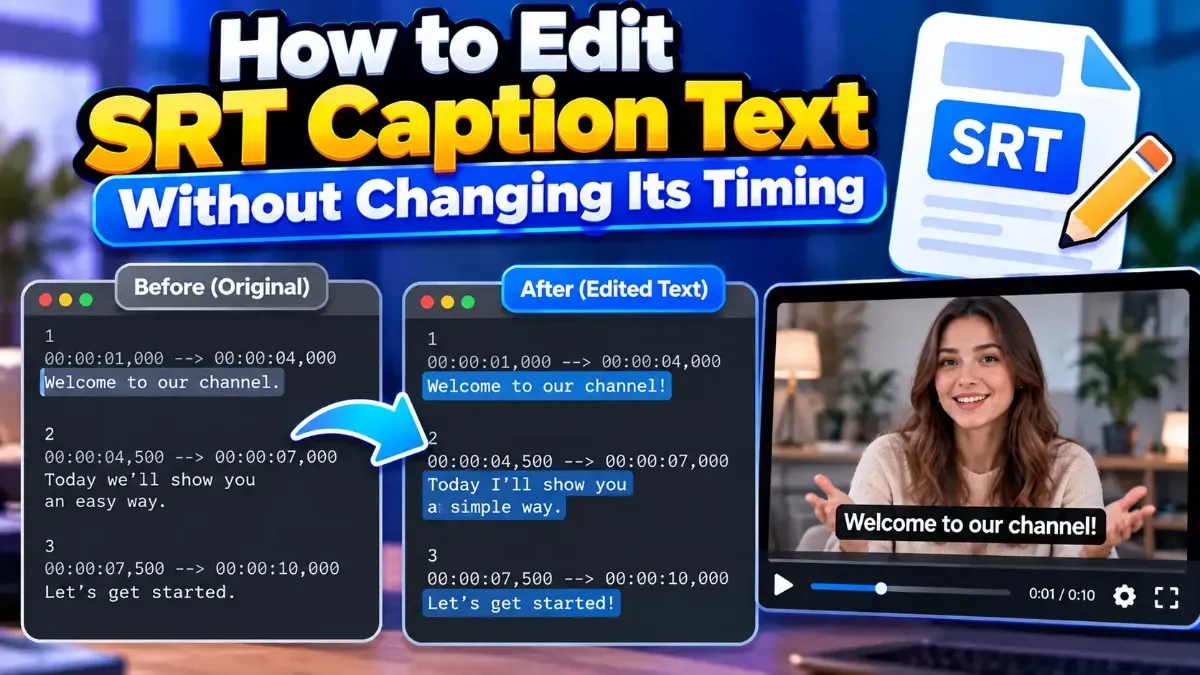
Learn how to edit SRT text without changing timing. Keep every cue’s timestamps intact while correcting captions, then check the file before using it with your video.
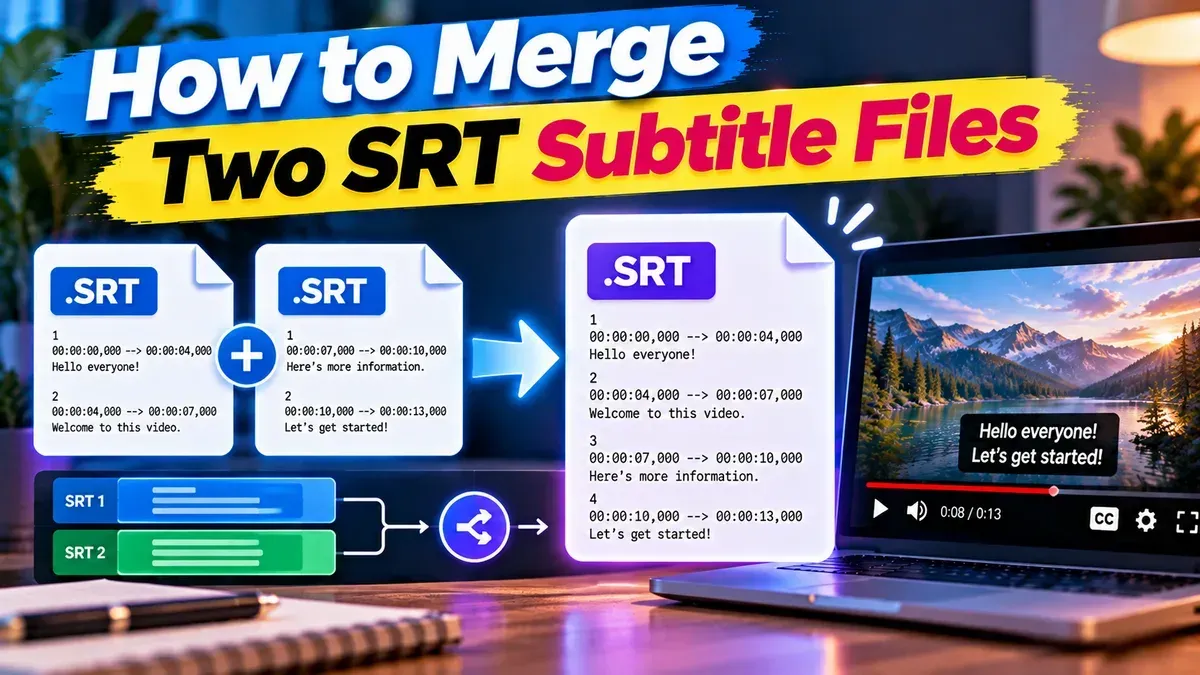
Learn how to merge two SRT subtitle files while keeping their timing intact. Find out how to handle cue order, overlaps, offsets, and common formatting issues.
Start typing to search tools and articles.