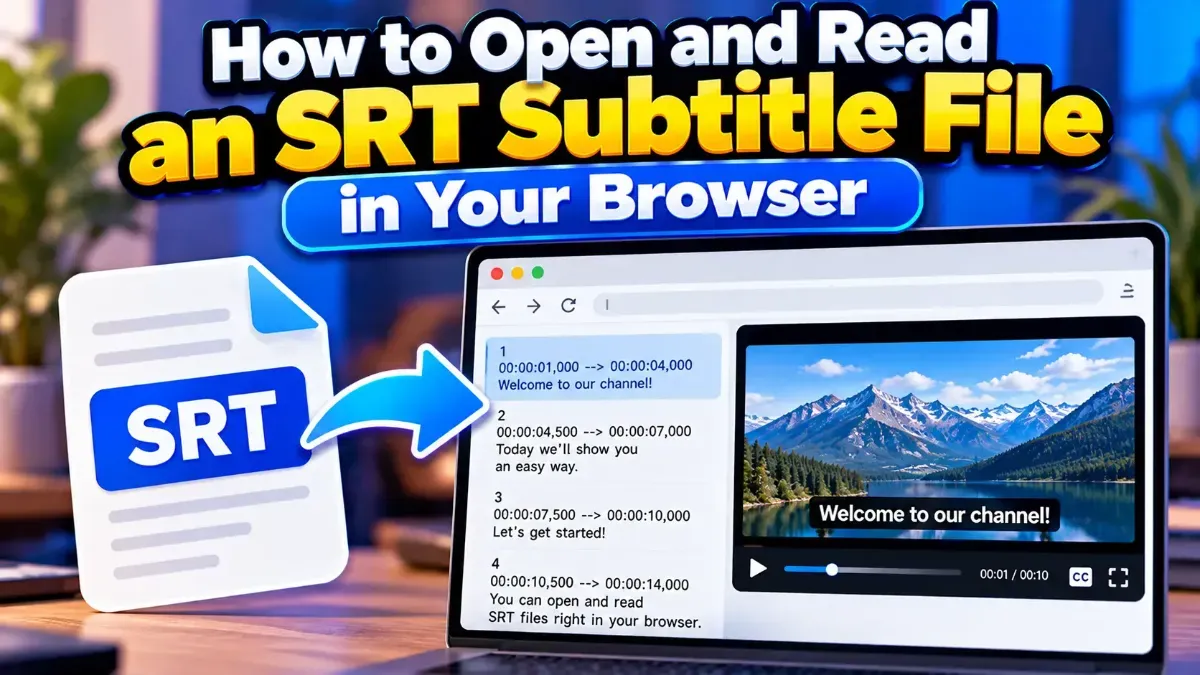
How to Open and Read an SRT Subtitle File in Your Browser
Learn how to open and read an SRT subtitle file in your browser, understand its timestamps and cues, and troubleshoot common formatting problems.
Remove timestamps and sequence numbers from an SRT file to create clean subtitle text. Learn the quickest browser-based method, manual options, and how to check your result.
 ToolCMB Team
6 min read
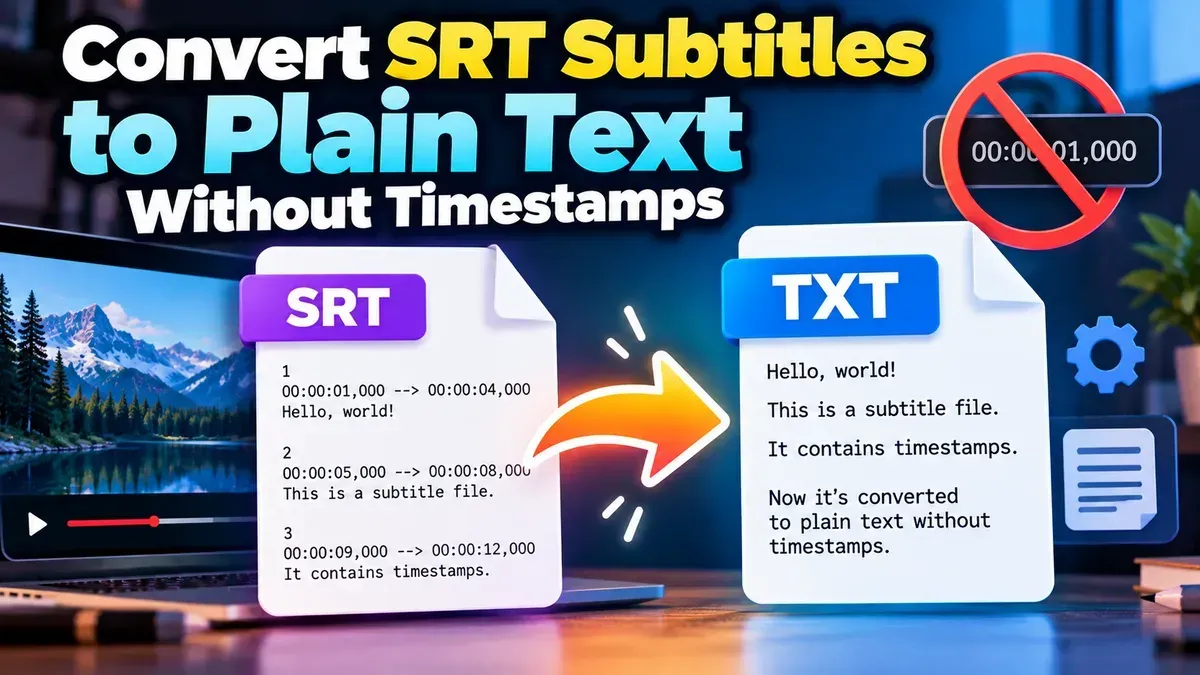
To convert SRT to text without timestamps, extract the subtitle lines and remove the sequence numbers and timecodes that organize them in the original file. A browser-based converter is usually the fastest option; you can also edit the file manually when you only have a few subtitle cues.
The result is a plain-text transcript that is easier to read, quote, search, or reuse in notes and documents. Before using it, check whether you want to keep speaker names, sound descriptions, or the original line breaks.
SRT, short for SubRip Subtitle, is a common subtitle format. It is made up of separate subtitle cues. A typical cue includes a sequence number, a start and end time, and one or more lines of subtitle text. A blank line usually separates it from the next cue.
1
00:00:02,400 --> 00:00:04,800
Welcome to the presentation.

2
00:00:05,100 --> 00:00:07,200
Let’s get started.
For a plain-text transcript, the useful content is usually the spoken wording. The numbers and time ranges help subtitle software display each cue at the right moment, but they are not normally needed in a reading copy.
A converter can separate subtitle wording from the timing information for you. ToolCMB’s SRT to TXT converter is designed to extract subtitle text from an SRT file and convert it to plain text in your browser.
ToolCMB describes its file tools as running in the browser, so your files stay on your device. If privacy matters, you can also check your browser’s address bar to confirm you are using the intended page and avoid pasting sensitive transcript content into unrelated services.
For a short subtitle file, you can create a transcript in a text editor. Open the SRT and work through each cue, keeping the subtitle lines while removing the cue number, time range, and blank separator. This is straightforward for a few entries, but it becomes tedious for long files and makes it easier to accidentally delete dialogue or leave behind a timecode.
Some text editors support find-and-replace or regular expressions, which can speed up cleanup. The exact expression depends on the editor and the file’s formatting, so test it on a copy and inspect the result before replacing content throughout the file. A converter is often simpler if you do not regularly use these features.
| Approach | Works well when | Things to check |
|---|---|---|
| Browser-based converter | You need a quick text version of a complete SRT file. | Review the output for tags, speaker labels, and line breaks. |
| Manual editing | The file is short or you need to select and rearrange specific lines. | Keep a backup and check that no dialogue was removed accidentally. |
| Editor find-and-replace | You understand the editor’s search patterns and have many files to clean. | Test on a duplicate first; patterns may not match every SRT consistently. |
Removing timestamps is only part of preparing a useful transcript. SRT files may contain extra material that you may or may not want in the final text.
A plain-text transcript is not automatically a verified transcript. Subtitles may contain transcription errors, edited wording, or accessibility descriptions, so proofread important material against the video or another trusted source.
Text without timing information is useful when the precise on-screen timing is no longer needed. You might want to search for a phrase, collect dialogue for research or class notes, prepare a draft transcript, or make quoted passages easier to copy into a document.
It can also help with editing. A readable text copy makes it simpler to scan the wording and spot awkward phrasing, repeated lines, or potential transcription mistakes. If you later need subtitles synchronized with a video, keep the original SRT: the plain-text version does not preserve the cue timings needed for subtitle playback.
For a quick conversion, use the SRT to TXT tool, then review the output for the details that matter to your project. Keeping the original file alongside the cleaned text gives you a source to return to if you need the timing or formatting again.
Yes. The purpose of converting to plain text is to keep the subtitle wording while leaving out SRT cue numbers and time ranges. Review the converted file to confirm it contains what you need.
A conversion creates a text version; it does not mean you should discard your source file. Keep the original SRT if you might need its timing, cue order, or formatting later.
Yes. Open a copy in a text editor and remove each cue number and time range while preserving the subtitle lines. This is practical for short files, but can take longer for large ones.
They may be included as part of the subtitle content or its markup. Decide whether those details are useful, then remove or edit them in your text editor if needed.
Not by itself. Plain text does not retain the cue timings needed for synchronized subtitles. Use the original SRT, or create a correctly timed subtitle file if you need captions for video playback.
We build fast, free and private browser tools — and write practical guides on how to use them.
Learn how to open and read an SRT subtitle file in your browser, understand its timestamps and cues, and troubleshoot common formatting problems.
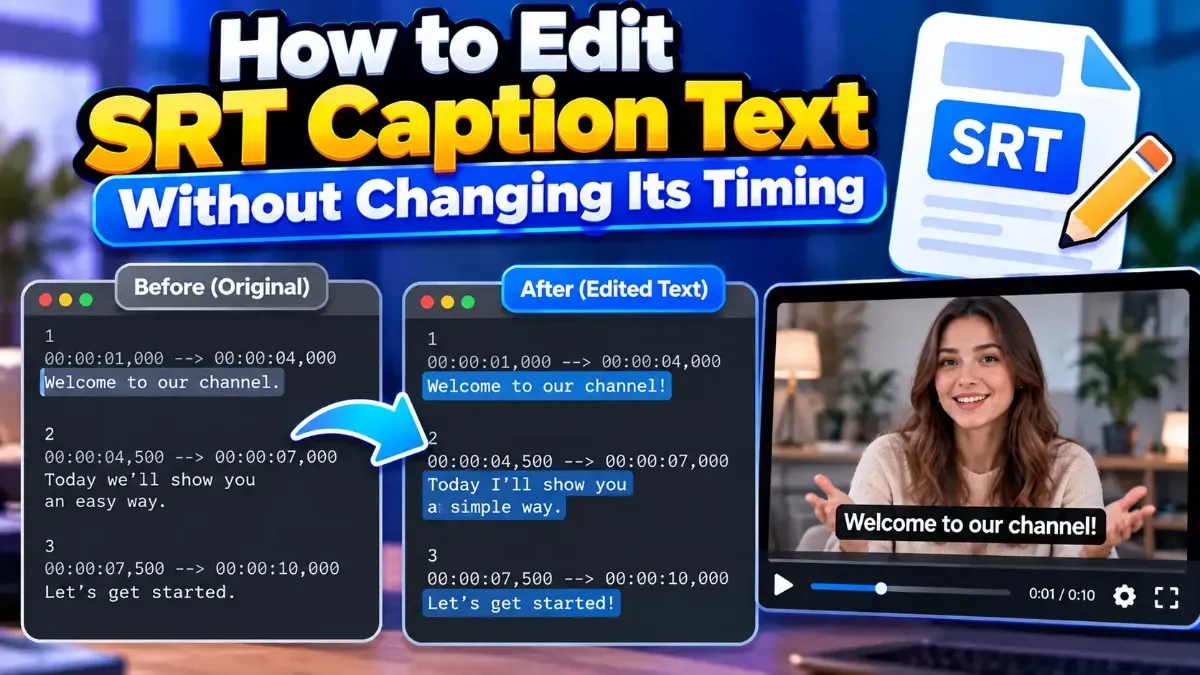
Learn how to edit SRT text without changing timing. Keep every cue’s timestamps intact while correcting captions, then check the file before using it with your video.
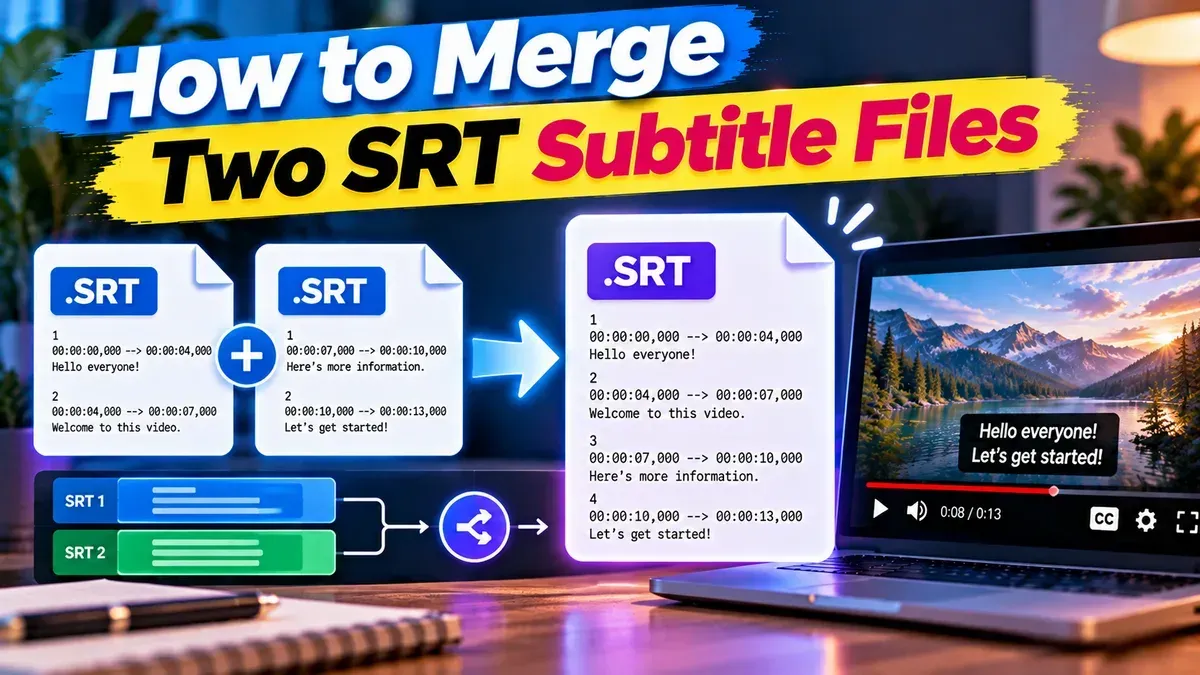
Learn how to merge two SRT subtitle files while keeping their timing intact. Find out how to handle cue order, overlaps, offsets, and common formatting issues.
Start typing to search tools and articles.